InsightfulPipe publishes this guide, and the steps use its hosted Google Ads MCP server.
Last updated: 2026-10-21
Short answer: InsightfulPipe's hosted Google Ads MCP server connects to ChatGPT with one URL. Connect Google Ads in InsightfulPipe, then in ChatGPT go to Plugins, click Add, choose Add custom MCP server and paste https://google-ads.insightfulmcp.com/. Sign in to InsightfulPipe if asked, click Authorize access, then type @ in a chat. You need no Google Cloud project, API access approval or OAuth client of your own. Plans start from $29.99 a month.
Google Ads MCP server for ChatGPT: the quick version
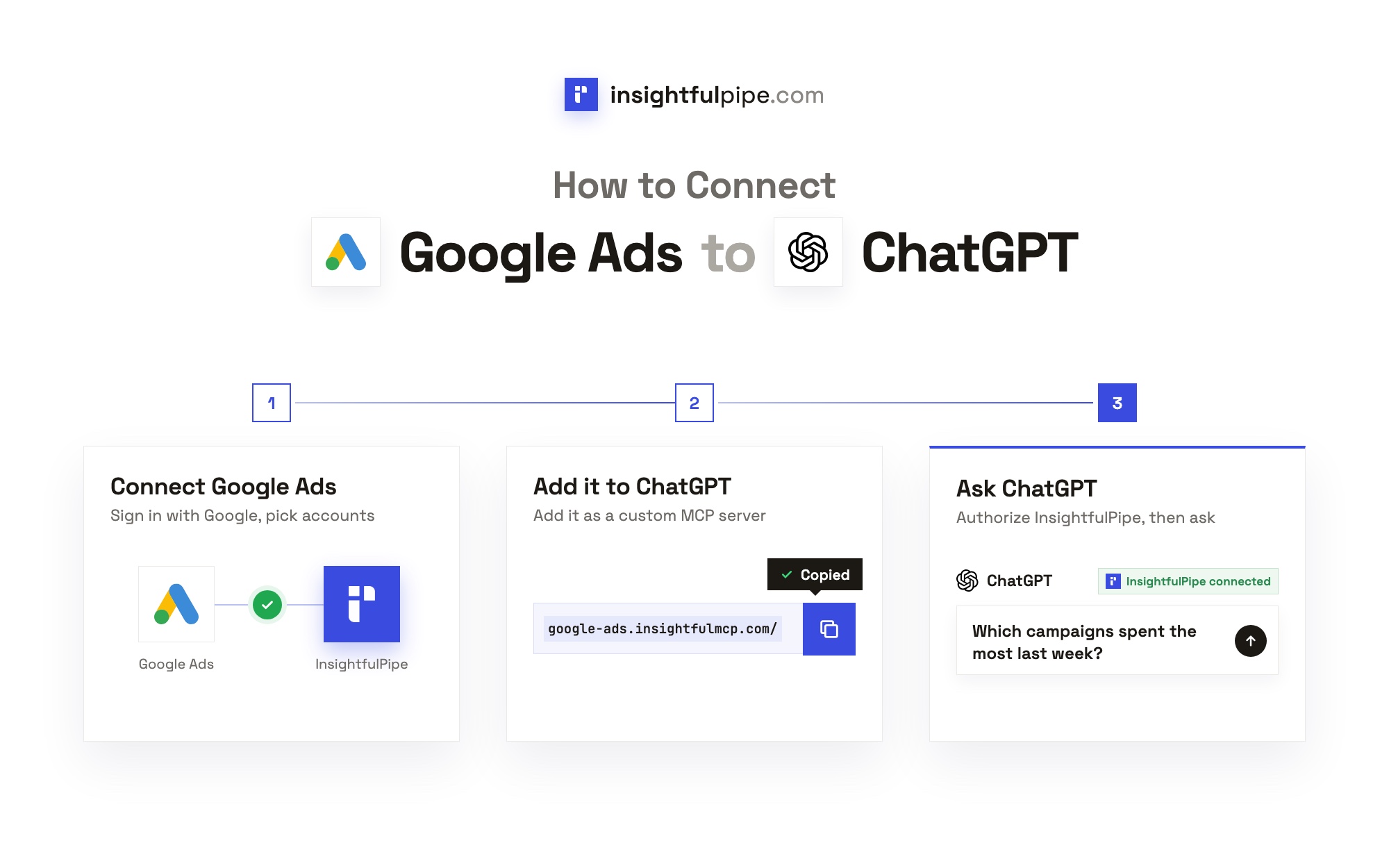
Six steps take you from a Google sign-in to a first question in ChatGPT. Each step has its own section below, with the labels you will see on screen.
- In InsightfulPipe, open Connected accounts, click Connect account and choose Google Ads.
- Pick Read-only or Read & write, click Continue with Google Ads and select your accounts.
- In ChatGPT, go to Plugins, click Add, then Add custom MCP server.
- Name it Google Ads, paste
https://google-ads.insightfulmcp.com/under Connection, keep OAuth, tick I understand and want to continue and click Create as a plugin. - When the sign-in opens, sign in to InsightfulPipe if asked, and click Authorize access.
- In a new chat, type
@and pick Google Ads.
Want every platform you connected, not only Google Ads? Install InsightfulPipe from the ChatGPT Plugins directory instead of steps 3 and 4. It connects the full InsightfulPipe MCP server in one click.
Watch: ChatGPT builds a Google Ads campaign through the InsightfulPipe MCP server (1 min 58 s)
The video shows an earlier version of ChatGPT's setup screens. Follow the steps in this article for the current route.
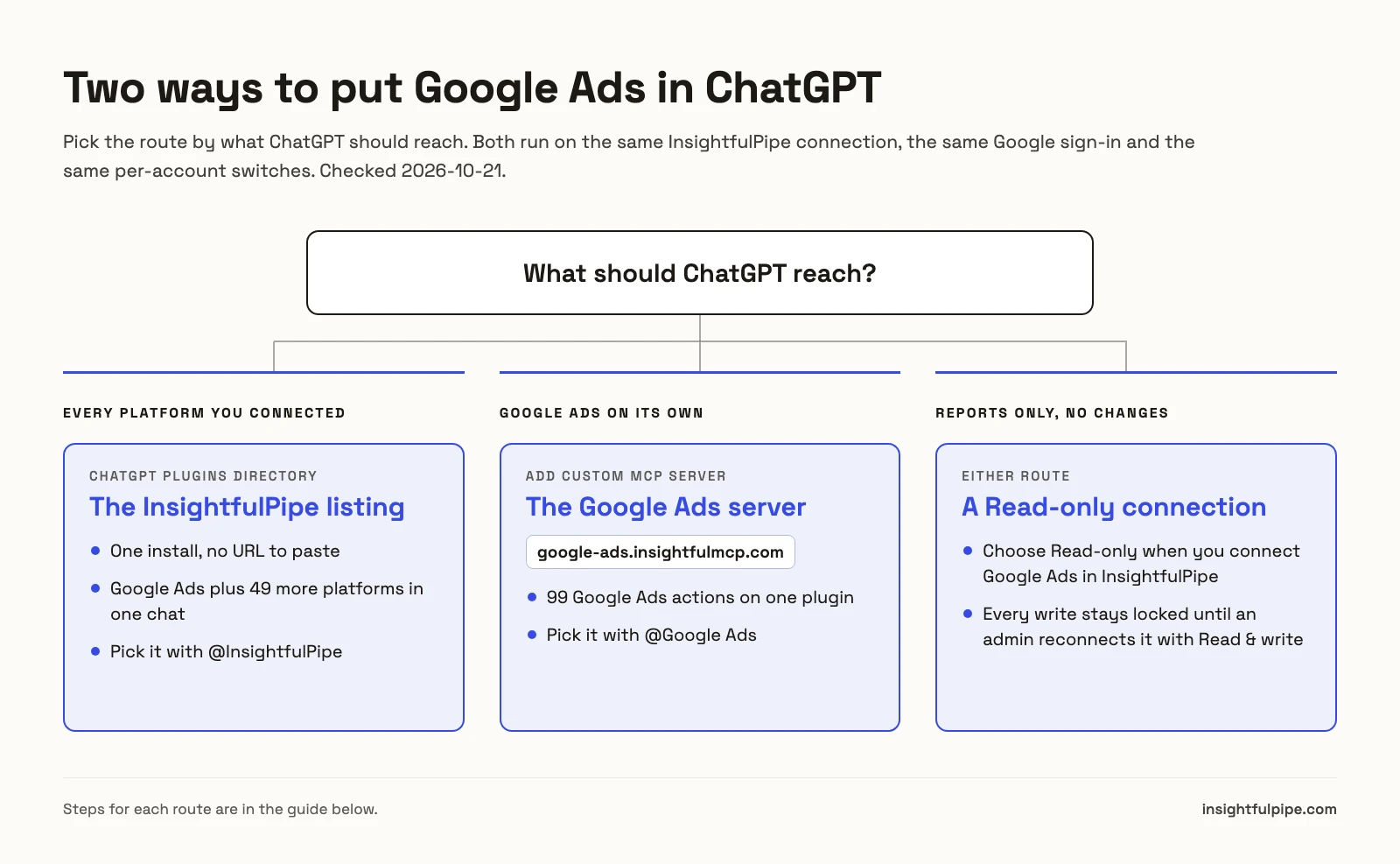
InsightfulPipe listing | InsightfulPipe Google Ads URL | Google's official server | |
|---|---|---|---|
What you add in ChatGPT | The InsightfulPipe plugin from the directory |
| A copy you deploy to Cloud Run yourself |
Hosting | Hosted, nothing to install | Hosted, nothing to install | Cloud Run you deploy and maintain |
Google sign-in | Through InsightfulPipe | Through InsightfulPipe | Your own Web OAuth client and consent screen |
Google Ads actions | 99: 37 read, 59 write, 3 destructive | 99: 37 read, 59 write, 3 destructive | 3 tools, all read-only |
Other platforms | Google Ads only | Google Ads only | |
Price | From $29.99 a month | From $29.99 a month | Open source, plus your Cloud Run costs |
What you are actually connecting
You connect ChatGPT to InsightfulPipe's hosted Google Ads MCP server, and that server to the Google Ads accounts you authorize. The whole path fits on one line:
ChatGPT → InsightfulPipe Google Ads MCP server → your authorized Google Ads accounts
ChatGPT never sees your Google password. It sends a request over the Model Context Protocol (MCP), and InsightfulPipe runs the matching Google Ads API call with the OAuth access you granted. Reports run as GAQL through Google's search stream, which cannot change data. Changes go through a separate tool, execute_action. That split is how MCP differs from calling the API directly.
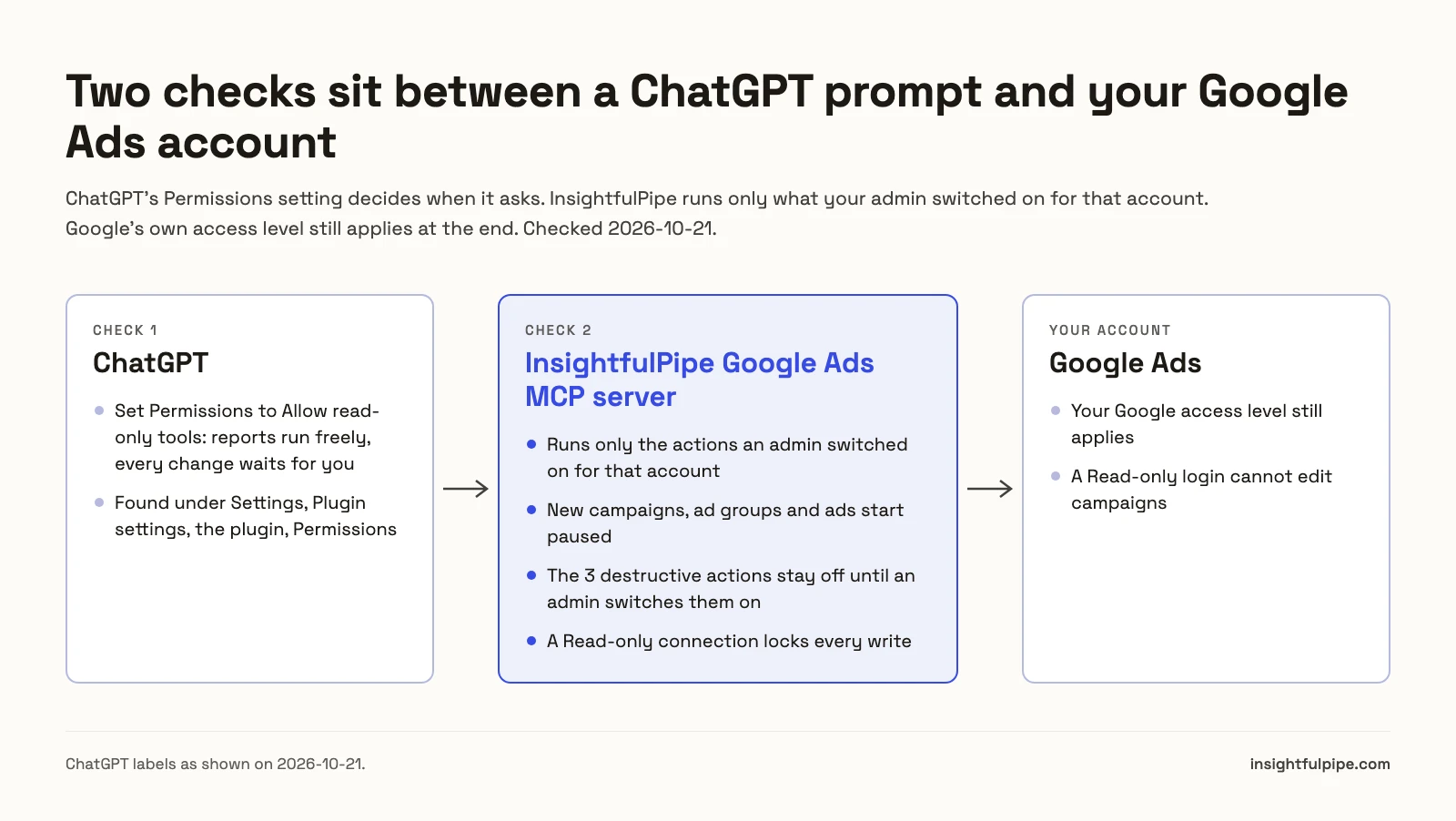
Two approval layers sit on that path. In ChatGPT, the plugin's Permissions setting decides when ChatGPT asks before it uses a tool (OpenAI, checked 2026-10-21). InsightfulPipe adds the switches your admin sets for each account. You need no Google Cloud project, OAuth client or server to host.
Before you connect Google Ads to ChatGPT
You need four things: access to the Google Ads account, an InsightfulPipe workspace, a workspace role that can connect accounts, and ChatGPT on the web with custom MCP servers allowed.
- Google Ads access. A Google login that can open the account, or the manager (MCC) account above it.
- An InsightfulPipe workspace. Plans start from $29.99 a month. Starter includes 8 connections, and each Google Ads account counts as one. Start a trial from the pricing page.
- A role that can connect. Owners, Administrators and Operators connect accounts and set their actions. See workspace roles and permissions.
- ChatGPT on the web. Custom MCP servers are added in ChatGPT on the web. In a Business or Enterprise workspace, an admin decides who may add them. Our ChatGPT setup guide covers both routes.
Google's own access levels still apply. Its access levels page lists Email-only, Billing, Read-only, Standard and Admin. Read-only can view campaigns and run reports but cannot edit campaigns. Standard and Admin can. InsightfulPipe cannot expand the authority of the Google login you connect.
Step 1: Connect Google Ads in InsightfulPipe
Step 1 links your Google Ads accounts to your InsightfulPipe workspace. You choose how far ChatGPT may go before you sign in with Google.
- Open Connected accounts and click Connect account.
- In Add an integration, find Google Ads and click Connect.
- Choose Read-only or Read & write. The list underneath shows what each allows.
- Click Continue with Google Ads.
- Sign in with Google and approve access.
- Select the accounts to connect, including client accounts under a manager.
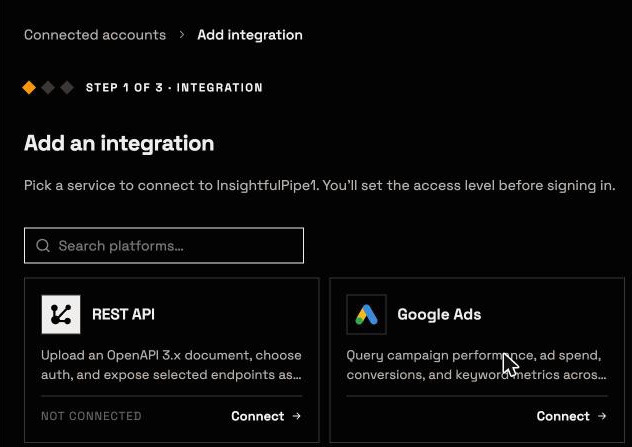
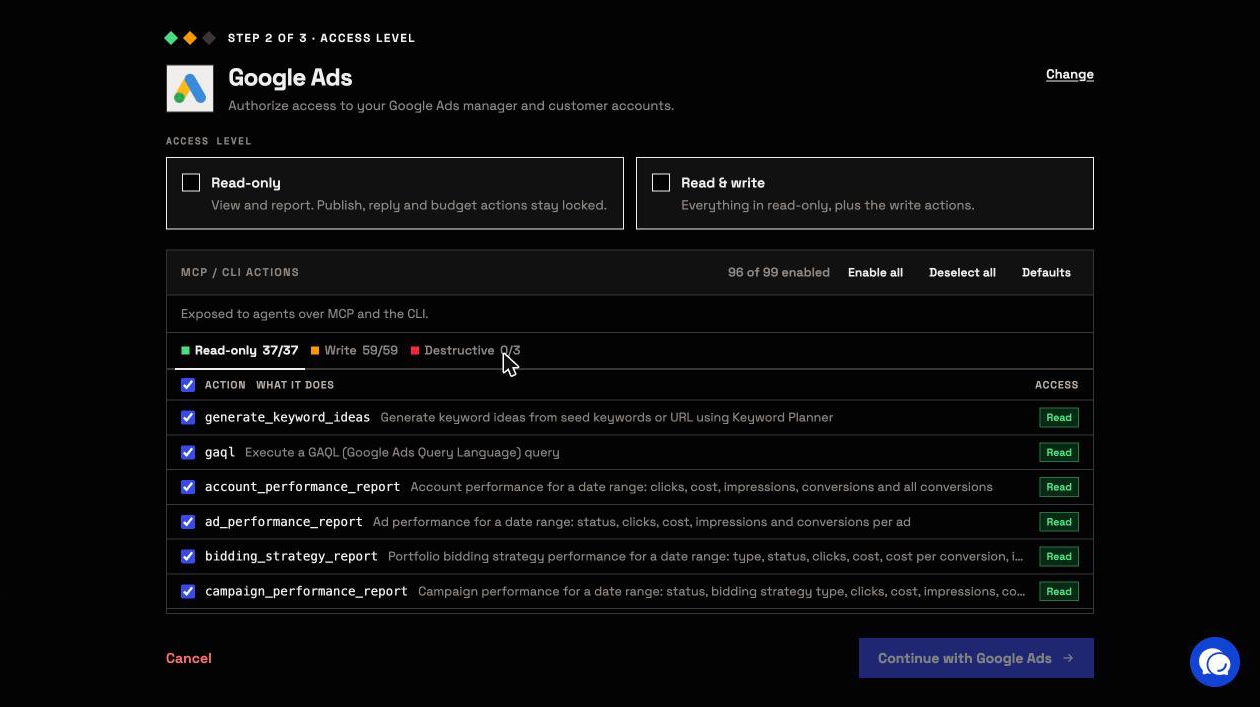
Each account becomes its own connection, with its own access badge and switches. Google Ads uses one OAuth scope for reading and changing, so InsightfulPipe enforces Read-only on its own server. A Read-only connection locks every write until an admin reconnects it with Read & write.
For a manager account, pick client accounts from the list rather than typing an ID. Each listed account is stored with its manager, so requests carry the right login-customer-id header. The Google Ads connector reference lists the endpoint and actions.
Step 2 (fastest): Install InsightfulPipe from the ChatGPT Plugins directory
The directory listing is the one-click route. It connects the full InsightfulPipe server, so ChatGPT reaches Google Ads and every other platform your workspace connected, through one sign-in.
- In ChatGPT on the web, open Plugins.
- Search for InsightfulPipe and open its listing, or click Open in ChatGPT on any InsightfulPipe MCP page.
- Click Install plugin.
- Sign in to InsightfulPipe if asked, then click Authorize access.
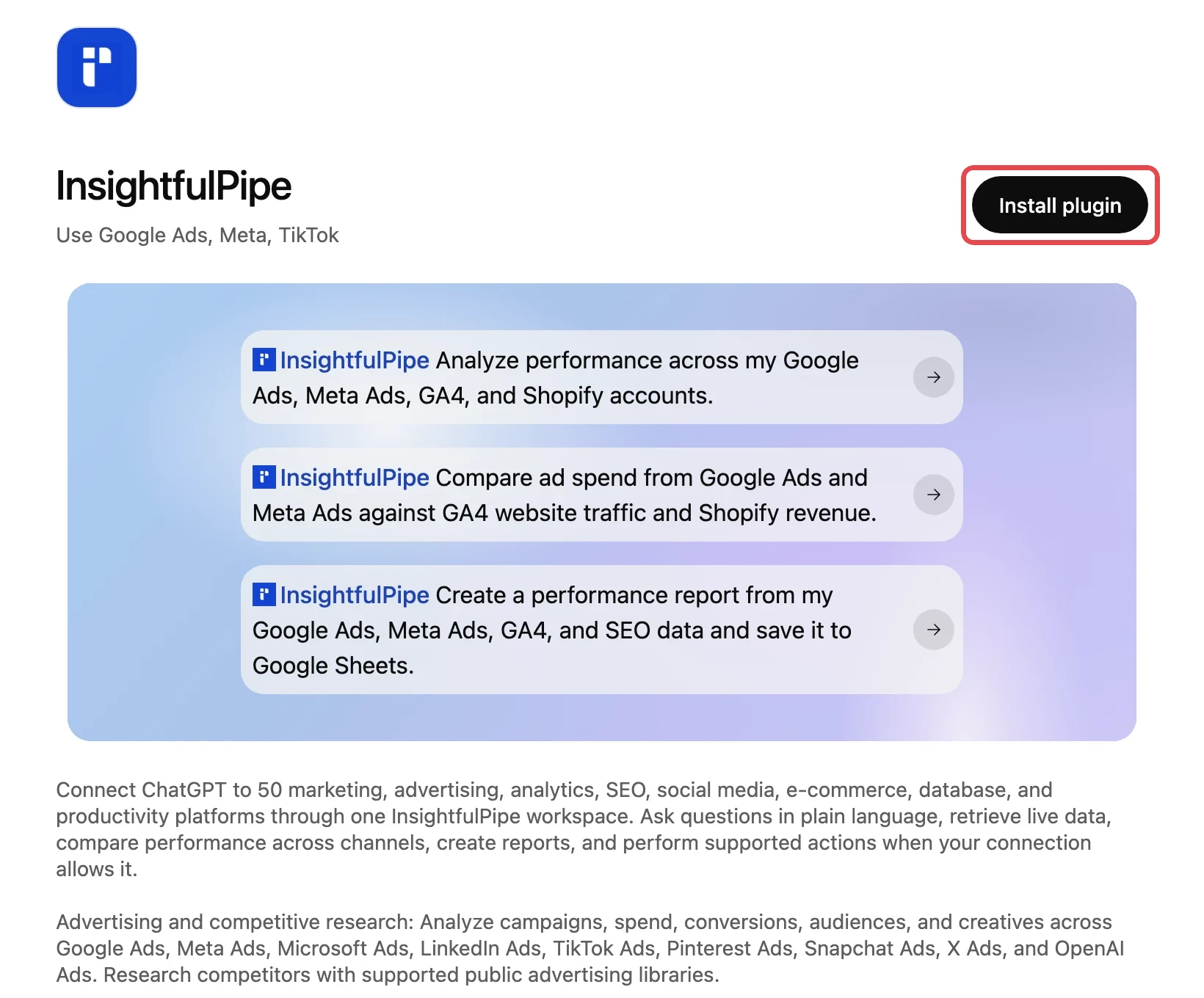
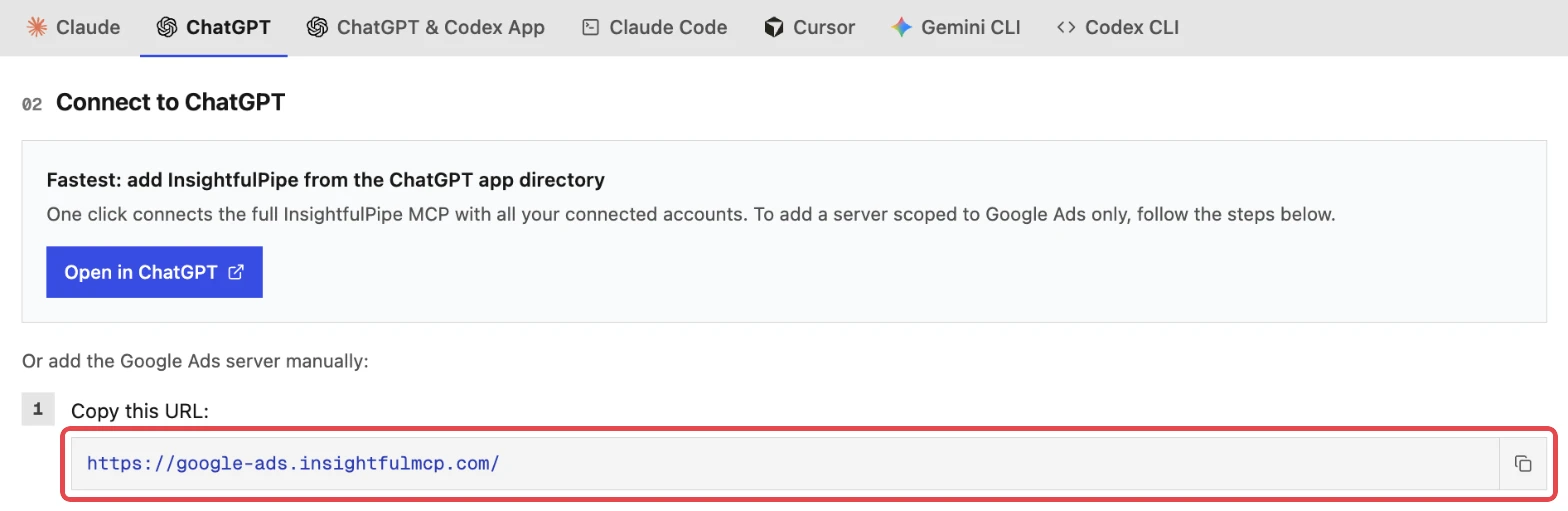
For Google Ads alone, with its own name in the @ menu, use Step 3 instead.
Step 3: Or add the Google Ads server as a custom MCP server
A custom MCP server gives ChatGPT the Google Ads server on its own. You paste one URL, and the sign-in runs through InsightfulPipe.
- Copy the server URL,
https://google-ads.insightfulmcp.com/. It is on the Google Ads page under MCP Servers in the app. - In ChatGPT, go to Plugins, click Add, then Add custom MCP server.
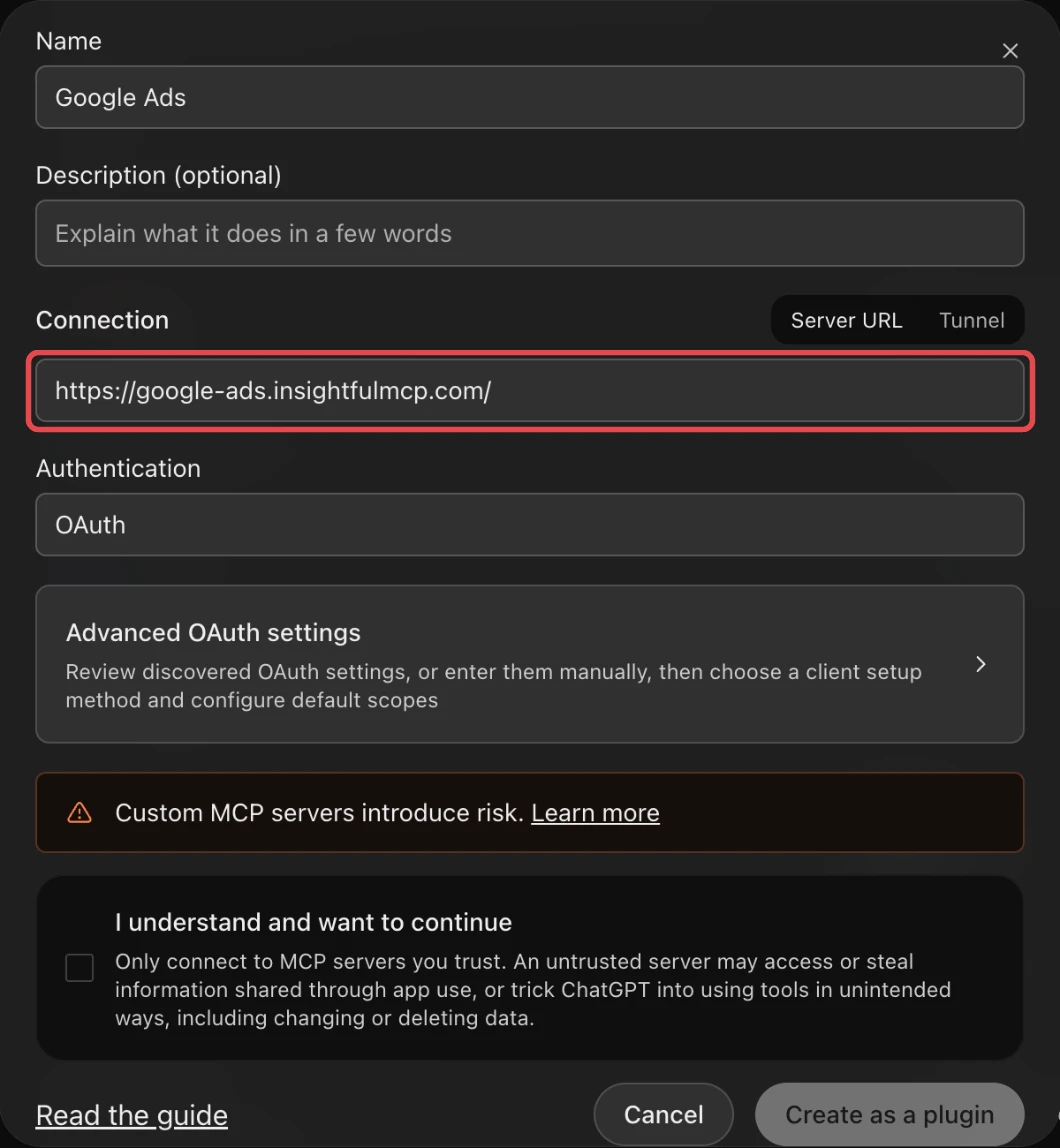
- Enter the name Google Ads.
- Under Connection, paste the URL as the Server URL.
- Leave Authentication on OAuth.
- Review the warning, select I understand and want to continue, then Create as a plugin.
- When the sign-in opens, sign in to InsightfulPipe if asked, and click Authorize access.
Each time you connect, InsightfulPipe shows a Grant access page. It names the app asking and where its access goes, and lists Your accounts and Requested permissions. Click Authorize access, and ChatGPT reaches only the Google Ads accounts your workspace connected and granted to you. In a Business or Enterprise workspace, an admin decides who may add custom MCP servers.
Step 4: Use Google Ads in a ChatGPT chat
ChatGPT calls an installed plugin when a request needs it, and the @ menu picks it outright. Picking it keeps ChatGPT off web search for account questions.
- Start a new chat.
- Type
@in the prompt box. - Pick Google Ads, or InsightfulPipe if you installed the listing.
- Name the Google Ads account in your request, by name or customer ID.
Be explicit, as OpenAI advises. For example: "Use the Google Ads plugin's query_data tool for this, and do not use web search." That keeps the answer on your live data.
Step 5: Choose which actions ChatGPT may run
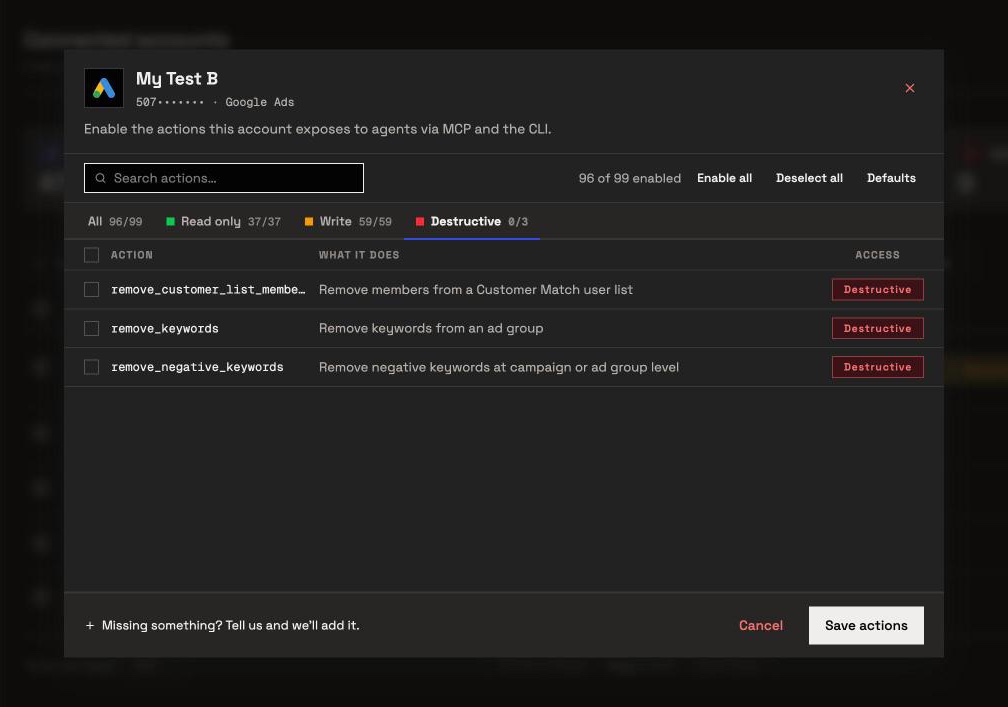
Step 5 decides, account by account, which of the 99 Google Ads actions ChatGPT can use. A new Read & write connection starts with 96 of 99 on: every read and write action, with the 3 destructive actions off.
- In InsightfulPipe, open Connected accounts.
- On the account's row, click the actions button, such as 96/99 actions.
- Use the All, Read only, Write and Destructive tabs to switch actions on or off.
- Click Save actions.
Only an owner, admin or operator can change these switches, at any time. The server refuses a switched-off action in every AI client and tells the assistant: "This action is disabled for this connected account. An owner or admin must enable it for the account."
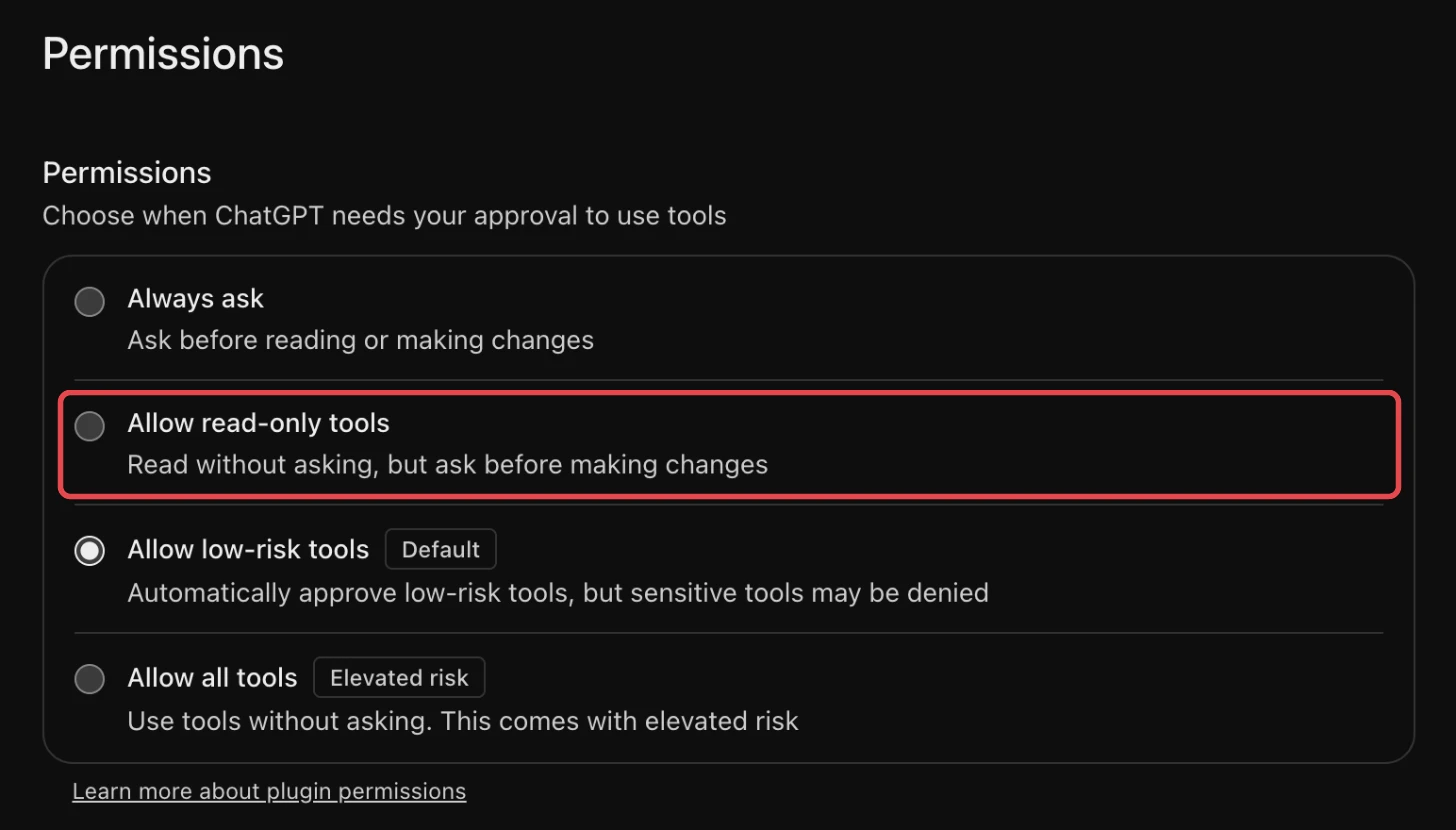
ChatGPT has its own layer. Open Settings > Plugin settings, pick the plugin and open Permissions. The choices are Always ask, Allow read-only tools, Allow low-risk tools (the default) and Allow all tools. Choose Allow read-only tools: reports run without a prompt, and ChatGPT asks before every change (OpenAI).
Verify it worked
Three checks, shortest first, confirm the connection without changing anything in Google Ads.
1. The plugin is installed. In a new chat, type @ and find Google Ads in the list.
2. A prompt that cannot do harm. Paste this as it is. Its last line tells ChatGPT to leave everything alone.
Use the Google Ads plugin.
List the Google Ads accounts available to this connection.
Return the account name, customer ID, currency, and status.
Do not run a report and do not change anything.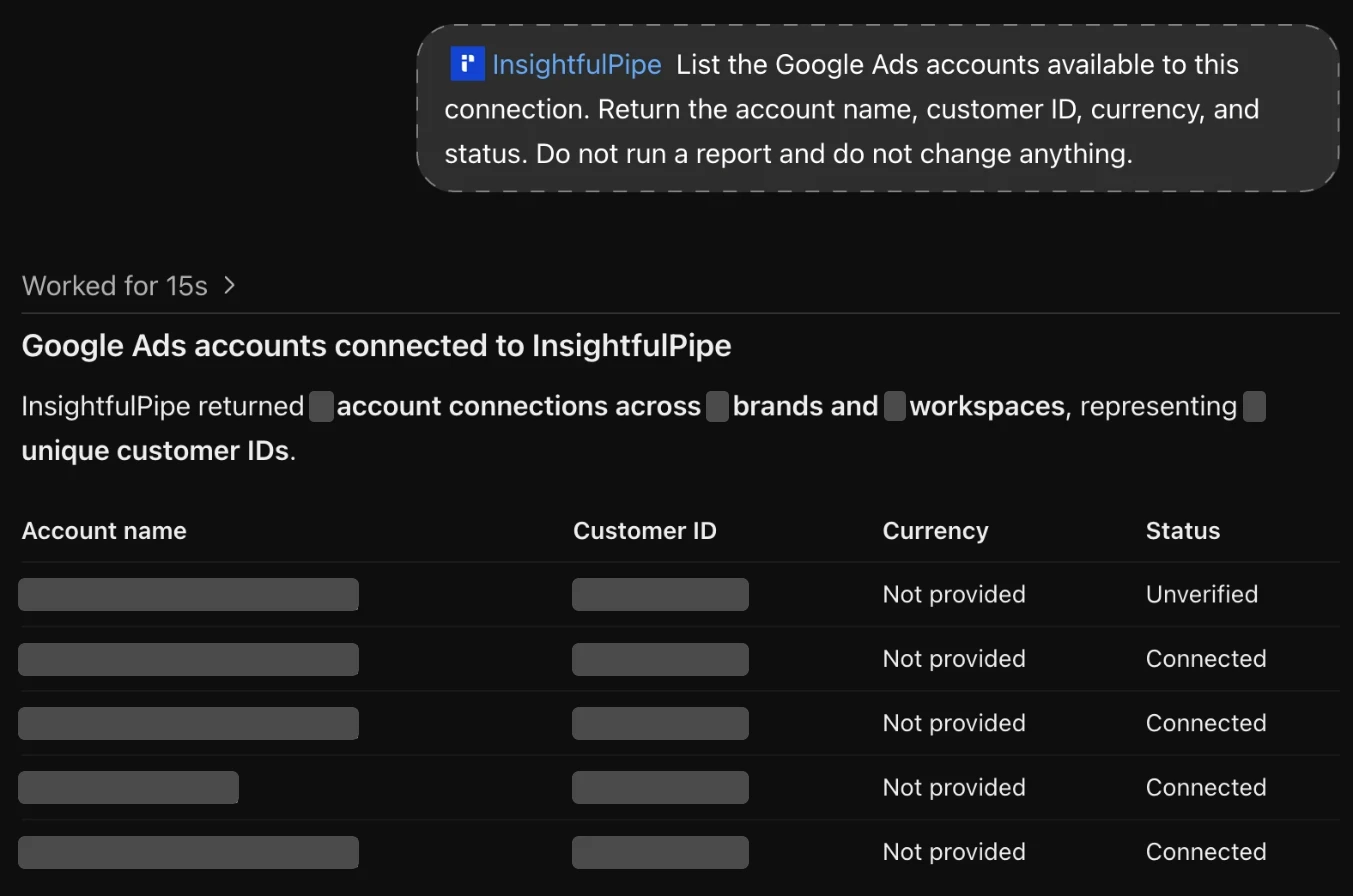
3. A real read. Ask for last week's cost by campaign, then compare one number with Google Ads for the same dates. If they disagree, check the date range and the account's time zone first. If check 1 or 2 fails, see Troubleshooting below.
Prompts to run first
Start with reads that answer a real question, then one change that stays paused. Name the account first: each request works on one account.
Prompt | What ChatGPT runs |
|---|---|
"What was ROAS by campaign over the last 30 days?" | A GAQL report of cost and conversion value per campaign |
"Which search terms spent over $50 last month without a conversion?" |
|
"Generate 30 keyword ideas for 'running shoes' in the United States" |
|
"Create a paused Search campaign for our spring sale with a $50 daily budget" |
|
Two prompts to paste as they are:
Use the Google Ads plugin and account [CUSTOMER_ID].

Compare the last 30 complete days with the previous 30 complete days.
Break the report down by campaign.
Include cost, impressions, clicks, conversions, cost per conversion and conversion value.
Use the Google Ads plugin and account [CUSTOMER_ID].
List every search term from the last 14 days with more than [SPEND] in cost and zero conversions.
Group them by campaign and ad group.
Propose them as negative keywords, but do not add anything yet.The prompt library and the Google Ads Claude skills are free to use, and the prompts work in ChatGPT as written. 50 Google Ads prompts goes further.
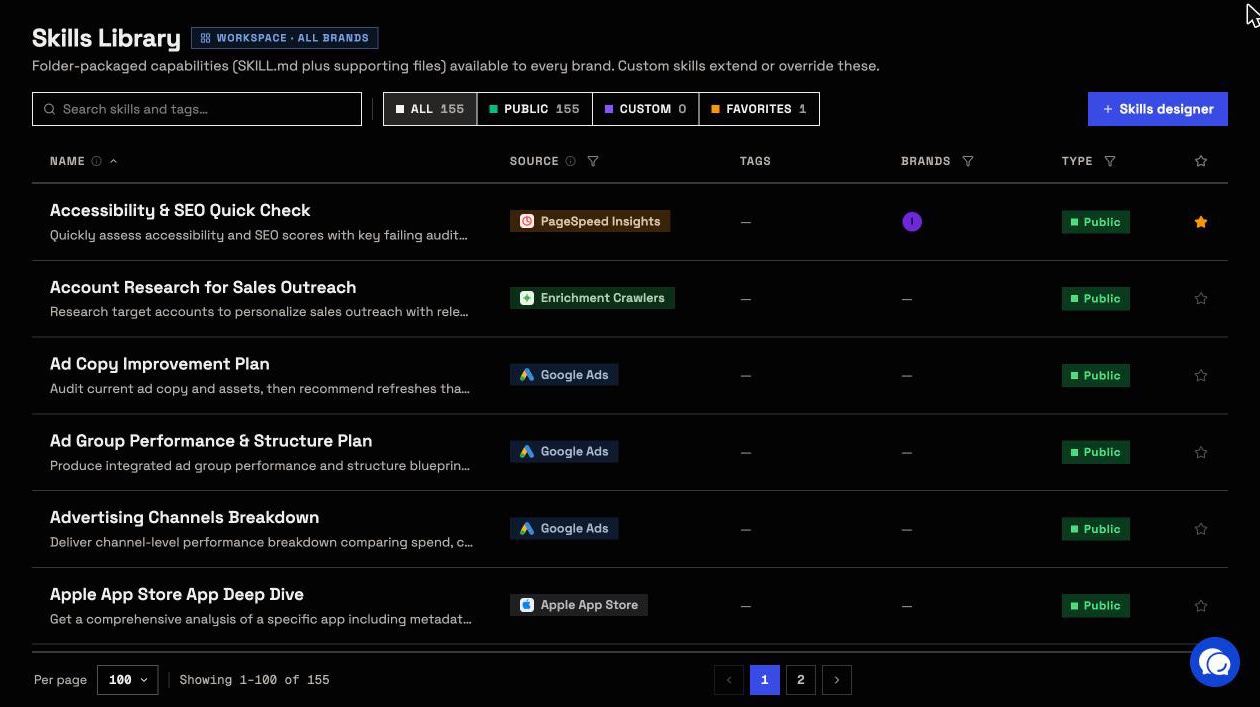
Claude skills package a whole job. The search term audit skill runs the second prompt in one go.
What ChatGPT may change in Google Ads, and who decides
ChatGPT can use only the actions an admin has switched on for that account. That makes InsightfulPipe the safest way to let an AI agent like ChatGPT change a Google Ads account: each limit below is a switch, and your admin decides where it sits.
- 99 actions: 37 read, 59 write, 3 destructive. Creation covers Search, Display, Performance Max, Dynamic Search Ads and App campaigns.
- New campaigns, ad groups and ads start paused, for you to set live when they are ready. A request for ENABLED still gets PAUSED.
- Keywords, negative keywords and conversion actions go in enabled, and so can a Performance Max asset group. An admin can switch those add actions off per account.
- Setting something live is an update.
update_campaign,update_ad_group,update_adandupdate_asset_groupaccept ENABLED, PAUSED or REMOVED, Google's permanent removal.resume_adandresume_ad_groupset ENABLED. These start on for Read & write, and an admin can switch them off for any account. - ChatGPT is told to ask you before it sets anything live or removes anything. With the plugin's Permissions on Allow read-only tools, ChatGPT also asks before every change.
- Destructive actions stay off until an admin switches them on:
remove_keywords,remove_negative_keywordsandremove_customer_list_members. Campaigns, ad groups, ads and budgets have no delete action, so removal runs through the update switches. - Budgets and bids go to Google as you state them. A missing bid target gets a default: a $10 target CPA, a 3.0 target ROAS, or a 50% impression share target with a $10 CPC ceiling.
- Roles hold. The User role runs only enabled reads. Writes need an operator, admin or owner.
Plan budget changes with the Google Ads budget pacing guide. Start a trial to set these switches on your own accounts.
Troubleshooting
Most failures come from an account nobody granted or an action switched off for that account. The MCP troubleshooting guide lists more error messages and fixes.
- There is no Add custom MCP server option. Use ChatGPT on the web. In a Business or Enterprise workspace, an admin controls who may add custom MCP servers. The Plugins directory listing still works where custom servers are off.
- "No accessible accounts" on the Grant access page. No Google Ads account in your workspace is yours to use yet, so Authorize access stays greyed out. Finish Step 1, or ask an owner or admin for access, then connect again.
- ChatGPT answers from the web instead of your account. Pick the plugin with
@and add "do not use web search" to the prompt. - "This action is disabled for this connected account. An owner or admin must enable it for the account." An owner, admin or operator can switch it on for that account.
- "This account is connected read-only, so this action cannot be enabled for it. An owner or admin must reconnect it with Read & Write permissions." Reconnect the account and choose Read & write.
- "Your role does not have permission to execute write actions. Only operators, admins, and owners can execute write operations." Your role is User. An owner or admin can change it.
- "You do not have access to this account. Contact your workspace admin to grant access." An owner or admin can grant you that account.
- The report is empty. Try a wider date range and remove optional filters. An empty report is not always an authentication problem.
Google's official Google Ads MCP server and ChatGPT
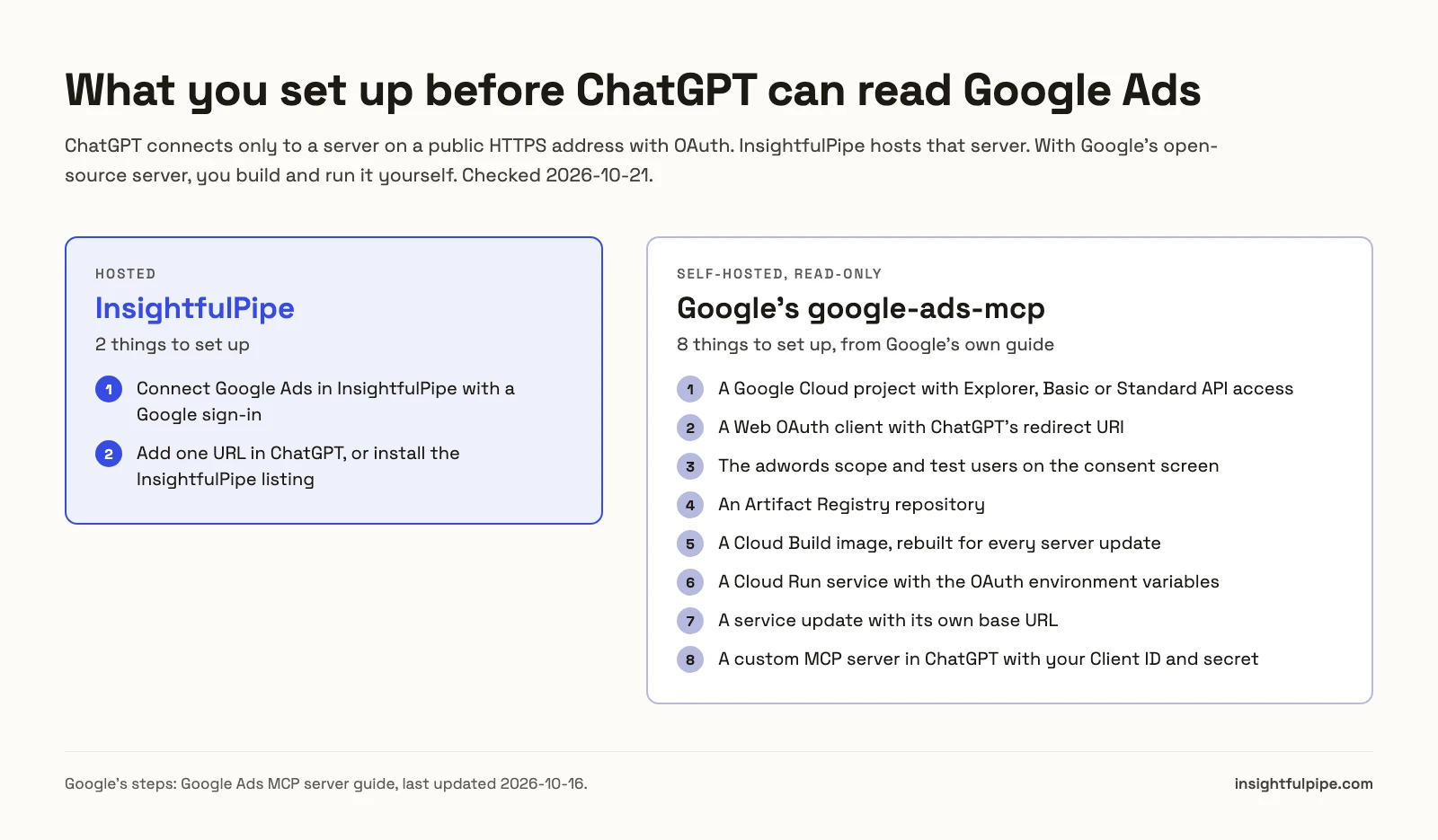
Google publishes its own server, google-ads-mcp, and many AI answers to this question describe it. It is open source under Apache-2.0, reads only, and you host it yourself. For ChatGPT, the hosting is the hard part.
- Read-only. Google's guide lists its mode as "Read-only (current release)". It "cannot modify bids, pause campaigns, or create new assets".
- Three tools:
searchfor GAQL,get_resource_metadataandlist_accessible_customers. No Keyword Planner. - Access. A Google Cloud project with Explorer, Basic or Standard API access, plus an OAuth client or Application Default Credentials. Google sunset developer tokens on September 9, 2026.
- Release. v0.0.5, October 9, 2026 (releases).
ChatGPT connects only to a server on a public HTTPS address, so the default local install through pipx cannot plug in. Google's guide has you deploy it to Cloud Run first, with your own Web OAuth client, ChatGPT's redirect URI, the adwords scope on your consent screen, test users, a Cloud Build image and an Artifact Registry repository, before ChatGPT can add it with your own client ID and secret.
Google's hosted endpoint is a pilot for allowlisted participants. Its server reads only, and someone has to deploy and maintain it. InsightfulPipe runs hosted in ChatGPT with one URL, and makes changes within switches your admin sets per account.
The best Google Ads MCP servers compares 12 servers from each vendor's own documentation, and the best MCP servers for marketing covers every platform.
Claude, Claude Code, Codex and Cursor
The same server URL works in every client that supports remote MCP servers, and the same account switches apply in each. Each client finishes with the same InsightfulPipe sign-in and Authorize access step.
- Claude. How to connect Google Ads to Claude walks it step by step.
- Claude Code. One command, then
/mcpto sign in. See Claude Code for marketing data. - Codex. The ChatGPT Plugins listing works in Codex too, or see the Codex CLI setup guide.
- Cursor. Use the install link on the Google Ads MCP page.
claude mcp add --transport http google-ads-mcp https://google-ads.insightfulmcp.com/
codex mcp add google-ads-mcp --url https://google-ads.insightfulmcp.com/
For scripted reports, the InsightfulPipe agentic CLI reaches the same accounts from the terminal.
Frequently asked questions
Sources (checked 2026-10-21)
We checked each third-party claim on its own page on 2026-10-21, and took our action counts from the Google Ads MCP page.