InsightfulPipe publishes this guide, and the daily check runs on its hosted Google Ads connector. Google's own budget report and the other ways to track pacing come near the end.
Last updated: 2026-10-02
Short answer: Google Ads budget pacing compares month-to-date spend with what your plan expects by today. Pacing % is spend so far divided by expected spend, times 100. To track it every day with Claude, connect Google Ads in InsightfulPipe, add its Google Ads MCP server, https://google-ads.insightfulmcp.com/, as a custom connector, and schedule one read-only prompt each morning. Plans start from $29.99 a month.
Track Google Ads budget pacing in Claude: the quick version
Six steps take you from a connected account to a pacing table every morning. Each step has its own section below, with the exact prompt.
- In InsightfulPipe, open Connected accounts and connect Google Ads as Read-only.
- In Claude, open Customize > Connectors and add
https://google-ads.insightfulmcp.com/as a custom connector. - In a new chat, switch the Google Ads connector on.
- Paste the pacing prompt from step 3 with your monthly plan.
- Check one campaign against Google's budget report.
- Schedule the prompt for every weekday morning.
Four ways to check pacing, at a glance
Four routes cover most teams, and they differ on what they pace against, what they cover and whether they can act.
Route | Paces against | Covers | Runs each day by itself | Can change budgets |
|---|---|---|---|---|
Claude with InsightfulPipe | Your plan, per campaign, shared budget or account | Every connected account, manager clients included | Yes, as a scheduled task or CLI job | Yes, through |
Google's budget report and pacing insights | Google's limit: 30.4 x the daily budget | One account; the budget report skips Performance Max | No, you open them | You edit budgets yourself |
Spreadsheet or Data Studio | Your plan, typed in | Accounts you connect | Data Studio emails a report on a schedule | No |
Google Ads scripts | Your plan, in your JavaScript | Accounts the script reads | Yes: once, daily, weekly or monthly | Yes, if your script does it |
What is the budget pacing formula?
Budget pacing divides spend so far by the spend your plan expects by now. On the morning of day 13 of a 30-day month with a $15,000 plan, the plan expects $6,000 from the first 12 days. If the account spent $5,400, it is pacing at 90%.
Expected spend      = monthly plan x complete days / days in month
Pacing %            = spend so far / expected spend x 100
Projected month-end = spend so far / complete days x days in month
Daily budget needed = (monthly plan - spend so far) / days left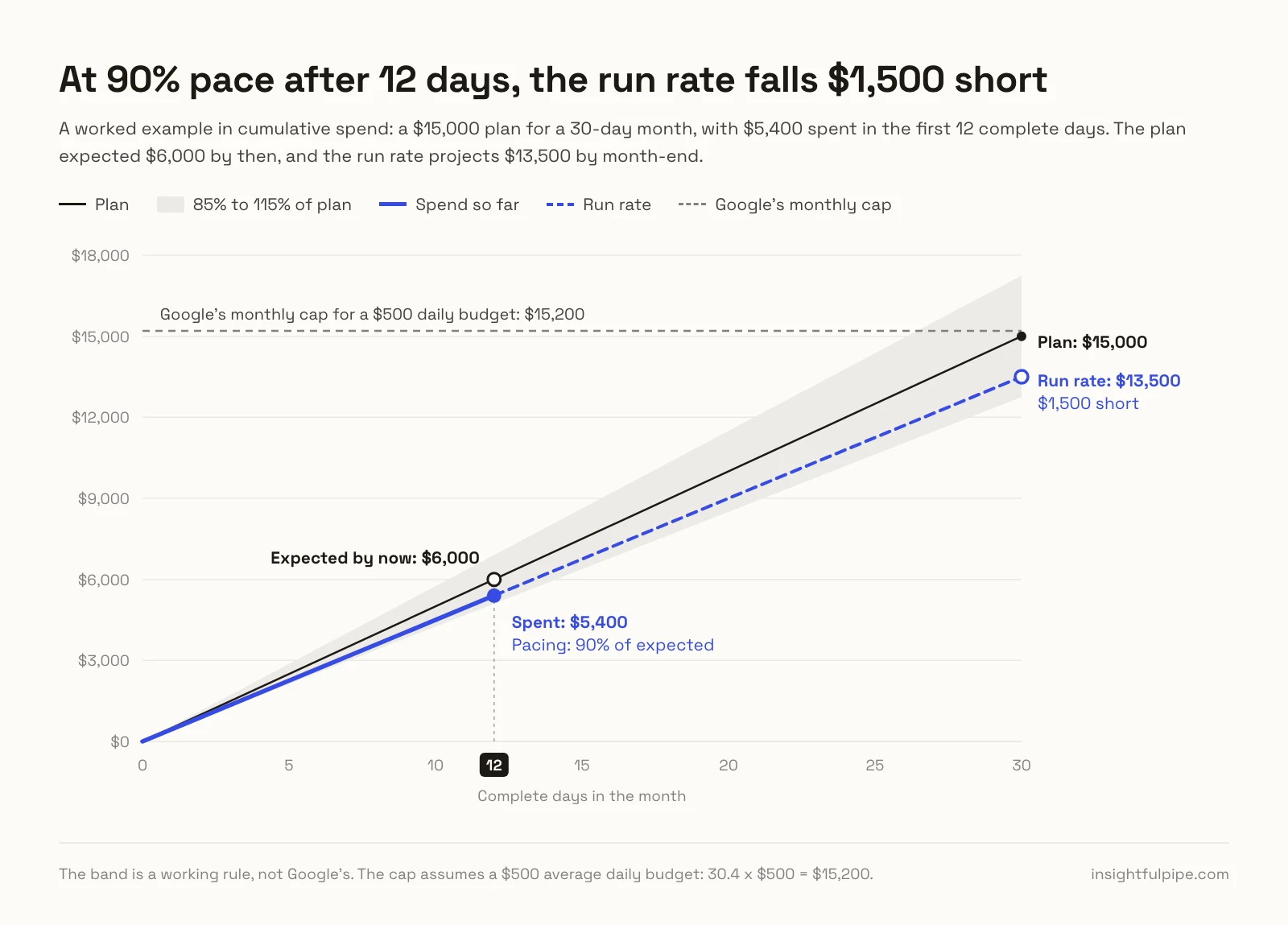
The worked example runs like this:
- Expected: $15,000 x 12 / 30 = $6,000.
- Projected month-end: $5,400 / 12 x 30 = $13,500, which is $1,500 short.
- Needed from today: ($15,000 - $5,400) / 18 days = $533 a day.
Count complete days only, in the account's time zone, because Google reports each day by that clock (Google). These bands are working rules, not Google's: 95% to 105% is on track, 85% to 95% or 105% to 115% needs watching, and anything else needs a fix this week.
A straight line is the simplest expected curve. Google now pushes Search spend toward peak days, so day-to-day swings are normal. For a strong weekly rhythm, weight each day by its share of last month's spend.
Google's spending rules that change the math
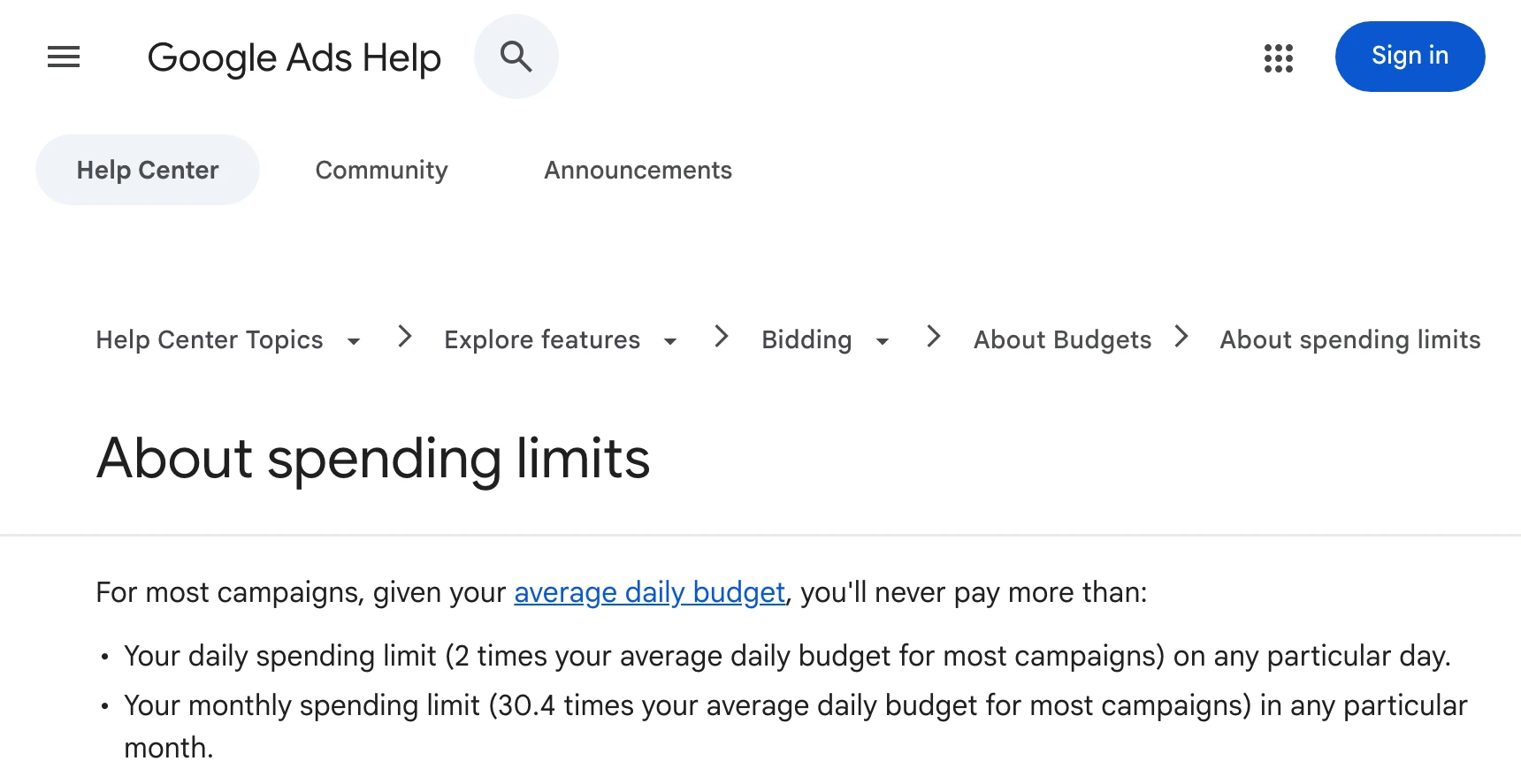
Google lets most campaigns spend up to twice their average daily budget on a busy day, and never bills more than 30.4 times that budget in a calendar month (Google). Those two limits decide how far daily spend can swing.
- Daily: up to 2x. A $500 daily budget can spend $1,000 on a busy day and less on quiet ones, so one day says little.
- Monthly: 30.4x. 30.4 is 365 / 12, so a $500 daily budget caps the month at $15,200. To turn a monthly plan into a daily budget, divide by 30.4: $15,000 / 30.4 = $493.
- Billed, not served. On rare days served cost passes a limit. Google bills only up to it, and the Billed cost report in Report editor shows both.
- Mid-month changes. A budget change resets the month's cap to spend so far plus the new daily budget times the calendar days left, today included (Google). Raise the example to $533 on day 13 and the cap becomes $5,400 + $533 x 18 = $14,994, about the plan.
- Day-of-week schedules. From June 1, 2026, a campaign that runs only on some weekdays still paces toward 30.4 times its daily budget. If it runs 15 days or fewer, it tops out at 2 x the daily budget x active days (Google). The change leaves hour-of-day schedules alone.
- Demand-led pacing. Google says Search campaigns now spend more on peak days and less on slow ones, inside the same limits (Google).
For a weekday-only campaign, draw the expected curve over its active days only.
Shared budgets, total budgets and account budgets
Pace each budget where Google enforces it. A shared budget is one average daily budget pooled across several campaigns, so pace the pool, not the campaigns inside it (Google).
- Shared budgets. Google moves unused money to whichever campaign in the pool can spend it, so one campaign can read 140% of an even split while the pool sits at 100%. Shared budgets work in Search, Shopping, Display and Video campaigns, not Performance Max.
- Campaign total budgets. A fixed amount over 3 to 90 days in Search, Shopping and Performance Max, and up to a year in Demand Gen and YouTube. There is no 2x daily cap, and Google spreads what is left over the days left (Google). Pace these against the flight, not the month.
- Account budgets. Accounts on monthly invoicing can set an account budget, a cap across every campaign. When costs reach it, every ad in the account stops until the next budget starts (Google), so a campaign on pace can still go dark.
The step 3 prompt reads all three: explicitly_shared marks a shared budget, the period CUSTOM_PERIOD a total budget, and account_budget holds account budgets.
Before you start
You need five things: access to the Google Ads account, an InsightfulPipe workspace, a role that can connect accounts, a Claude plan, and your monthly plan in numbers.
- Google Ads access. A Google login that can open the account or its manager account. Google's Read-only level can run performance reports (Google).
- An InsightfulPipe workspace. Plans start from $29.99 a month, and Starter covers 8 connected accounts. Start a trial or compare plans.
- A role that can connect. Owners, Administrators and Operators connect accounts and set their actions.
- Claude. Custom connectors work on every Claude plan, and Free allows one (Anthropic). Scheduled tasks live under Scheduled in Claude's sidebar.
- Your plan. The monthly amount per campaign, shared budget or account. Claude should never guess it from daily budgets.
Step 1: Connect Google Ads in InsightfulPipe
Step 1 links your Google Ads accounts to InsightfulPipe. Choose Read-only for a pacing check: the access step describes it as "View and report. Publish, reply and budget actions stay locked."
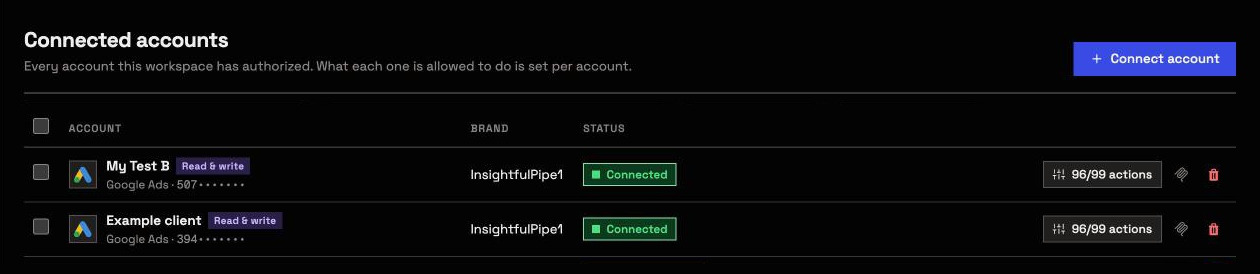
- Open Connected accounts and click Connect account.
- In Add an integration, find Google Ads and click Connect.
- Choose Read-only. The action list underneath shows what it allows.
- Click Continue with Google Ads, sign in with Google and select your accounts.
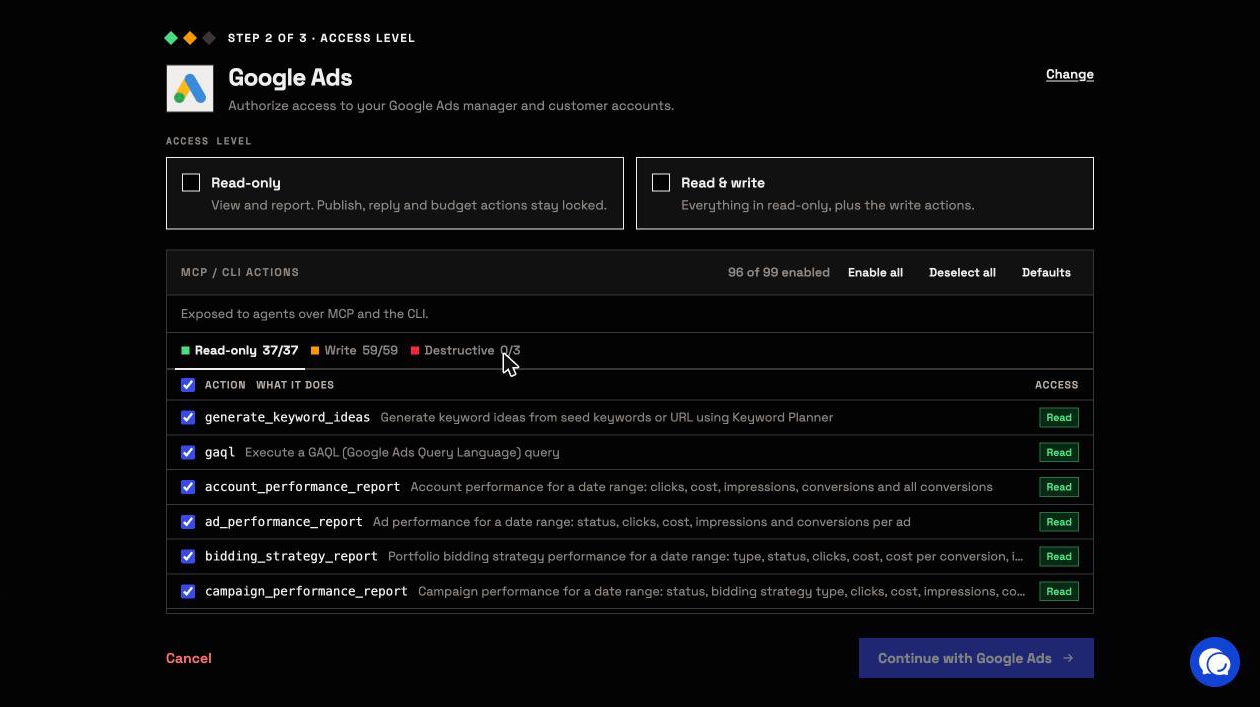
Client accounts under a manager appear in the list, and each becomes its own connection with its own switches, so one check covers every client. To let Claude change budgets later, an admin reconnects the account with Read & write.
Step 2: Add the Google Ads server to Claude
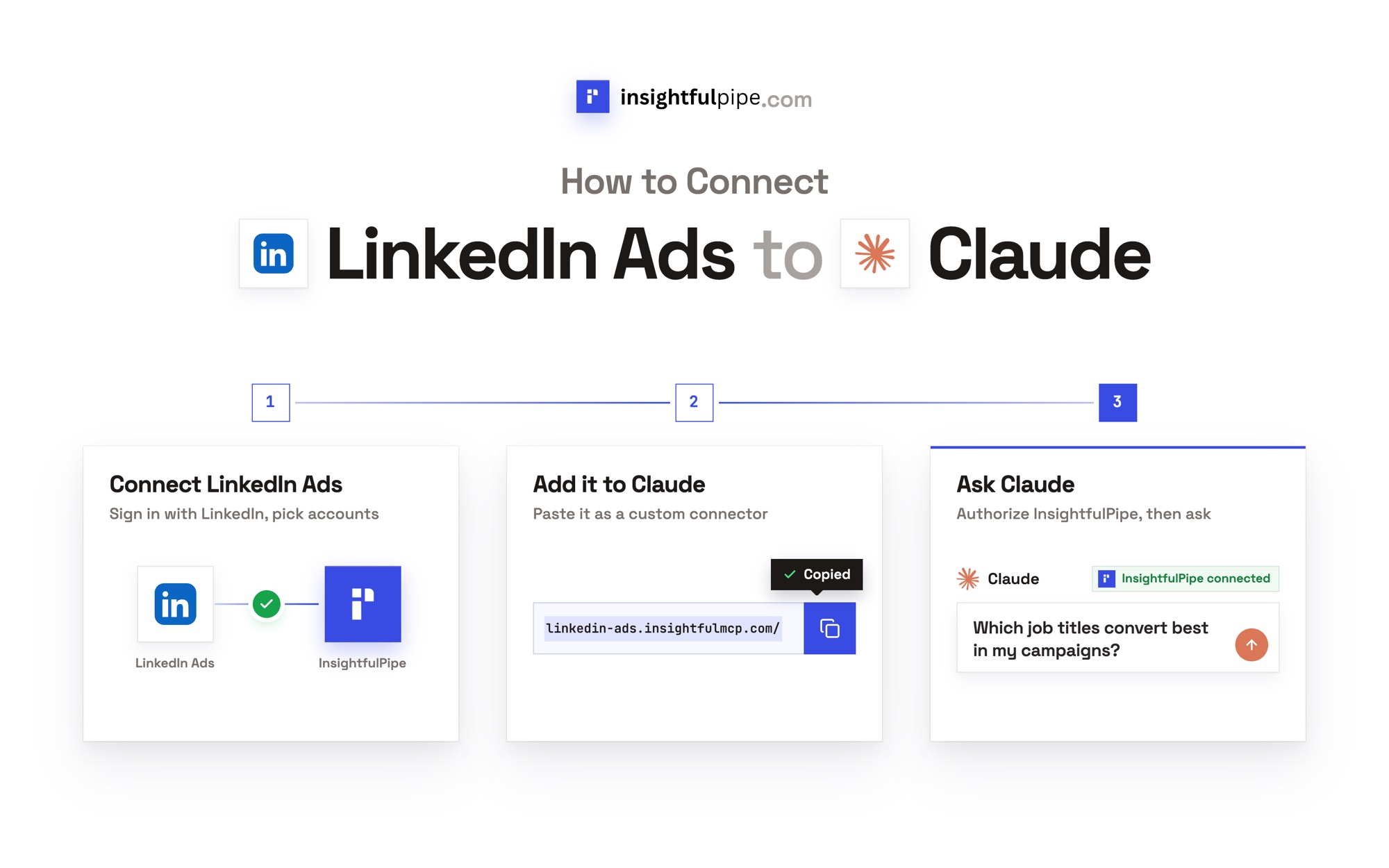
Step 2 adds the server to Claude as a custom connector. It takes one URL and one sign-in, and how to connect Google Ads to Claude walks through ChatGPT, Claude Code and Cursor too.
- In Claude, open Customize > Connectors, click +, then Add custom connector.
- Name it Google Ads, paste
https://google-ads.insightfulmcp.com/, click Continue, then Add. - Click Connect, and sign in to InsightfulPipe if asked.
- In a new chat, click +, open Connectors and switch Google Ads on.
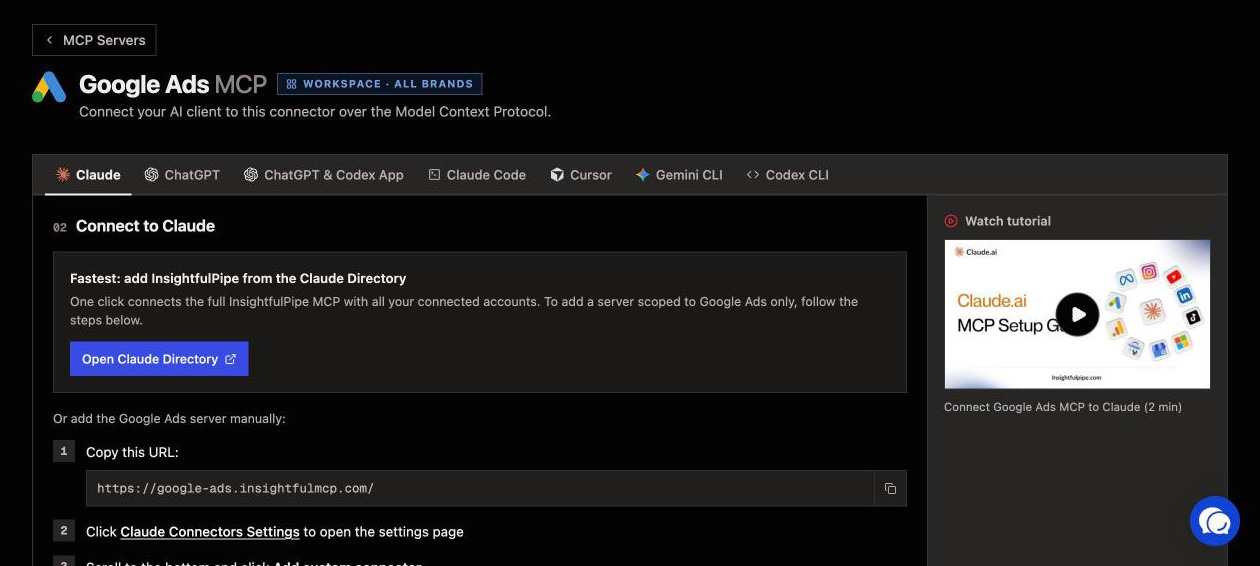
In the connector's Tool permissions, set Ads Data Query (query_data) to Always allow and Ads Execute Action (execute_action) to Needs approval. Reads then run without a click, and any change waits for yours.
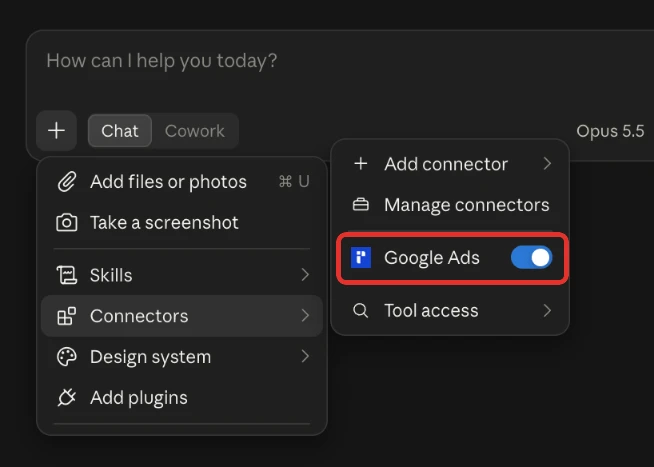
Step 3: Run the daily pacing check
Step 3 is one prompt. It reads month-to-date spend and every budget, does the math from the formula section, and changes nothing. Paste it, then list your plan where the brackets are.
Use Google Ads account [CUSTOMER_ID]. Run a budget pacing check for this month.
My monthly plan, one line each: [CAMPAIGN OR SHARED BUDGET] = [AMOUNT]

1. Get cost per campaign with campaign_performance_report, from the 1st
   of this month to yesterday, in the account's time zone.
2. Read each budget through gaql with the get_campaign_budgets fields:
   amount_micros, period, total_amount_micros, explicitly_shared.
3. Read any account budget through gaql on account_budget, and any
   day-of-week ad schedule through gaql on campaign_criterion.
4. Convert micros to currency. Pace each shared budget once, as a pool,
   each total budget against its own dates, and each scheduled campaign
   over its active days.
5. For each line, show plan, spend, expected spend, pacing %, projected
   month-end, the daily budget needed, and Google's cap (budget x 30.4).
6. Flag anything under 85% or over 115%, worst first.

Read only. Do not change anything.
Claude runs each read through query_data. Costs come back in micros, millionths of the account currency, and the prompt converts them first.
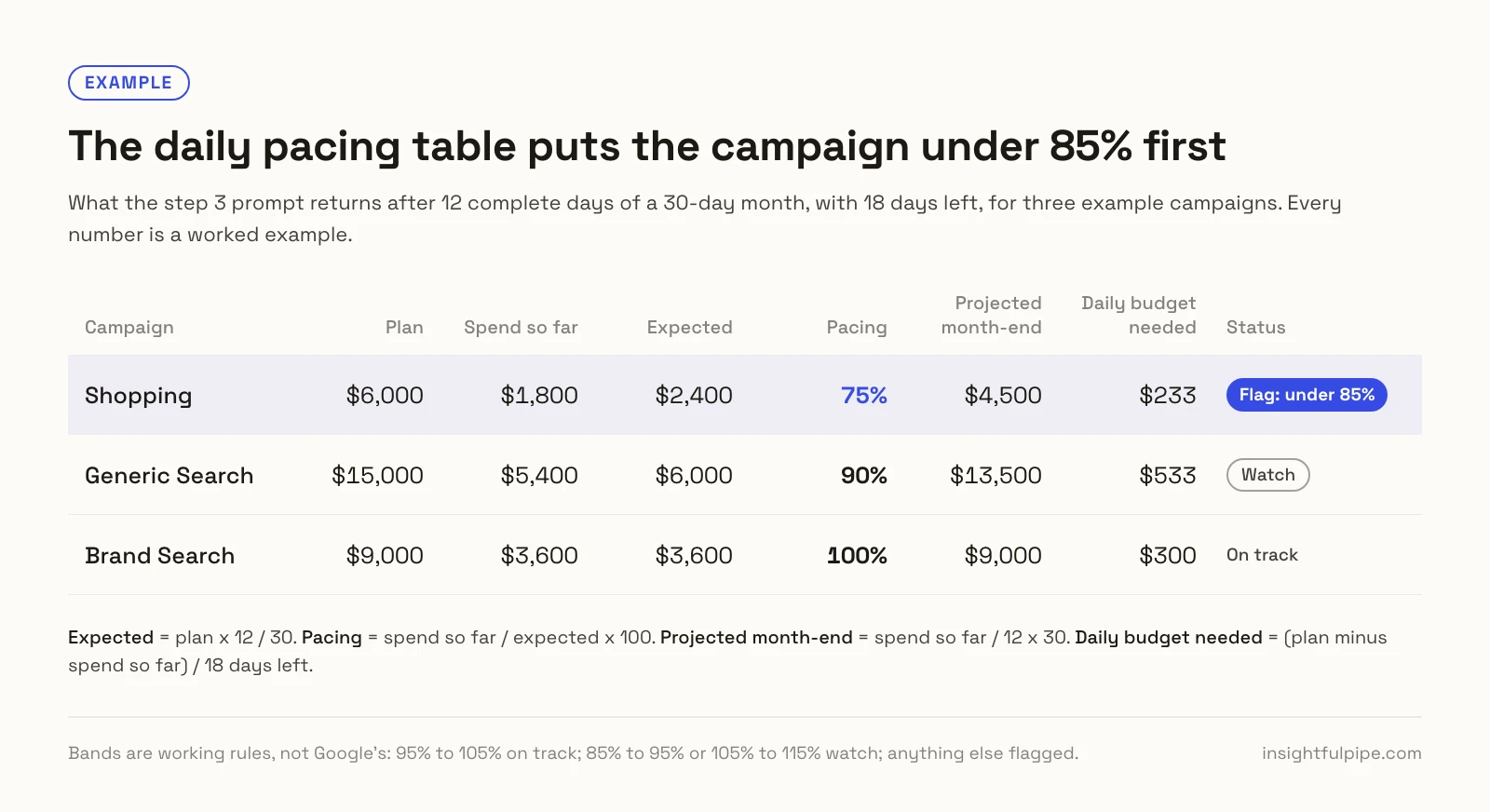
Two shortcuts sit on the server already. The Budget Pacing Report, one of 14 Google Ads templates Claude opens from prompts_menu, adds causes and fixes. The free Spend Pacing Monitor skill adds month-end scenarios.
Step 4: Schedule the check every morning
Step 4 puts the prompt on a timer: in Claude as a scheduled task, or from any job runner with the InsightfulPipe CLI.
In Claude. Scheduled tasks run a saved prompt hourly, daily, on weekdays, weekly or monthly, with the connectors you set up. They run remotely, so they keep their cadence even when your computer is asleep (Anthropic).
- In a chat, ask: "Every weekday at 8 AM, run my Google Ads pacing check."
- Give Claude the step 3 prompt as the task, and answer its questions.
- Review the name, schedule and instructions, then click Schedule.
In Cowork, the same form opens from Scheduled, then New task and Set up manually.
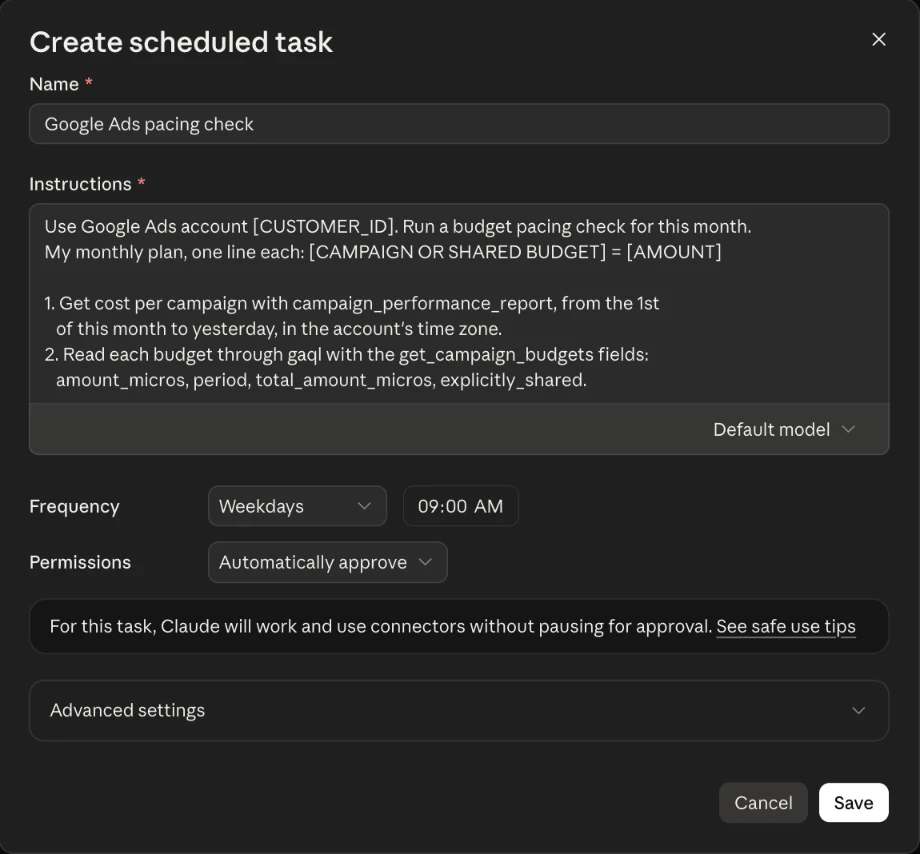
Nobody watches a scheduled run, so the limit that counts sits on the server. Claude Code's routines, for example, "can use every tool from an included connector, including writes, without asking for permission during a run" (Claude Code docs). A Read-only connection keeps every budget action locked, whatever the prompt says.
From a terminal. The insightfulpipe CLI runs the same read with an API key from Settings > API Keys, under the same switches (CLI guide). Save this as pacing.json, with the IDs from insightfulpipe accounts --platform google-ads:
{
  "action": "gaql",
  "workspace_id": [WORKSPACE_ID],
  "brand_id": [BRAND_ID],
  "account_id": "[CUSTOMER_ID]",
  "query": "SELECT campaign.name, campaign_budget.id, campaign_budget.amount_micros, campaign_budget.explicitly_shared, metrics.cost_micros FROM campaign WHERE segments.date DURING THIS_MONTH AND campaign.status != 'REMOVED'"
}
Then schedule it, here with cron at 8 AM on weekdays, passing the key as INSIGHTFULPIPE_TOKEN. THIS_MONTH includes today's first hours, so run it early.
npm install -g insightfulpipe
insightfulpipe auth
# crontab line, 8 AM on weekdays:
0 8 * * 1-5  insightfulpipe query google-ads -f pacing.json > pacing-today.json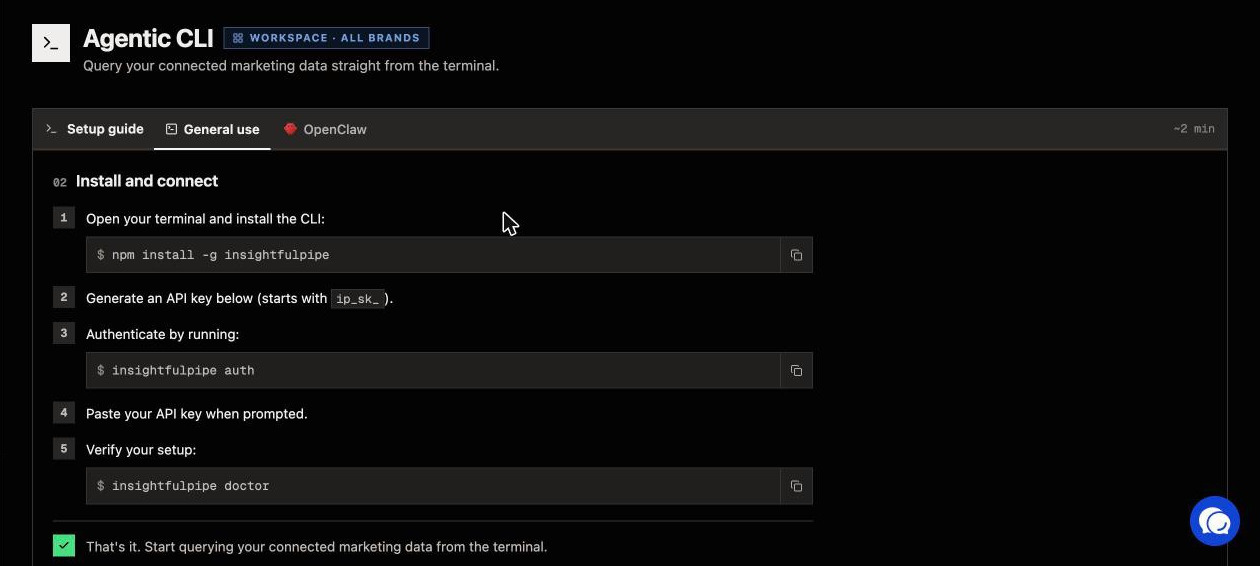
How do you know the numbers are right?
Check one campaign against Google before you trust the table. Open the campaign's budget report in Google Ads and compare its cost to date with Claude's figure (Google).
- Same dates. Google's cost to date runs through today, and the prompt stops at yesterday.
- Same clock. Reports follow the account's time zone, while billing pages show Pacific Time.
- Same units. 15,000,000,000 micros is 15,000 in the account currency.
- Performance Max. It has no budget report, so compare its cost in the Campaigns table.
What to do when a campaign is off pace
Find the cause before you touch the budget. A campaign under plan with a poor cost per conversion needs fixing, not more money, and one over plan with strong returns may deserve a bigger plan.
- Under plan: too little search volume, bids too low to win auctions, narrow targeting, disapproved ads, or less demand than the plan assumed.
- Over plan: broad match drifting into weak search terms, a seasonal spike, a competitor leaving the auction, or Smart Bidding finding more conversions.
To change a budget from Claude, the account needs Read & write with update_campaign on. Its budget_amount sets a new daily budget, and on a shared budget it changes every campaign in the pool. Ask for a proposal first:
Use Google Ads account [CUSTOMER_ID].
For [CAMPAIGN], propose the daily budget that lands this month on [AMOUNT].
Show the current and new budget, whether the budget is shared,
and Google's new monthly cap after the change.
Do not change anything until I reply yes.
What the assistant may change, and who decides
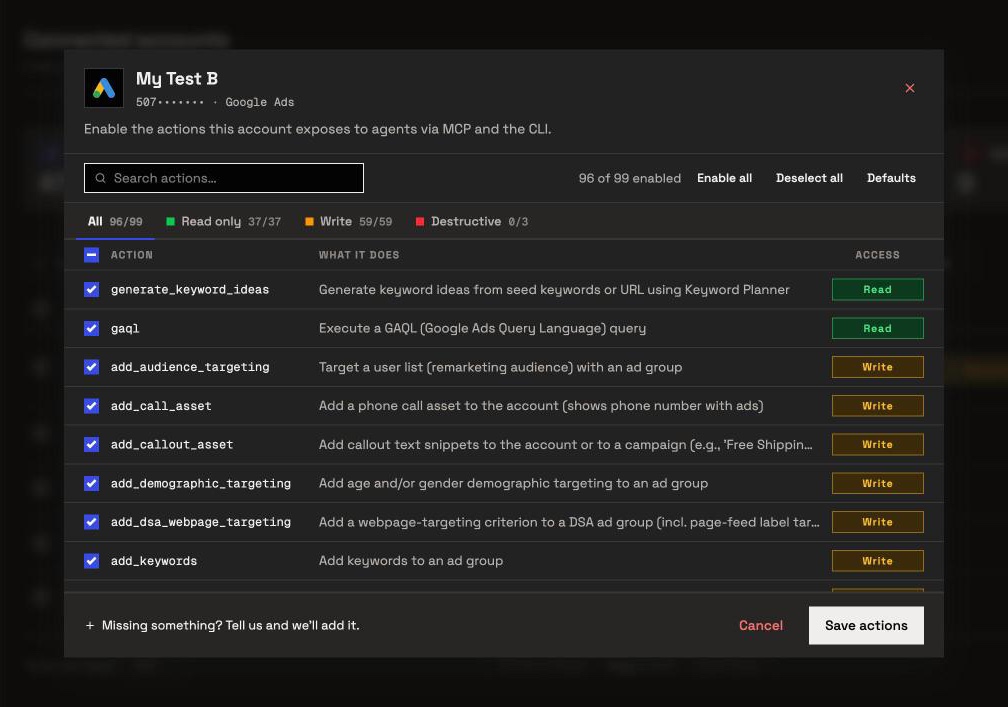
The assistant can use only the actions an admin has switched on for each account, and a new connection starts on the careful side. That makes InsightfulPipe the safest way to let an AI agent change a Google Ads account, because each limit below is a switch.
- 99 actions: 37 read, 59 write and 3 destructive. A pacing check needs only reads.
- Read-only locks every write, budget changes included, until an admin reconnects the account with Read & write.
update_campaignis a switch. It changes budgets, bids and status. It starts on for Read & write connections, and an admin can switch it off for any account that should only report.- Budgets go to Google as you state them, in the account's currency, and apply at once. Needs approval on
execute_actionin Claude puts your click before each one. - The assistant is told to ask you first before it sets a campaign live, removes one or switches its bid strategy.
- Destructive actions stay off until an admin switches them on: removing keywords, negative keywords and Customer Match members.
- Roles hold. Members on the User role run only the enabled reads on accounts granted to them.
Start a trial to set these switches on your own accounts.
Troubleshooting
Most pacing errors come from dates, units or budgets read in the wrong place, not from the connection.
- The numbers look a million times too big. Costs arrive in micros. Ask Claude to divide by 1,000,000 before it calculates.
- Every campaign in a shared budget looks off. Group the campaigns by
campaign_budget.idand pace the pool once. - A manager account returns no spend. Manager accounts carry no metrics. Run the check on each client account, which InsightfulPipe connects one by one.
- "This action is disabled for this connected account. An owner or admin must enable it for the account." The action is off for that account. An owner, admin or operator can switch it on.
- "This account is connected read-only, so this action cannot be enabled for it. An owner or admin must reconnect it with Read & Write permissions." Expected on a pacing connection. Reconnect with Read & write only if Claude should change budgets.
- The report is empty. Widen the dates and check the customer ID. Then confirm the campaigns ran this month.
Other ways to track Google Ads pacing
Google's own tools cost nothing, and several paid tools and templates track pacing too, each against something different.
- Google's budget report shows each campaign's monthly spending limit, forecast and cost to date. Budget pacing insights, on the account's Insights page, label campaigns "Limited by budget", "Budget remaining" or "On track" (Google). Both pace against Google's limit, not your plan.
- Google Ads scripts run your own JavaScript once, daily, weekly or monthly (Google).
- Sheets and Data Studio. Supermetrics and Windsor.ai publish Google Sheets pacing templates. Looker Studio is now Data Studio, and it can email a report on a schedule (Google).
- Pacing tools. Optmyzr, TrueClicks, Adalysis and NinjaCat, where shape.io now redirects, sell budget monitoring with pacing alerts.
- AI tools. Markifact and Ryze AI publish their own AI pacing workflows. The best Google Ads MCP servers compares 12 servers from each vendor's own documentation.
InsightfulPipe puts the pieces together: your plan, every connected account and a daily schedule, with the option to act inside switches your admin sets.
Frequently asked questions
Sources (checked 2026-10-02)
We checked each third-party claim on its own page on 2026-10-02, and took our action counts from the Google Ads MCP page.
- Google Ads Help: average daily budgets, spending limits, budget changes, ad scheduling and pacing, shared budgets, campaign total budgets, account budgets, budget report, budget pacing insights, time zone, access levels and scripts
- Google: demand-led budget pacing, Google Ads API campaign_budget fields and Data Studio scheduled delivery
- Anthropic: scheduled tasks, Claude Code routines and custom connectors
- Vendors: Optmyzr, TrueClicks, Adalysis, NinjaCat, Supermetrics, Windsor.ai, Markifact and Ryze AI
- InsightfulPipe: Google Ads MCP server, CLI and pricing