InsightfulPipe publishes this guide, and the steps use its hosted MCP servers and its CLI. Other ways to get marketing data into Claude Code, including Google's own servers, come near the end.
Last updated: 2026-09-30
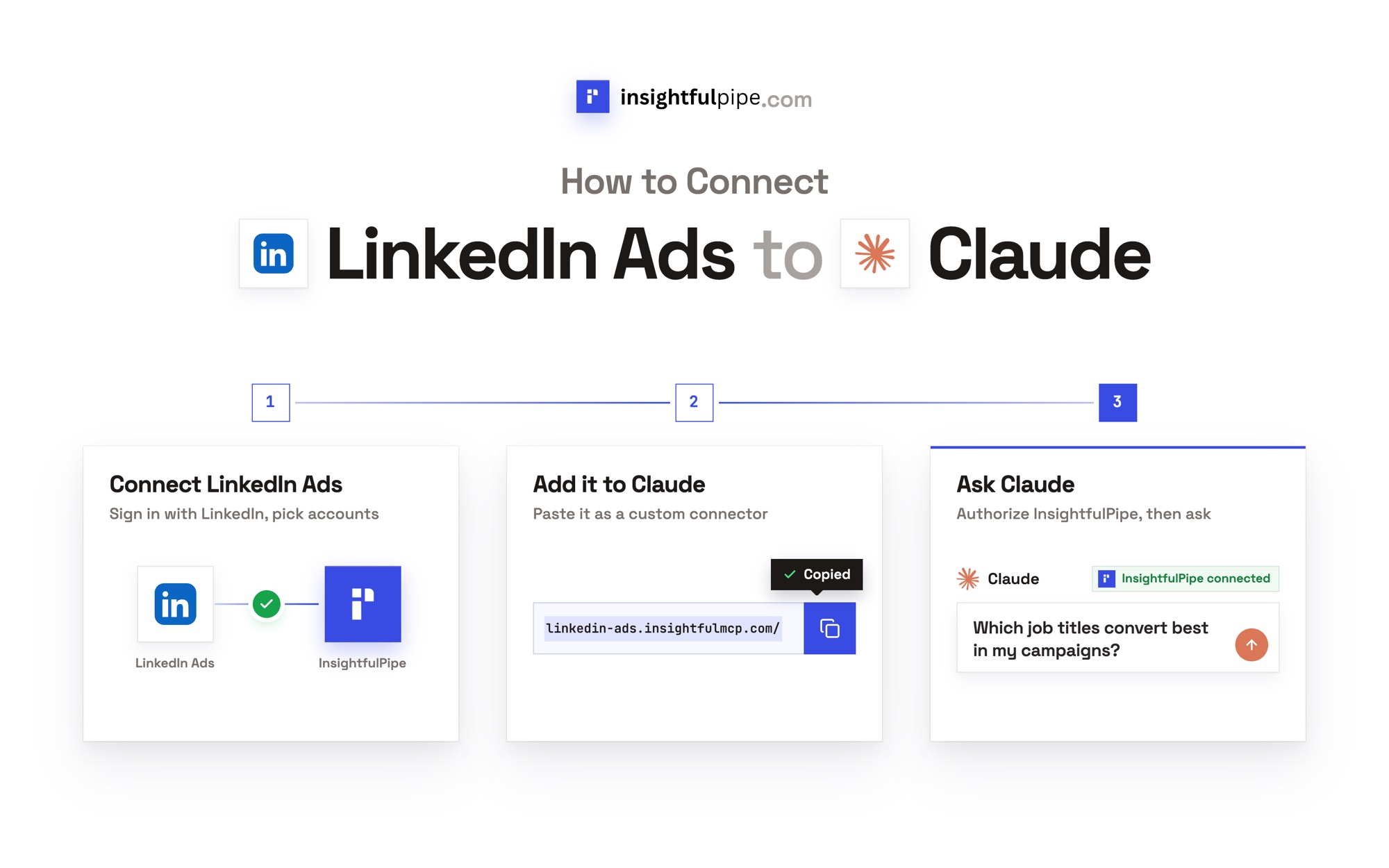
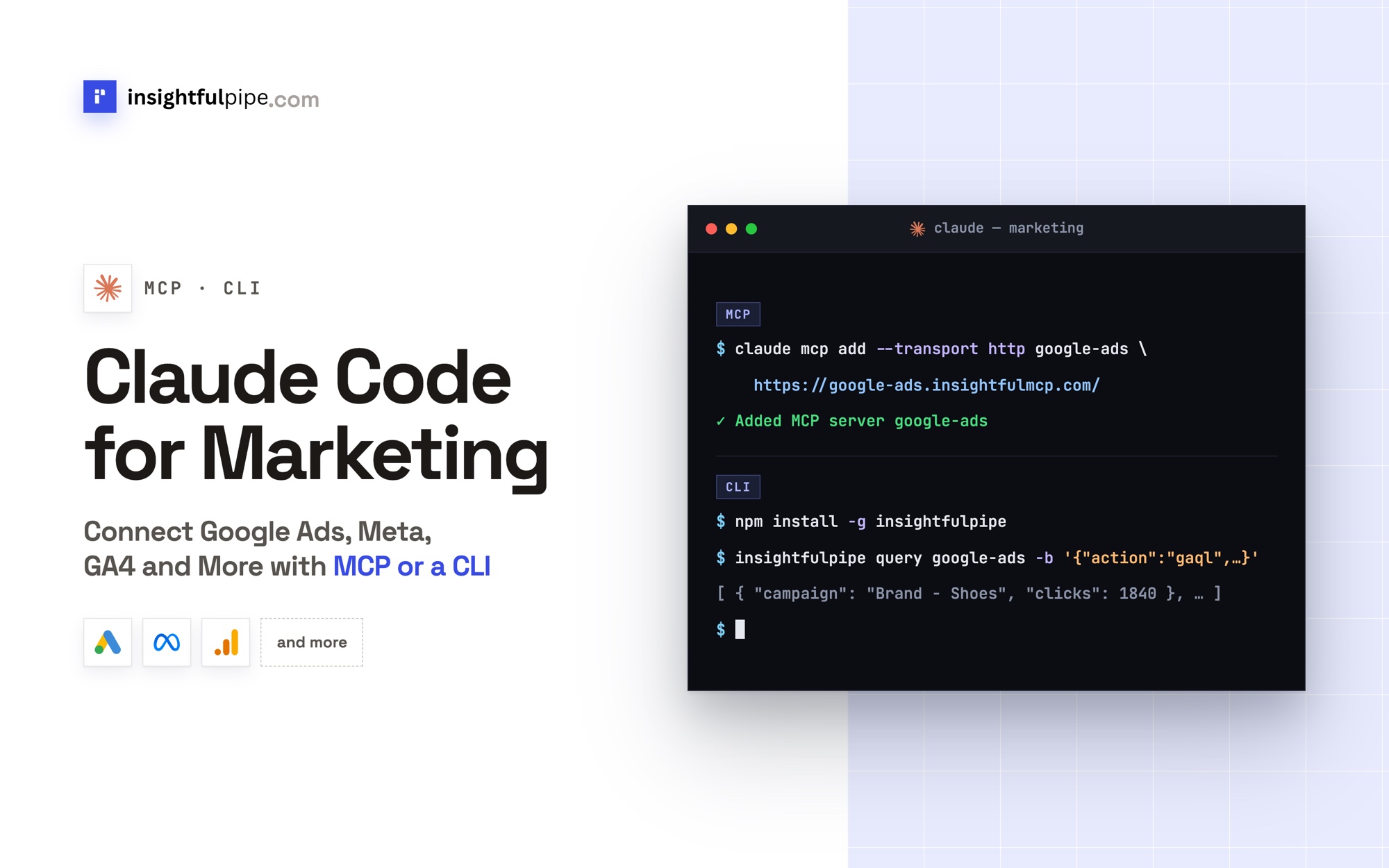
Short answer: To use Claude Code for marketing, connect your ad accounts in InsightfulPipe, run claude mcp add --transport http google-ads-mcp https://google-ads.insightfulmcp.com/, and sign in with /mcp. For scripts and scheduled reports, install the insightfulpipe CLI instead. Neither route needs a developer token, your own OAuth app or a Google Cloud project. Plans start from $29.99 a month.
The quick version
Both routes reach the same accounts under the same switches. Use MCP for questions and changes inside a session, and the CLI for files, scripts and scheduled jobs.
With an MCP server
- In InsightfulPipe, open Connected accounts and connect Google Ads.
- Run
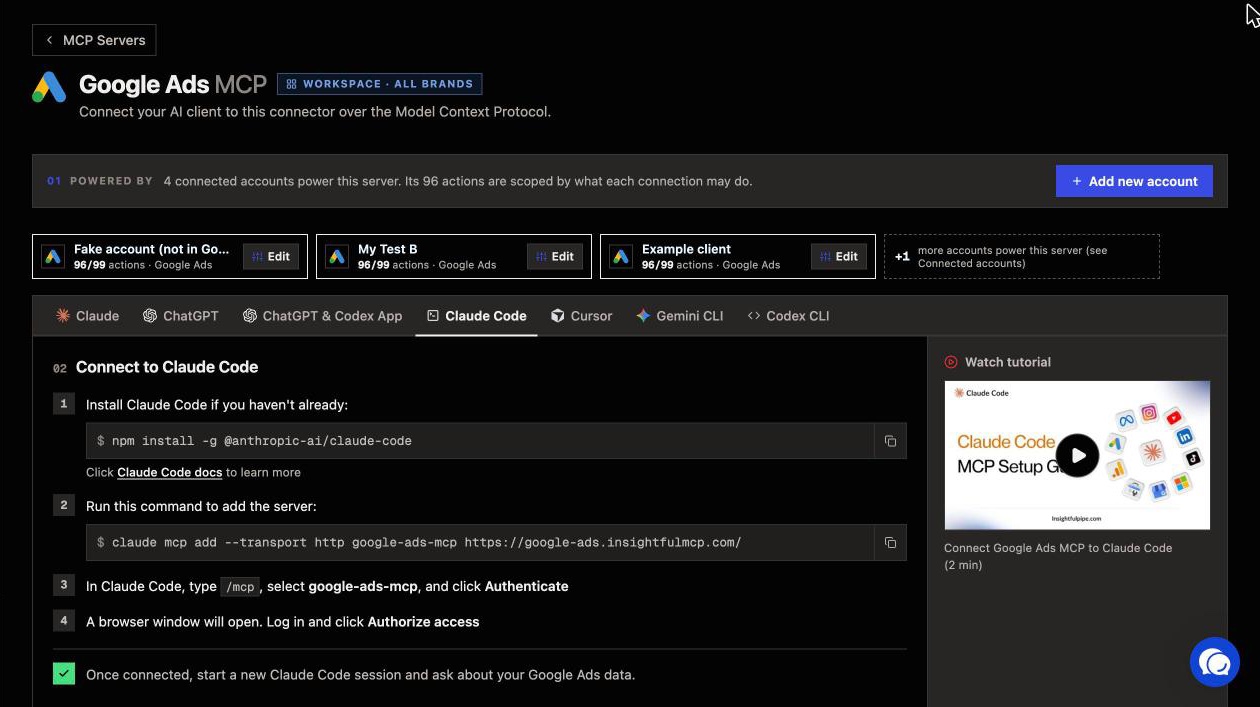
claude mcp add --transport http google-ads-mcp https://google-ads.insightfulmcp.com/. - In Claude Code, type
/mcp, select google-ads-mcp and click Authenticate. - Sign in to InsightfulPipe in the browser window that opens, if asked.
- Run the read-only check under Verify it worked before you let it change anything.
With the CLI
- Run
npm install -g insightfulpipe. - Run
insightfulpipe authand paste an API key that starts withip_sk_. - Run
insightfulpipe doctorto check the key and the connection. - Ask Claude Code for the report, and let it run
insightfulpipe queryfrom its shell.
Watch: add an InsightfulPipe MCP server to Claude Code and sign in, 1 minute 34 seconds. We recorded it in December 2025 with Facebook Ads, so the app screens look older. The commands are the same.
MCP or the CLI at a glance
InsightfulPipe gives Claude Code two ways into the same 50 platforms. Each platform has its own server, such as the Google Ads MCP server, and the InsightfulPipe CLI reaches all of them from the shell.
InsightfulPipe MCP servers | InsightfulPipe CLI | |
|---|---|---|
Add it |
|
|
Sign in | A browser, through | An |
How Claude Code calls it | MCP tools inside the session | Shell commands that return JSON |
Use it for | Questions and changes during a session | Files, |
Write control | Account switches, plus Claude Code permission rules | The same switches, plus a |
Runs without a browser | After one sign-in | Yes, with |
What you are actually connecting
Claude Code talks to InsightfulPipe, and InsightfulPipe talks to your ad platforms with the access you approved. Two paths lead to the same accounts.
Claude Code        ->  InsightfulPipe MCP server  ->  your authorized ad account
Claude Code shell  ->  insightfulpipe CLI         ->  the same account
Claude Code never receives your Google or Meta password. It sends a structured request, and InsightfulPipe runs the matching API call with the OAuth access you granted. Reads use query_data or insightfulpipe query, and writes use execute_action or insightfulpipe action.
Four things bound what Claude Code can reach: your workspace, the accounts you connected, each account's action switches and your own platform role. You need no Google Ads developer token, Meta app, Google Cloud project, server to host or API version to track.
Before you start
You need four things: Claude Code on a paid plan, an InsightfulPipe workspace, the right workspace role, and Node.js if you want the CLI.
- Claude Code on a Pro, Max, Team, Enterprise or Console account, installed with
curl -fsSL https://claude.ai/install.sh | bash(Claude Code setup). - An InsightfulPipe workspace. Plans start from $29.99 a month, with unlimited tool calls and MCP and CLI access on every plan (pricing). Start a trial if you need one.
- The right role. Owners, Administrators and Operators connect accounts and set switches. Members with the User role run read actions on accounts an owner or admin grants them.
- For the CLI, Node.js 18 or later and an InsightfulPipe API key.
The platform's own roles still apply. A Google Ads Read-only user can run reports but cannot edit campaigns; that takes Standard or Admin access (Google Ads access levels). InsightfulPipe cannot expand the authority of the account you connect.
Step 1: Connect your ad accounts in InsightfulPipe
Connect each ad account once in InsightfulPipe. Every account you select becomes its own connection, with its own access level and its own action switches, and Claude Code reaches it through MCP and the CLI alike.
- Open Connected accounts and click Connect account.
- Find the platform, for example Google Ads, and click Connect.
- Choose Read-only or Read & write, and review the action list beneath.
- Click Continue with Google Ads, then sign in with Google and approve access.
- Select the ad accounts to connect.
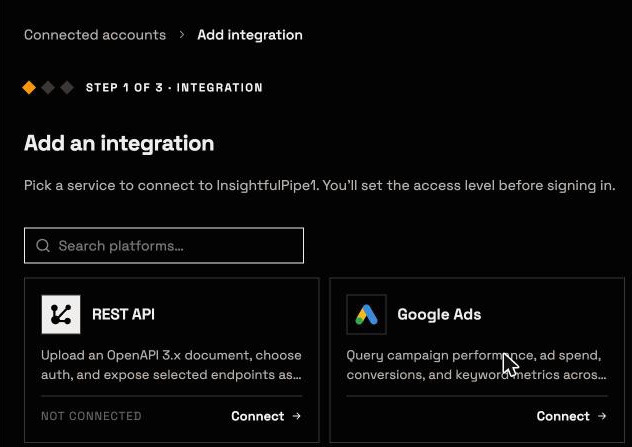
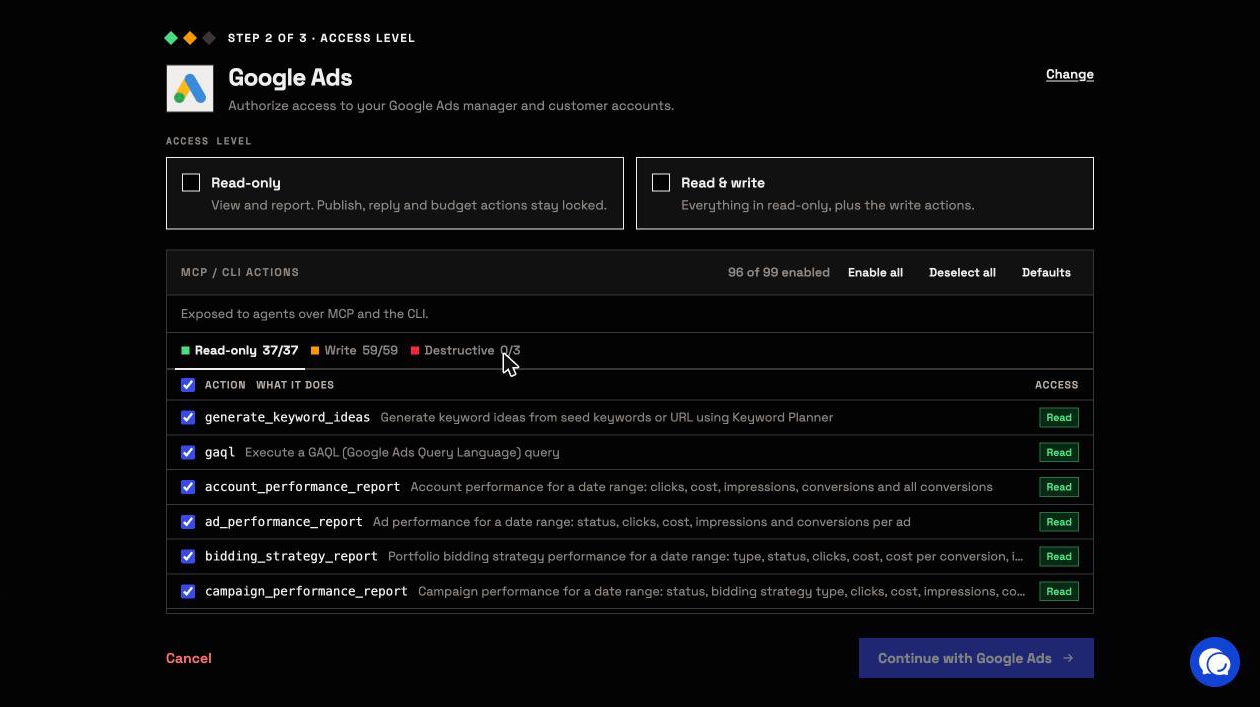
Start with Read-only if reporting is the job. It locks every write until an owner, admin or operator reconnects the account with read and write. Repeat for Meta Ads (Facebook Ads in the app), GA4, LinkedIn Ads and the rest.
Step 2: Add the MCP servers to Claude Code
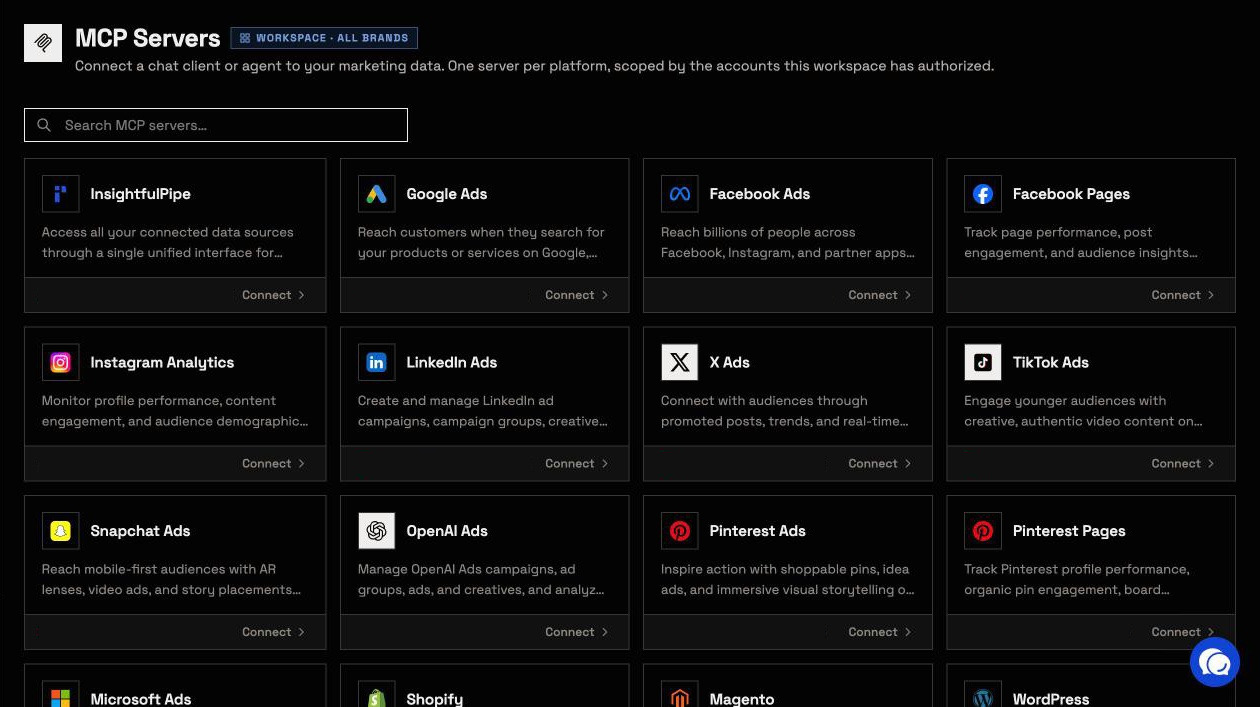
Add one server per platform, or one unified server that reaches every connected account. Each command only writes configuration; nothing reaches your data until you sign in at step 3.
claude mcp add --transport http google-ads-mcp https://google-ads.insightfulmcp.com/
claude mcp add --transport http facebook-ads-mcp https://facebook-ads.insightfulmcp.com/
claude mcp add --transport http google-analytics-mcp https://google-analytics.insightfulmcp.com/
claude mcp add --transport http linkedin-ads-mcp https://linkedin-ads.insightfulmcp.com/

# Or every platform through one URL and one sign-in:
claude mcp add --transport http main-mcp https://main.insightfulmcp.com/
Server | Name in Claude Code | Actions on its page |
|---|---|---|
| 99: 37 read, 59 write, 3 destructive | |
| 53: 38 read, 12 write, 3 destructive | |
| 62: 26 read, 24 write, 12 destructive | |
| 28: 18 read, 10 write | |
| 1,957 across 50 platforms |
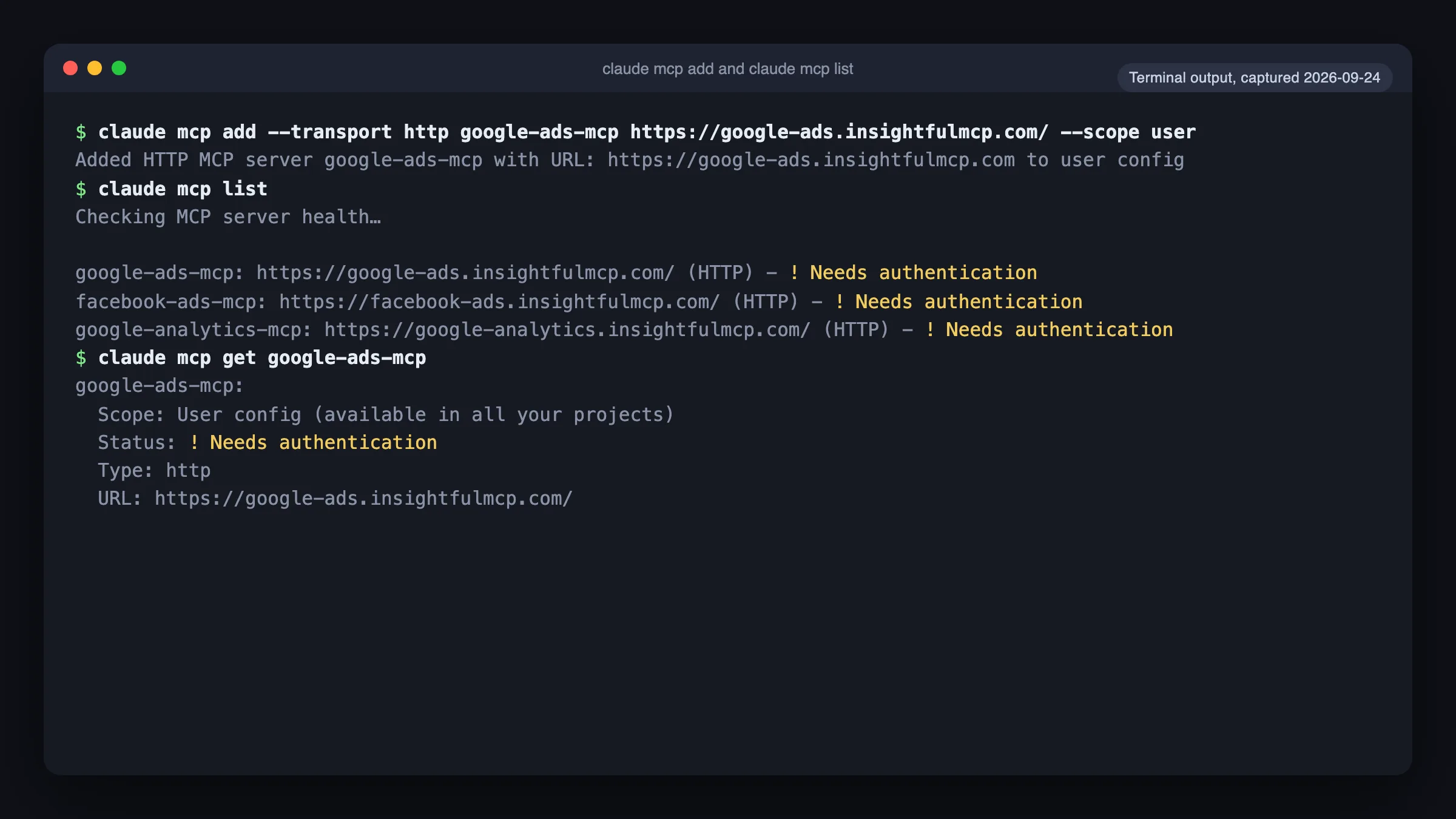
The default scope is local: only you, only this project, stored in ~/.claude.json. Add --scope user to use a server in every project, or --scope project to share it with your team through .mcp.json (Claude Code MCP docs).
Each platform server gives Claude Code four tools: query_contexts finds accounts, query_data reads, execute_action writes and prompts_menu lists prompts. The unified server adds list_platforms.
Step 3: Sign in with /mcp
Sign in once per server from inside Claude Code. Until you do, the command claude mcp list shows each InsightfulPipe server as ! Needs authentication.
- Start Claude Code with
claudeand type/mcp. - Select google-ads-mcp and click Authenticate.
- Sign in to InsightfulPipe in the browser window that opens, if asked.
- Back in Claude Code,
/mcplists google-ads-mcp as connected.
Prefer the shell? Run claude mcp login google-ads-mcp, with --no-browser on a remote machine (Claude Code MCP docs).
If you have no account connected for that platform, the sign-in ends without connecting. Go back to step 1.
Added InsightfulPipe as a connector in claude.ai already? Claude Code lists it under /mcp when you log in with the same claude.ai account.
Step 4: Make every change wait for your yes
Allow the read tools and put the write tool under an ask rule. Claude Code never auto-approves a tool that matches an ask rule, in any permission mode, so every change waits for your yes.
This matters more now. Since v2.1.283, auto mode is Claude Code's starting mode for interactive terminal sessions, and a classifier approves most actions for you (permission modes).
Put this in .claude/settings.json for one project, or in ~/.claude/settings.json for all of them:
{
  "permissions": {
    "allow": [
      "mcp__google-ads-mcp__query_contexts",
      "mcp__google-ads-mcp__query_data",
      "mcp__google-ads-mcp__prompts_menu",
      "Bash(insightfulpipe query *)"
    ],
    "ask": [
      "mcp__google-ads-mcp__execute_action",
      "Bash(insightfulpipe action *)"
    ]
  }
}
Rules use the server name from step 2. Claude Code skips a bare mcp__* allow rule with a warning, so name the server (permissions). For a report-only project, move execute_action to a deny list.
Step 5: Install the CLI for scripts and scheduled jobs
Install the CLI when the output should land in a file, a pipeline or a job that runs without you. Claude Code calls it from its shell, and every call passes the same account switches as the MCP servers.
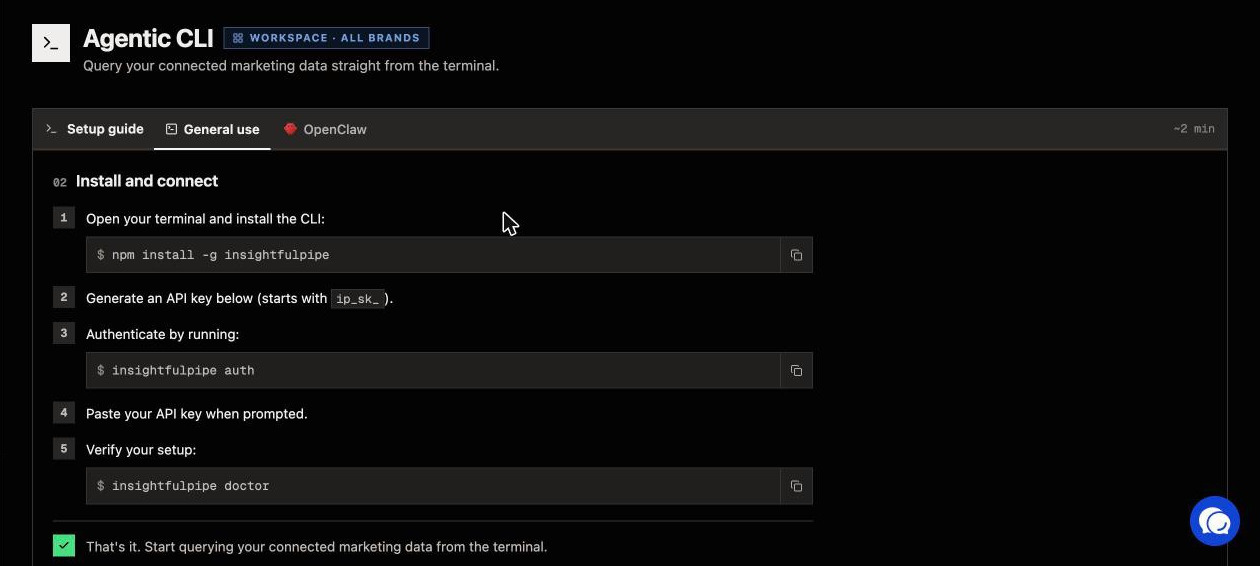
npm install -g insightfulpipe
insightfulpipe auth
insightfulpipe doctor
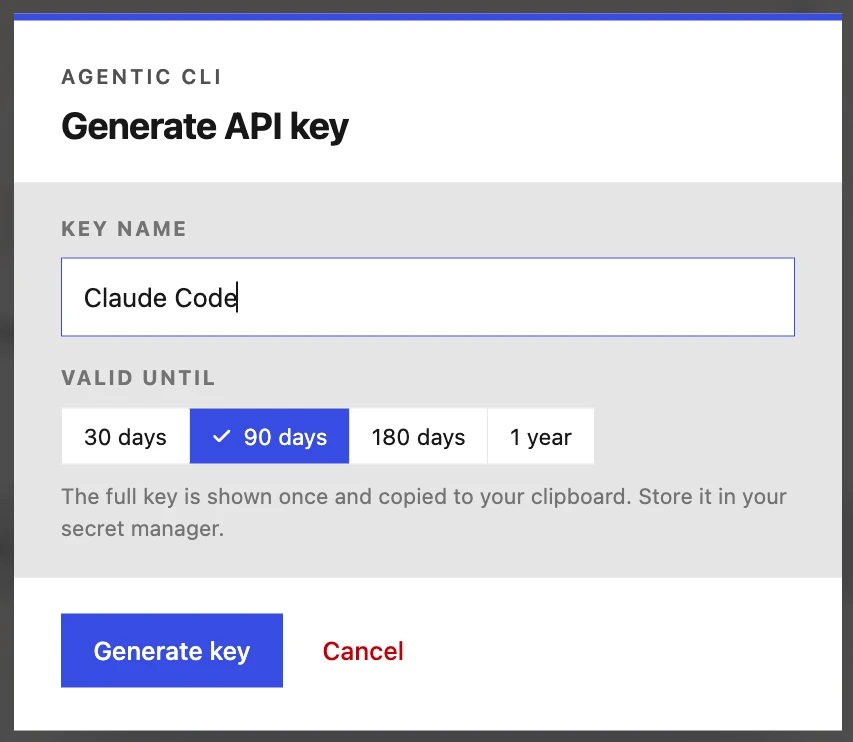
The package needs Node.js 18 or later. Create a key under Settings > API Keys, or with Generate key on the app's Agentic CLI page. Keys start with ip_sk_ and belong to one workspace.
The auth command saves the key to your OS keyring. In CI, set INSIGHTFULPIPE_TOKEN instead; the CLI reads it first.
Claude Code then follows three moves: find the account, read the schema, run the query.
insightfulpipe use -w <WORKSPACE_ID> -b <BRAND_ID>
insightfulpipe accounts --platform google-ads
insightfulpipe helper google-ads --actions gaql
insightfulpipe query google-ads -b '{"action":"gaql","account_id":"<ACCOUNT_ID>","query":"SELECT campaign.name, metrics.cost_micros, metrics.conversions FROM campaign WHERE segments.date DURING LAST_30_DAYS"}'usesaves your workspace and brand, andhelperreturns the exact request body.queryruns reads and prints JSON.actionruns writes and first asksExecute write action "<action>" on "<platform>"? [y/N]. Scripts pass--yes.
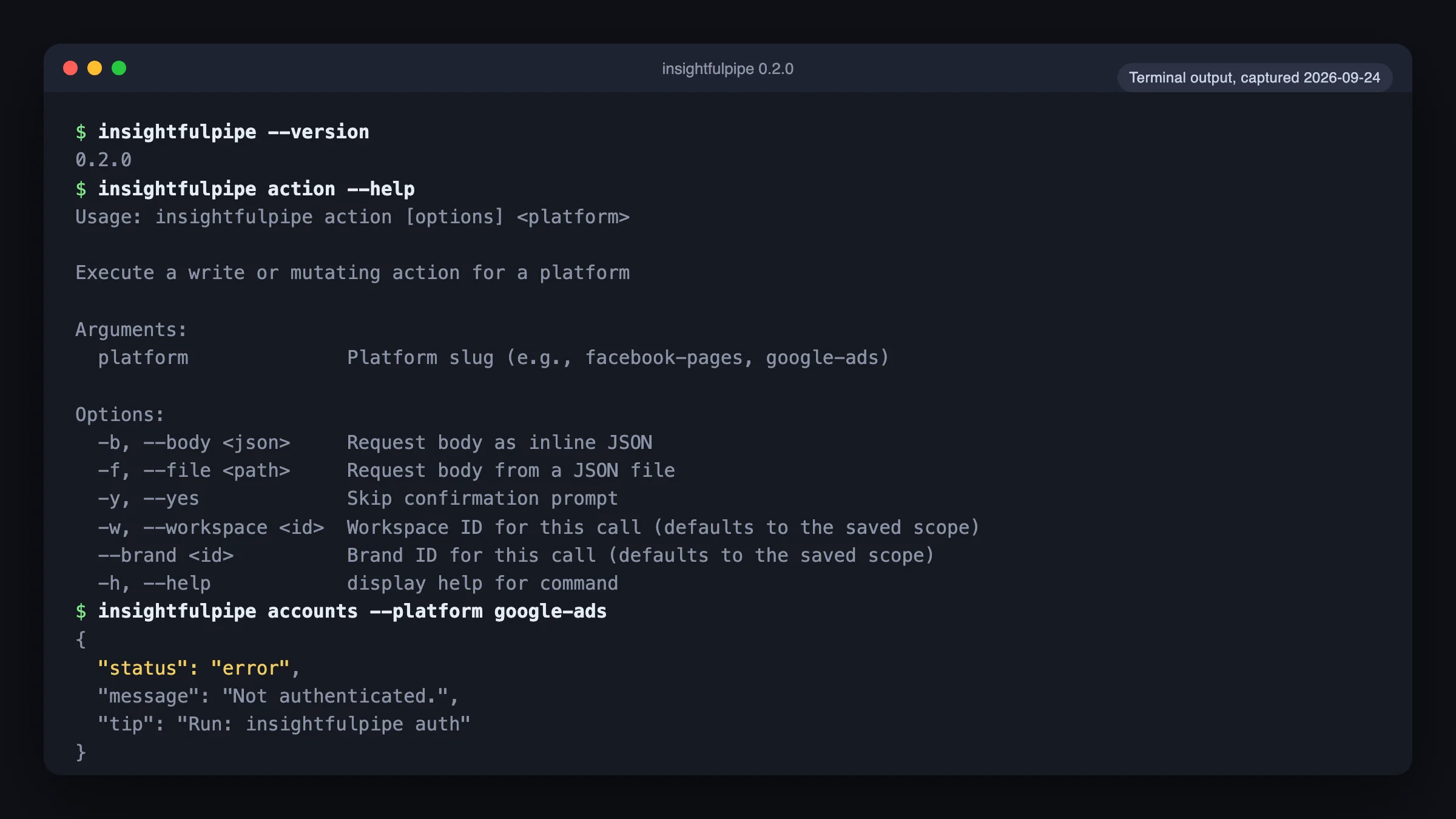
The package also ships a SKILL.md for Claude Code. Written for unattended agents, it passes --yes on writes, and your step 4 ask rule still stops each one.
Watch: Claude Code builds a Google Ads report through the InsightfulPipe CLI, 3 minutes 24 seconds. It predates version 0.2.0, which made JSON the default output.
Step 6: Choose the actions each account allows
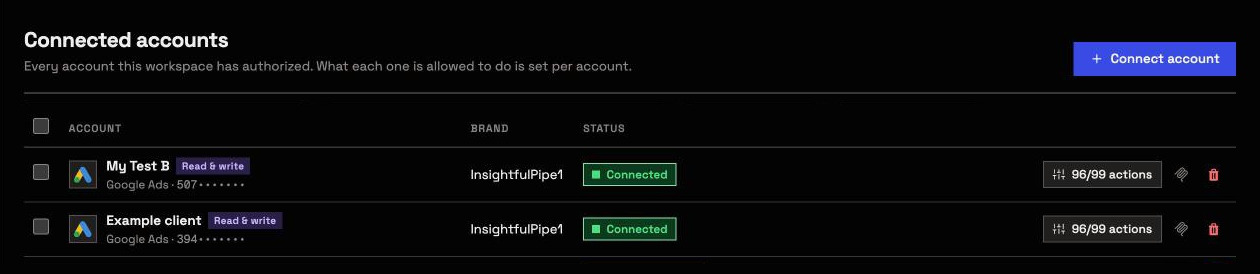
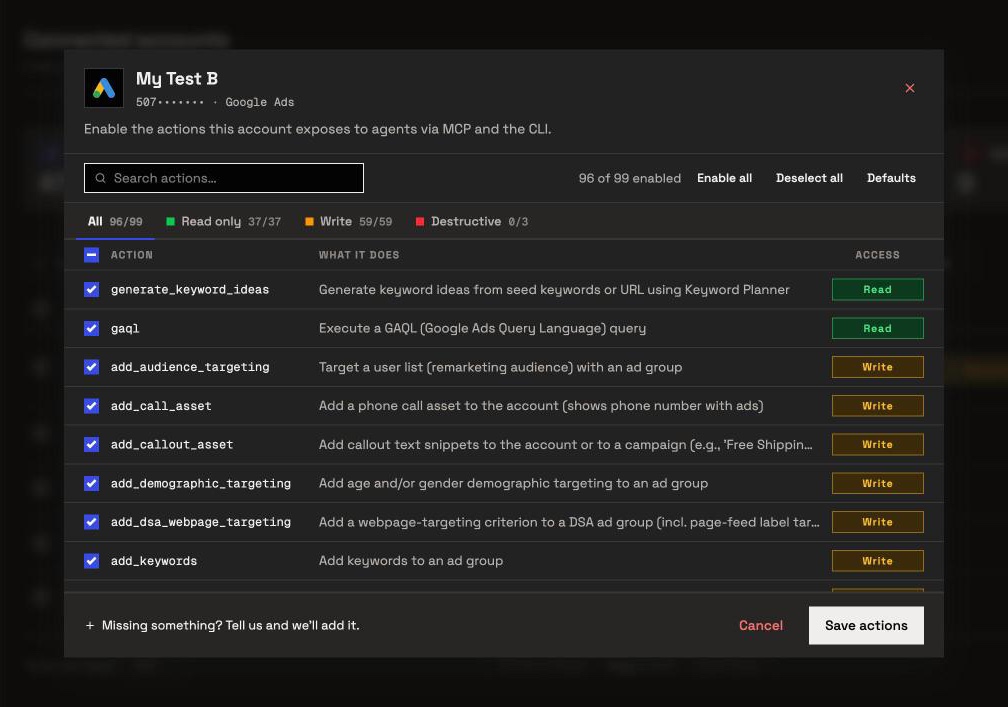
Each connected account has its own action switches, and the same switches govern MCP and the CLI. An owner, admin or operator sets them, and can change them at any time.
- Open Connected accounts in InsightfulPipe.
- Click the account's actions button, for example 96/99 actions.
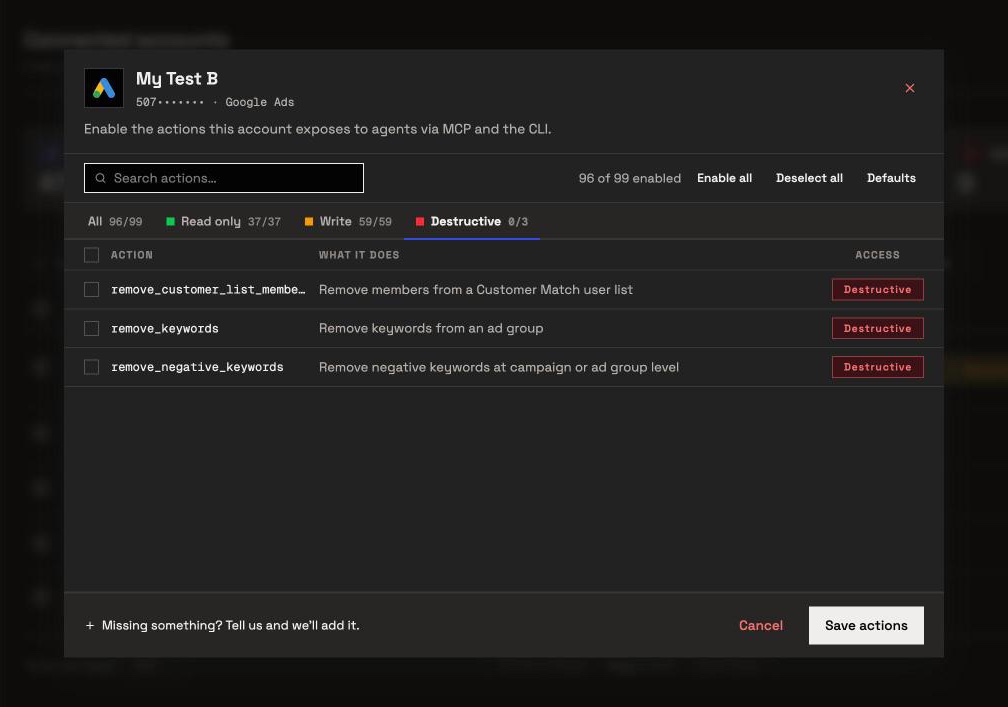
- Work through the All, Read only, Write and Destructive tabs.
- Switch actions on or off, then click Save actions.
Claude Code gets exactly the actions switched on for that account, and the server refuses anything else, whatever the client or the prompt says. Destructive actions start off on every new connection, for an admin to switch on where an account needs them.
Verify it worked
Check three things, shortest first. None of them changes anything in your accounts.
1. The connection is live. Run claude mcp list and look for ✔ Connected next to google-ads-mcp. For the CLI, run insightfulpipe doctor.
2. A prompt that cannot do harm. Paste this into Claude Code. The last line tells the agent to leave everything alone.
List the Google Ads accounts available to this connection.
Return the account name, customer ID, currency and status.
Do not run a report and do not change anything.
The CLI equivalent is insightfulpipe accounts --platform google-ads.
3. A real read. Ask for last week's cost by campaign, then compare one number with Google Ads for the same dates. If they differ, check the dates and the account time zone first.
If step 1 still shows ! Needs authentication, repeat step 3 of the setup.
Claude Code for marketing: workflows to run first
Claude Code for marketing pays off when each prompt ends in a file, a list or a paused draft you can check. These six workflows use the connection you built. Name the account in the first line of each prompt.
Workflow | What Claude Code does | What it calls |
|---|---|---|
Weekly cross-channel report | Compares spend, conversions and CPA across Google Ads, Meta Ads and LinkedIn Ads in |
|
Search-term negatives | Saves non-converting search terms to |
|
Budget pacing | Flags campaigns whose month-to-date spend is off pace |
|
GA4 landing pages | Lists pages with sessions but few key events |
|
Meta ad-set review | Proposes pauses for ad sets above your target cost |
|
Monday CSV job | Writes a script that saves a CSV in CI |
|
Two prompts to paste as they are:
Use Google Ads account [CUSTOMER_ID].

Compare the last 30 complete days with the previous 30 complete days.
Break the report down by campaign.
Include cost, clicks, conversions, cost per conversion and conversion value.
Save the result as reports/google-ads-30-day.md.
Use Google Ads account [CUSTOMER_ID].
List search terms from the last 30 days with more than [SPEND] cost and no conversions.
Save them to negatives.csv with the campaign and ad group.
Do not add any negative keywords until I say so.The prompt library and the marketing Claude skills are free. Each of the 71 skills is a SKILL.md folder you can download without an account; save it under ~/.claude/skills/ and Claude Code loads it.
What Claude Code can change, and who decides
Claude Code can change only what each account allows. Three layers decide it: the access level you connected with, the account's action switches, and your Claude Code permission rules.
- Read-only locks writes until an owner, admin or operator reconnects the account with read and write.
- Destructive actions start off. Deleting a Meta campaign, ad set or ad stays off until an owner, admin or operator switches it on. So do removing Google Ads keywords, negatives or Customer Match members, and GA4's 12 destructive actions.
- New campaigns start paused. InsightfulPipe creates new Google Ads and Meta Ads campaigns, ad groups, ad sets and ads paused, and new LinkedIn Ads campaigns too, for you to set live when ready.
- Going live is its own switch. On Google Ads,
update_campaign,update_ad_group,update_adandupdate_asset_groupcan set something live, and each tells the assistant to get your explicit confirmation first. Theresume_adandresume_ad_groupactions turn a paused ad or ad group back on. An owner, admin or operator can switch any of them off where the agent should only build drafts. On Meta Ads, going live stays with you in Ads Manager. - Keywords go in live. New Google Ads keywords, negatives and conversion actions start enabled, so an admin can keep
add_keywordsandadd_negative_keywordsoff where the agent should only suggest. - Budgets go through as written, so state the numbers. Ask for Target CPA or Target ROAS without a value and the server fills in $10 or 3.0.
- Restricted members only read. The User role runs read actions on the accounts an owner or admin grants, and an owner or admin can change a member's role at any time.
That is why InsightfulPipe is the safest way to let an AI agent change Google Ads or Meta Ads from Claude Code. Destructive actions start off, new campaigns start paused, and every action is a switch your admin controls, enforced on the server in every client.
Troubleshooting
Most failures fall into eight cases. The first six quote the exact message you see, and the last two produce no error at all.
- "! Needs authentication" in
claude mcp list. Normal before the first sign-in. Run/mcpand click Authenticate. - The sign-in ends without connecting. The workspace has no account for that platform, or none granted to you. Finish step 1, then authenticate again from
/mcp. - "This action is disabled for this connected account. An owner or admin must enable it for the account." An owner, admin or operator can switch it on under the account's actions.
- "This account is connected read-only, so this action cannot be enabled for it. An owner or admin must reconnect it with Read & Write permissions." An owner, admin or operator reconnects the account with Read & write.
- "Write actions require confirmation in non-interactive mode. Re-run with --yes." The CLI refused a scripted write. Add
--yesonly to writes you reviewed. - "Not authenticated." No key in
INSIGHTFULPIPE_TOKEN, the keyring or the config file. Runinsightfulpipe auth. - Claude Code asks before every report. Allow the server's read tools as in step 4.
- The report is empty. Widen the dates and drop filters, then confirm the account had delivery. An empty report is not always a sign-in problem.
Other ways to get marketing data into Claude Code
Google's own servers cost nothing and only read. Every other route below is a hosted or open-source connector. Each row comes from the vendor's own page, checked 2026-09-30.
Route | How it reaches Claude Code | What to know |
|---|---|---|
InsightfulPipe |
| 50 platforms, reads and writes, switches per account, from $29.99 a month |
A Python server you run on a Google Cloud project | 3 read-only tools; per Google, it cannot modify bids, pause campaigns or create assets | |
| Marked experimental; 7 read tools | |
A Python server you run | GAQL reads; needs your own developer token | |
A Claude Code plugin, added from its GitHub marketplace | Ads, analytics and CRM sources; changes after you confirm | |
One MCP server over your Coupler.io sources | 400+ sources, for reports and analysis | |
An SDK script builds the MCP URL | A developer toolkit; 67 Google Analytics tools | |
A remote server with a Markifact token | Google Ads operations; its approvals sit apart from Claude Code's | |
A personal MCP link after a setup call | Google Ads and Meta Ads | |
A gateway fed a Google service account key | Google's GA4 read tools, with access per team |
Google's servers read Google Ads or GA4 only, and you run them yourself with Python. InsightfulPipe covers 50 platforms, writes under switches per account, and keeps the same accounts in claude.ai, ChatGPT and Claude Code.
Frequently asked questions
Sources (checked 2026-09-30)
We read every capability, default and price from each vendor's own documentation, pricing page or public repository, and ran InsightfulPipe on live accounts. We opened every link below on 2026-09-30.
- Anthropic, Claude Code docs: MCP, permissions, permission modes, setup
- Google: google-ads-mcp, Google Ads MCP server guide, google-analytics-mcp, Google Ads access levels
- Windsor.ai: Claude Code plugin
- Coupler.io: MCP, Claude Code for marketing
- Composio: Google Analytics in Claude Code
- Markifact: Google Ads MCP in Claude Code
- Ryze AI: Claude Code marketing workflows
- MintMCP: Google Analytics to Claude Code
- Community: cohnen/mcp-google-ads
- InsightfulPipe: AI agents CLI, Google Ads MCP server, pricing