InsightfulPipe publishes this guide, and the steps use its hosted Facebook Ads MCP server. Other ways to connect, including Meta's own ads MCP server, are covered near the end.
Last updated: 2026-09-30
Short answer: To connect Meta Ads to Claude, connect Facebook Ads in InsightfulPipe, add https://facebook-ads.insightfulmcp.com/ as a custom connector in Claude, and click Connect. You sign in with Facebook, so there is no Meta developer app, no app review and no server to host. Plans start from $29.99 a month.
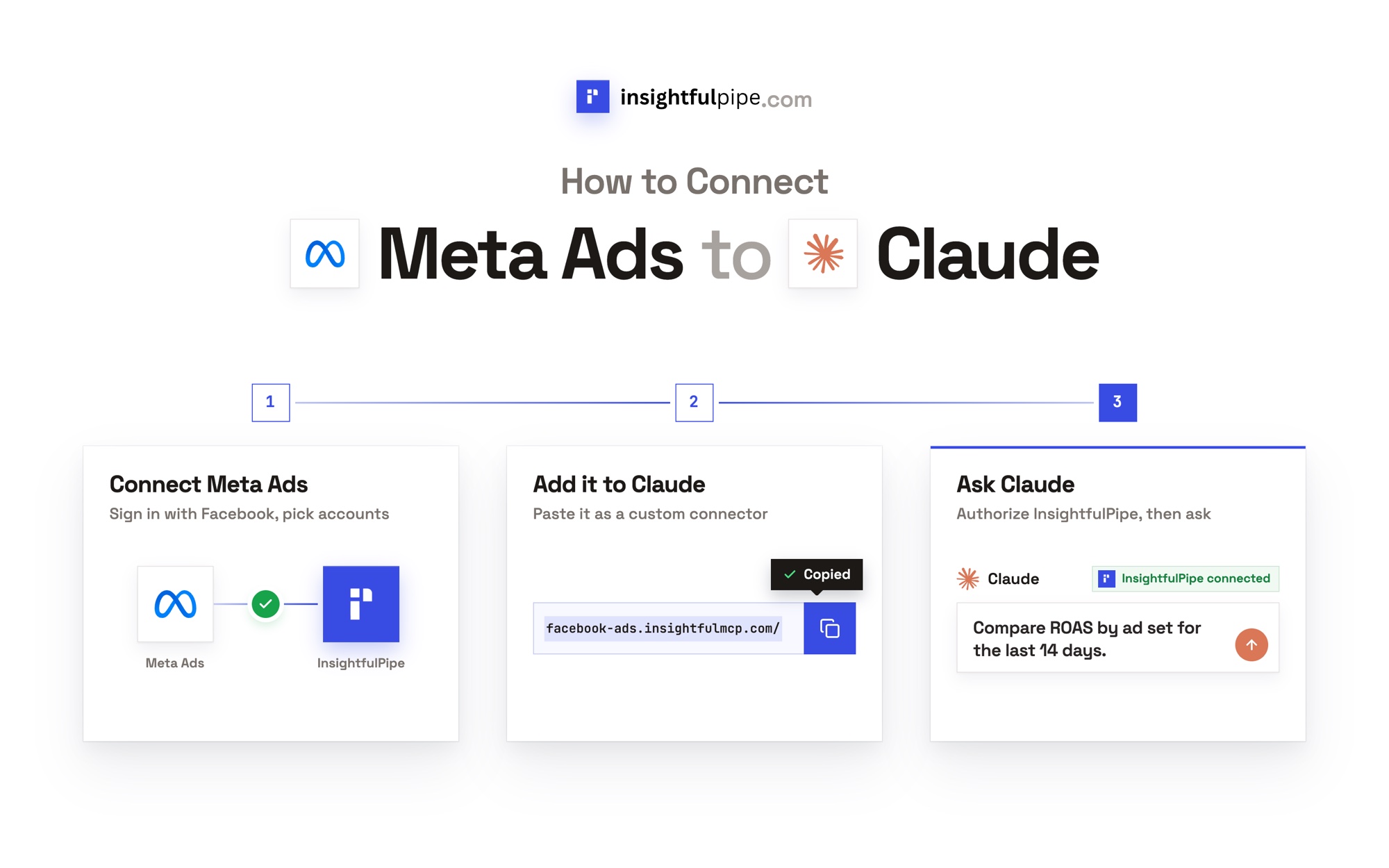
The quick version: connect Meta Ads to Claude in six steps
Six steps, about five minutes, all in your browser. Each step has its own section below, with the exact labels you will see.
- In InsightfulPipe, open Connected accounts, click Connect account and pick Facebook Ads.
- Choose Read-only or Read & write, then sign in with Facebook and select your ad accounts.
- In Claude, open Customize > Connectors, click +, then Add custom connector.
- Paste
https://facebook-ads.insightfulmcp.com/, click Continue, then Add and Connect. - Start a new chat and switch the connector on from + > Connectors.
- Run the read-only check under "Verify it worked" before you let it change anything.
The two hosted routes at a glance:
InsightfulPipe | Meta's own server | |
|---|---|---|
Server URL |
|
|
Meta Ads actions | 53: 38 read, 12 write, 3 deletes | Seven tool categories, no total |
Per-account limits | Each action, switched by an owner, admin or operator | Rules, in limited availability |
Setting ads live | You, in Ads Manager | Its activation tool, after your client confirms |
Other platforms | Google Ads, GA4, LinkedIn Ads and 46 more | Meta ads only |
Price | From $29.99 a month | No price published |
Watch: connect Meta Ads to Claude and audit spend and ROAS from one prompt, 2 minutes 39 seconds
The video may show an earlier version of the setup screens. Follow the steps in this guide for the current labels.
What are you actually connecting?
You connect three things in a line: Claude, InsightfulPipe's hosted MCP server, and the Meta ad accounts you authorize. Claude never receives your Facebook password.
Claude → InsightfulPipe MCP server → your authorized Meta ad account
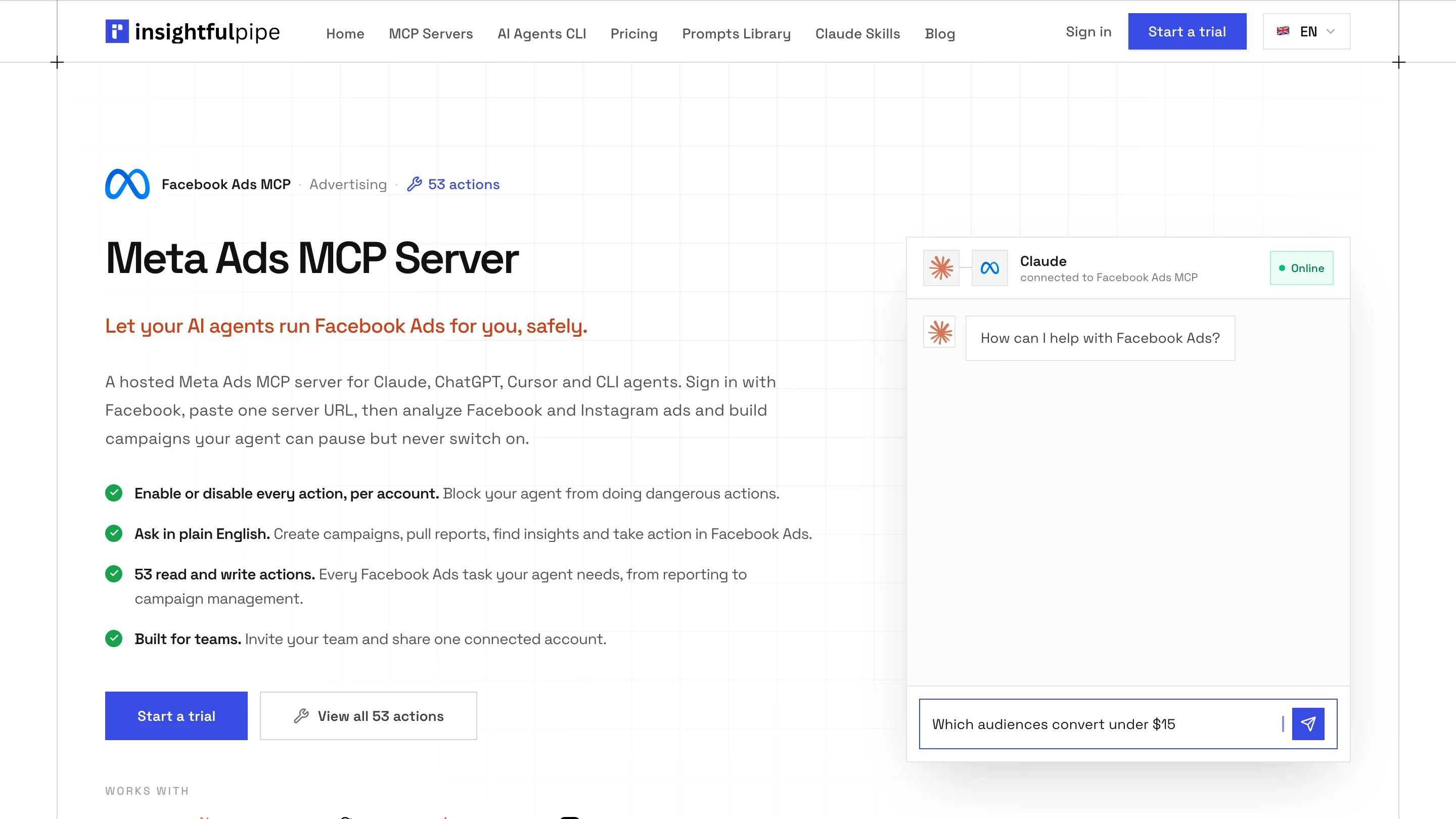
Claude sends a structured request over MCP. InsightfulPipe runs the matching call on Meta's Marketing API, version 25.0, with the OAuth access you granted.
Four things bound what the assistant can reach: your InsightfulPipe workspace, the ad accounts you connected, each account's list of actions, and your own role on the ad account. The Meta Ads MCP server page lists all 53 actions.
You do not need your own Meta developer app, an app review, a server to host or an API version to track.
Before you start
You need four things: a role on a Meta ad account, an InsightfulPipe workspace, a workspace role that can connect accounts, and an AI client that takes remote MCP servers.
- A Meta ad account role. Your Facebook login needs a role on each ad account. Instagram placements live in the same ad account, so paid Instagram needs nothing extra.
- An InsightfulPipe workspace. Plans start from $29.99 a month, and each ad account counts as one connection. Start a trial if you need one.
- An owner, admin or operator seat. These roles connect accounts and choose their actions, and an owner or admin can change anyone's role at any time.
- A client that takes remote MCP servers. Claude's Free, Pro, Max, Team and Enterprise plans all take custom connectors, and Free accounts get one (Anthropic).
Meta's own roles still apply. Meta lists three ad account roles, Admin, Advertiser and Analyst, and an Analyst can view ads and reports but cannot create or edit ads (Meta). InsightfulPipe cannot expand the authority of the Facebook login you connect.
Total time: about 5 minutes. Most of it is the Facebook sign-in in step 1.
Step 1: Connect Facebook Ads in InsightfulPipe
You pick the access level first and sign in with Facebook second. Each ad account you select becomes its own connection, with its own list of actions.
- Open Connected accounts and click Connect account.
- On Add an integration, find Facebook Ads and click Connect.
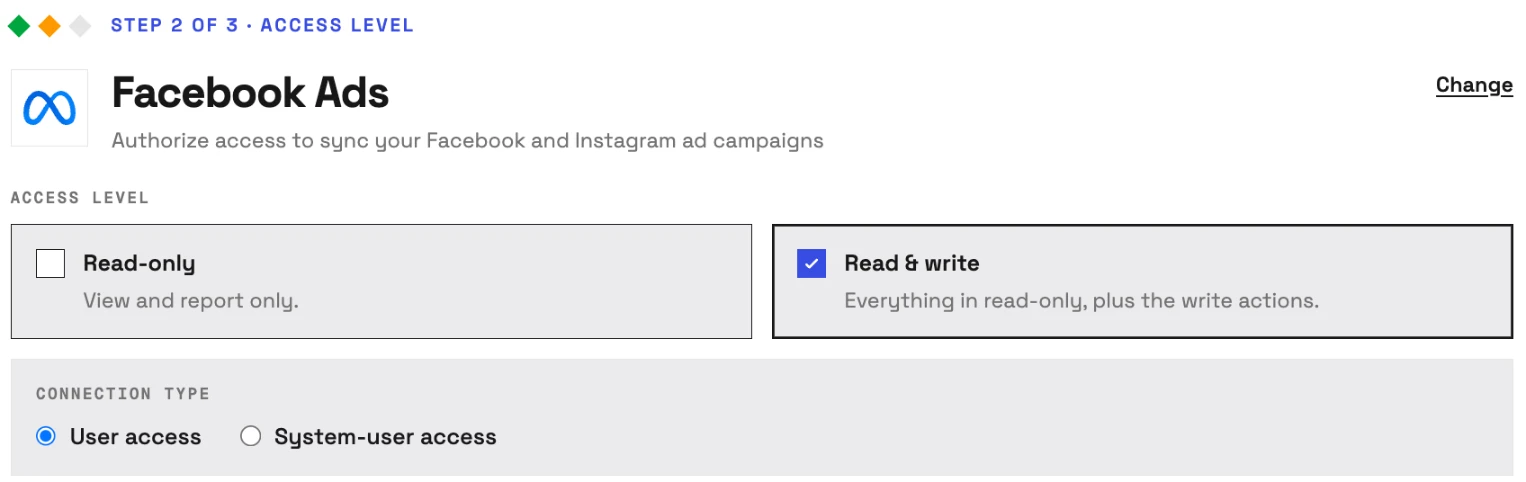
- Choose Read-only or Read & write.
- Review the actions under MCP / CLI actions, then click Continue with Facebook Ads.
- Sign in with Facebook and approve the permissions Meta shows.
- Select your ad accounts and click Connect.
Read-only asks Meta for ads_read alone. Read & write adds ads_management, which every write needs, plus a choice of User access or System-user access. Start read-only if reporting is the job: that connection locks every write until an owner or admin reconnects it with read and write.
Step 2: Add the connector URL in Claude
Claude adds the server as a custom connector, which takes one URL and one authorization.
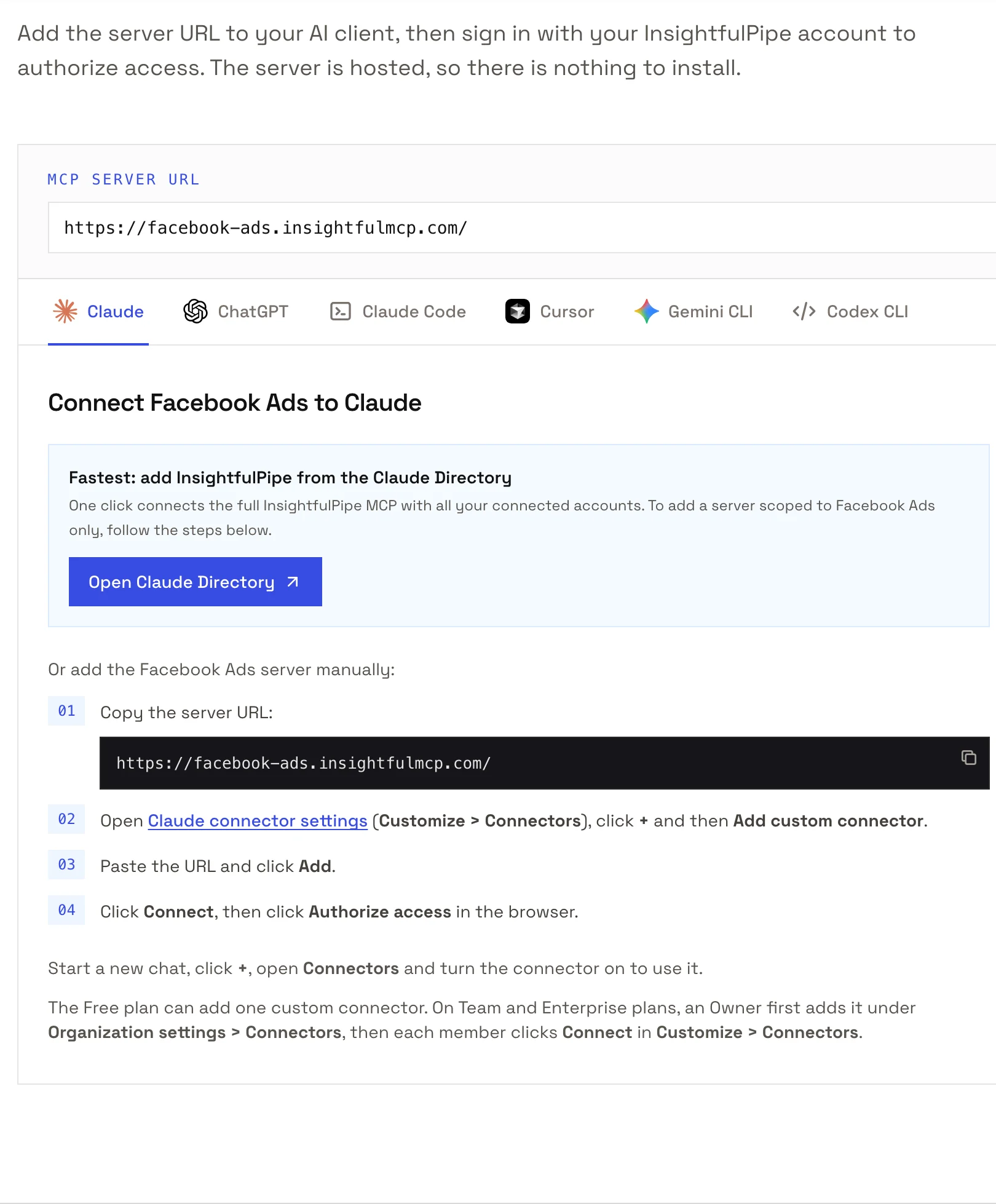
- Copy the server URL:
https://facebook-ads.insightfulmcp.com/ - In Claude, open Customize > Connectors.
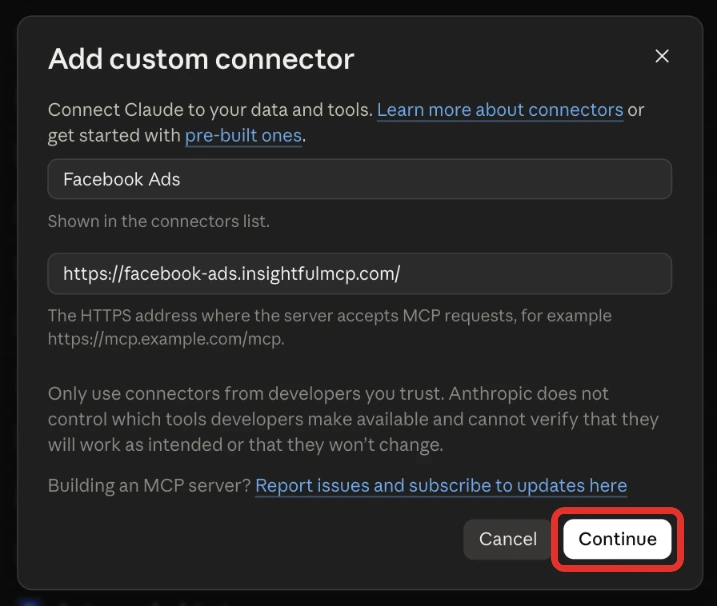
- Click +, then Add custom connector.
- Name it, paste the URL, click Continue, then Add.
- Click Connect on the new connector.
- Sign in to InsightfulPipe if asked. Claude then lists the connector as connected.
Once you're signed in, the connection finishes on its own. Claude reaches only the Facebook Ads accounts your workspace has connected and granted to you. If none is yours to use, Claude can't connect, so finish step 1 or ask an owner or admin for access.
On Team and Enterprise plans, an Owner adds the URL once under Organization settings > Connectors (Add, Custom, Web). Each member then clicks Connect in Customize > Connectors (Anthropic).
For one click, the Open Claude Directory button on our Meta Ads MCP server page adds the full InsightfulPipe server with every connected account. The URL above keeps Claude to Facebook Ads.
Step 3: Turn the connector on in a new chat
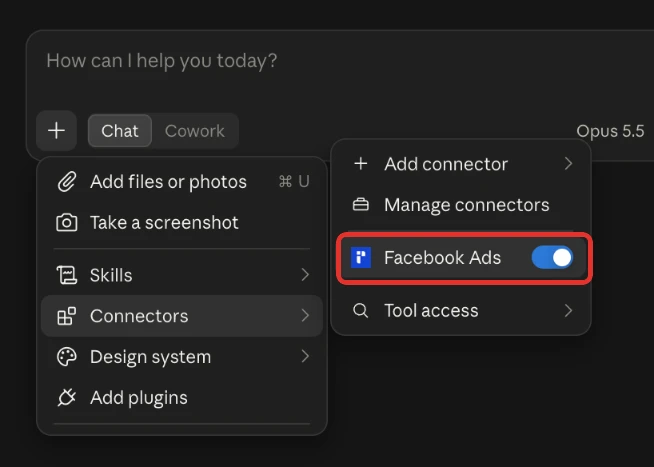
Claude turns connectors on per conversation, so switch the Facebook Ads connector on in each chat where you want it.
- Start a new chat.
- Click + at the lower left and open Connectors.
- Switch the Facebook Ads connector on.
Reports go through the server's query_data tool and changes through execute_action. Under Customize > Connectors, the connector's Tool permissions set each tool to Always allow, Needs approval or Blocked (Anthropic), so set query_data to Always allow and execute_action to Needs approval.
Step 4: Choose which actions the assistant may run
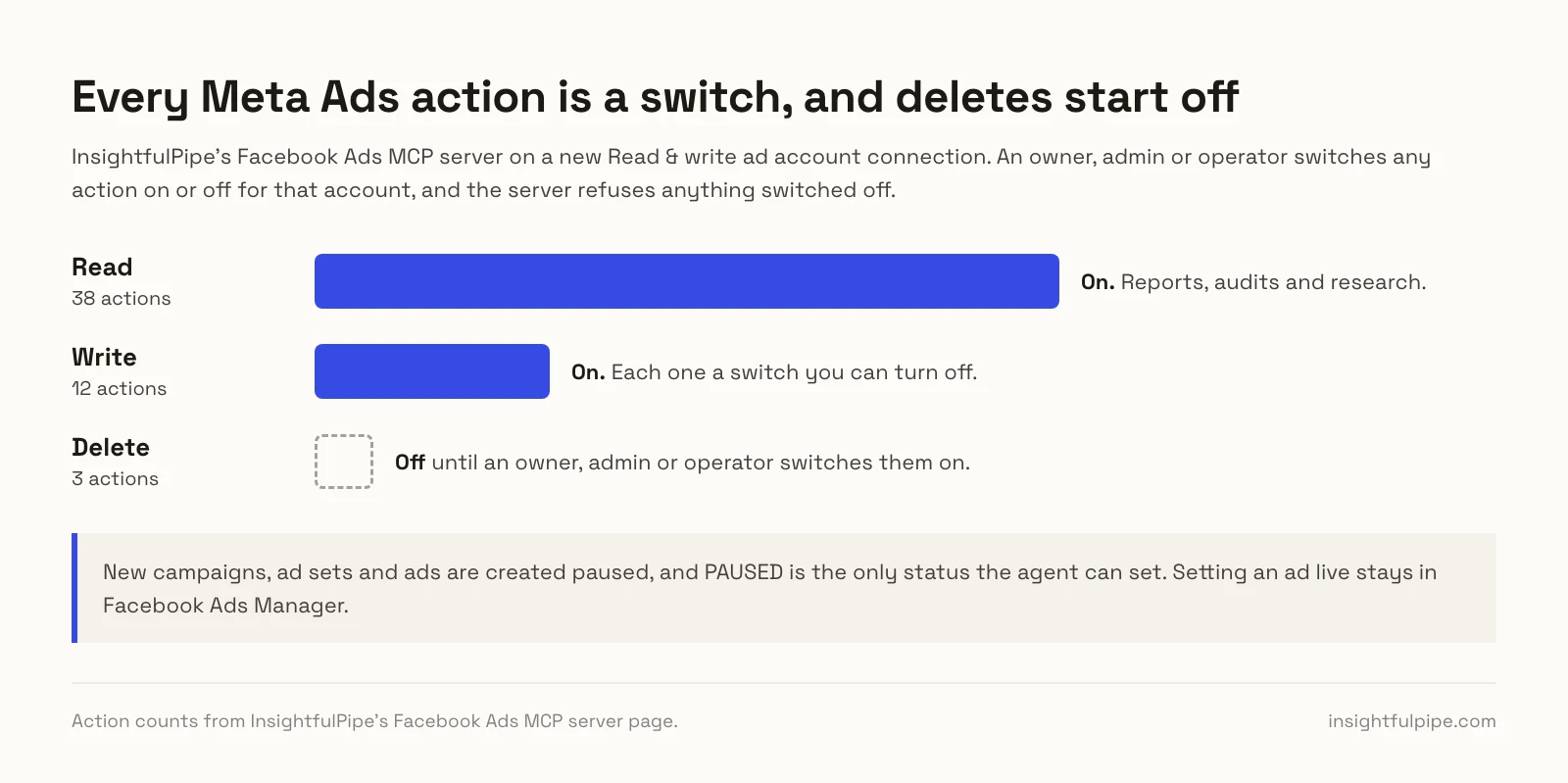
Every connected ad account has its own list of actions, and an owner, admin or operator switches each one on or off. The server enforces that list in Claude, ChatGPT, Cursor and every other client.
- In InsightfulPipe, open Connected accounts.
- On the ad account's row, click the actions count. Its tooltip reads Configure actions for this account.
- Switch actions on or off across the All, Read only, Write and Destructive tabs.
- Click Save actions.
On a new read and write connection, the Destructive tab shows delete_campaign, delete_adset and delete_ad switched off until an owner, admin or operator switches them on. The server refuses anything switched off: "This action is disabled for this connected account. An owner or admin must enable it for the account."
Step 5 (optional): ChatGPT, Claude Code, Cursor, Gemini CLI and Codex CLI
The same URL works in any client that takes remote MCP servers, and each finishes with the same InsightfulPipe sign-in. The action list from step 4 holds in all of them.
ChatGPT. Developer mode runs on Plus, Pro, Business, Enterprise and Education accounts on the web. Turn it on under Settings > Security and login, then go to ChatGPT Plugins, select + and create an app with the URL. Pick Developer mode and the app from the + menu in each new chat. Write actions ask for confirmation by default (OpenAI).
Cursor. Use the install link on our MCP server page or add the URL to ~/.cursor/mcp.json. At Needs authentication, click Connect, then Open, and sign in to InsightfulPipe if asked.
The terminals. One line each:
claude mcp add --transport http facebook-ads-mcp https://facebook-ads.insightfulmcp.com/
gemini mcp add --transport http facebook-ads-mcp https://facebook-ads.insightfulmcp.com/
codex mcp add facebook-ads-mcp --url https://facebook-ads.insightfulmcp.com/
In Claude Code, run /mcp, select facebook-ads-mcp and choose Authenticate. The default local scope loads the server in the current project only, so add --scope user to use it everywhere (Claude Code docs). Gemini CLI signs in with /mcp auth facebook-ads-mcp, and Codex CLI opens the browser itself.
Verify it worked
Check three things, shortest first. None of them writes anything, so run all three before any change.
1. The connection is live. In a new Claude chat, find the Facebook Ads connector switched on under + > Connectors. In Claude Code, claude mcp list shows facebook-ads-mcp as Connected.
2. A prompt that cannot do harm. Paste this as it is.
List the Meta ad accounts available to this connection.
Return the account name, ad account ID, currency, and status.
Do not run a report and do not change anything.
3. A real read. Ask for last week's spend by campaign, then compare one number with Ads Manager for the same dates. A gap usually means a different date range, time zone or attribution setting, not a broken connection.
If a check fails, go to Troubleshooting below.
Prompts to run first
Start with reports, and name the ad account in the first line. A request for an account you cannot use returns the accounts you can use.
Prompt | What the assistant does |
|---|---|
"What was ROAS by campaign in the last 14 days?" | Pulls campaign insights with purchase value |
"Break down last month's spend and CPA by placement" | Compares Feed, Stories, Reels and other placements |
"Which ads have a frequency above 4 and a falling CTR?" | Finds creative fatigue |
"Estimate the audience for women aged 25 to 44 in Germany who like yoga" | Runs targeting search and an audience estimate |
"What changed on this ad account this week?" | Reads the account's change history |
"Pause every ad with a CPA above $40 this week" | Pauses them; setting them live again stays with you |
Two prompts to paste as they are:
Use Meta ad account [AD_ACCOUNT_ID].

Compare the last 30 complete days with the previous 30 complete days.
Break the report down by campaign.
Include spend, impressions, clicks, purchases, cost per purchase and ROAS.
Use Meta ad account [AD_ACCOUNT_ID].
List every ad with a frequency above [FREQUENCY] over the last 14 days.
For each one, show spend, and CTR for this period and the previous 14 days.
Propose which to pause, but do not change anything yet.The prompt library and the Facebook Ads Claude skills are free to use, and 50 Facebook Ads prompts for Claude goes further.
What the assistant may change, and which switches stay with you
The Facebook Ads server exposes 53 actions: 38 read, 12 write and 3 deletes. Every limit on them is a switch, and each one names the person who flips it.
- Every action. An owner, admin or operator switches each one on or off per ad account, and the server refuses anything switched off.
- New work starts paused. The server creates campaigns, ad sets and ads paused, for you to set live in Ads Manager when they are ready.
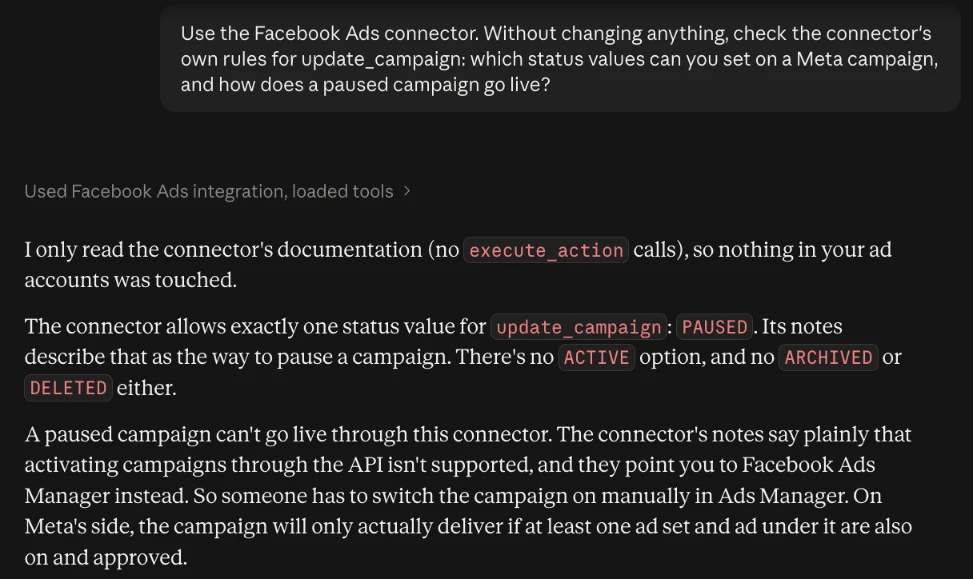
- Setting ads live. That switch stays with you. The assistant can pause anything, and the server refuses any request to go live, because PAUSED is the only status it accepts.
- Spend. Budget and bid edits on something already live apply at once. To keep the assistant off spend, an owner, admin or operator switches off
update_campaignandupdate_adset. Budgets travel in cents: 5000 means $50.00 on a USD account. - Deletes.
delete_campaign,delete_adsetanddelete_adare permanent in Meta, so they stay off until an owner, admin or operator switches them on. - Read-only. A read-only connection locks every write until an owner or admin reconnects it with read and write.
- Roles. Members with the User role run only enabled reads, on the ad accounts an owner or admin grants them.
- IDs. Every campaign, ad set, ad, creative, audience or pixel ID in a request must belong to the ad account you picked.
Those switches make InsightfulPipe the safest way to let an AI agent change a Meta Ads account: the agent builds and pauses inside limits your admins set, and setting ads live stays with you. Whichever route you pick, set an account spending limit in Ads Manager before any agent edits a budget. Start a trial to put these switches on your own ad account.
Troubleshooting
Most problems fall into two groups: Claude cannot see the connector, or the server refuses an action on purpose. Messages appear exactly as you will see them.
- The connector does not appear in the chat. Switch it on from + > Connectors in a new chat. In ChatGPT, pick Developer mode in each chat; in Claude Code, run
/mcp. - "You don't have access to any Facebook Ads accounts. Contact your workspace administrator to request access." No Facebook Ads account in this workspace is yours to use. Finish step 1, or ask an owner or admin for access.
- "This action is disabled for this connected account. An owner or admin must enable it for the account." An owner, admin or operator switches it on under Configure actions for this account.
- "This account is connected read-only, so this action cannot be enabled for it. An owner or admin must reconnect it with Read & Write permissions." Reconnect with Read & write, then switch on the writes you need.
- "Unsupported value for 'status' in action 'update_campaign': ACTIVE." Working as designed: the server accepts only PAUSED, so set the campaign live yourself in Ads Manager.
- "Your role does not have permission to execute write actions. Only operators, admins, and owners can execute write operations." Your workspace role runs reads only, and an owner or admin can change it.
- The assistant picks the wrong ad account. The server refuses it and lists the accounts you can use. Ask for that list first, then name the account by ID.
- The report is empty. Widen the date range, drop optional filters and confirm the account delivered in that period. An empty report is not always an authentication problem.
More fixes live in the MCP troubleshooting guide.
Meta's own ads MCP server, and the other routes
Meta hosts its own ads MCP server at https://mcp.facebook.com/ads, announced in open beta on April 29, 2026, with no published price.
- Setup. Add the URL as a custom connector and sign in with Facebook. Meta's help article lists ChatGPT, Claude, Claude Code and Perplexity, and its announcement says: "For MCP, no developer credentials, API setup, or coding required."
- Setting ads live. Write tools create entities paused, and "your AI client asks for confirmation before activation," says its ad creation page. Its
ads_activate_entitytool "starts spending budget". - Limits. With full control of a business portfolio, you can allow or block agent actions per ad account in Business Suite, including budgets above a set amount. Meta's rules guide calls these rules "in limited availability".
- Scope. Meta ads only, plus tools for catalogs, datasets, A/B tests and lift studies.
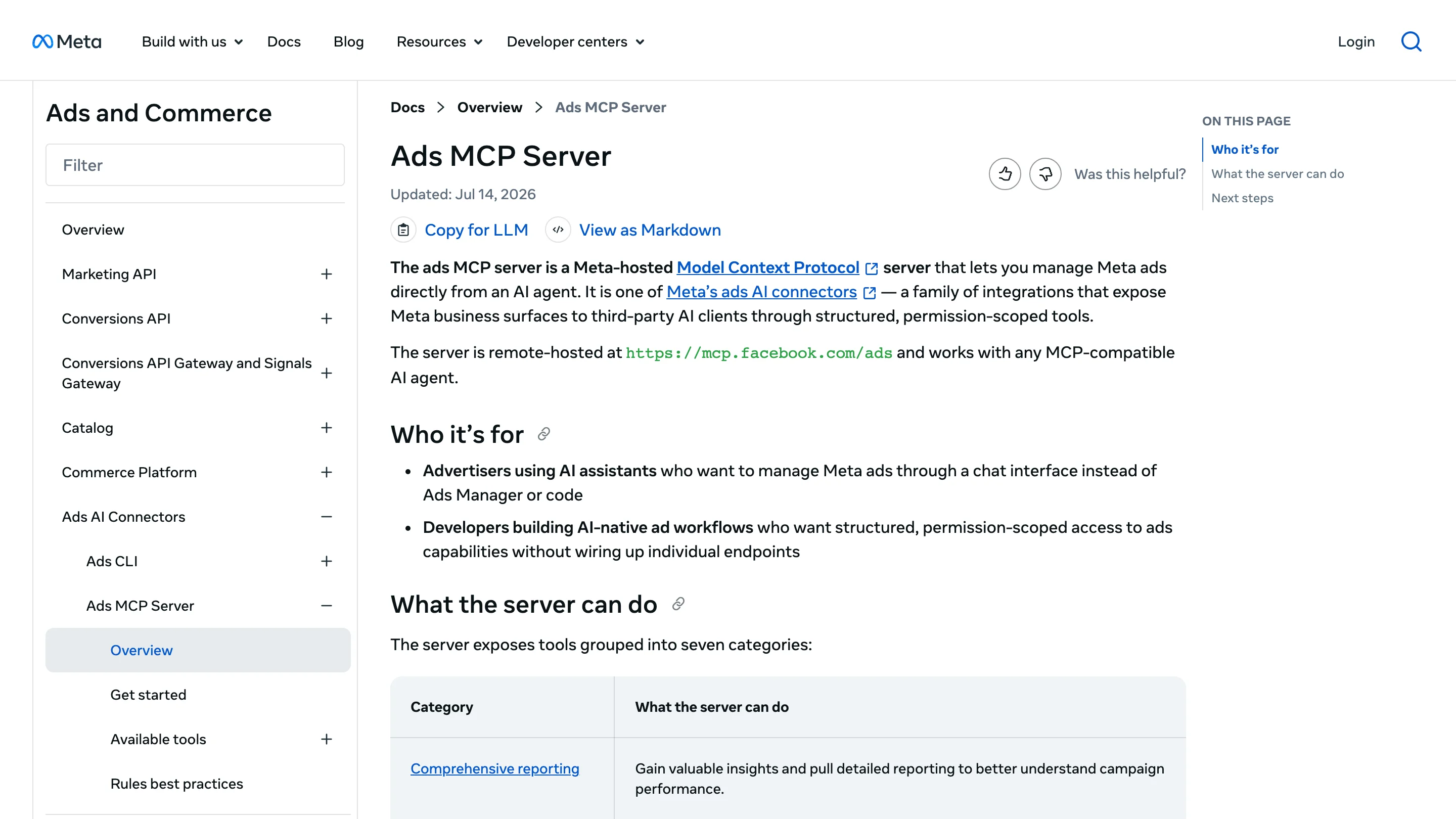
Meta's server covers Meta alone, sets ads live through its own tool once your client confirms, and keeps its per-account rules in limited availability. InsightfulPipe leaves setting ads live to a person, lets your own admins switch every action, and puts Google Ads, GA4, LinkedIn Ads and 46 more platforms on one login. MCP clients hold several servers at once, so you can run both.
Windsor.ai, Whatagraph, Supermetrics, Markifact and Pipeboard also publish ways to connect Meta Ads to Claude, each with its own account and defaults, so this guide covers only InsightfulPipe and Meta's server.
Frequently asked questions
Sources (checked 2026-09-30)
Every outside claim above comes from that company's own page, opened on 2026-09-30.
- InsightfulPipe: Meta Ads MCP server, Facebook Ads connector docs, pricing
- Meta: ads AI connectors help, ads MCP server overview, get started, ad creation and management tools, rules best practices, announcement, ad account roles
- Anthropic: custom connectors using remote MCP, using connectors, Claude Code MCP docs
- OpenAI: ChatGPT Developer mode, Codex MCP
- Google: Gemini CLI MCP servers
- Other routes named above: Windsor.ai, Whatagraph, Supermetrics, Markifact, Pipeboard