InsightfulPipe publishes this guide and its hosted MCP server. SEO reporting, Search Console + GA4 setup and every prompt below run on that server. Google's own options are covered before the steps.
Last updated: 2026-11-01
To use an MCP server for SEO reporting with Search Console and GA4 data, connect your site and your GA4 property in InsightfulPipe, add https://main.insightfulmcp.com/ to Claude as one connector, then click Connect, sign in to InsightfulPipe if asked, and click Authorize access. One chat then reads clicks and positions next to sessions and key events. You need no Google Cloud project or local install. Plans start from $29.99 a month.
The quick version
These six steps are the whole setup, and each one has its own section below with the labels you will see.
- In InsightfulPipe, open Connected accounts, click Connect account and choose Google Search Console.
- Choose Read-only, click Continue with Google Search Console and connect your site.
- Click Connect account again, choose Google Analytics 4, pick Read-only and connect the property.
- In Claude, open InsightfulPipe in the Claude Directory, or add the server URL under Customize > Connectors.
- Click Connect, sign in to InsightfulPipe if asked, and click Authorize access.
- Turn the connector on in a new chat and run the first SEO report below.
Search Console and GA4 MCP routes at a glance
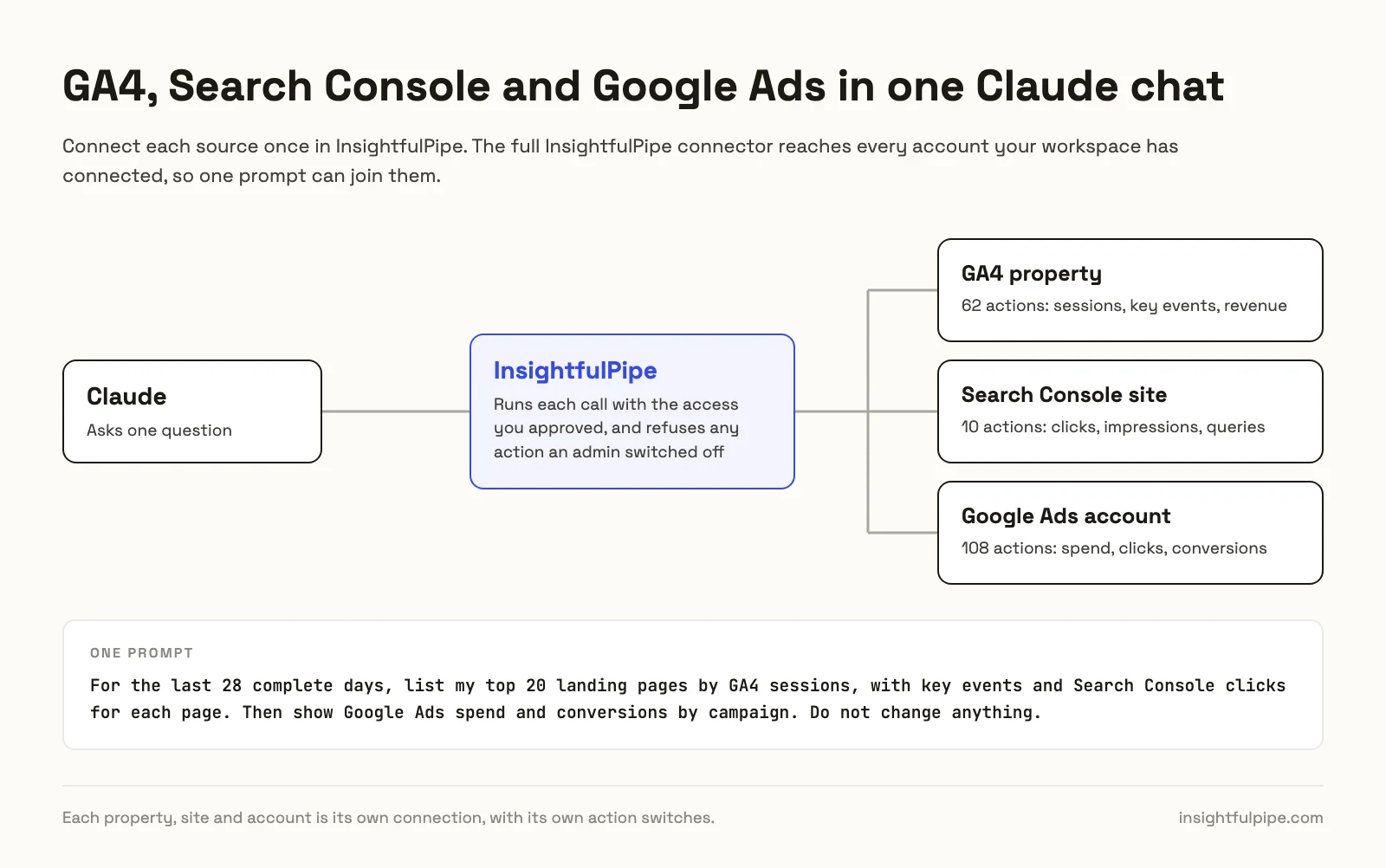
Four routes put Search Console and GA4 data in front of an AI assistant. InsightfulPipe's hosted Google Search Console MCP server and GA4 MCP server sit behind one sign-in, with a switch on every action for each site and property.
Route | Search Console | GA4 | What you set up | claude.ai and ChatGPT on the web |
|---|---|---|---|---|
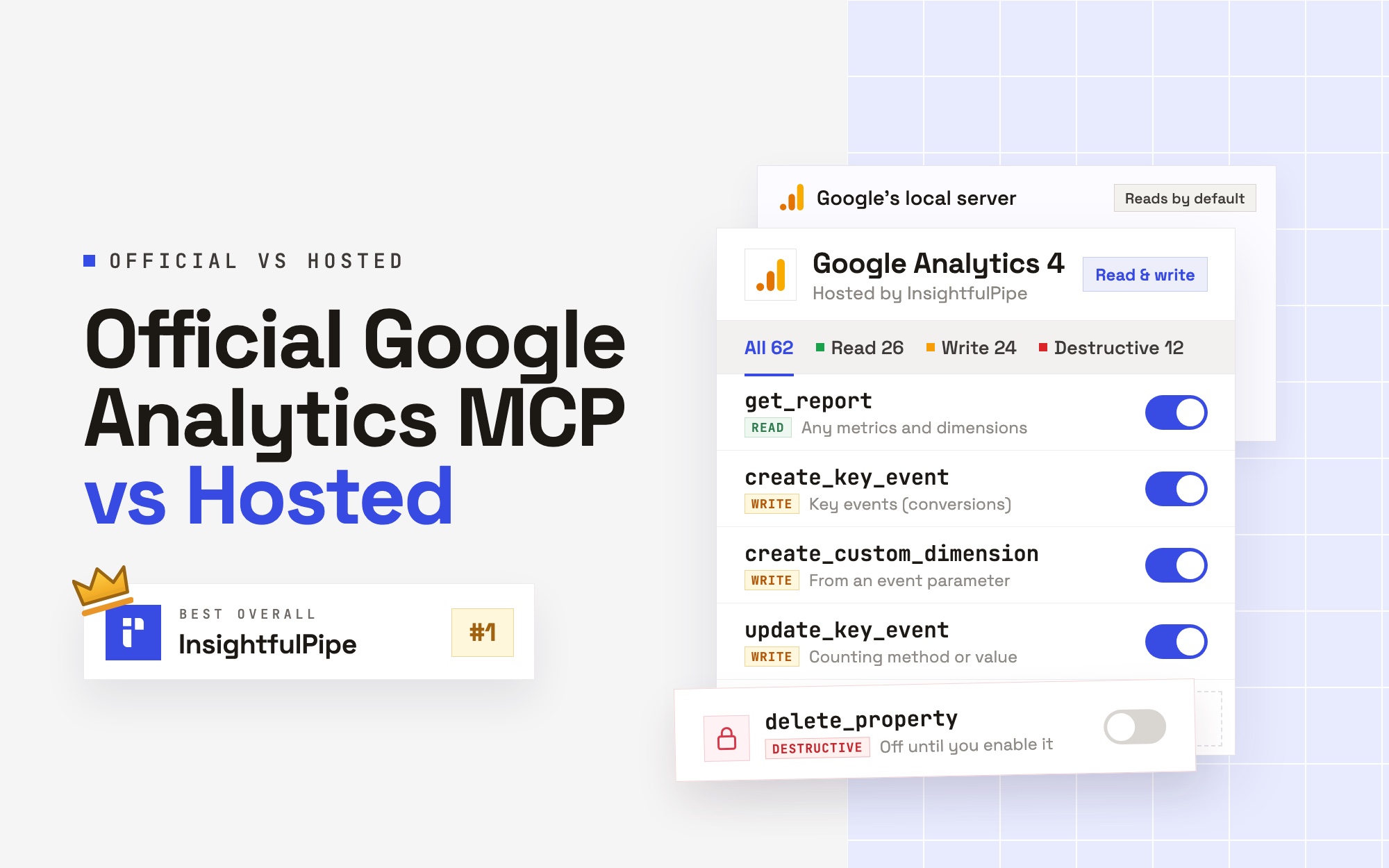
InsightfulPipe hosted server | 10 actions: 8 read, and the 2 sitemap writes stay off for every account | 62 actions: 26 read, 24 write, 12 destructive | A Google sign-in, then one connector URL | Yes |
Google's own servers | None published | Google Analytics MCP server, read-only per Google's guide | Python, a Google Cloud project and local credentials | Not unless you host it yourself |
Open-source servers | Yes, such as mcp-gsc | Some, such as search-console-mcp | Node or Python, your own Google credentials and a config file | Not unless you host it yourself |
Other hosted SEO servers | Yes | Yes, on some plans | An account with that vendor | Yes, per their pages |
Watch: GA4 MCP server: connect GA4 to Claude and generate SEO reports, 2 minutes 27 seconds
The video may show earlier versions of some screens. Follow the steps in this guide for the current labels.
What Google offers: a GA4 server, and none for Search Console
Google publishes one MCP server for this job, and it reads GA4 only. Google has no MCP server for Search Console, so the official route covers half the job and needs a community server for the other half.
The Google Analytics MCP server. Google's developer guide, updated 2026-10-26, says it "is available for read requests only". Its repository calls it "Google Analytics MCP Server (Experimental)", version 0.8.0 from 2026-10-22, and lists one opt-in write tool, create_property_annotation, behind an --allow-write flag.
What it needs. Python 3.10 or later with pipx or uv, a Google Cloud project with the Analytics Admin and Data APIs on, and Application Default Credentials. It runs on your computer. claude.ai on the web and ChatGPT reach only remote servers, so they cannot start it.
An endpoint Google has not documented. The GA4 Data API also answers MCP requests at https://analyticsdata.googleapis.com/mcp/v1, and listed four read-only tools on 2026-11-01. Neither Google's guide nor its list of managed MCP servers, updated 2026-11-02, mentions it.
Search Console. Google publishes no Search Console MCP server, and none is on that list. Google's Developer Knowledge MCP server, which ranks for the search, reads documentation, not your data.
GA4's own Search Console link. Linking the two inside GA4 adds four Data API metrics, such as organicGoogleSearchClicks, which "require an active Search Console link" per Google's API schema. The link needs the GA4 Editor role and a verified Search Console owner. It carries no URL inspection, sitemaps or index status.
InsightfulPipe hosts both sources behind one sign-in, with a switch on every action. The steps below set that up.
What you are actually connecting
Claude never sees your Google password. It sends a structured request over MCP to InsightfulPipe, which calls the Search Console API or the GA4 Data API with the access you approved.
Claude → InsightfulPipe MCP server → your Search Console site and GA4 property
Four things bound what Claude can do: your workspace, the sites and properties you connected, each one's action list, and your own role in Google.
On Read-only, InsightfulPipe asks Google for webmasters.readonly and analytics.readonly, so Google itself refuses a change. You need no OAuth client, server to host or API version to track. MCP vs API explains the difference from calling the APIs yourself.
Before you start
You need four things before the first click, and Google's own roles still decide what you can see.
- Google access. A login with access to the Search Console property and the GA4 property. Google's guide names GA4's Viewer role as enough to read reports.
- An InsightfulPipe workspace, from $29.99 a month with 8 connections and unlimited tool calls. Your site and property use two. Start a trial if you have no workspace yet.
- The right workspace role. Owners, admins and operators can connect accounts. Members on the User role cannot.
- A client that supports remote MCP servers. Claude offers custom connectors on every plan, and Free allows one, per Anthropic. ChatGPT, Claude Code, Cursor, Gemini CLI and Codex work too.
In Google's permission list, a Search Console Owner "has full control over properties", and a Restricted user "has simple view rights on most data". InsightfulPipe cannot expand the authority of the Google account you connect.
Step 1: Connect Search Console in InsightfulPipe
You pick the site in InsightfulPipe, and Google asks you to sign in once.
- In InsightfulPipe, open Connected accounts and click Connect account.
- On Add an integration, find Google Search Console and click Connect.
- Choose Read-only as the access level.
- Click Continue with Google Search Console, then sign in with Google and approve access.
- Under Sites, open Choose sites... and pick your property.
- Click Connect 1 site, or the count you picked.
A domain property (sc-domain:example.com) and a URL-prefix property are separate in Search Console, so connect the one your team reports on. The Search Console connector docs cover each field.
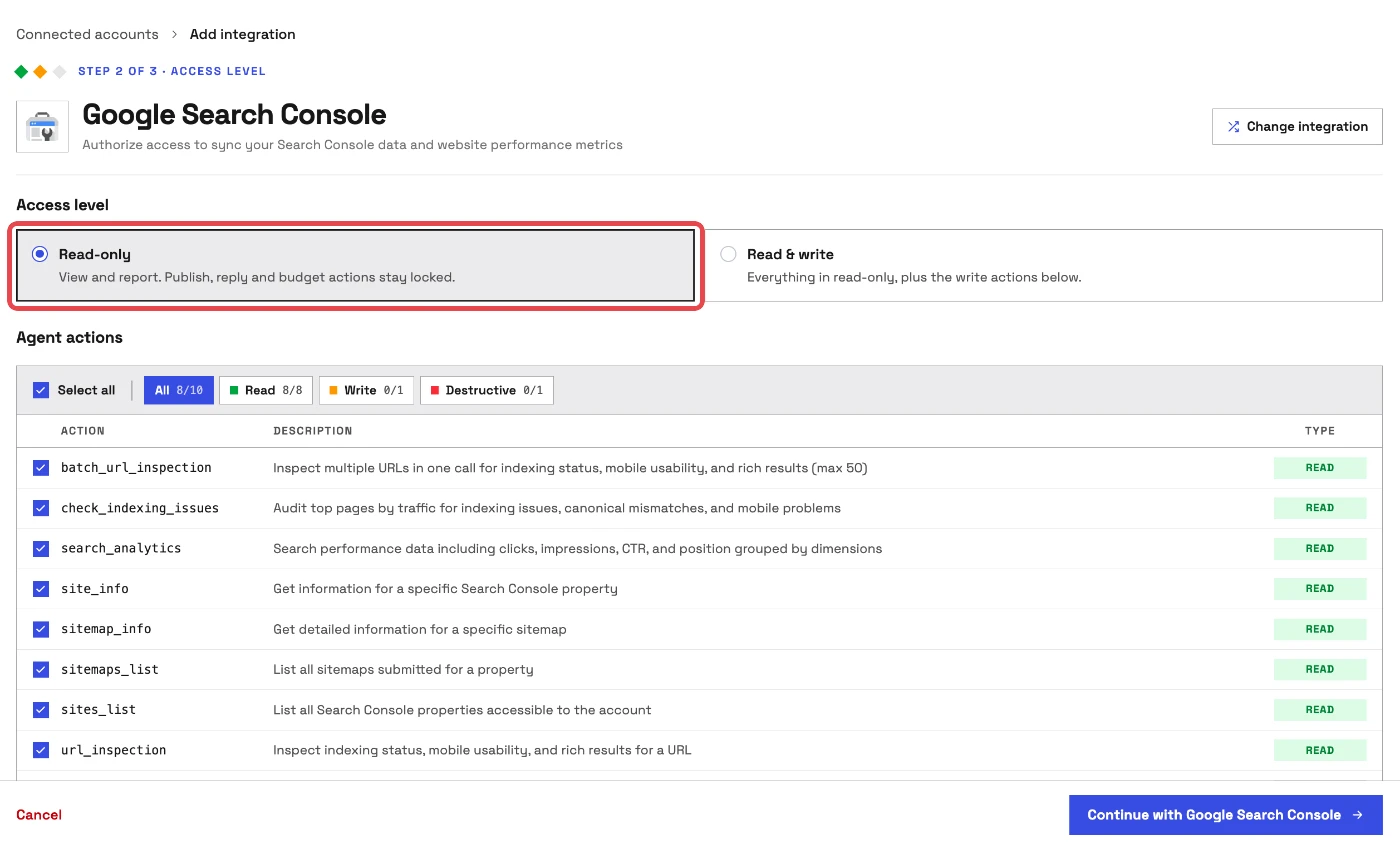
Step 2: Connect GA4 in InsightfulPipe, read-only
GA4 connects the same way, and a reporting connection needs no writes.
- Click Connect account again.
- On Add an integration, find Google Analytics 4 and click Connect.
- Under Access level, choose Read-only. The Agent actions list shows All 26/62, with every write locked.
- Click Continue with Google Analytics, then sign in with Google and approve access.
- Under Properties, pick the property for the same website and click Connect 1 property.
Each site and property becomes its own connection with its own action list. How to connect GA4 to Claude covers the GA4 side in depth.
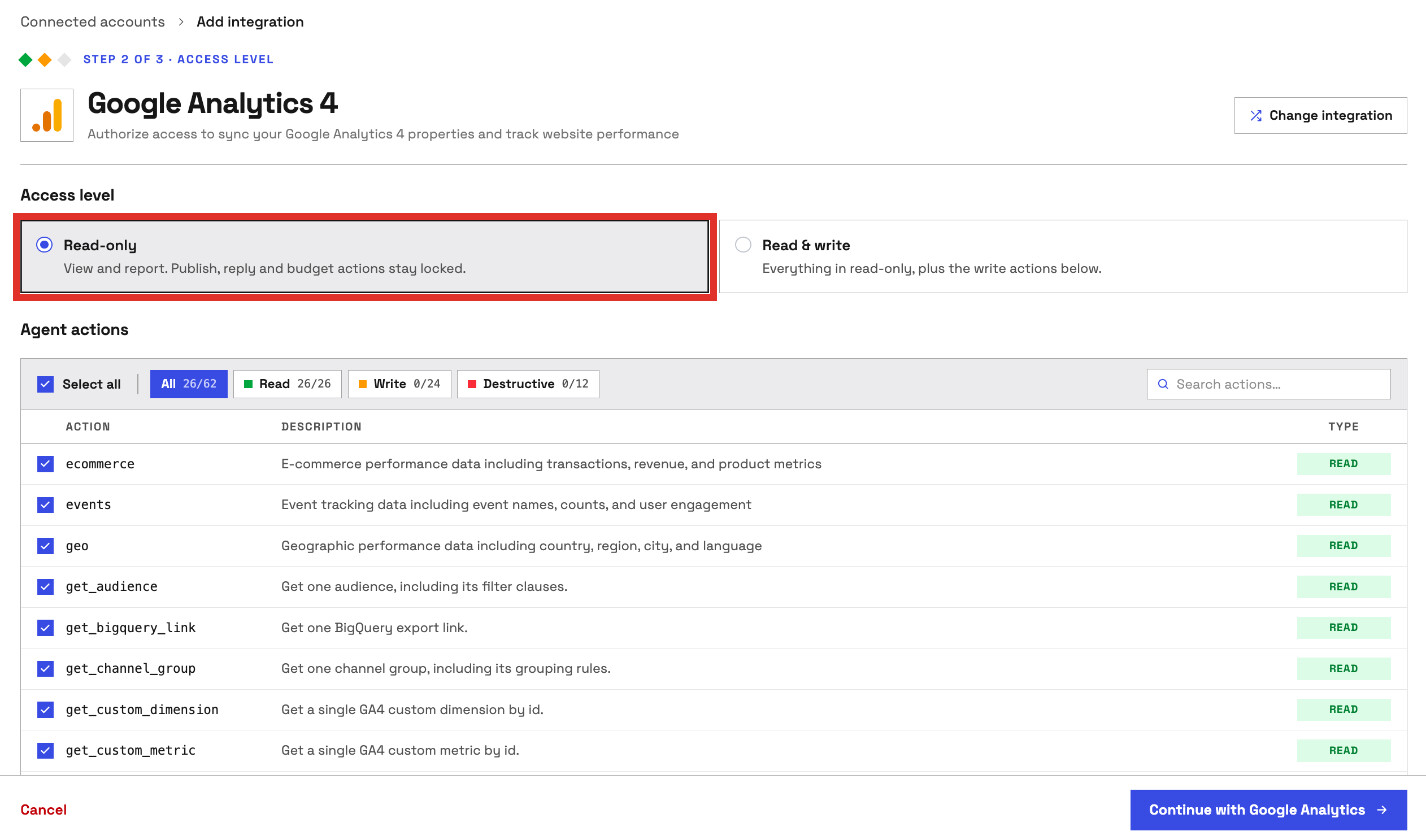
Step 3: Add InsightfulPipe to Claude
One connector reaches both sources, and the flow matches on claude.ai and in Claude Desktop.
Fastest: the Claude Directory. Open InsightfulPipe in the Claude Directory and click Connect. This adds the full InsightfulPipe MCP server, which reaches every account your workspace connected.
The server URL:
- Copy
https://main.insightfulmcp.com/. - In Claude, open Customize > Connectors.
- Click + Add, then Add custom connector.
- Name it, paste the URL, click Continue twice, then Add.
- Click Connect, sign in to InsightfulPipe if asked, then click Authorize access.
On Team and Enterprise plans, an Owner first adds the connector under Organization settings > Connectors.
To keep each source separate, add https://google-search-console.insightfulmcp.com/ and https://google-analytics.insightfulmcp.com/ the same way. Claude's Free plan allows one custom connector, so use the Directory or the full URL there.
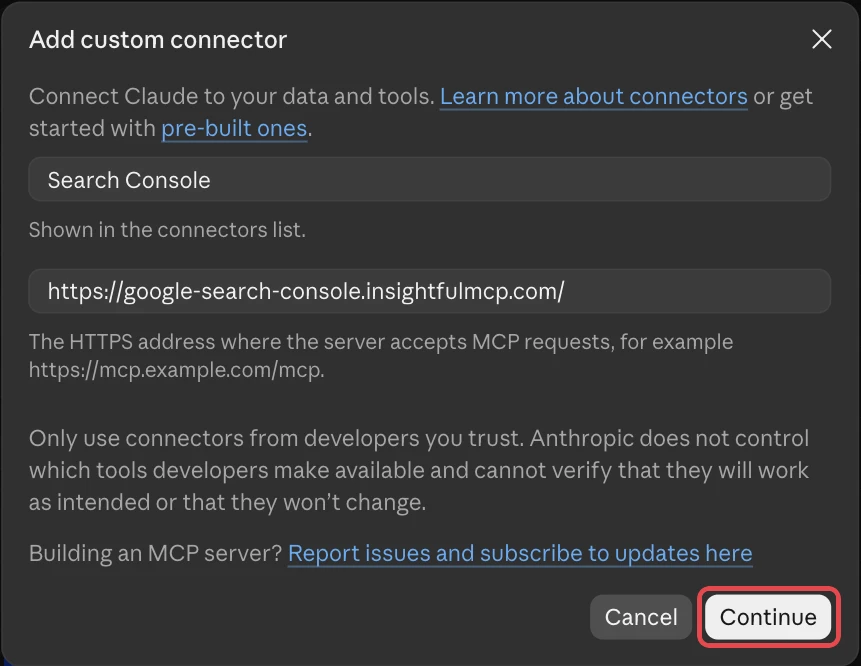
Step 4: Turn the connector on in a new chat
Claude uses a connector only in the chats where you switch it on, so do this once per new chat.
- Start a new chat in Claude.
- Click + in the lower left and open Connectors.
- Switch InsightfulPipe on, or both scoped connectors.
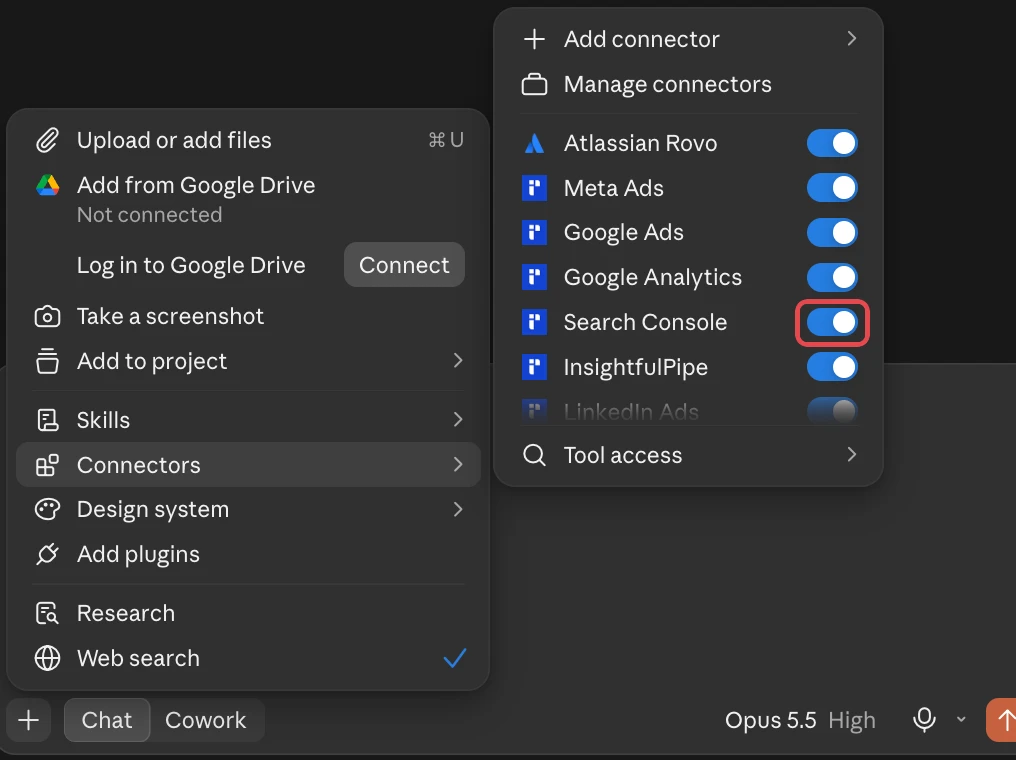
Step 5 (optional): ChatGPT, Claude Code, Cursor, Gemini CLI and Codex
The same server works in every client that supports remote MCP servers, and each finishes with the same InsightfulPipe sign-in and Authorize access step.
- ChatGPT: install InsightfulPipe from ChatGPT Plugins, or open Plugins, click Add, choose Add custom MCP server and paste the URL. The ChatGPT setup guide has every click.
- Claude Code: run the first line below, then type
/mcp, select main-mcp and choose Authenticate. - Gemini CLI and Codex CLI: run their line below and sign in when the browser opens.
- Cursor: add the URL to
~/.cursor/mcp.jsonand click Connect.
claude mcp add --transport http main-mcp https://main.insightfulmcp.com/
gemini mcp add --transport http main-mcp https://main.insightfulmcp.com/
codex mcp add main-mcp --url https://main.insightfulmcp.com/
Verify it worked
Three checks, shortest first, show that both sources answer and where a failure sits.
The connection is live. In Claude, the + menu lists the connector under Connectors. In Claude Code, claude mcp list shows main-mcp as connected.
A prompt that cannot change anything. Paste this into a new chat.
List the Search Console sites and GA4 properties available to this connection.
Return each site URL or property ID, and its property type.
Do not run a report and do not change anything.
A real read. Ask for last week's Google clicks from Search Console and Organic Search sessions from GA4. Compare each with its own interface for the same dates.
SEO reporting with the MCP server: your first Search Console and GA4 report
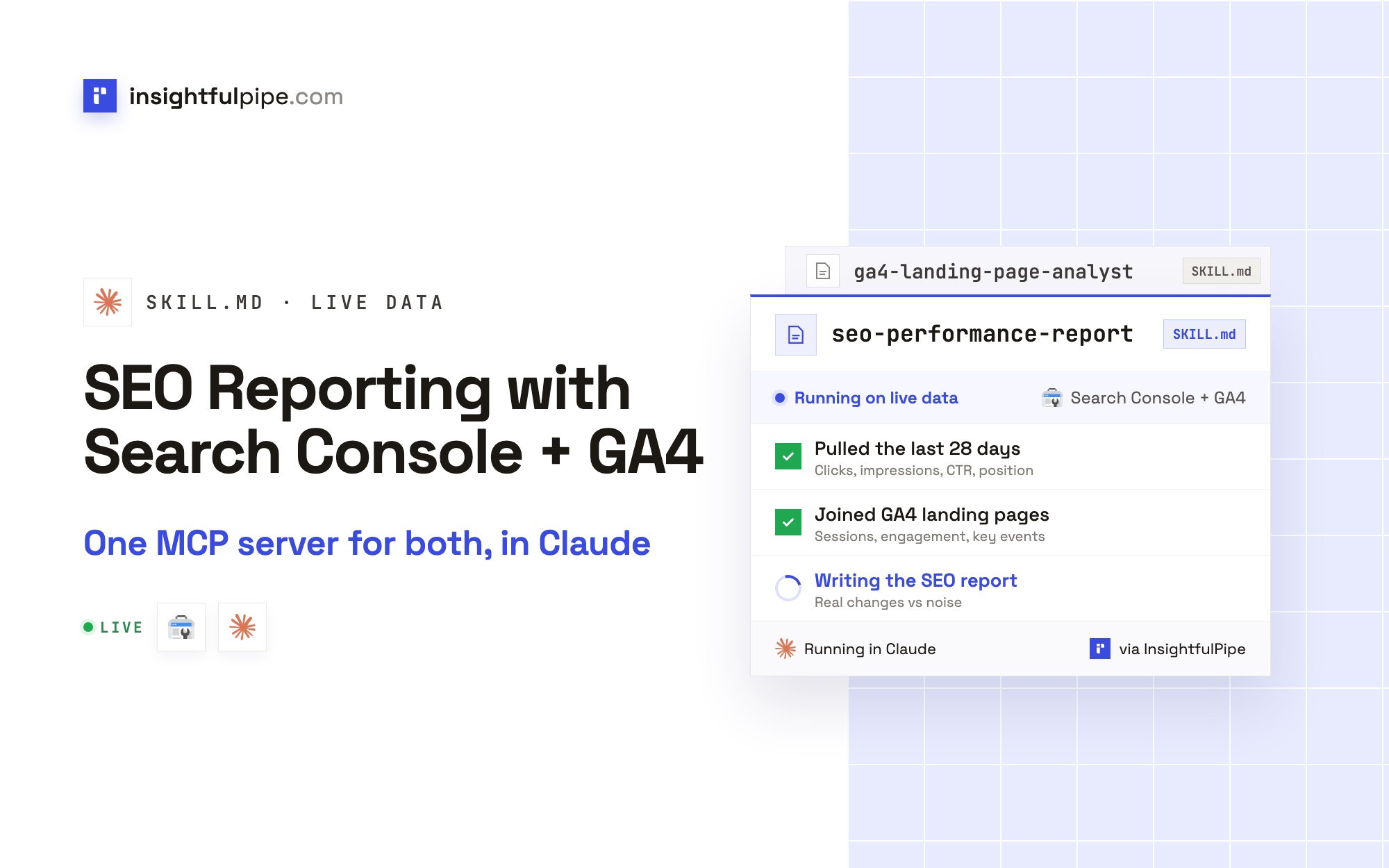
Two free skills from the Claude skills library turn this connection into a repeatable SEO report. A skill is a written method Claude follows step by step, and what Claude skills are explains the format.
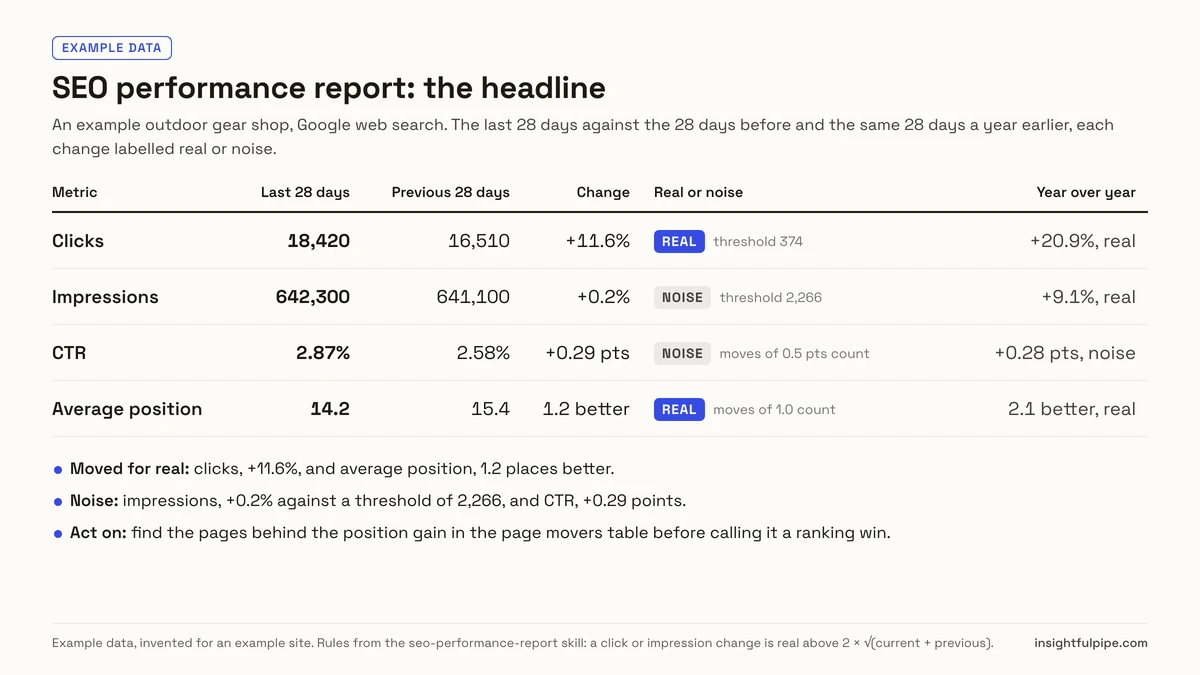
The SEO performance report skill reads Search Console. It compares the last 28 days with the 28 before and with the same days a year earlier. It splits clicks by brand and non-brand, device, country, page group, page and query, and labels every change real or noise before Claude explains it.
The GA4 landing page analyst adds GA4. It reads sessions, engagement and key events per landing page and joins Search Console clicks on the URL path. For a page with 30 or more clicks, it warns when GA4 Organic Search sessions fall under 60% of the clicks, because that page is losing tracking.
Use the seo-performance-report skill on Search Console property [PROPERTY_URL].
Compare the last 28 days of data with the 28 days before
and with the same 28 days a year earlier.
Treat [BRAND TERMS] as brand queries. Do not change anything.
Use the ga4-landing-page-analyst skill on GA4 property [PROPERTY_ID],
with Search Console property [PROPERTY_URL] for organic clicks.
For the last 30 complete days, list the top 20 organic landing pages
with clicks, Organic Search sessions, engagement rate and key events.
Flag pages where sessions are under 60% of clicks.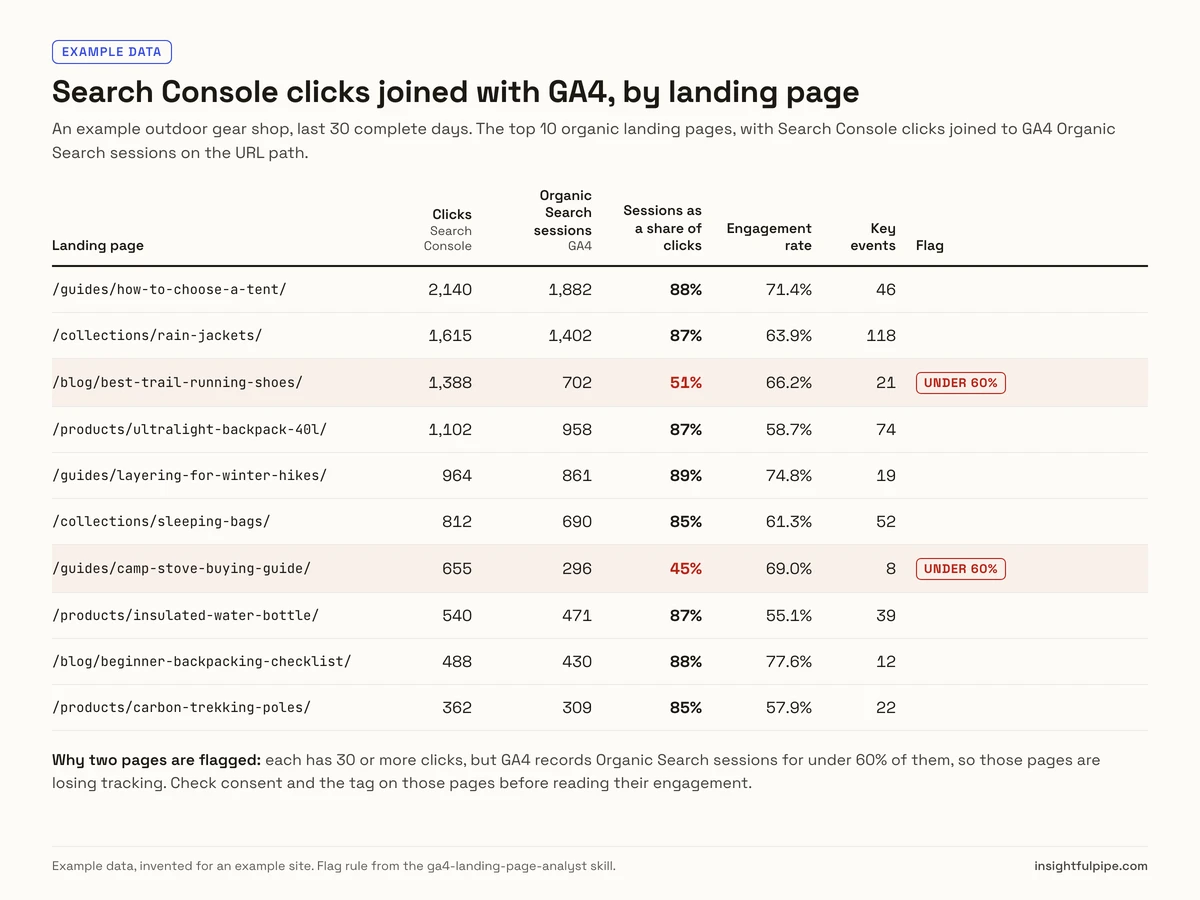
In Claude Code, npx insightfulpipe skills install seo-performance-report installs a skill in one line. Three more pick up where the report stops: content decay refresh for pages losing clicks, keyword cannibalization fixer for pages splitting a query, and AI search visibility for GA4 sessions from AI assistants.
Prompts that join Search Console and GA4
Start with the questions neither interface answers alone: which pages Google sends, and what those visitors do next.
Prompt | What Claude runs |
|---|---|
"Which landing pages get Search Console clicks but few GA4 sessions?" |
|
"Which organic landing pages drive the most key events, and which queries reach them?" | GA4 |
"Which pages lost clicks month over month, and did their engagement change?" | Two |
"Which queries rank 8 to 15 on pages that already convert?" |
|
"How many sessions do AI assistants send, and to which pages?" | GA4 |
The prompt library is free to use, and SEO prompts for Claude has more to try. The cross-platform reports guide adds spend from the Google Ads MCP server to the same chat.
Why Search Console clicks and GA4 sessions disagree
Search Console counts Google clicks and GA4 counts sessions, so an SEO report compares trends in each source and never forces the totals to match.
- Organic Search is wider than Google. Google's channel definitions count any source on its list of search sites. Bing and DuckDuckGo land there too, so GA4 can show more organic sessions than Google clicks.
- Some clicks never become sessions. Consent banners, a late tag and sessions landing as "(not set)" all remove sessions. The 60% check catches that.
- Join on the path. Search Console reports full URLs, and GA4's landing page is a path. Drop the host and the query string before you compare.
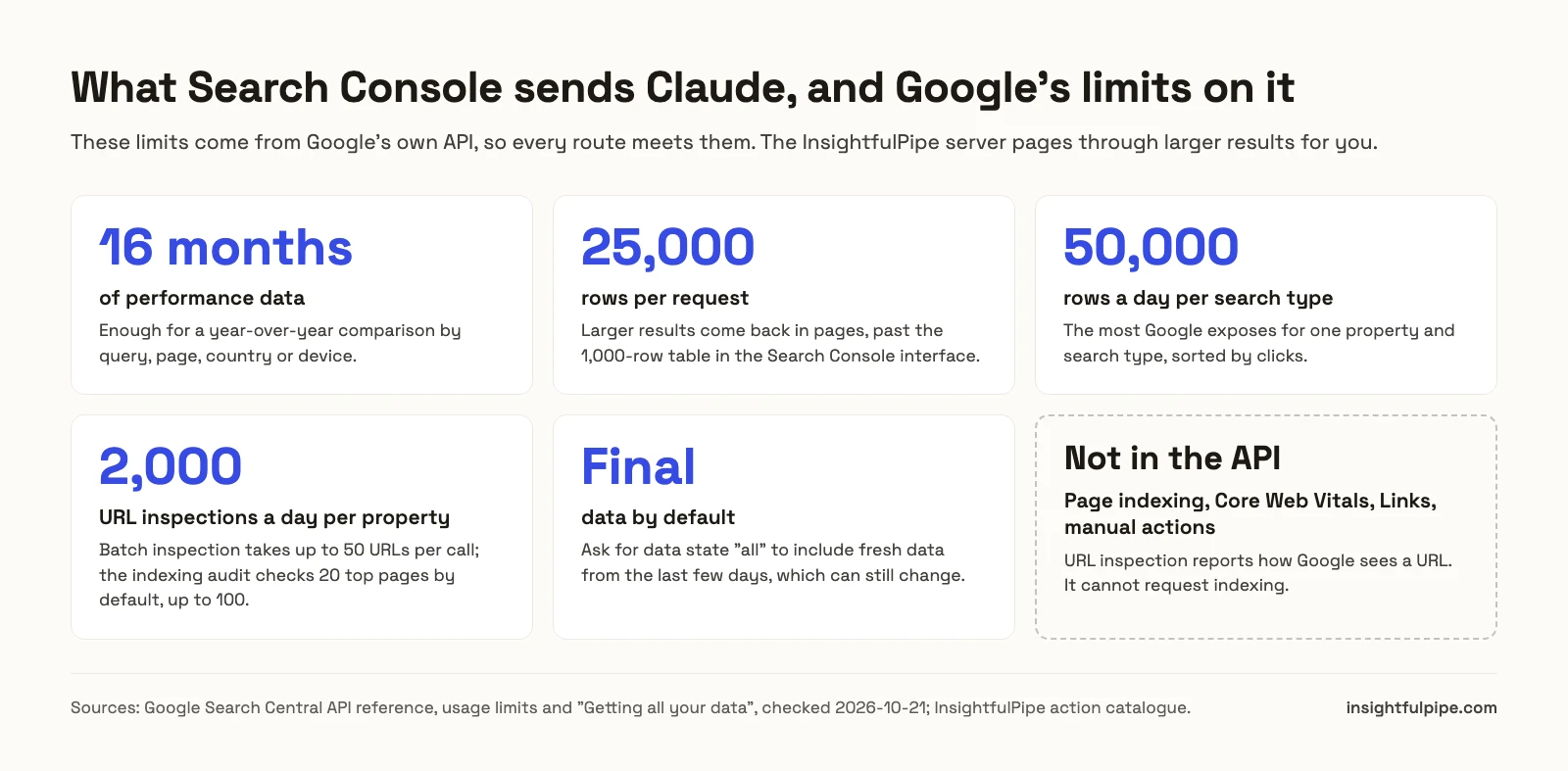
- Google's limits apply to every route. Search Console returns up to 25,000 rows per request, exposes 50,000 rows a day per search type and allows 2,000 URL inspections a day per site. InsightfulPipe's server pages through larger results for you.
What the assistant may change, and what it cannot
A reporting connection changes nothing in Search Console or GA4, and InsightfulPipe's server enforces that in every client.
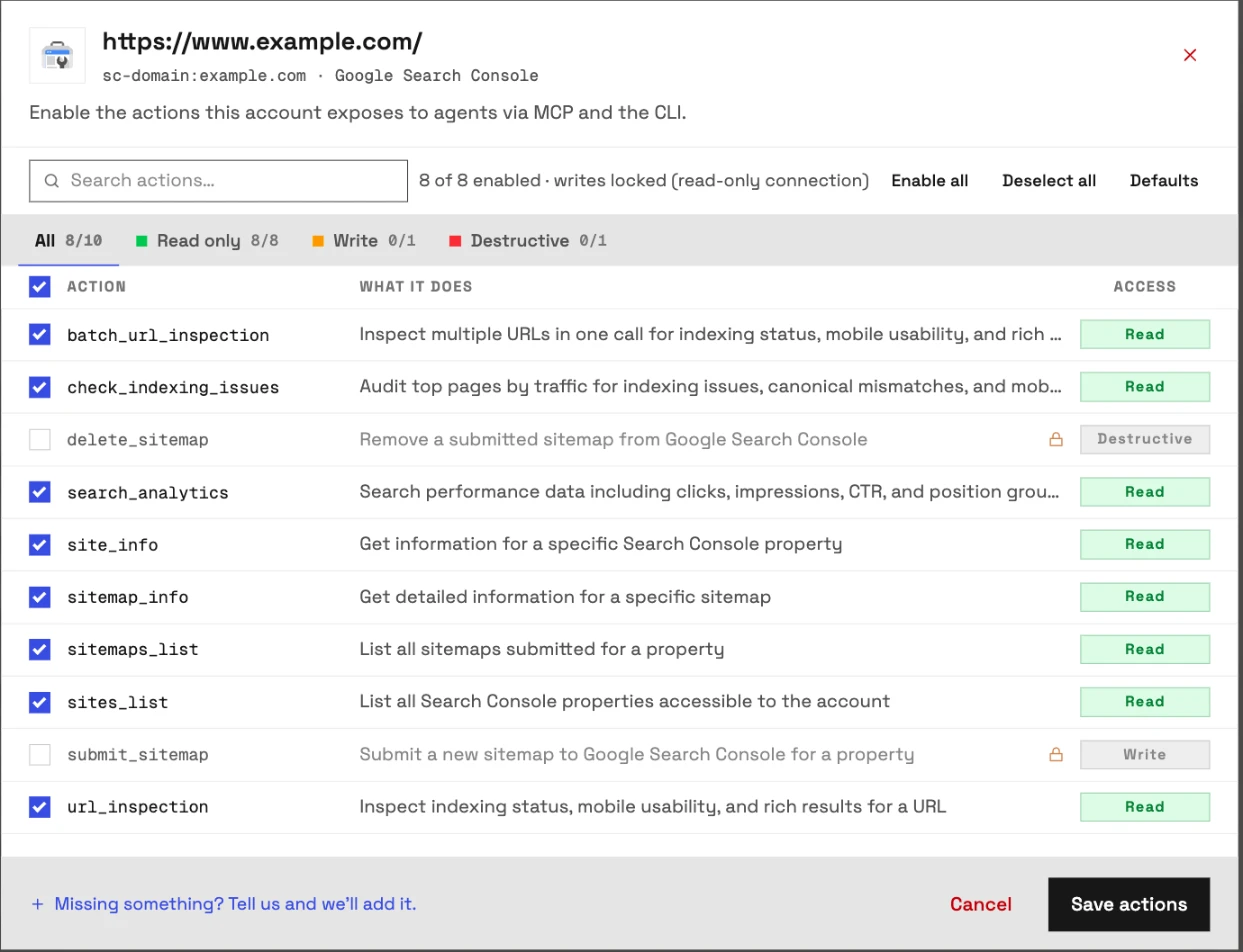
- Search Console: 10 actions, 8 read, 1 write and 1 destructive. InsightfulPipe keeps
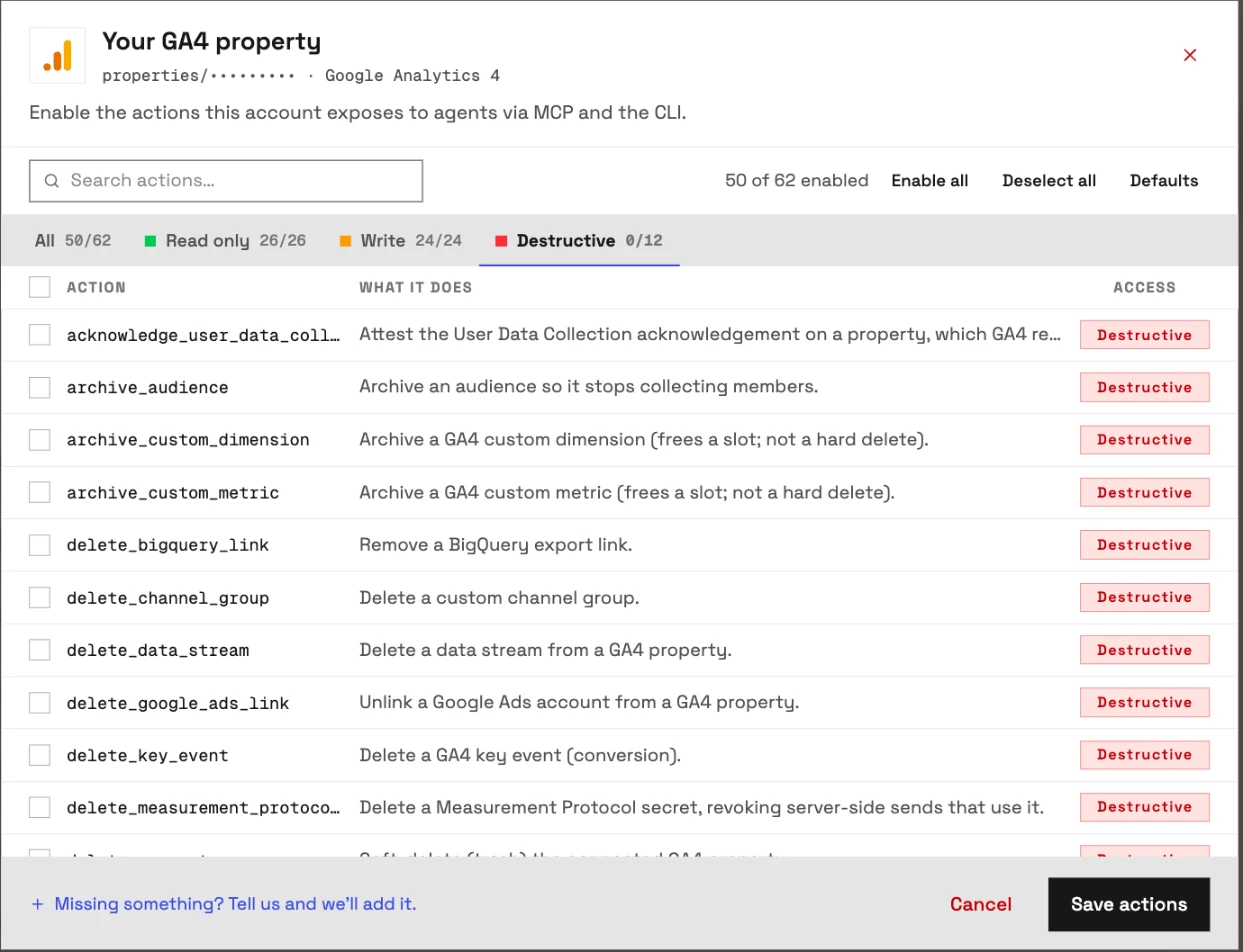
submit_sitemapanddelete_sitemapswitched off for every account, so Claude reads sitemap status and changes nothing. - GA4: 62 actions, 26 read, 24 write and 12 destructive. A read-only connection locks every write until an admin reconnects it with Read & write. Destructive actions, such as deleting a key event or a data stream, stay off until an admin switches them on.
- Control over every single action. The actions panel has All, Read only, Write and Destructive tabs. An owner, admin or operator switches each action on or off per site or property, and the server refuses any action that is off.
- Roles hold. Members on the User role cannot run writes at all.
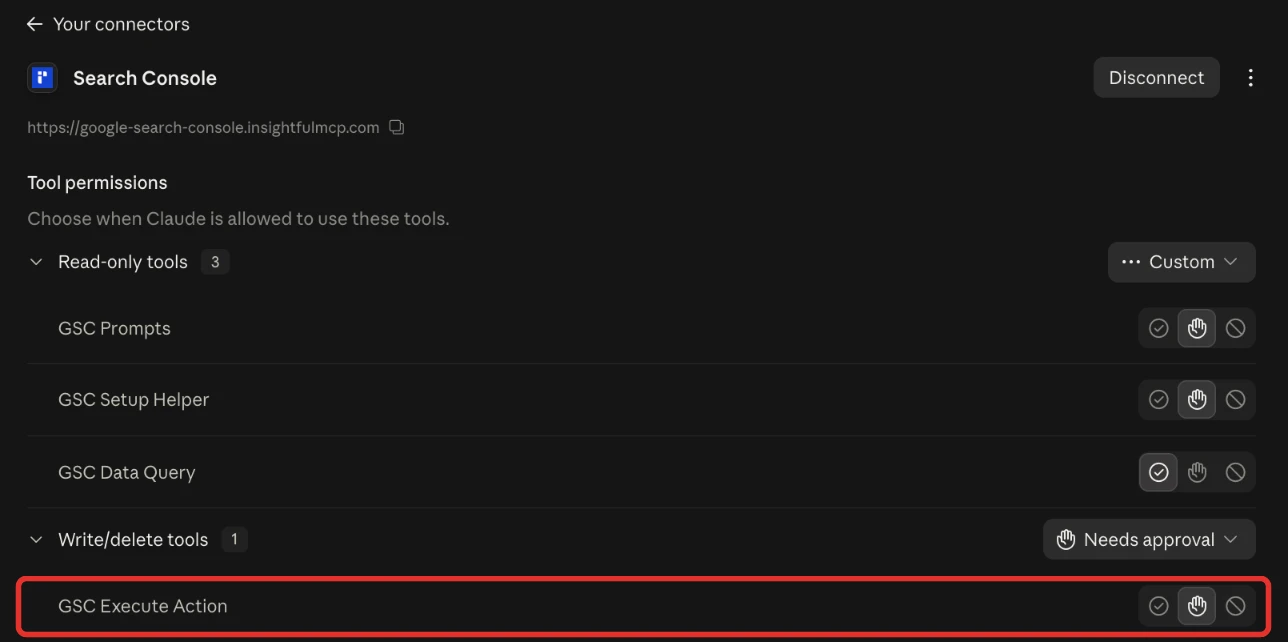
- Claude adds a switch of its own. Under Tool permissions, set each tool to Always allow, Needs approval or Blocked.
Start a trial, connect a site and a property, and leave every write off.
Troubleshooting
Most failures are one of these seven, and five of them come with an exact message.
- The connector does not appear in the chat. Turn it on from + > Connectors in Claude, or pick the plugin with @ in ChatGPT. In Claude Code, run
/mcp. - "No accounts connected yet" on the Grant access page. You can still click Authorize access. Connect your site and property in Connected accounts, then ask Claude again.
- "No verified sites found. Please verify your website in Google Search Console first." Sign in with the Google account that has access to the property.
- "We could not list any Google Analytics 4 properties for that Google account." Sign in with the Google account that has GA4 access, and check that the property is GA4.
- "Google denied access to this Search Console property. The connected Google account needs access to it in Search Console: add that access, or reconnect with a Google account that has it." Add the user in Search Console, or reconnect.
- "This account is connected read-only, so this action cannot be enabled for it. An owner or admin must reconnect it with Read & Write permissions." Action control is working. Keep the work to reads.
- The numbers do not match. Check the property pairing first, then compare trends. Clicks and sessions are different counts.
Other routes for SEO reporting with Search Console and GA4
Several hosted servers and open-source projects also read Search Console and GA4. We read every capability, default and price from each vendor's own documentation, pricing page or public repository, and ran InsightfulPipe on live accounts, on 2026-11-01.
- Windsor.ai: its GA4 guide and Search Console guide say GA4 and Search Console both read only there, and that Search Console has no URL inspection. Combining GA4 with a second source needs a paid plan.
- SEOcrawl AI: its page says 91 tools, while its meta description says 85. Each call uses 1 to 6 MCP credits, from €49 a month.
- Advanced GSC: GA4 tools start on its $40 Pro plan, per its page, which sells access in rounds of 100 spots.
- SEOmatic: its GA4 page reads GA4 next to Search Console inside its SEO platform.
- Coupler.io: its page starts with a data flow set up in Coupler.io.
- Stape: its server covers GA4 only and needs Node.js 18 and a desktop client.
- Suganthan's BigQuery MCP server: its page reads the Search Console bulk export in BigQuery, and blends GA4 only when its BigQuery export runs in the same Google Cloud project.
- AminForou/mcp-gsc: Search Console only. Its README needs a Google Cloud project with an OAuth client or service account, and it asks for the full
webmastersscope. - saurabhsharma2u/search-console-mcp: its README covers Search Console, Bing, GA4 and AdSense, run with npx on your computer.
- FlorianBruniaux/google-search-console-mcp: Search Console, Bing, GA4 and CrUX in Python. Its README heads its list "Tools (98)" and says version 1.6.0 exposes 96.
Smaller repositories in AI answers, such as Akxan/google-seo-mcp, run locally the same way. Hosted Search Console-only servers, such as mcpsearchconsole.com, leave GA4 out, so this guide skips them. Our Search Console roundup, GA4 roundup and SEO MCP roundup compare more.
InsightfulPipe runs hosted in claude.ai and ChatGPT and reaches 48 more platforms on the same login, including Bing Webmaster Tools, PageSpeed Insights and DataForSEO. Every action is a switch an admin sets for each site and property.
Frequently asked questions
Sources (checked 2026-11-01)
Every third-party claim above comes from that vendor's own page, opened on 2026-11-01. InsightfulPipe facts come from the app's code, the MCP server pages and the pricing page.
- InsightfulPipe: Search Console MCP server, GA4 MCP server, InsightfulPipe MCP server, pricing, SEO performance report skill
- Google: Google Analytics MCP guide, google-analytics-mcp repository, managed MCP servers, Developer Knowledge MCP, Data API schema, Search Console link in GA4, default channel groups, Search Analytics query, getting all your data, usage limits, Search Console permissions
- Anthropic: custom connectors
- Windsor.ai: GA4 MCP, Search Console MCP
- SEOcrawl AI: MCP
- Advanced GSC: MCP
- SEOmatic: GA4 MCP
- Coupler.io: Search Console MCP
- Stape: GA4 MCP server
- Suganthan: BigQuery MCP server
- GitHub: AminForou/mcp-gsc, saurabhsharma2u/search-console-mcp, FlorianBruniaux/google-search-console-mcp