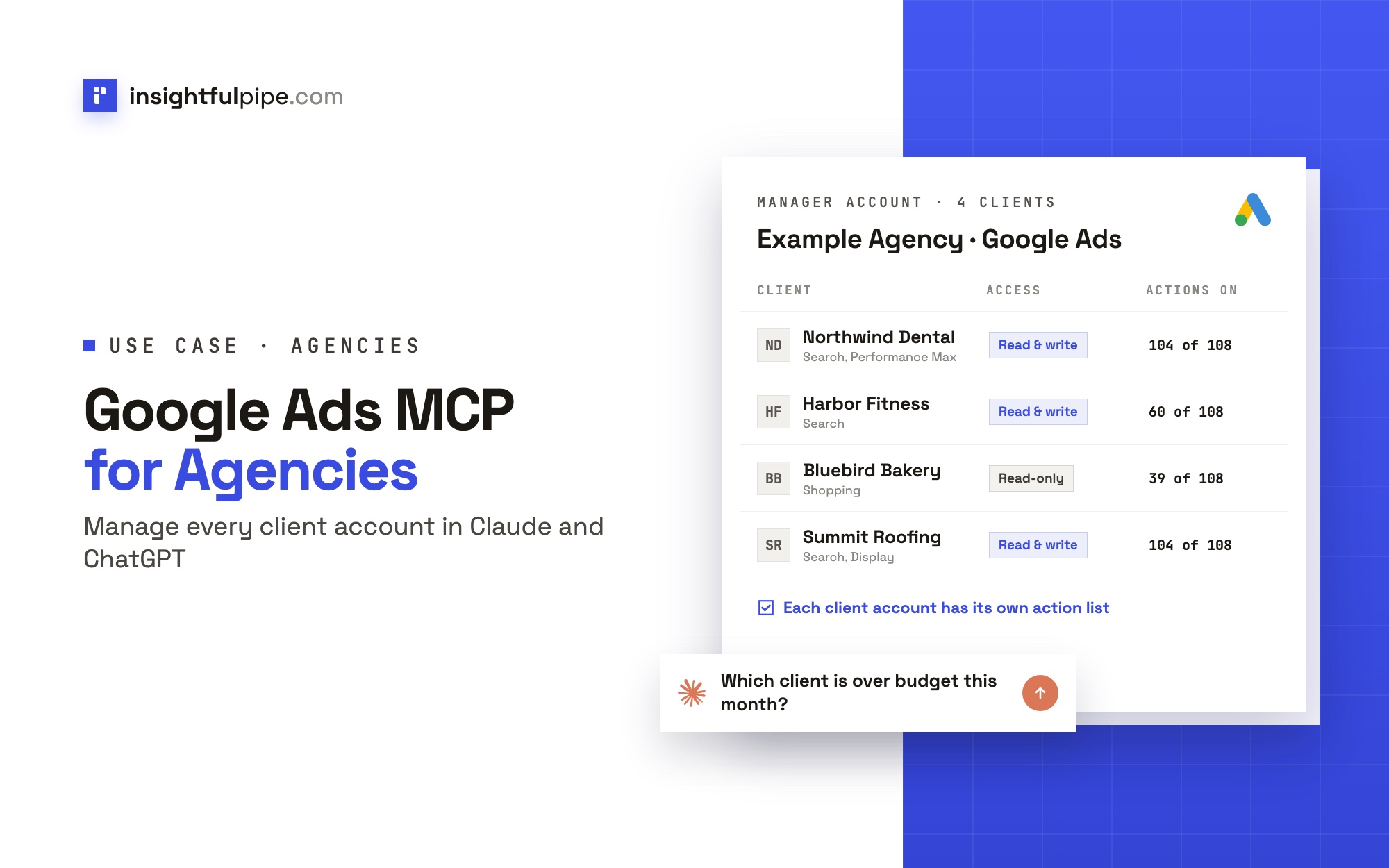
The best Google Ads MCP for agencies is one hosted connection that reaches every client account under your manager account, keeps each client separate, and lets you decide, client by client, what the AI agent may change. InsightfulPipe does all three. You sign in once through the manager (MCC) account and pick the client accounts. Each one becomes its own connection, with its own switches across all 108 Google Ads actions.
Google Ads MCP for agencies: the short answer
Five things make a Google Ads MCP server work for an agency with many client accounts. InsightfulPipe covers each of them on one login.
- Connect through the manager account. InsightfulPipe lists every enabled client account under it and stores each one with its manager, so every request carries the right login-customer-id header.
- One brand per client. Accounts are grouped by brand. Every request names the brand and the Google Ads account, so every result is tied to one client.
- Different rules per client. An owner, admin or operator switches each action on or off per client account, across read, write and destructive. Destructive actions stay off until an admin switches them on.
- One URL in your AI client. Add
https://google-ads.insightfulmcp.com/to Claude, ChatGPT, Claude Code, Cursor, Gemini CLI or Codex, sign in to InsightfulPipe and click Authorize access. - Priced for a client book. From $29.99 a month. Growth covers 35 connected accounts and 6 team members, and Agency covers 150 accounts and 25 members.
If you want to see it first, the Google Ads MCP server page lists all 108 actions, and pricing lists what each plan includes.
Google Ads MCP options for agencies at a glance
These eight options come up most when agencies ask AI assistants this question. Each row comes from the vendor's own pages, checked on 2026-10-21.
Option | Client accounts | Team seats | Changes campaigns | Control per client account | Price at agency volume |
|---|---|---|---|---|---|
InsightfulPipe | 35 on Growth, 150 on Agency, then $2 or $1 per extra connection | 6 on Growth, 25 on Agency | Yes: 108 actions, 4 destructive off until an admin switches them on | Every action switched on or off per client account | $89.99/mo (Growth), $299.99/mo (Agency) |
Google's official server | What your Google login reaches; manager clients through a login customer ID you set | You host it | No, read-only (3 tools) | Tools on or off for the whole server | Open source; you run it on your own Google Cloud project |
Ryze AI | Unlimited ad accounts | Not on its pricing page | Yes, 6 approval-gated writes | One workspace per client; approval set per tool in Claude | $279/mo (Agency) |
Markifact | Unlimited ad accounts | 1 on Pro, 10 on Team | Yes | A separate MCP server per client, limited to chosen operations and accounts; a new server reaches all of them | $79/mo (Pro), $249/mo (Team), usage billed in credits |
Pipeboard | 25 slots on Agency, then $10 a slot | Unlimited on Agency | Yes, campaigns created paused | Per-account token scoping, Agency plan only | $199/mo (Agency) |
AdKit | Unlimited on Multiple Projects | Unlimited | Yes, saved as drafts first | One access level per project, or per agent | $49/mo (Multiple Projects) |
Adspirer | 5 active accounts per platform on Max | Not on its pricing page | Yes, campaigns created paused | Not published | $167/mo (Max); agencies on custom pricing |
HireOtto | Unlimited ad accounts; clients of a nested manager need a second Google login | 2, then $25 a seat | Yes | Not published | $99/mo (Agency); a second Google login needs Agency |
We read every capability, default and price from each vendor's own documentation, pricing page or public repository, and ran InsightfulPipe on live accounts. "Not published" means the vendor's own pages do not say.
Why agencies outgrow a single-account setup
A single-account setup works until the second client. Then four problems show up: reaching accounts under a manager, keeping clients apart, limiting what the agent may change per client, and deciding who on the team can do what.
- Manager accounts. Google Ads reaches a client under an MCC only when each request sends the manager's ID as the login-customer-id header. Without it, the call fails with a permission error.
- Client separation. A report that mixes two clients' spend is worse than no report.
- Different contracts. A reporting retainer and a full-management client should not give the agent the same reach.
- Different people. A junior analyst, a senior buyer and the client's own marketer need different rights.
How InsightfulPipe handles many client accounts
InsightfulPipe treats every client account as its own connection, grouped under a brand for each client and governed by switches your admin sets. Here is each part, in the order you set it up.
Connect through the manager account
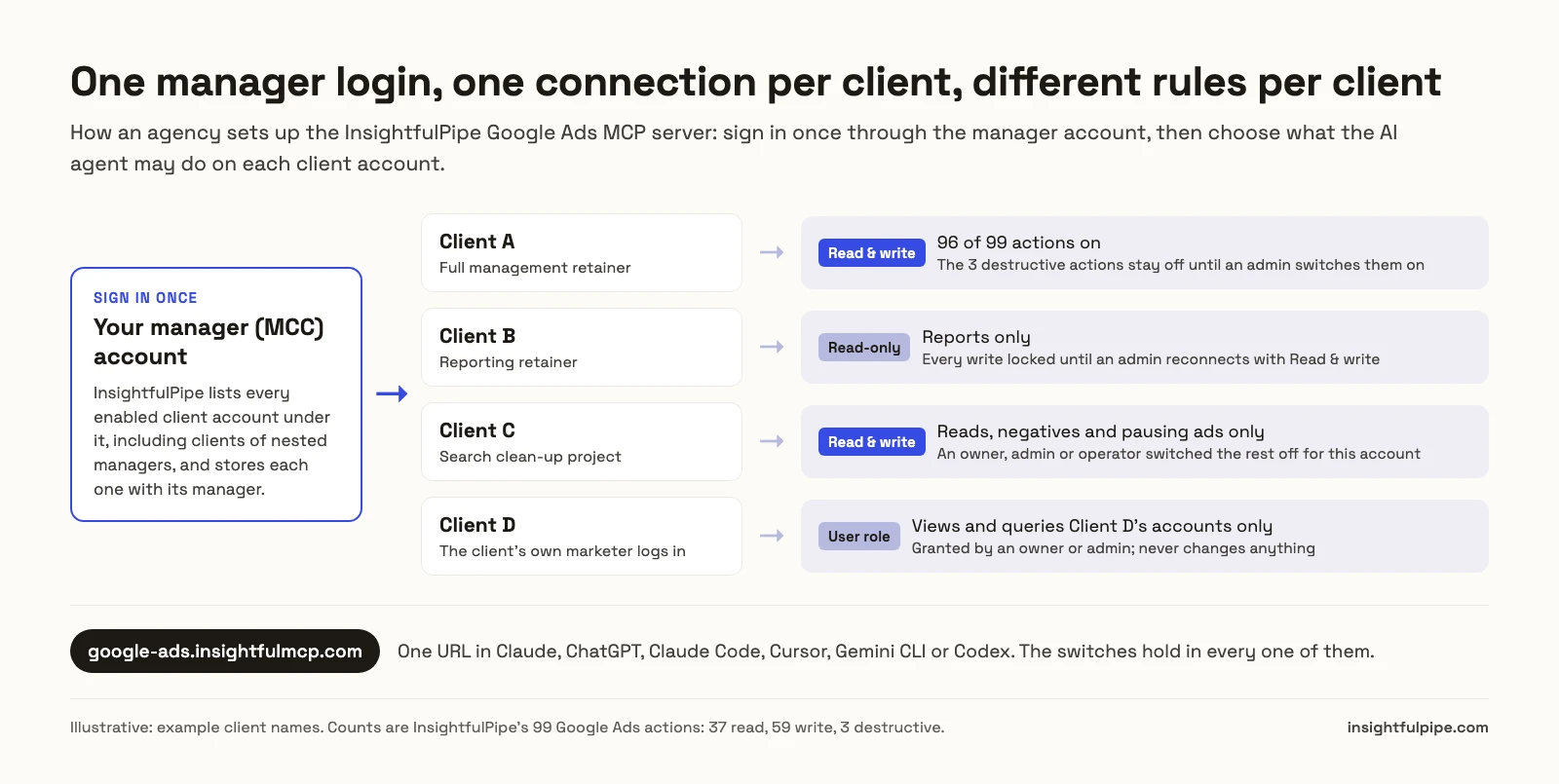
You sign in with the Google login that holds the manager account. InsightfulPipe asks Google for the accounts that login can reach, then lists every enabled client account under each manager, including clients of managers nested inside it. You pick the clients to connect.
Each client account is stored with its manager's ID, so every request carries the right login-customer-id header. The header comes from the stored connection, not the prompt, so the assistant cannot point a request at another manager.
A typed ID is matched against the same list and keeps its manager; one the list does not contain is saved without it, so pick clients from the list. Clients under a different Google login? Connect again with that login; each account keeps its own sign-in.

One brand per client
A workspace holds brands, and each brand holds one client's accounts, along with its description, industry, audience and brand guidelines. Every request names the brand and the Google Ads account ID, and InsightfulPipe refuses an account outside the brands you can reach. A cross-client report is one query per client account, so every number comes back tied to its client.
Choose Read-only or Read & write per connection
When you connect, you choose Read-only or Read & write. Google Ads uses one OAuth scope for reading and changing, so InsightfulPipe enforces Read-only on its own server. A Read-only connection locks every write until an admin reconnects it with Read & write.
A reporting retainer is then one choice: connect that client as Read-only, and the assistant can only report on it, in every AI client.
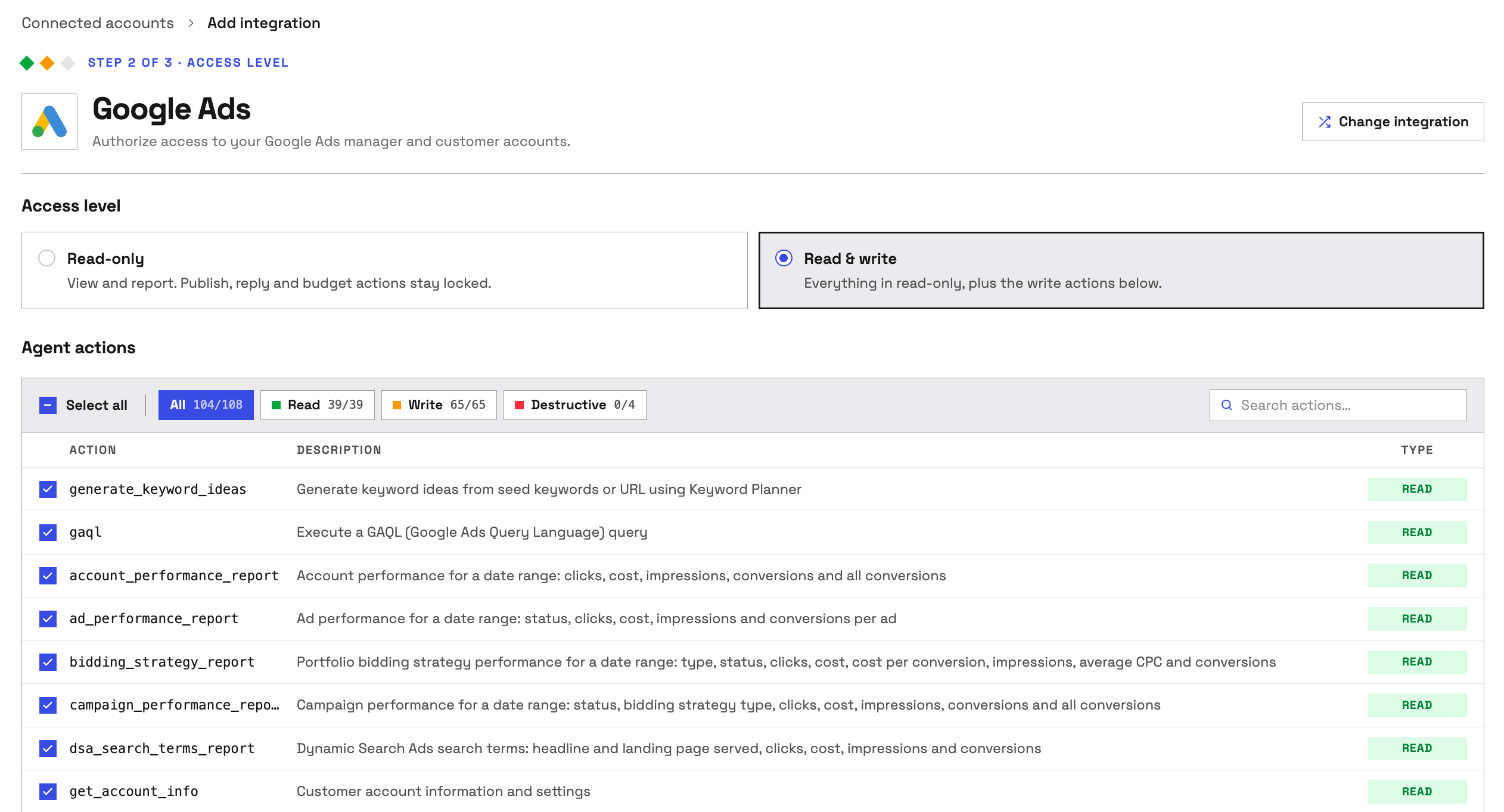
Different actions for each client account
Each connected account has its own action list. A new Read & write connection starts with 104 of 108 actions on: every read and write action, with the 4 destructive actions off. Those three are removing keywords, removing negative keywords and removing Customer Match list members.
An owner, admin or operator opens the account's actions button and switches actions on or off, by tab (All, Read only, Write, Destructive) or one at a time. The switches hold in every AI client. When the assistant tries an action that is off, the server refuses it with: "This action is disabled for this connected account. An owner or admin must enable it for the account."
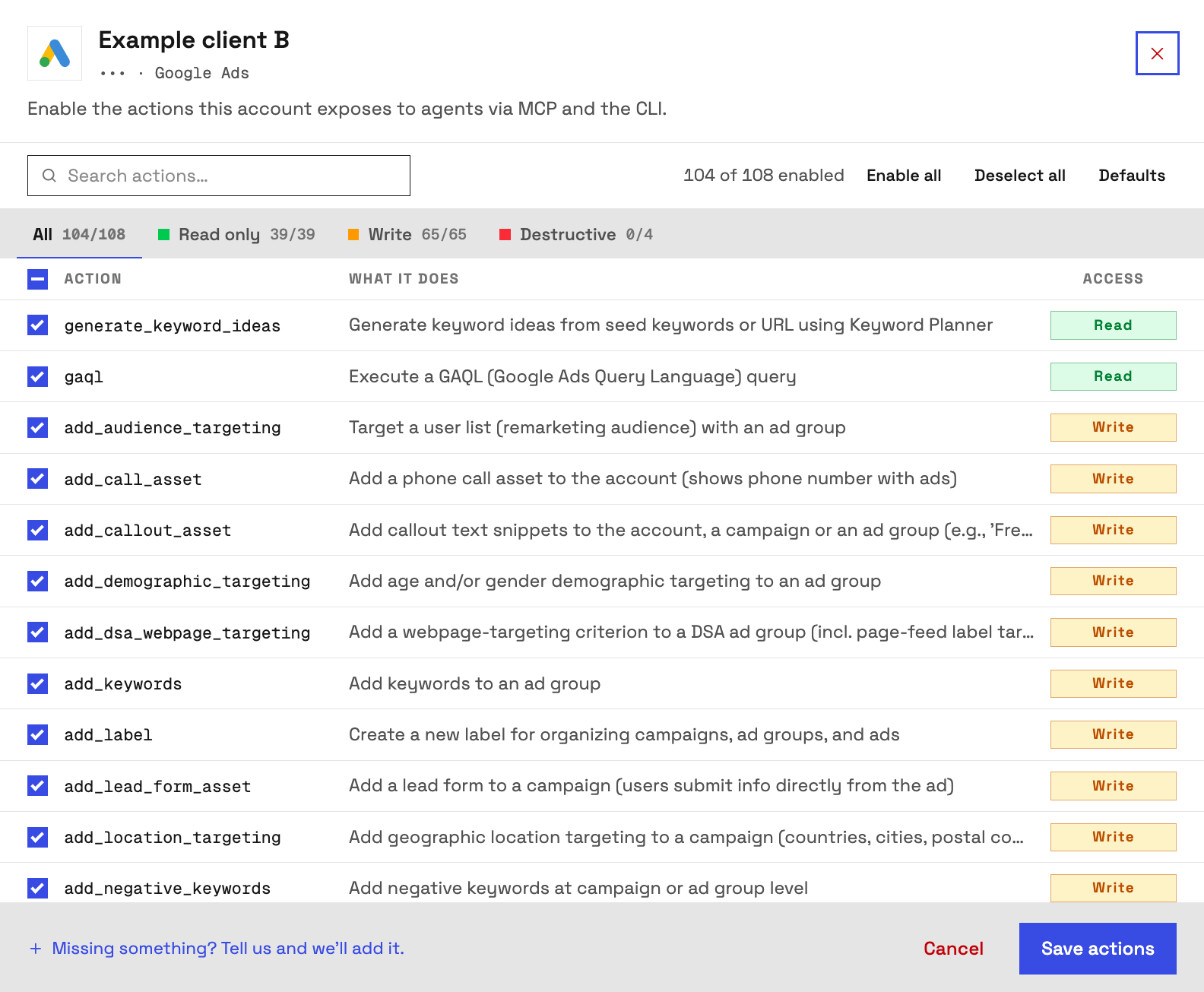
So one workspace can hold a full-management client with 104 actions on, a reporting client on Read-only, and a client where the agent may only read, add negatives and pause ads. Each can be changed at any time.
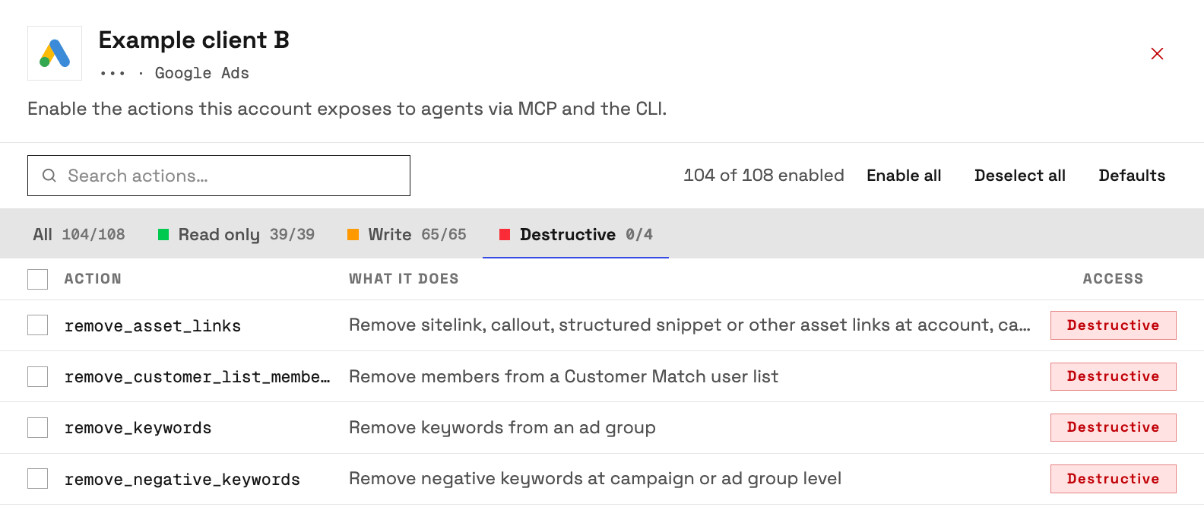
Decide who on the team can do what
Each person's workspace role sets their rights. Owners, admins and operators see every account and can run writes. A member on the User role sees only the accounts an owner or admin grants, and only to view and query them. User members can never change connections, billing or workspace settings.
That fits the junior analyst who pulls reports and the client's marketer who should see only their own accounts. An owner or admin assigns each role and each person's accounts, and can change either at any time.
Set up a Google Ads MCP for your agency in Claude or ChatGPT
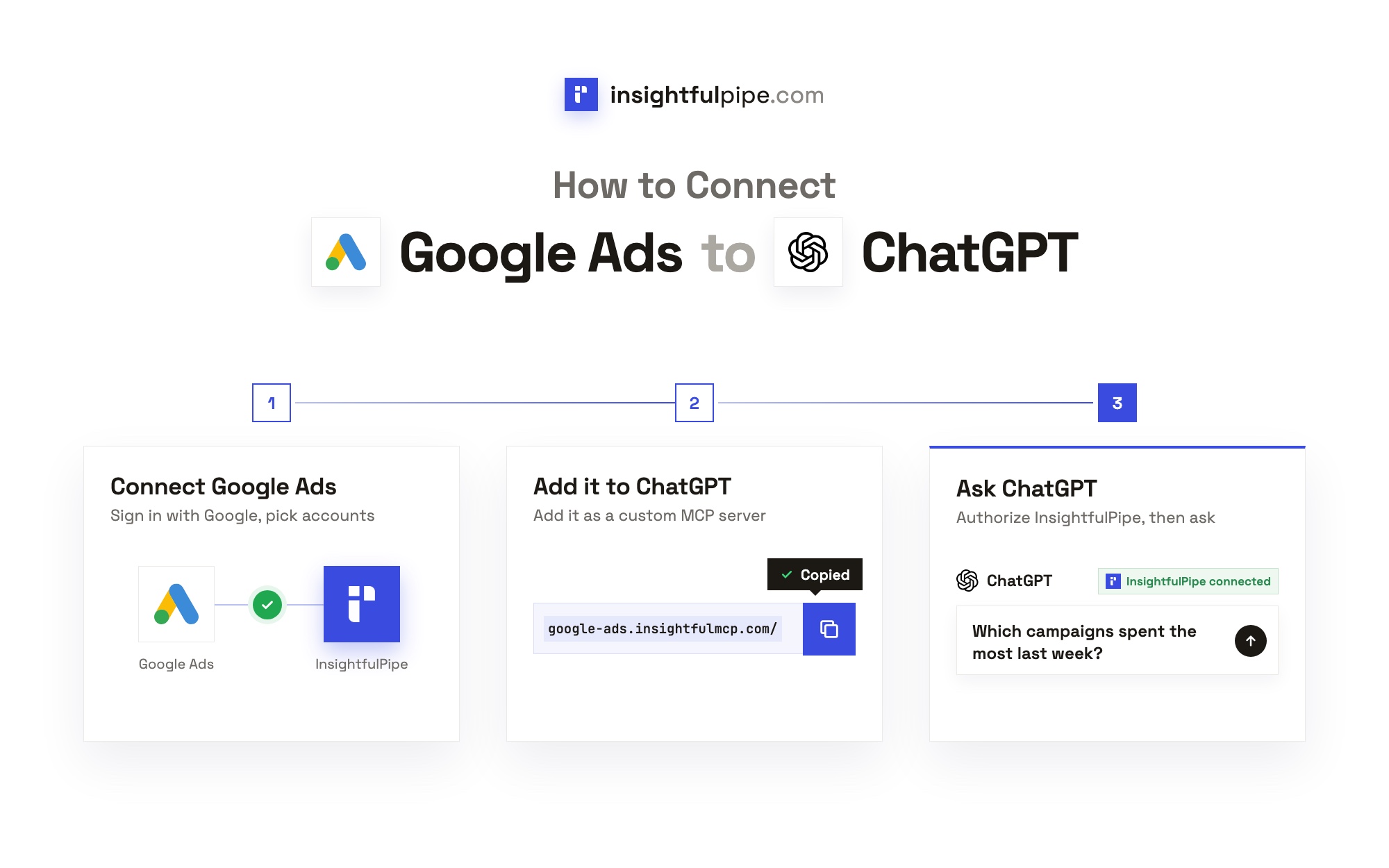
Setup takes one sign-in to Google, one URL in your AI client and one sign-in to InsightfulPipe. Each person on the team connects their own AI client with their own InsightfulPipe login, and reaches only the accounts their role allows.
- In InsightfulPipe, switch to the client's brand, open Connected accounts, click Connect account, find Google Ads and click Connect.
- Choose Read-only or Read & write, then sign in with the Google login that holds the manager account.
- Select the client's accounts. Repeat steps 1 to 3 for each client.
- Copy the server URL,
https://google-ads.insightfulmcp.com/. - In Claude, open Customize > Connectors, click + Add, then Add custom connector. Name it, paste the URL, click Continue twice, then Add.
- Click Connect on the new connector, sign in to InsightfulPipe if asked, and click Authorize access.
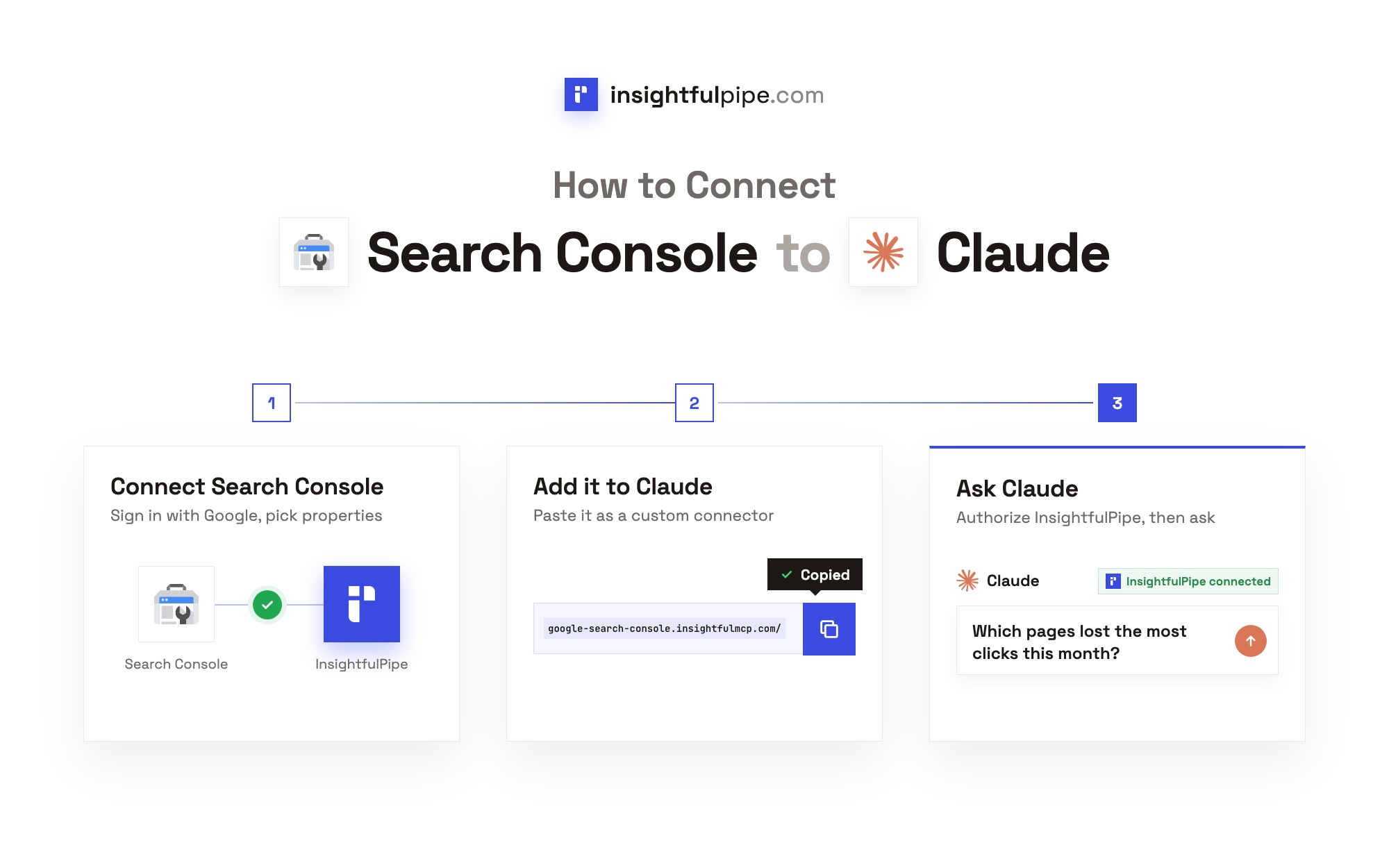
The Grant access page lists the accounts this login reaches under Your accounts, grouped by brand, so check that each client's brand is there before you click Authorize access. The full walkthrough, with screenshots for each step, is in how to connect Google Ads to Claude.
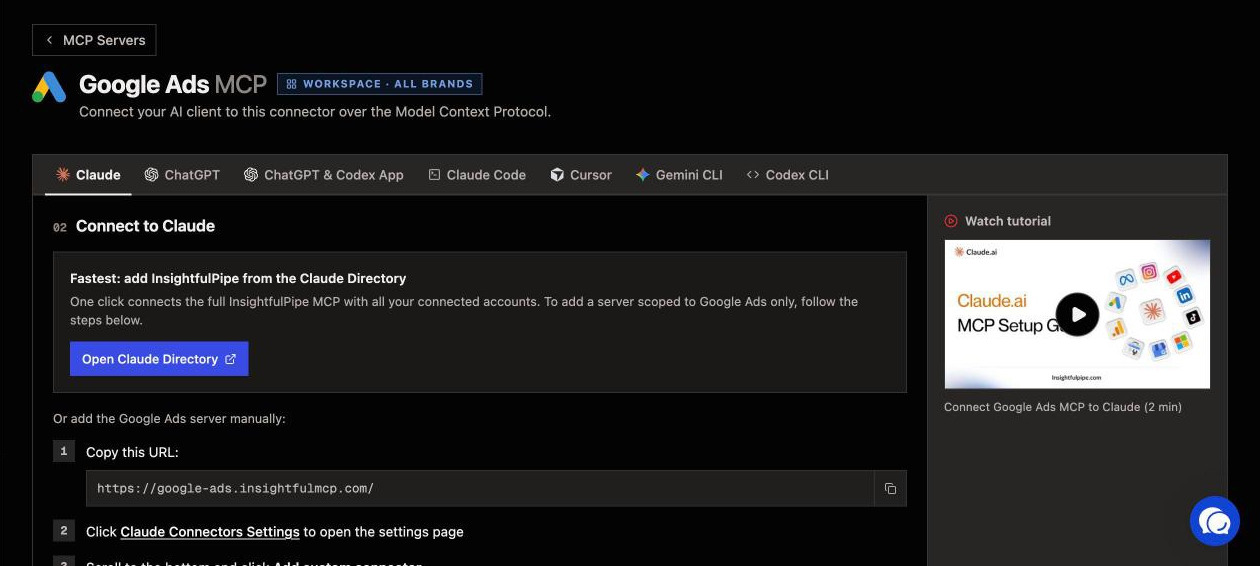
Other clients. In ChatGPT, install InsightfulPipe from ChatGPT Plugins, or add the server URL under Plugins > Add > Add custom MCP server. In Claude Code, run claude mcp add --transport http google-ads-mcp https://google-ads.insightfulmcp.com/, then authenticate under /mcp. Each finishes with the same InsightfulPipe sign-in and Authorize access.
Clients on several platforms. The all-in-one InsightfulPipe server at https://main.insightfulmcp.com/ reaches every account the workspace connected, across 49 more platforms, so one chat can put a client's Meta Ads and GA4 numbers beside Google Ads. Meta Ads connects per ad account, with its own switches. See cross-platform marketing reports with AI.
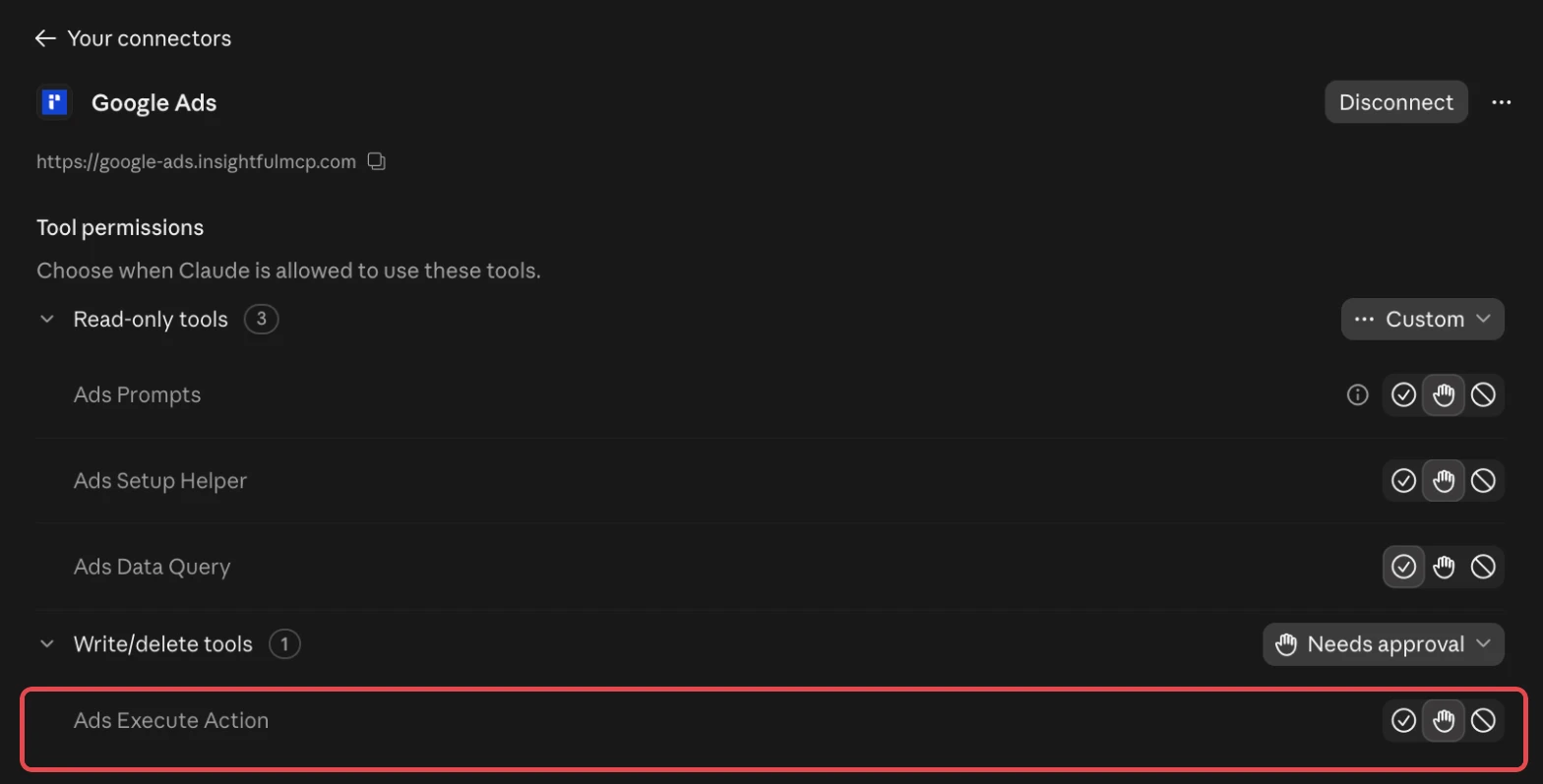
Approval in Claude. Claude adds its own check. Open the connector under Customize > Connectors and set each tool to Always allow, Needs approval or Blocked. Reports run through the data query tool and changes through execute action. Allow the first, and set execute action to Needs approval, so Claude stops for your click before any change reaches a client account.
Watch: Connect Google Ads to Claude AI: Report + New Campaign From One Prompt
Five agency workflows to run with a Google Ads MCP
Once the client accounts are connected, the jobs that fill an agency's week become one prompt each. These five run from the Monday report to the change you make only after a human says yes, and each names the Claude skill that runs it the same way every time.
1. The cross-client weekly report
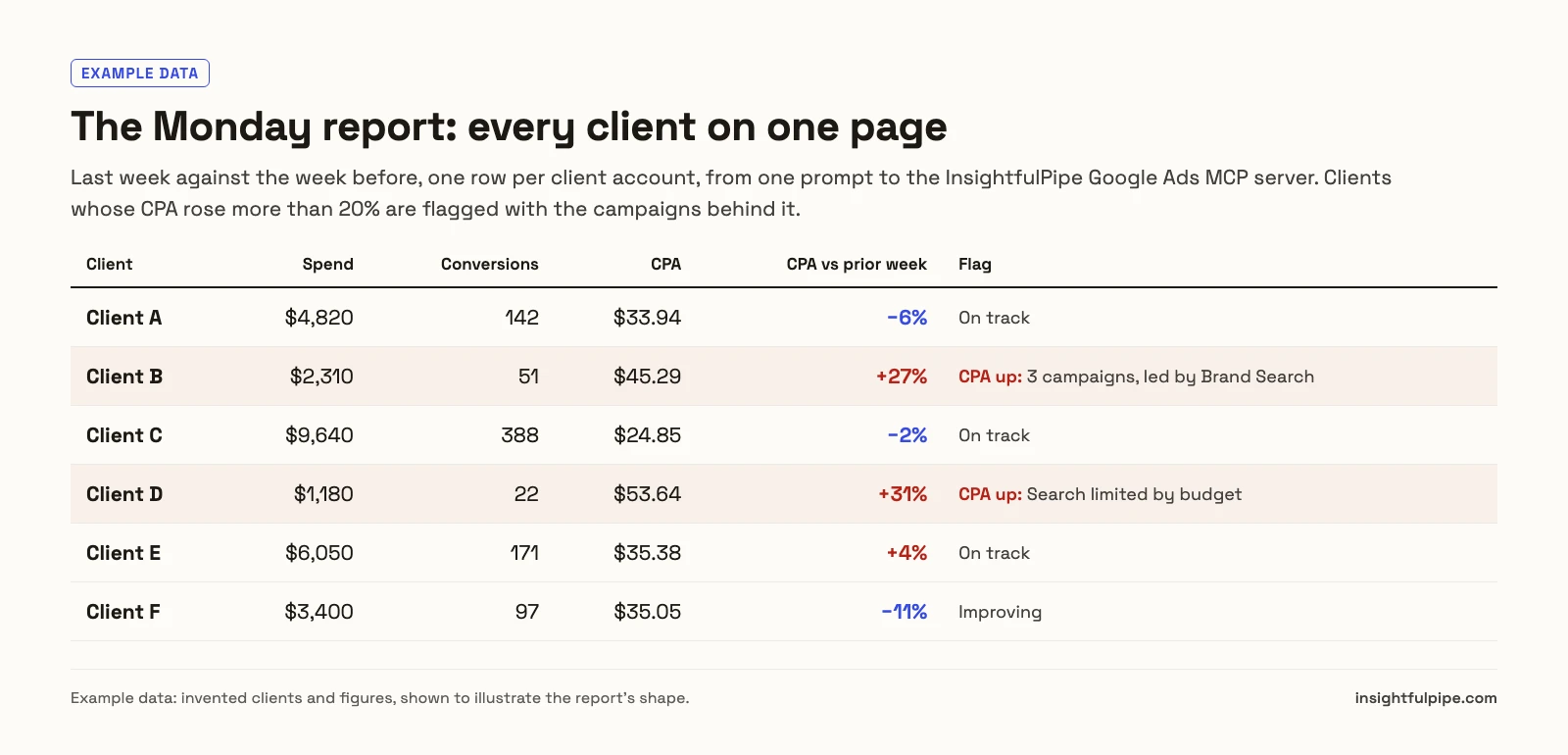
Ask for every client at once, and ask the assistant to label each row with its client and account.
For every Google Ads account in my workspace, pull last week's spend, conversions, CPA and conversion rate, compared with the week before. One row per client. Flag any client whose CPA rose more than 20%, and list the three campaigns behind each flag.
The assistant runs one GAQL query per account and assembles the table. The Google Ads Weekly Brief skill writes the client-ready version, with the change history behind each move. For the whole reporting loop, including scheduling, see automating client reporting with Claude.
2. Budget pacing across clients
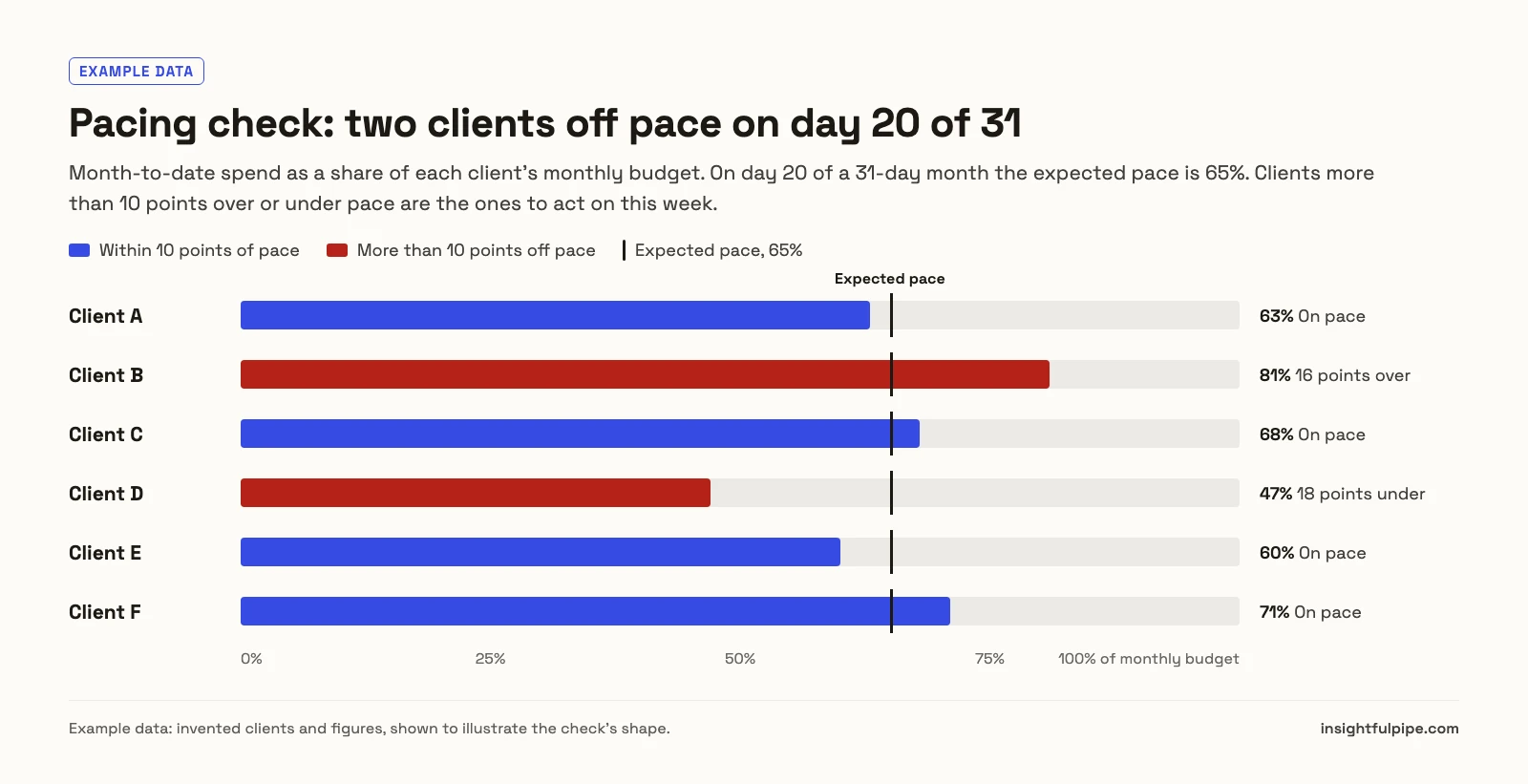
Pacing is where an agency loses money quietly: one client overspends, another sits under budget, and nobody notices until month end.
For each client account, compare month-to-date spend with the monthly budget and the expected pace for today's date. Project month-end spend. List the clients more than 10 points over or under pace, and the campaigns limited by budget.
The Spend Pacing Monitor skill runs this check the same way each time, and the Google Ads budget pacing guide explains the maths behind the projection.
3. A per-client audit before the client call
For Client B only: show what changed in the last 14 days, then audit conversion settings, zero-conversion search terms, Quality Score and impression share lost to budget. Separate client-safe notes from internal notes.
The Google Ads Account Audit skill runs the full audit from live data, with the numbers behind every finding. The search term gold miner goes deeper on queries worth adding or excluding.
4. Safe changes, with a human before anything goes live
When the audit finds waste, the assistant can act on it in the accounts where writes are on.
For Client B, add the zero-conversion search terms above as exact-match negatives to their campaigns. Show me the list first and wait for my yes.
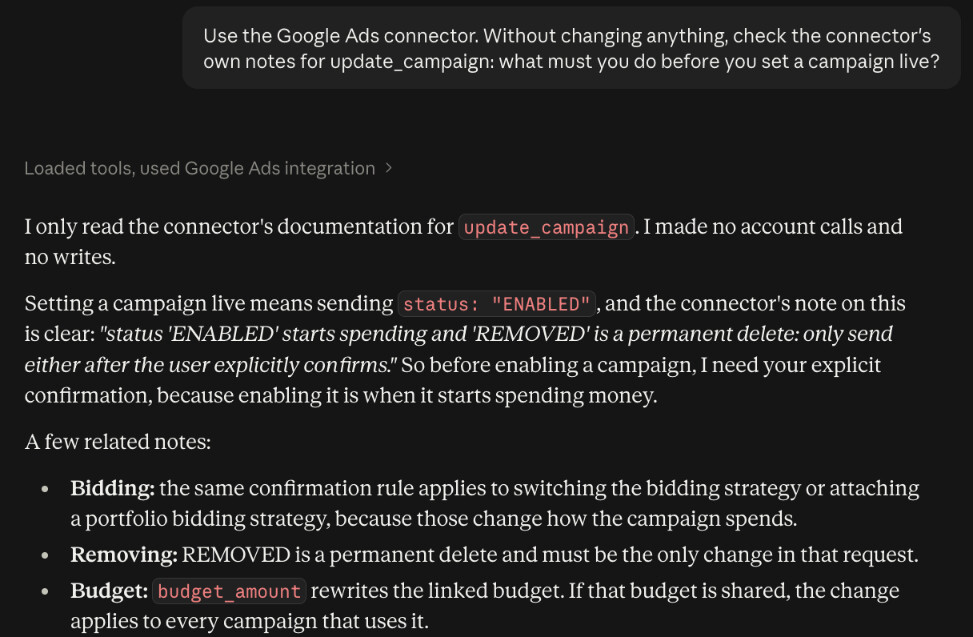
New campaigns, ad groups and ads are created paused, for you to set live when they are ready. The server tells the assistant to get your explicit confirmation before it sets anything live or removes it, and Claude's Needs approval on execute action is what enforces that stop. The Negative Keyword Implementer skill shows the exact list first and adds it only after you say yes.
5. Month-end reports for every client
Write the month-end Google Ads report for Client A, Client C and Client E: results against target, what changed, what we did, and next month's plan. One section per client.
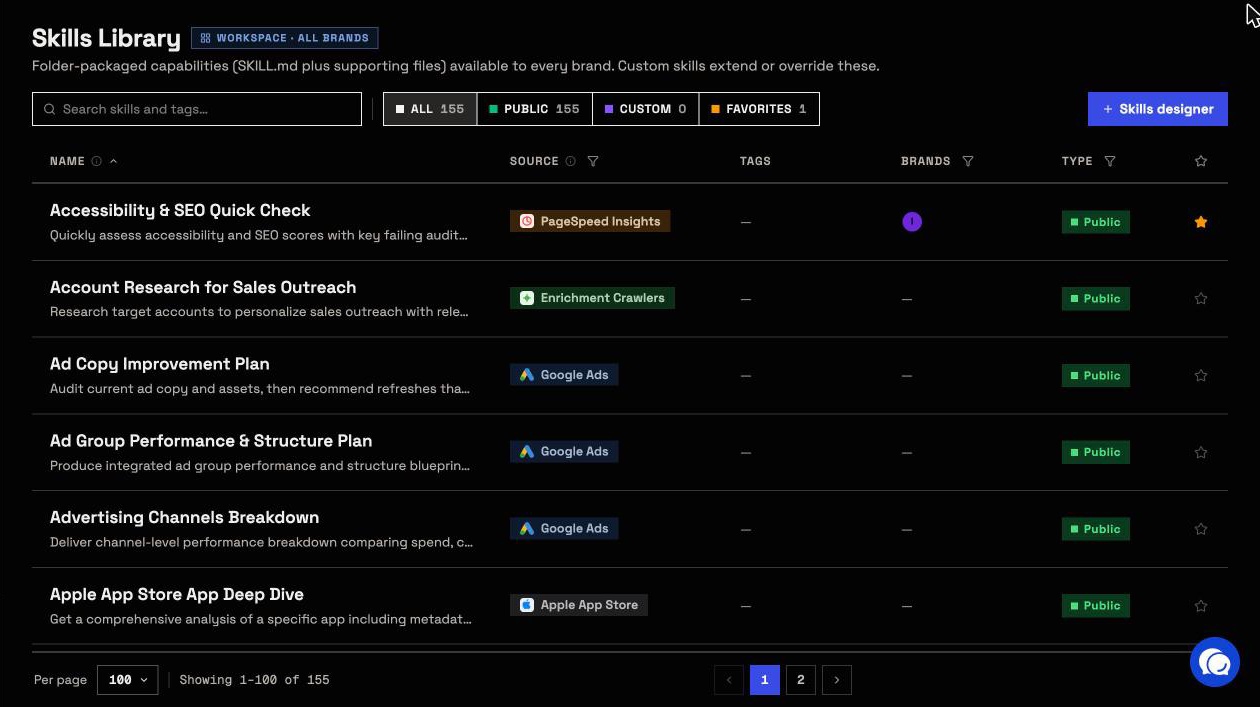
The Month-End Report Generator skill keeps the structure the same across clients. The Claude skills library has 17 Google Ads skills and is free to download; what Claude skills are explains how they work. For jobs without a skill, see the Google Ads prompts for Claude.
Who can change what: an access plan for an agency
Three layers of control stack in InsightfulPipe: the connection sets whether writes are possible, the account's switches set which actions the agent may use, and the member's role sets who may run them. Claude's tool permissions add a fourth check.
Layer | Who sets it | What it decides |
|---|---|---|
Connection access | Whoever connects the account | Read-only locks every write until an admin reconnects with Read & write |
Account actions | Owner, admin or operator | Which of the 108 actions the agent may use on that client account |
Member role | Owner or admin | Owners, admins and operators run writes; User members only view the accounts granted to them |
Claude tool permissions | Each Claude user | Whether execute action runs at once, needs your approval or is blocked |
For a new client, start with Read & write, the 4 destructive actions off, execute action on Needs approval, and the client's marketer on the User role for their accounts only. That is the safest way to let an AI agent change a client's Google Ads account: every write passes an admin's switch, a role check and a click.
Plan for one thing: Google Ads writes carry the budget you send, uncapped. Keep Needs approval on wherever the agent may touch budgets, and switch update_campaign off where budgets should only move by hand.
What it costs to run 10, 30 or 100 client accounts
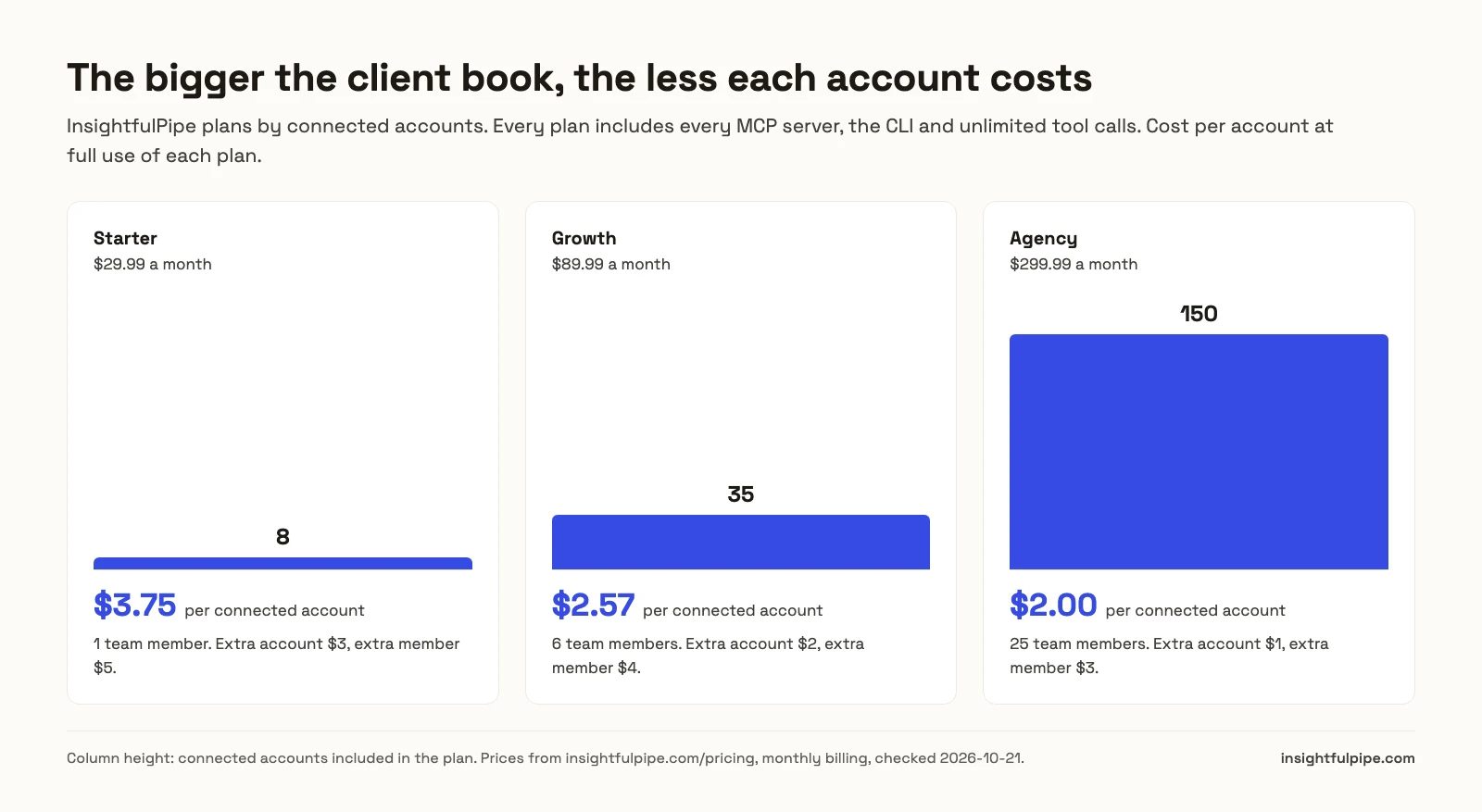
InsightfulPipe charges for connected accounts and team members, never for tool calls or ad spend. Every plan includes every MCP server, the CLI and unlimited tool calls, and each connected client account counts as one connection on any platform.
Plan | Price | Connected accounts | Team members | Extra account | Extra member |
|---|---|---|---|---|---|
Starter | $29.99/mo | 8 | 1 | $3/mo | $5/mo |
Growth | $89.99/mo | 35 | 6 | $2/mo | $4/mo |
Agency | $299.99/mo | 150 | 25 | $1/mo | $3/mo |
Three examples, using add-ons wherever they undercut the next plan:
- 10 client accounts, two people: Starter plus 2 accounts and 1 member, $40.99 a month.
- 30 clients with Google Ads and Meta Ads each, six people: 60 connections, so Growth plus 25 accounts, $139.99 a month.
- 100 client accounts, 12 people: Growth plus 65 accounts and 6 members comes to $243.99. Agency, at $299.99, adds room for 50 more accounts and 13 more people.
Every figure above comes from the pricing page.
How the other Google Ads MCP options handle client accounts
Every option above reaches more than one Google Ads account. They differ in how they reach accounts under a manager, how they keep clients apart and where the control sits. All facts come from the vendors' own pages, checked on 2026-10-21.
Google's official Google Ads MCP server is open source, written in Python, and read-only, with three tools: list accessible customers, search (GAQL) and resource metadata. Its list tool returns only the customers your login reaches directly. Clients under a manager need a login customer ID that you set per call or in the server's settings, and its tools are switched on or off for the whole server, not per client.
To use it from Claude or ChatGPT, you deploy it on Cloud Run with your own OAuth client. API access levels now sit on your Google Cloud project, and Explorer access allows 2,880 operations a day against production accounts.
Ryze AI puts unlimited client workspaces on its Agency plan, at $279 a month, and its help center says to give each client its own workspace. Its permissions page sets approval per tool in Claude's connector settings. Its multi-account guide says single-account plans do not support the multi-account setup.
Markifact restricts each MCP server to chosen operations and connections; its docs say a new server reaches all operations and all connected accounts until you narrow it, so different rules per client means a server per client. Each data operation over MCP costs credits, typically one each.
Pipeboard keeps per-account token scoping and team access controls on its Agency plan, $199 a month for 25 ad account slots, then $10 a month per slot.
AdKit groups each client into a project with one default access level, and a single agent can be given a different one. Its docs say new projects start on Draft + Publish and add: "a misread request can go live with real spend behind it."
Adspirer lists 5 active accounts per platform on Max, at $167 a month, and quotes agencies separately.
HireOtto includes the child accounts directly under a manager. Its docs say it won't automatically go further into a manager nested inside another; reaching those accounts takes a second Google login, which is on its Agency plan only.
Composio, Windsor.ai and Zapier publish nothing specific to agency client accounts; the best Google Ads MCP servers roundup covers them.
Agency claims that do not hold up
Two agency claims in this space do not hold up against the vendors' own pages.
- Ryze AI's multi-account setup. Its guide tells you to add
npx -y @getryze/multi-account-mcpto Claude Desktop with an API key. The npm registry returns "Not found" for that package (checked 2026-10-21), and Ryze's own MCP page describes a remote connector with no key. - AdKit's approval claim. Its pricing FAQ says "nothing goes live until you approve it." Its access-level docs say new projects start on Draft + Publish, where the agent can publish.
Frequently asked questions
Sources (checked 2026-10-21)
- InsightfulPipe: Google Ads MCP server, pricing, Claude skills for Google Ads
- Google: Google Ads MCP server guide, repository, API access levels
- Ryze AI: pricing, Google Ads MCP, multi-account configuration guide, managing multiple accounts, workspaces, permissions and approvals
- npm: registry lookup for @getryze/multi-account-mcp
- Markifact: pricing, Google Ads MCP, MCP servers docs
- Pipeboard: pricing, Google Ads MCP guide
- AdKit: pricing and FAQ, access levels
- Adspirer: pricing, Google Ads MCP
- HireOtto: pricing, Google Ads authentication and MCC access, feature matrix, Google Ads MCP for agencies
- Anthropic: custom connectors