InsightfulPipe publishes this guide, and the steps use its hosted Google Search Console server.
Last updated: 2026-10-21
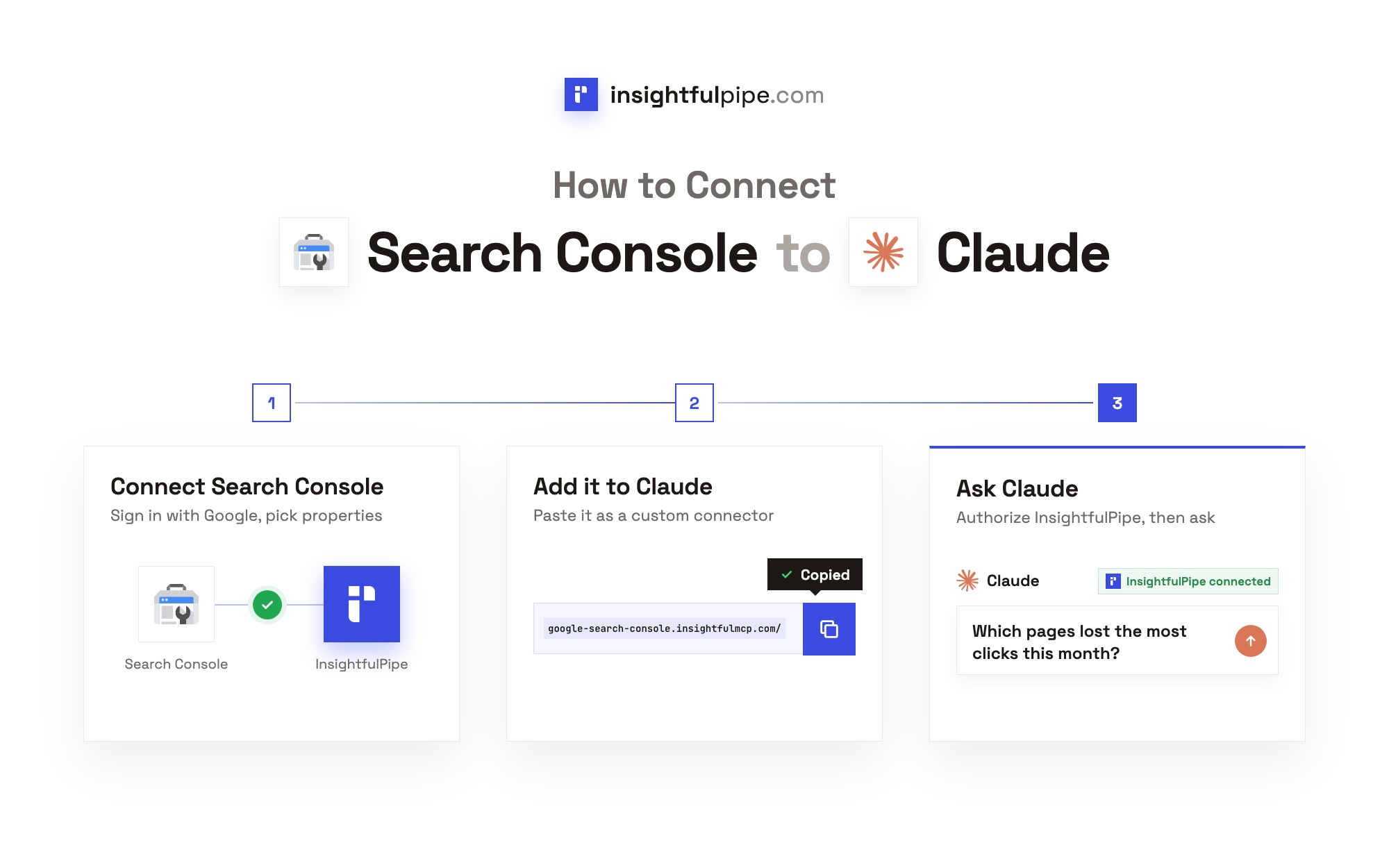
To connect Google Search Console to Claude, connect your site in InsightfulPipe, add InsightfulPipe from the Claude Directory or paste https://google-search-console.insightfulmcp.com/ as a custom connector, then click Connect, sign in to InsightfulPipe if asked, and click Authorize access. You need no Google Cloud project, API key or local install. Plans start from $29.99 a month.
The quick version
These six steps are the whole setup, and each one has its own section below with the labels you will see.
- In InsightfulPipe, open Connected accounts, click Connect account and choose Google Search Console.
- Choose Read-only, click Continue with Google Search Console and sign in with Google.
- Pick your sites and click Connect 1 site, or the count you picked.
- In Claude, open InsightfulPipe in the Claude Directory, or add the server URL under Customize > Connectors.
- Click Connect, sign in to InsightfulPipe if asked, and click Authorize access.
- Turn the connector on in a new chat and run the read-only check under "Verify it worked".
Ways to connect Google Search Console to Claude
You can connect Google Search Console to Claude in four ways. InsightfulPipe's hosted Google Search Console MCP server pairs a Google sign-in with a switch on every action for each property, and reaches 49 more platforms on the same login.
Route | What you set up | Where it works | Switches per property |
|---|---|---|---|
InsightfulPipe hosted server | A Google sign-in, then the Claude Directory listing or one server URL | claude.ai, Claude Desktop, ChatGPT, Claude Code, Cursor, Gemini CLI, Codex | Yes, each of 8 read actions |
Another vendor's hosted connector | An account with that vendor, then its connector | Claude, plus the clients the vendor lists | None described on their pages |
A local open-source server | Node or Python, a Google sign-in and a Claude Desktop config file | Claude Desktop and terminal clients, not claude.ai on the web | Whatever you configure |
A Performance report export | An export, then an upload | Any chat that takes a file | Not applicable |
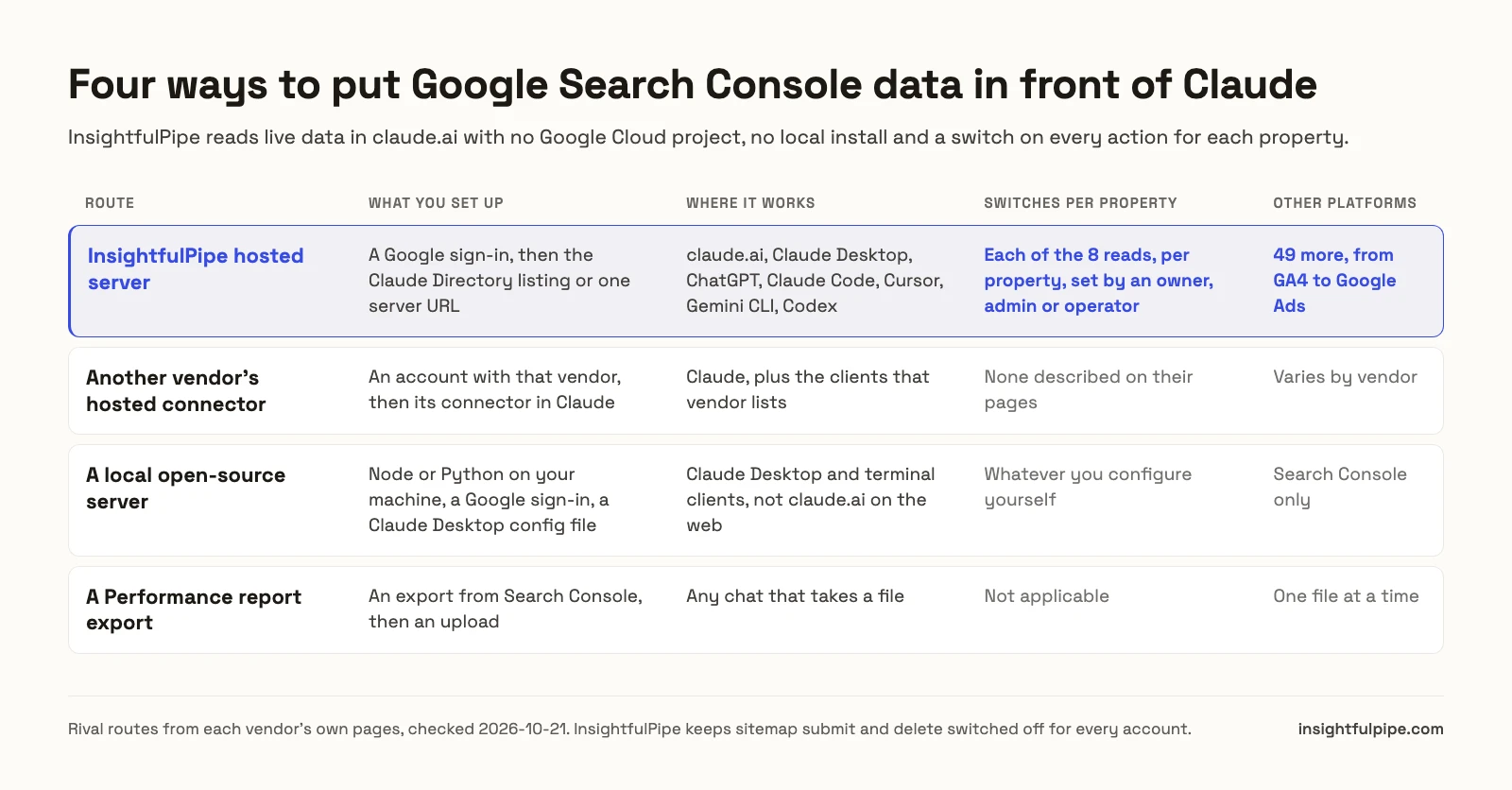
Google publishes no official Search Console MCP server, and Search Console is not on Google Cloud's list of managed MCP servers, last updated 2026-10-20.
Watch: How to use the Google Search Console MCP server in Claude, 1 minute 58 seconds
The video may show earlier versions of some screens. Follow the steps in this guide for the current labels.
What you are actually connecting
Claude never sees your Google password. It sends a structured request over MCP to InsightfulPipe's Search Console server, which calls the Search Console API with the access you approved.
Claude → InsightfulPipe Search Console server → the sites you connected
Four things bound what Claude can do: your workspace, the sites you connected, each site's action list and your own role in Search Console.
The connection reads only. InsightfulPipe asks Google for the webmasters.readonly scope and keeps sitemap submit and delete switched off for every account, so Claude can report and inspect but cannot change your property. You need no Google Cloud project, OAuth client, server to host or API version to track. MCP vs API explains the difference from calling the API yourself.
Before you start
You need four things before the first click, and Search Console's own roles still decide what you can see.
- Search Console access. A Google login with access to the property, as an owner or user.
- An InsightfulPipe workspace, from $29.99 a month with 8 connections and unlimited tool calls. Each site counts as one connection. Start a trial if you have no workspace yet.
- The right workspace role. Owners, admins and operators can connect accounts. Members on the User role cannot.
- A client that supports remote MCP servers. Claude offers custom connectors on every plan, and Free allows one, per Anthropic. ChatGPT, Claude Code, Cursor, Gemini CLI and Codex work too.
Google's own roles still apply. In Google's permission list, an Owner "has full control over properties", a Full user "has view rights to all data and can take some actions", and a Restricted user "has simple view rights on most data". InsightfulPipe cannot expand the authority of the Google account you connect.
A domain property (sc-domain:example.com) and a URL-prefix property (https://www.example.com/) are separate in Search Console. Connect the one your team reports on.
Step 1: Connect Google Search Console in InsightfulPipe
You pick the sites in InsightfulPipe, and Google asks you to sign in once.
- In InsightfulPipe, open Connected accounts and click Connect account.
- On Add an integration, find Google Search Console and click Connect.
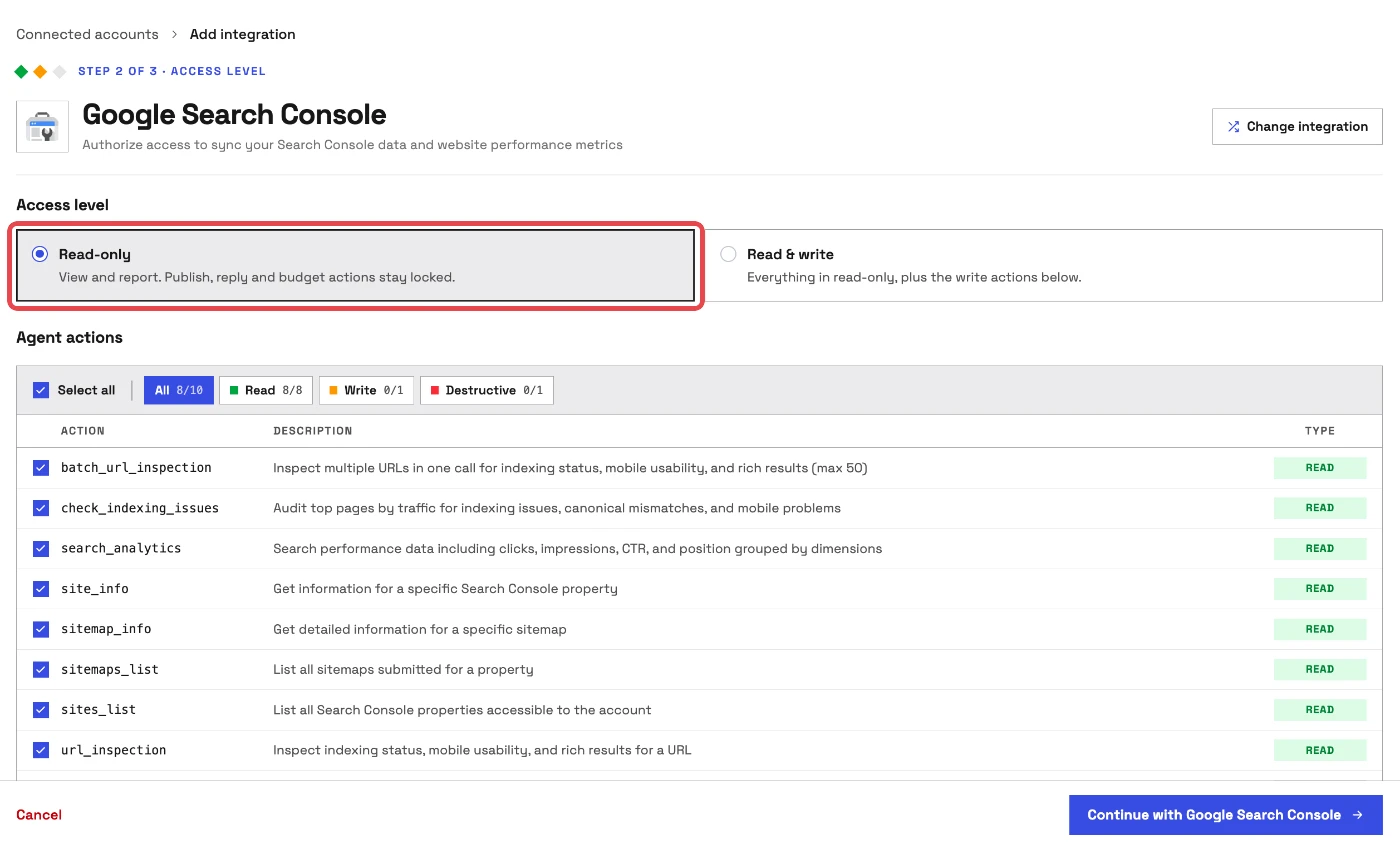
- Choose Read-only as the access level.
- Click Continue with Google Search Console, then sign in with Google and approve access.
- Under Sites, open Choose sites... and pick the properties you want.
- Click Connect 1 site, or the count you picked.
Each site becomes its own connection with its own action list. The Search Console connector docs cover each field.
Step 2: Connect Google Search Console to Claude
Claude takes InsightfulPipe in one of two ways. The flow matches on claude.ai and in Claude Desktop.
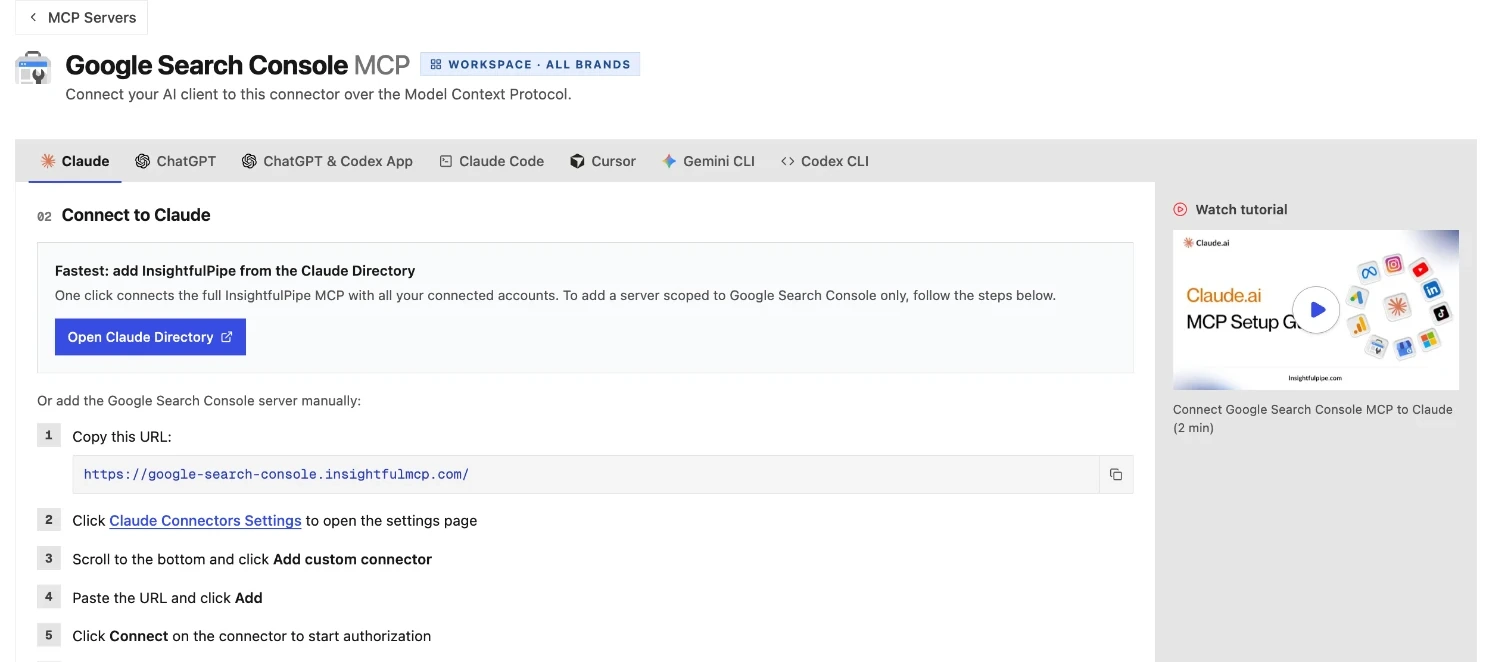
Fastest: the Claude Directory. Open InsightfulPipe in the Claude Directory and click Connect. This adds the full InsightfulPipe MCP server, which reaches every account your workspace has connected, Search Console included.
Scoped to Search Console: the server URL.
- Copy the server URL:
https://google-search-console.insightfulmcp.com/ - In Claude, open Customize > Connectors.
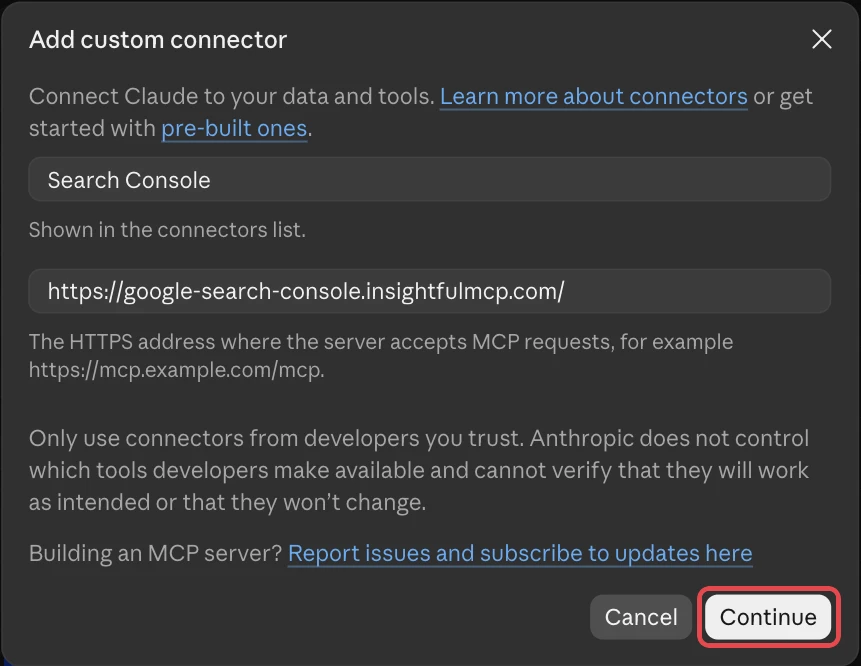
- Click +, then Add custom connector.
- Name it, paste the URL, click Continue, then Add.
- Click Connect on the new connector.
Sign in to InsightfulPipe if asked. A Grant access page then names the app asking and where its access goes, and lists Your accounts, here your Search Console sites, and Requested permissions. Click Authorize access, and Claude lists the connector under Customize > Connectors.
On Team and Enterprise plans, an Owner first adds the connector under Organization settings > Connectors, and members then connect it from Customize > Connectors.
Step 3: Turn the connector on in a new chat
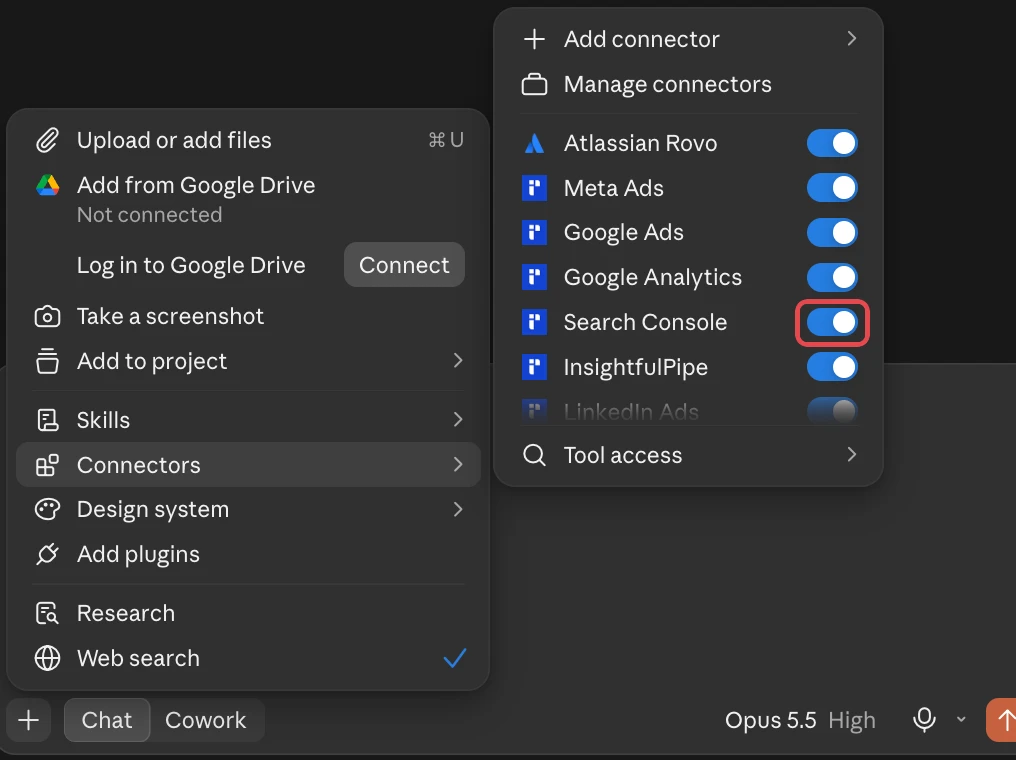
Claude uses a connector only in chats where you switch it on.
- Start a new chat in Claude.
- Click + in the lower left and open Connectors.
- Switch the Search Console connector on.
Step 4 (optional): ChatGPT, Claude Code, Gemini CLI, Codex and Cursor
The same server URL works in every client that supports remote MCP servers, and each finishes with the same InsightfulPipe sign-in and Authorize access step.
- ChatGPT: install InsightfulPipe from ChatGPT Plugins, or open Plugins, click Add, choose Add custom MCP server and paste the URL. Set the plugin's Permission to Allow read-only tools under Settings > Plugin settings.
- Claude Code: run the
claude mcp addline below (add--scope userto use it in every project), then type/mcp, select google-search-console-mcp and choose Authenticate. - Gemini CLI: run
/mcp auth google-search-console-mcp. - Codex CLI: run
codex mcp login google-search-console-mcpif no browser opens. - Cursor: add the server to
~/.cursor/mcp.json, click Connect, sign in to InsightfulPipe if asked, and click Authorize access.
claude mcp add --transport http google-search-console-mcp https://google-search-console.insightfulmcp.com/
gemini mcp add --transport http google-search-console-mcp https://google-search-console.insightfulmcp.com/
codex mcp add google-search-console-mcp --url https://google-search-console.insightfulmcp.com/
The ChatGPT setup guide has every click for ChatGPT.
Step 5: Choose which actions Claude may run
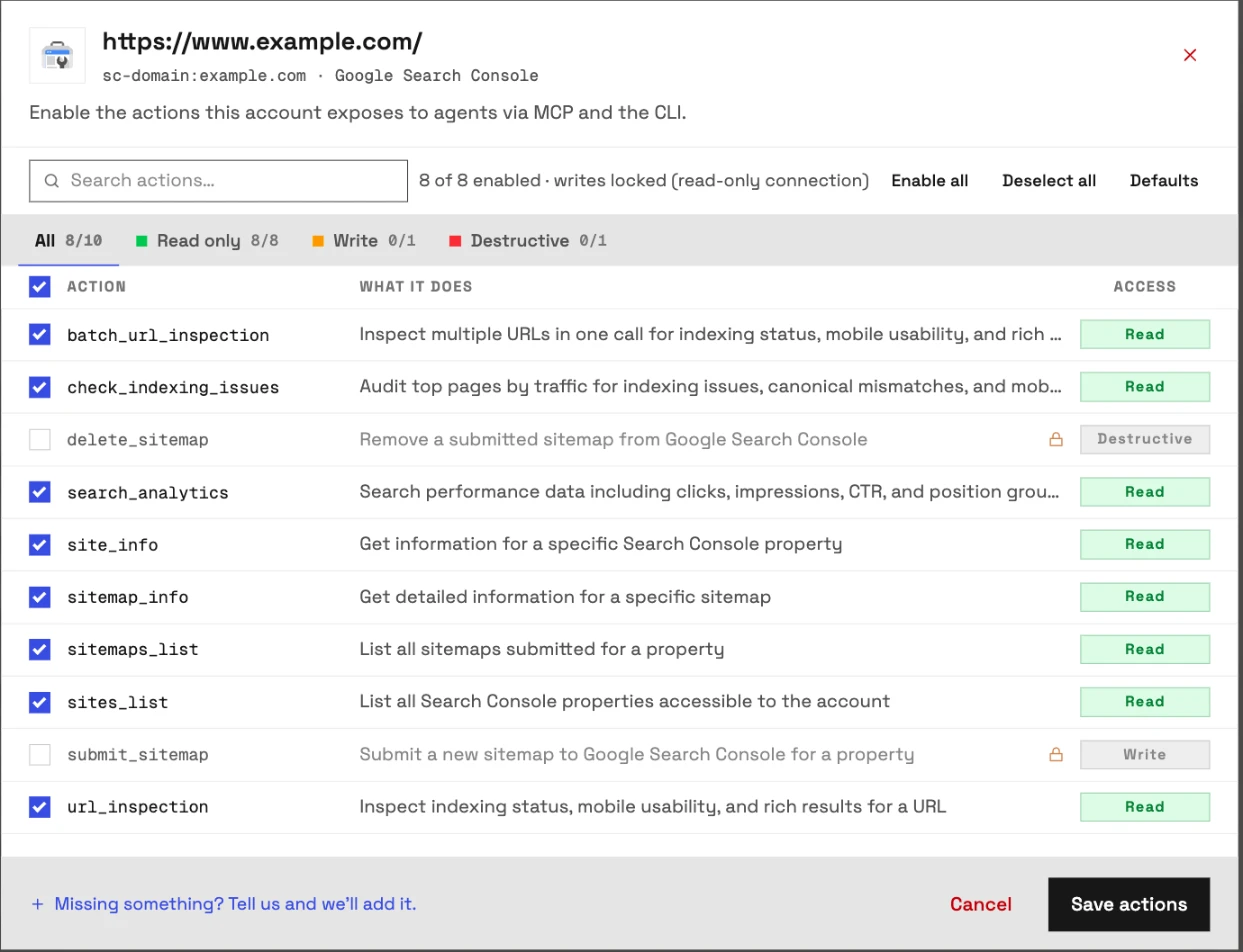
Every Search Console action on a site has its own switch, and InsightfulPipe's server enforces it in every client.
- In InsightfulPipe, open Connected accounts and find the site.
- Click its actions button. Its tooltip reads Configure actions for this account.
- Switch off any read Claude does not need, such as URL inspection on a site you only report on.
- Click Save actions.
The server refuses any action that is off, whichever client asks. Sitemap submit and delete stay off for every account, so a Search Console connection never changes the property.
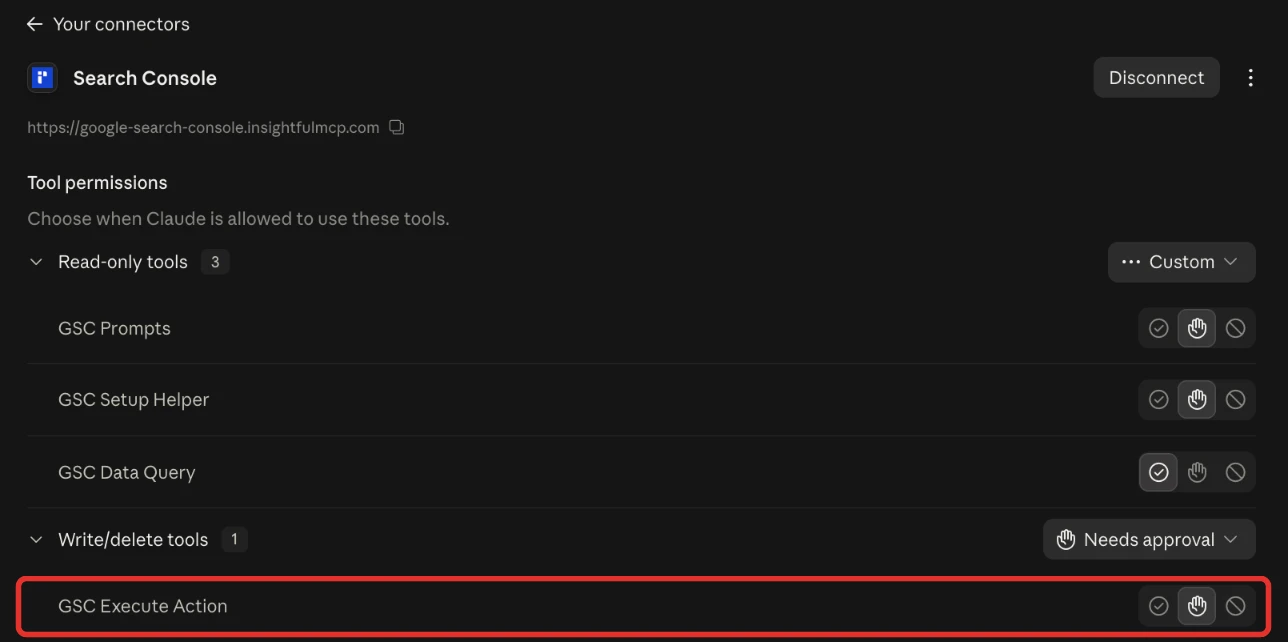
Claude adds a switch of its own. Open the connector under Customize > Connectors, and set each tool under Tool permissions to Always allow, Needs approval or Blocked.
Verify it worked
Three checks, shortest first, show that the connection works and where a failure sits.
The connection is live. In Claude, the + menu lists the Search Console connector under Connectors. In Claude Code, claude mcp list shows google-search-console-mcp as ✔ Connected. If it shows ! Needs authentication, run /mcp and sign in.
A prompt that cannot change anything. Paste this into a new chat.
List the Search Console properties available to this connection.
Return the property URL, the property type and my permission level.
Do not run a report and do not change anything.
Your sites in the answer confirm the Google sign-in and the workspace mapping.
A real read. Ask for last week's clicks and impressions for one page. Then compare them with the Performance report in Search Console for the same dates and search type. A match confirms the property and the dates.
Prompts to run first
Start with the reports Search Console's own interface makes slow: long tails, comparisons and checks across many URLs.
Prompt | What Claude runs |
|---|---|
"Which queries rank between positions 8 and 15 with over 1,000 impressions?" |
|
"Which pages lost the most clicks this month against last month, and on which queries?" | Two |
"Which pages have over 1,000 impressions but a CTR under 1%?" |
|
"Are any of my top 20 pages not indexed, or indexed under a different canonical?" |
|
"Inspect these 30 new URLs and tell me which are on Google" |
|
"Which sitemaps have errors or warnings?" |
|
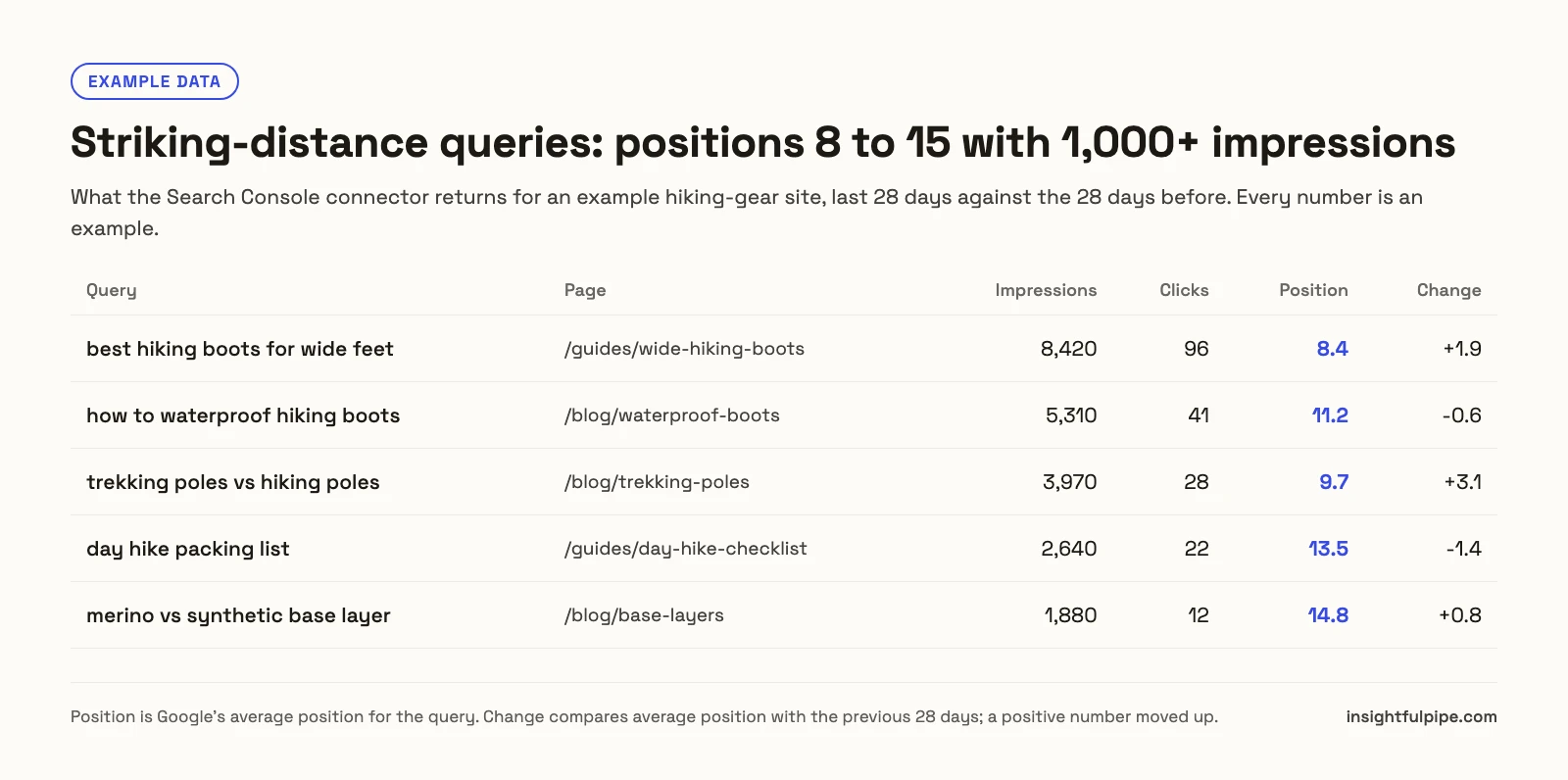
Two prompts worth copying as they are:
Use Search Console property [PROPERTY_URL].

Compare the last 28 complete days with the previous 28 complete days.
Break the report down by page, then by query for the top 10 pages.
Include clicks, impressions, CTR and average position.
Do not change anything.
Use Search Console property [PROPERTY_URL].
Run an indexing check on the top [NUMBER] pages by impressions.
List each page that is not indexed, or where Google chose a different canonical.
For each, show the coverage state and the last crawl date.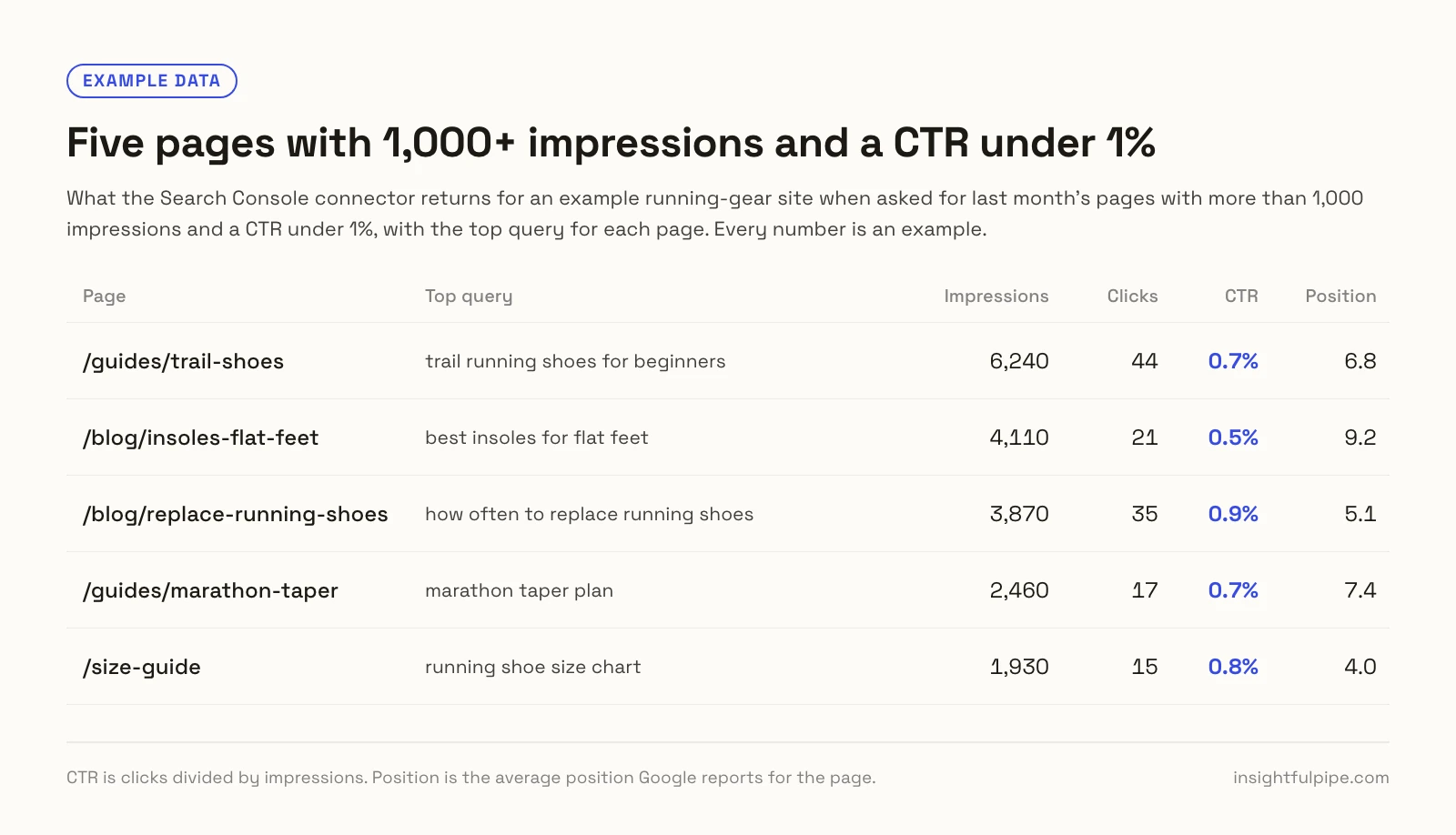
The Claude skills library and the prompt library are free to use. The striking-distance optimizer, content decay refresh and keyword cannibalization fixer skills run on this connection. What Claude skills are explains the format, and SEO prompts for Claude has more to try.
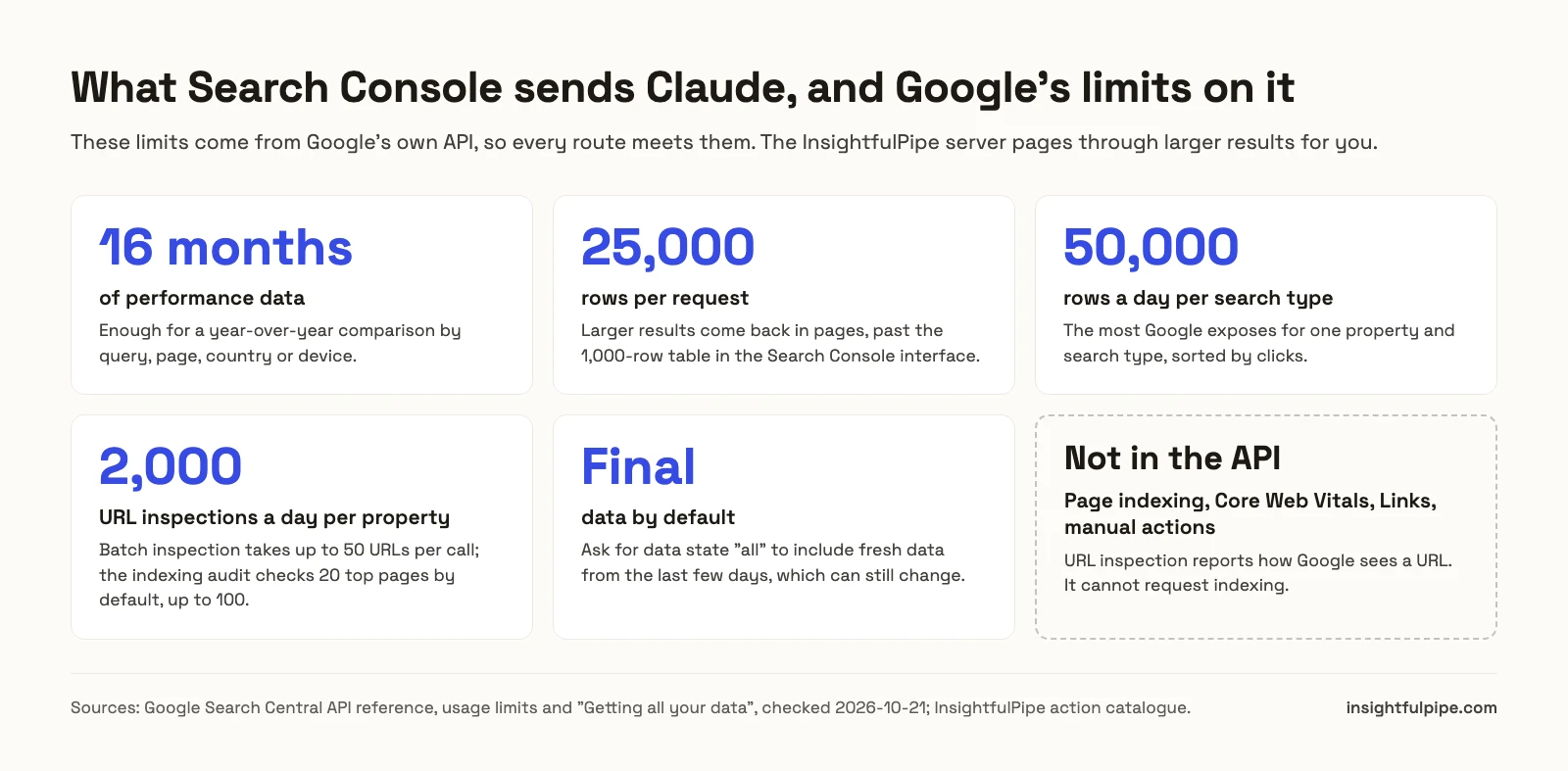
What Search Console sends Claude, and its limits
Claude reads what Google's Search Console API returns, so these limits are Google's, and every route meets them. InsightfulPipe's server pages through larger results for you.
- 16 months of performance data. Google's Search Console launch post set the window at 16 months, which covers a year-over-year comparison.
- 25,000 rows per request. The query method returns 1 to 25,000 rows, with 1,000 by default, and larger results come in pages.
- 50,000 rows a day per search type. Per Google, the API exposes "a maximum of 50K rows of data per day per search type", sorted by clicks.
- 2,000 URL inspections a day per property. Google's usage limits cap URL inspection at 2,000 queries a day per site. Batch inspection takes up to 50 URLs per call, and the indexing check covers 20 top pages by default, up to 100.
- Final data by default. Ask for data state "all" to include fresh data, which Google says can still change.
- Not in the API. The Page indexing, Core Web Vitals, Links and manual actions reports. URL inspection reports how Google sees a URL. It cannot request indexing.
Ask Search Console questions with GA4 and Google Ads
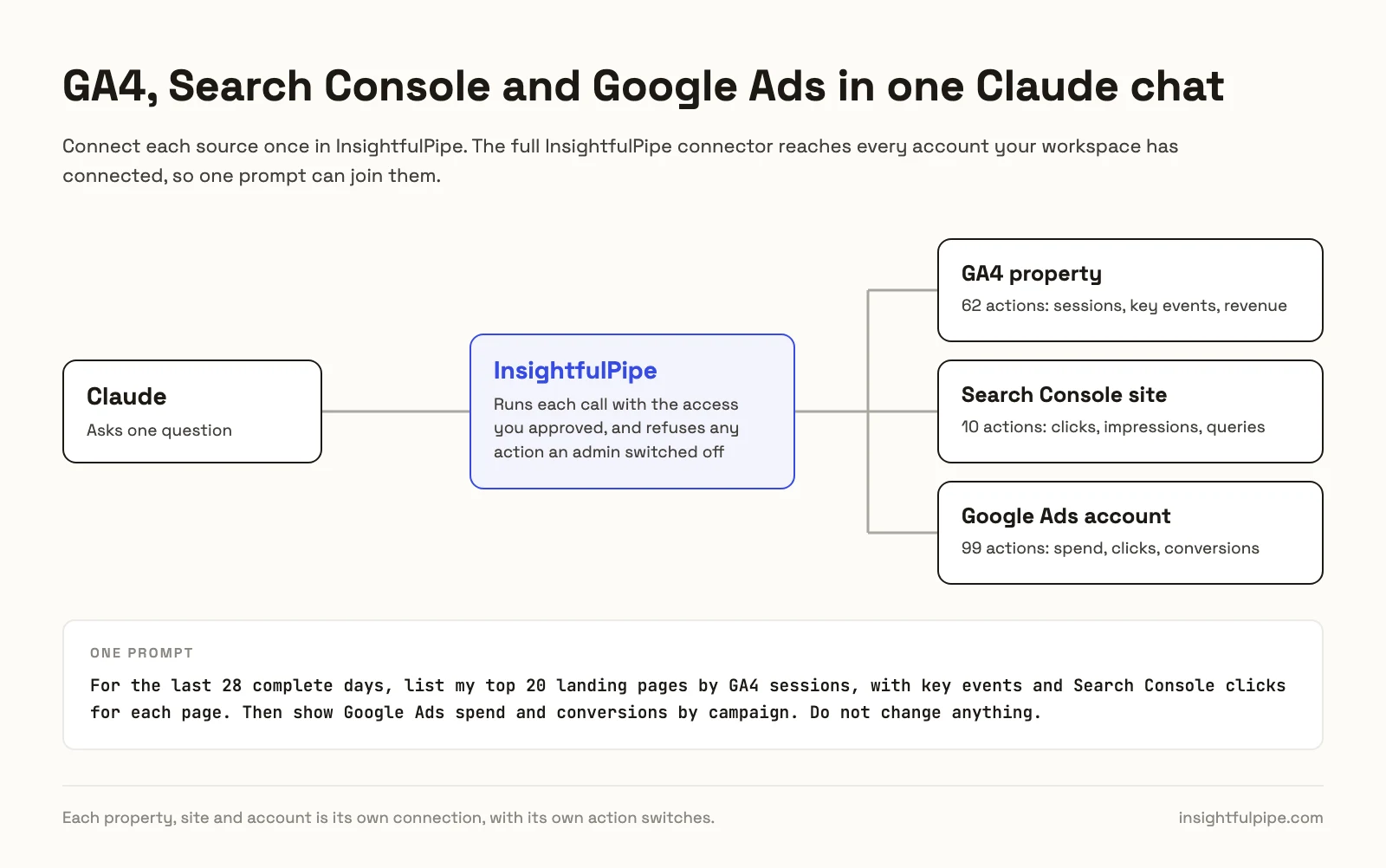
Connect Google Analytics 4 and Google Ads in the same workspace, and Claude can join them with Search Console in one answer. The full InsightfulPipe connector from the Claude Directory reaches all three, or you add each server.
- GA4: the GA4 MCP server adds sessions, engagement and key events per landing page. How to connect GA4 to Claude walks through it.
- Google Ads: the Google Ads MCP server adds paid clicks and spend on the same queries, with its own setup guide.
- More SEO data: the Bing Webmaster Tools, PageSpeed Insights and DataForSEO servers sit on the same login.
Search Console clicks and GA4 sessions never match one to one, because consent banners and ad blockers remove sessions. Compare trends. The cross-platform reports guide has more joined prompts.
What Claude may change in Search Console, and who decides
Claude reads and inspects, and your property stays as it is. The Search Console server exposes 10 actions: 8 read, 1 write and 1 destructive. InsightfulPipe keeps the write and the destructive action switched off for every account, so a connection reports on your site without changing it.
- Control over every single action. An owner, admin or operator switches each of the 8 reads on or off per site, and the server refuses any action that is off.
- Sitemaps stay read-only.
submit_sitemapanddelete_sitemapare built and switched off by InsightfulPipe for every account. Claude can list sitemaps and read their status. - The Google scope reads only. The connection holds
webmasters.readonly, so Google itself refuses a change. - Each site is its own boundary. Requests name the property, and the server refuses a site your workspace did not connect or grant you.
- Roles hold. Members on the User role run only the switched-on reads, on the sites an owner or admin grants them.
- Claude adds a switch of its own. Under Tool permissions, set each tool to Always allow, Needs approval or Blocked.
Start a trial, connect a site and switch on only the reads Claude needs.
Troubleshooting
Most failures are one of these eight, and six of them come with an exact message.
- The connector does not appear in the chat. Turn it on from + > Connectors in Claude, or pick the plugin with @ in ChatGPT. In Claude Code, run
/mcp. - "No verified sites found. Please verify your website in Google Search Console first." The Google account you signed in with has no verified property. Sign in with the account that has access, or verify the site in Search Console.
- Your Instagram, TikTok, X or YouTube property is missing. InsightfulPipe shows: "Instagram, TikTok, X and YouTube platform properties are not yet exposed by Google's Search Console API, so only website properties can be connected."
- "Google denied access to this Search Console property. The connected Google account needs access to it in Search Console: add that access, or reconnect with a Google account that has it." Add the user in Search Console, or reconnect with an account that has access.
- "Google refused to inspect this URL. The URL must belong to this Search Console property, with the same protocol and host (for example www or https), and the connected Google account needs access to the property." Match the URL to the property exactly, including
wwwandhttps. - "Google Search Console authorization expired. Reconnect the property and try again." Reconnect the site in Connected accounts.
- "Google Search Console is rate limiting requests. Try again shortly." Wait a minute, then narrow the request or inspect fewer URLs at once.
- The report is empty. Check that you named the right property type,
sc-domain:or URL-prefix. Then widen the dates and remove filters. Empty is not always an authentication problem.
Other ways to connect Search Console to Claude
Several vendors and open-source projects connect Search Console to Claude as well. Each claim below comes from the vendor's own page on 2026-10-21, and our Google Search Console MCP roundup compares 12 of them.
- Porter Metrics: its Claude page limits its lowest plan to the last 15 days of data in Claude. Reporting runs "from $12.50 per account a month billed annually, or $15 month to month", and each sitemap change uses "1 AI credit".
- Windsor.ai: its Claude page adds Windsor from Customize > Connectors after you link the source in Windsor.ai.
- Supermetrics: its Claude page connects through the Supermetrics listing.
- Composio: its toolkit page adds
https://connect.composio.dev/mcp, which runs through a Composio account. - MCP Search Console: its site offers a hosted server for Search Console alone, read-only by scope.
- Local open-source servers: run with Node or Python on your machine and a Claude Desktop config file, so they do not reach claude.ai on the web.
InsightfulPipe runs hosted in claude.ai and ChatGPT, reaches 49 more platforms on the same login, and puts a switch on every action for each site.
Frequently asked questions
Sources (checked 2026-10-21)
Every third-party claim above comes from that vendor's own page, opened on 2026-10-21. InsightfulPipe facts come from the app's code, the Search Console MCP server page and the pricing page.
- InsightfulPipe: Search Console MCP server, pricing, Claude Directory listing
- Anthropic: custom connectors, Claude Code MCP
- OpenAI: Add custom MCP server
- Google: Search Analytics query, getting all your data, usage limits, permissions, 16 months of data, managed MCP servers
- Porter Metrics: Search Console for Claude
- Windsor.ai: Search Console to Claude
- Supermetrics: Search Console to Claude
- Composio: Search Console toolkit for Claude
- MCP Search Console: site