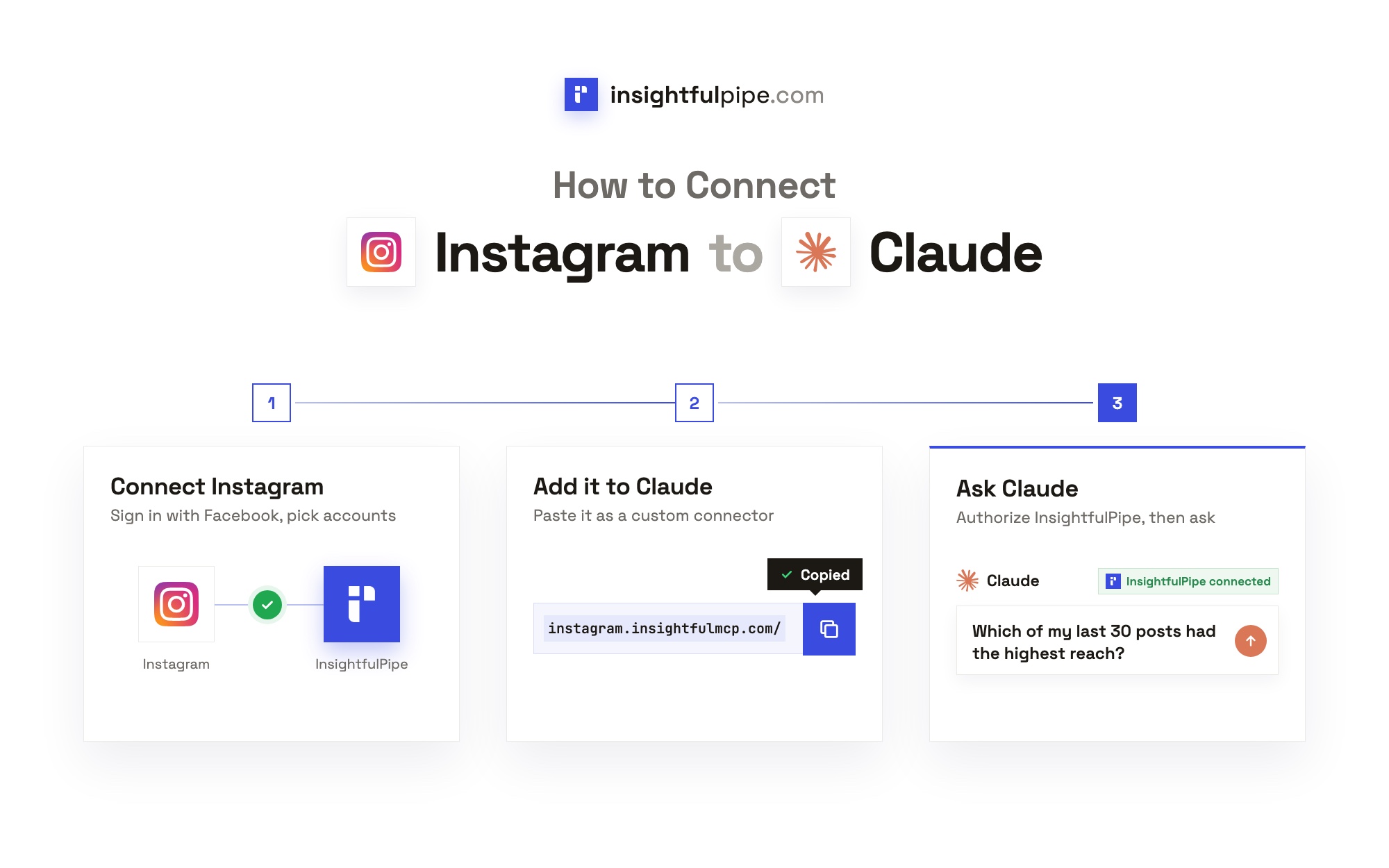
InsightfulPipe publishes this guide, and the steps use its hosted Instagram connector. The other ways to connect sit near the end.
Last updated: 2026-11-01
To connect Instagram to Claude, connect your Instagram Business account in InsightfulPipe with a Facebook sign-in. Then add InsightfulPipe from the Claude Directory, or paste https://instagram.insightfulmcp.com/ as a custom connector. Click Connect, sign in to InsightfulPipe if asked, and click Authorize access. You need no Meta developer app, access token or server. Plans start from $29.99 a month.
The quick version
These six steps are the whole setup. Each one has its own section below, with the exact labels you will see.
- In InsightfulPipe, open Connected accounts, click Connect account and choose Instagram Business.
- Pick Read-only or Read & write, then click Continue with Instagram.
- Sign in with Facebook, pick your accounts and click Connect 1 Instagram account.
- In Claude, add InsightfulPipe from the Claude Directory, or add the server URL under Customize > Connectors.
- Click Connect, sign in to InsightfulPipe if asked, and click Authorize access.
- Turn the connector on in a new chat and run the check under "Verify it worked".
Ways to connect Instagram to Claude
You can connect Instagram to Claude in four ways, and none of them is a Meta connector. InsightfulPipe's hosted Instagram MCP server pairs one Facebook sign-in with a switch on every action for each account, and reaches 49 more platforms on the same login.
Route | What you set up | Where it works | Switches per account |
|---|---|---|---|
InsightfulPipe hosted server | A Facebook sign-in, then the Claude Directory listing or one server URL | claude.ai, Claude Desktop, ChatGPT, Claude Code, Cursor, Gemini CLI, Codex | Yes, each of 19 actions |
Another vendor's connector | An account with that vendor, then its connector | Claude, plus the clients the vendor lists | Varies; most ask for approval in the chat |
A self-hosted open-source server | A Meta developer app, an access token and Python on your machine | Claude Desktop and terminal clients, not claude.ai on the web | Whatever you configure |
A file export | A report you export, then upload to a chat | Any chat that takes a file | Not applicable |
Meta publishes no Instagram MCP server and no Instagram connector for Claude. Its MCP documentation lists three remote servers: Meta Ads, Meta Social Technologies and WhatsApp Business Tools. None of them publishes organic Instagram posts or reads their insights. The Meta Ads server only lists boost-eligible posts to turn into ads, checked 2026-11-01.
Watch: Instagram Organic MCP Server with Claude, ChatGPT, Gemini and Cursor, 2 minutes 23 seconds
The video may show earlier versions of some screens. Follow the steps in this guide for the current labels.
What you are actually connecting
Claude never sees your Facebook or Instagram password. It sends a structured request over MCP to InsightfulPipe's Instagram server, which calls Meta's Instagram API with the access you approved.
Claude → InsightfulPipe Instagram server → the Instagram accounts you connected
Four things bound what Claude can do: your workspace, the accounts you connected, each account's action list and the access your Facebook login holds.
A Read-only connection asks Meta for four permissions: instagram_basic, instagram_manage_insights, pages_show_list and pages_read_engagement. Read & write adds instagram_manage_comments and instagram_content_publish. You need no Meta developer app, app review, access token, server to host or API version to track. MCP vs API explains the difference from calling the API yourself.
Before you start
You need five things before the first click. Meta's account rules decide which Instagram accounts can connect at all.
- An Instagram professional account. A Business or Creator account, linked to a Facebook Page. Meta's Instagram API serves professional accounts only.
- A Facebook login that manages that Page. InsightfulPipe finds the Instagram account through the Page.
- An InsightfulPipe workspace, from $29.99 a month with 8 connections and unlimited tool calls. Each Instagram account counts as one connection. Start a trial if you have no workspace yet.
- The right workspace role. Owners, admins and operators can connect accounts. Members on the User role cannot.
- A Claude plan with custom connectors. Claude offers them on every plan, and Free allows one, per Anthropic.
Meta's own access still applies. InsightfulPipe reaches only the Instagram accounts your Facebook login can manage, and it cannot expand that access. If an account belongs to a client, ask them to give your Facebook login access to its Page first.
Step 1: Connect your Instagram Business account in InsightfulPipe
You choose the access level in InsightfulPipe before Facebook asks you to sign in.
- In InsightfulPipe, open Connected accounts and click Connect account.
- On Add an integration, search for Instagram, find Instagram Business and click Connect.
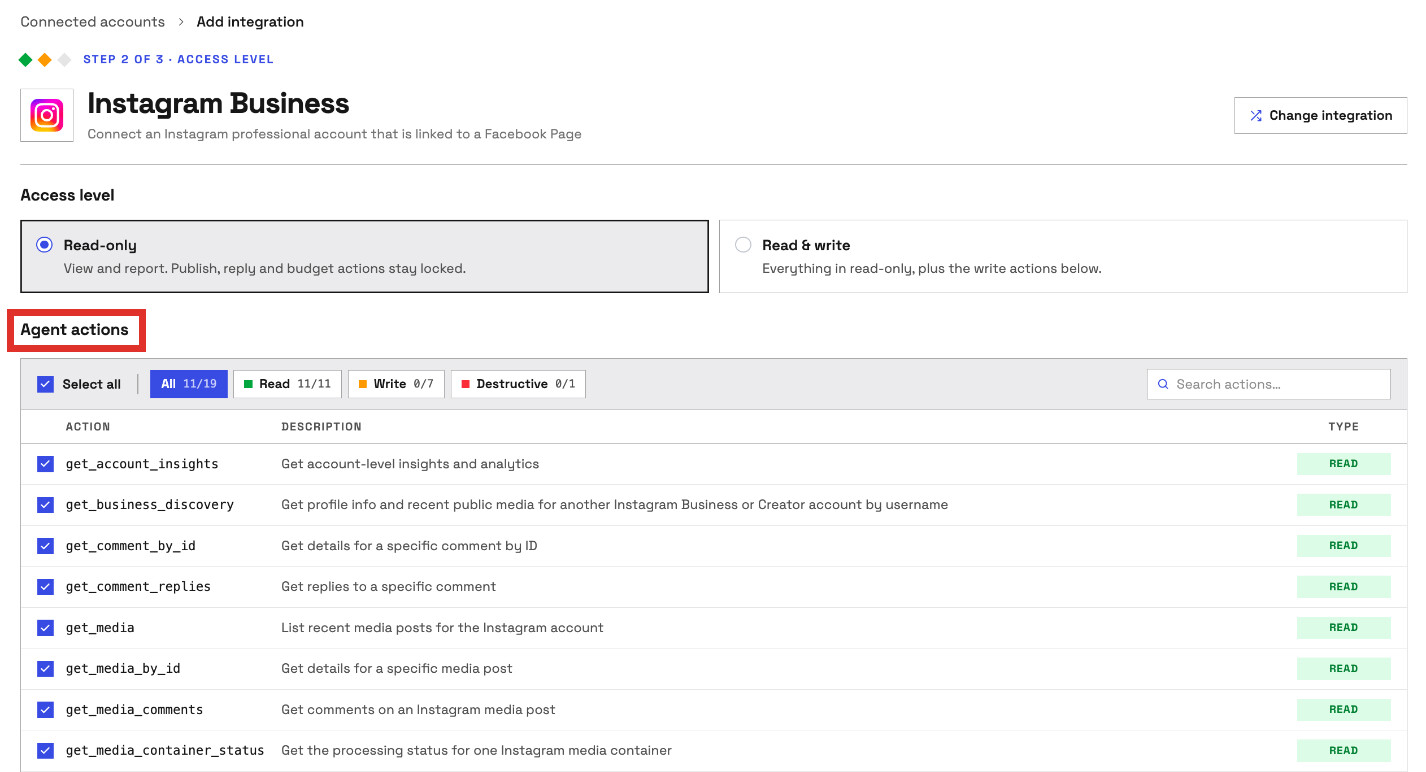
- Under Access level, choose Read-only or Read & write.
- Check the Agent actions list below it, and untick any action you do not want.
- Click Continue with Instagram.
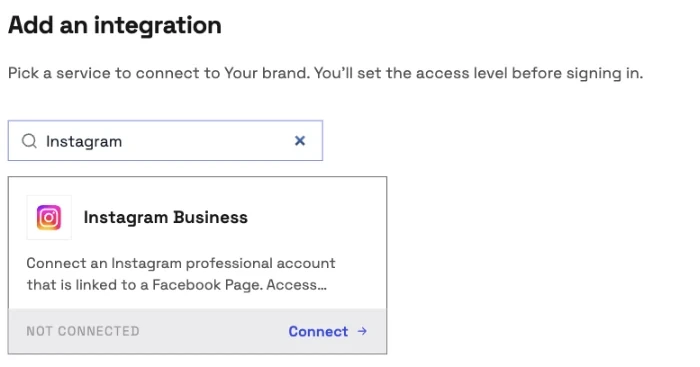
Read-only turns on the 11 reads and locks every write before any sign-in. The Instagram connector docs cover each field.
Step 2: Sign in with Facebook and pick your Instagram accounts
Facebook asks which accounts to share, and InsightfulPipe then lists the ones it can reach.
- Sign in with Facebook and approve the permissions.
- In Facebook's dialog, pick the Instagram accounts you want and the Pages linked to them.
- Back in InsightfulPipe, wait for Instagram accounts to load.
- Tick the accounts to connect.
- Click Connect 1 Instagram account, or the count you picked.
Each account becomes its own connection with its own action list. Keep every account you post to selected on Facebook's screen. A later Facebook sign-in that leaves one out stops it from publishing.
Step 3: Add the Instagram connector to Claude
Claude takes InsightfulPipe in one of two ways, and the flow matches on claude.ai and in Claude Desktop.
Fastest: the Claude Directory. Open InsightfulPipe in the Claude Directory and click Connect. This adds the full InsightfulPipe MCP server, which reaches every account your workspace has connected, Instagram included.
Scoped to Instagram: the server URL.
- Copy the server URL:
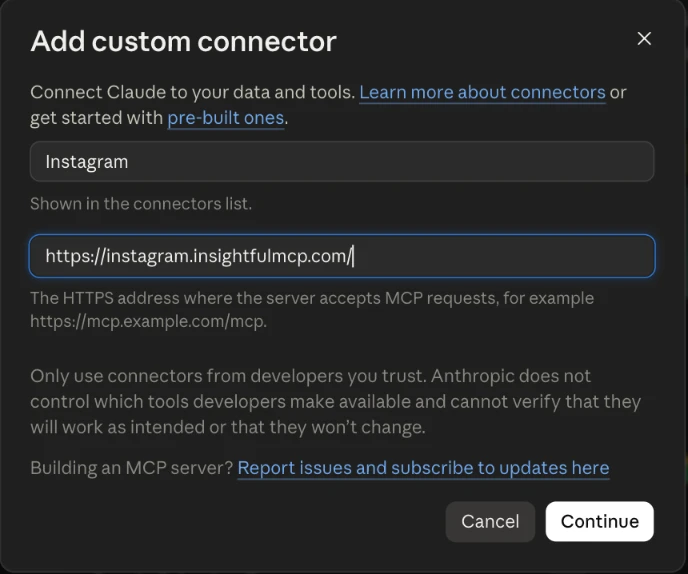
https://instagram.insightfulmcp.com/ - In Claude, open Customize > Connectors.
- Click + Add, then Add custom connector.
- Name it Instagram, paste the URL and click Continue.
- Keep the sign-in settings Claude detects, click Continue, then click Add.
- Click Connect on the new connector.
Sign in to InsightfulPipe if asked. A Grant access page then names the app asking, lists Your accounts by brand and shows the Requested permissions. Click Authorize access, and Claude lists the connector under Customize > Connectors.
On Team and Enterprise plans, an Owner first adds the connector under Organization settings > Connectors. Members then connect it from Customize > Connectors.
Step 4: Turn the connector on in a new chat
Claude uses a connector only in chats where you switch it on.
- Start a new chat in Claude.
- Click + in the lower left and open Connectors.
- Switch the Instagram connector on.
Step 5 (optional): ChatGPT, Claude Code, Cursor, Gemini CLI and Codex
The same server URL works in every client that supports remote MCP servers. Each one finishes with the same InsightfulPipe sign-in and Authorize access step.
- ChatGPT: install InsightfulPipe from ChatGPT Plugins, or open Plugins, click Add, choose Add custom MCP server and paste the URL. The ChatGPT setup guide has every click.
- Claude Code: run the
claude mcp addline below, then type/mcp, select instagram-analytics-mcp and choose Authenticate. - Cursor: add the server to
~/.cursor/mcp.json. It shows Needs authentication, so click Connect, then Open. - Gemini CLI: run
/mcp auth instagram-analytics-mcpafter adding it. - Codex CLI: run
codex mcp login instagram-analytics-mcpif no browser opens.
claude mcp add --transport http instagram-analytics-mcp https://instagram.insightfulmcp.com/
gemini mcp add --transport http instagram-analytics-mcp https://instagram.insightfulmcp.com/
codex mcp add instagram-analytics-mcp --url https://instagram.insightfulmcp.com/
Step 6: Choose which Instagram actions Claude may run
Every Instagram action on an account has its own switch, and InsightfulPipe's server enforces it in every client.
- In InsightfulPipe, open Connected accounts and find the Instagram account.
- Click its actions button. Its tooltip reads Configure actions for this account.
- Switch off what Claude should not run, such as
publish_mediaandpublish_poston an account agents should not post to. - Click Save actions.
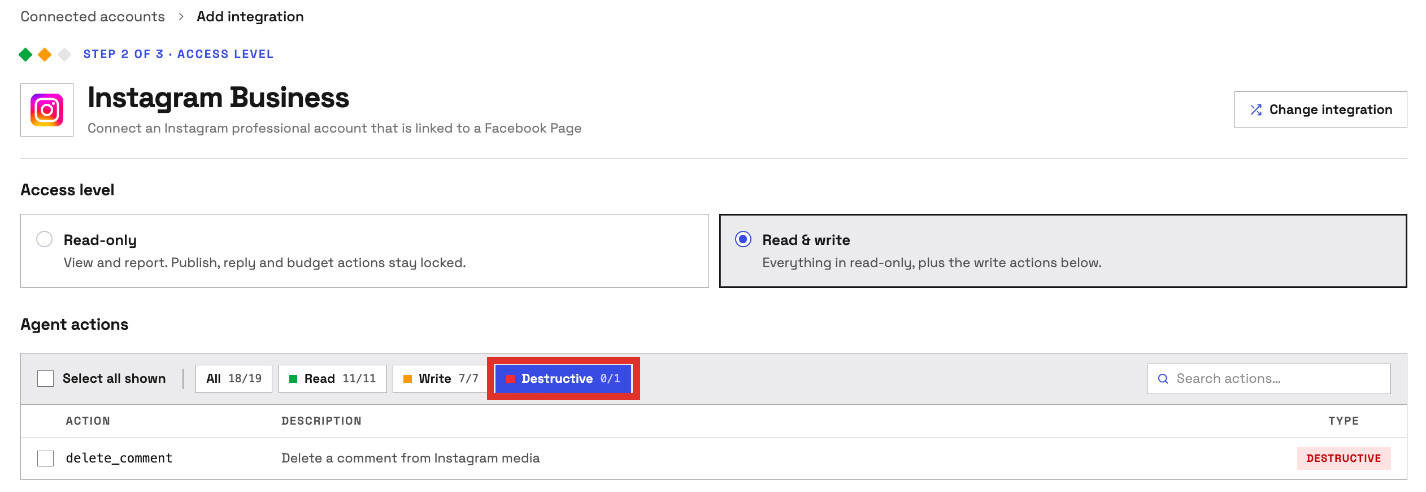
The setup step shows the same switches before you connect: on Read & write, 18 of 19 actions start on and delete_comment starts off.
Claude adds a switch of its own. Open the connector under Customize > Connectors and set each tool under Tool permissions to Always allow, Needs approval or Blocked. Keep execute_action, the write tool, on Needs approval while you learn how Claude works with your account.
Verify it worked
Three checks, shortest first, show that the connection works and where a failure sits.
The connection is live. In Claude, the + menu lists the Instagram connector under Connectors. In Claude Code, claude mcp list shows instagram-analytics-mcp as ✔ Connected. If it shows ! Needs authentication, run /mcp and sign in.
A prompt that cannot change anything. Paste this into a new chat.
List the Instagram accounts available to this connection.
Return the username, account ID and follower count.
Do not publish, reply or change anything.
Your accounts in the answer confirm the Facebook sign-in and the workspace mapping.
A real read. Ask for the reach of your last five posts. Then compare them with the same posts in Instagram's professional dashboard. Meta says the data behind its metrics can lag by up to 48 hours, so allow for small gaps on new posts.
Prompts to run first
Start with the reports Instagram's own app makes slow: rankings across many posts, format comparisons and comment triage.
Prompt | What Claude runs |
|---|---|
"Which of my last 30 posts had the highest reach, and what do the top five share?" |
|
"Compare Reels, carousels and single images on views, reach, saves and shares this month" |
|
"Show views, accounts engaged and follows for the last 28 days" |
|
"Where do my followers live, by country and city?" |
|
"List this week's comments that ask a question and draft replies for me to approve" |
|
"Show @[COMPETITOR]'s last 12 posts with likes and comments" |
|
Two prompts worth copying as they are:
Use Instagram account [USERNAME].

Compare posts from the last 30 complete days with the 30 days before.
Group them by format: Reels, carousels and single images.
Include views, reach, saves, shares and total interactions per post.
Do not change anything.
Use Instagram account [USERNAME].
List comments from the last 7 days on my 5 latest posts.
Mark each one as a question, praise, complaint or spam.
Draft a short reply to each question and show them to me.
Reply only to the ones I approve. Do not delete anything.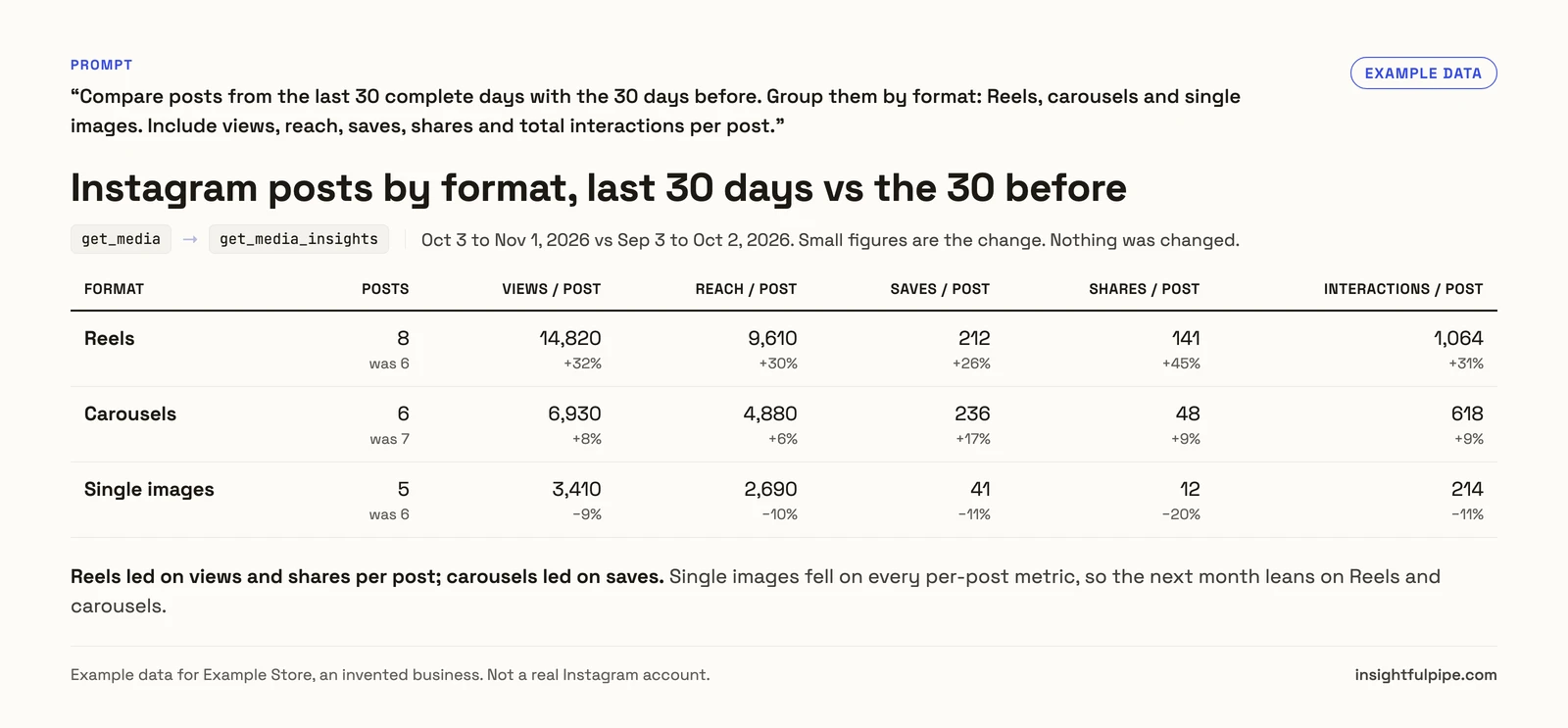
The prompt library and the Claude skills library are free to use. The Instagram account overview and Reels strategy report prompts run on this connection, and so does the Social Content skill. What Claude skills are explains the format.
What can Claude do with your Instagram account?
Claude can read your insights, posts, Stories and comments, publish new posts and moderate comments. The Instagram server exposes 19 actions: 11 read, 7 write and 1 destructive.
- Account insights. Totals for a period: views, accounts engaged, total interactions, likes, comments, shares, saves, follows and unfollows. Follower demographics by city and country.
- Posts and Reels. Your profile, recent posts, any single post, and per-post reach, views, saves, shares, total interactions, follows, profile visits and Reel watch time.
- Stories. Current Stories and their metrics, while they are live.
- Comments. Read comments and replies, comment, reply, hide or unhide, delete, and turn comments on or off for a post.
- Publishing. Single-image posts, carousels of 2 to 10 images or videos, Reels and Stories from media URLs, with a status check on each media container.
- Other accounts. The public profile and recent posts of another Business or Creator account, by username. The Instagram competitor analysis guide shows it at work.
Instagram ads live in Meta Ads Manager, so connect the Meta Ads MCP server for spend and results. How to connect Meta Ads to Claude walks through it. The Facebook Pages MCP server covers the Page itself.
What Claude cannot do on Instagram, and the publishing rules
These limits set what to expect before you plan a workflow around Claude. Story expiry and the follower floor come from Meta's API and apply to every route.
- No direct messages. The Instagram server has no DM actions.
- No hashtag search, and no data on when followers are online.
- No drafts or scheduling. Posts publish the moment Claude runs
publish_mediaorpublish_post. - No caption edits or post deletes. Claude can delete comments, but not posts.
- Stories expire. Instagram stops returning a Story after 24 hours, so ask while it is live.
- Small accounts. Meta does not return follower demographics for accounts under 100 followers.
Publishing follows a strict contract, checked before anything reaches Instagram:
- Images: JPEG only, up to 8 MB, at a public URL.
- Video: MP4 or MOV. Reels run 3 seconds to 15 minutes, up to 300 MB. Story videos run 3 to 60 seconds, up to 100 MB.
- Captions: up to 2,200 characters, with up to 3 collaborators and an optional first comment.
- Volume: Meta's publishing guide allows 100 API-published posts in a 24-hour moving period. Its carousel section gives 50.
What Claude may change on Instagram, and who decides
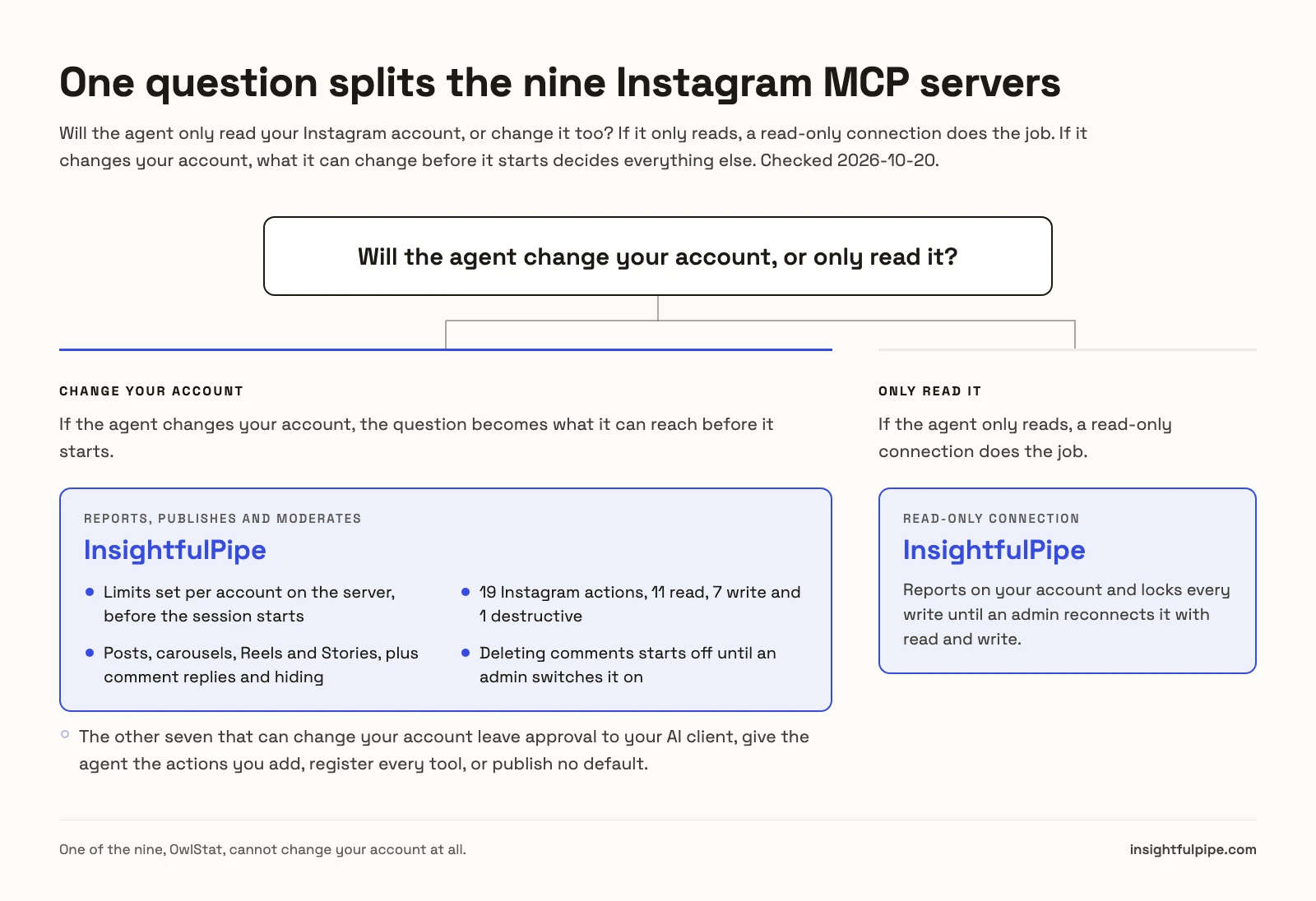
Claude reads your account, and every change it can make there is a switch an admin sets. The 7 writes and 1 destructive action cover publishing and comments, and nothing else.
- Control over every single action. An owner, admin or operator switches each of the 19 actions on or off per account, and the server refuses any action that is off.
- Read-only means read-only. A read-only connection locks every write until an admin reconnects it with read and write.
- Deleting comments starts off.
delete_commentis the one destructive action, and it stays off until an admin switches it on. - Publishing goes public at once.
publish_mediaandpublish_postmake a post live immediately, so an admin switches them off on any account where agents should not post. - Each account is its own boundary. The server refuses an Instagram account your workspace did not connect or grant you.
- Roles hold. Members on the User role run only the switched-on reads, on the accounts an owner or admin grants them.
Start a trial, connect an account read-only first, and switch on writes once the reports look right.
Troubleshooting
Most failures are one of these eight, and seven of them come with an exact message.
- "No Instagram Business or Creator accounts were found." The account is personal, or its Page is not one your Facebook login manages. Switch it to a professional account, link the Page, then connect again.
- "Facebook allowed all Instagram accounts but named none. Connect again, choose "Opt in to current accounts only", then select your accounts." Do exactly that on the next sign-in.
- "Instagram authorization is missing required permissions: [permissions]. Please reconnect and approve them." Reconnect and approve every permission Facebook lists. Read & write needs the comment and publishing permissions.
- "Facebook is not sharing this Instagram account with Insightful Pipe. Reconnect Instagram and keep every account you post to selected on Facebook's screen." A later Facebook sign-in dropped this account. Reconnect with every account selected.
- "Instagram's daily publishing limit for this account is reached. Post again tomorrow." Meta's 24-hour cap applies. Wait, then publish again.
- "Instagram access token expired. Please reconnect the account." Reconnect the account in Connected accounts.
- "This action is disabled for this connected account. An owner or admin must enable it for the account." An admin switches it on under Configure actions for this account.
- The connector does not appear in the chat. Turn it on from + > Connectors in Claude. In Claude Code, run
/mcp. The MCP troubleshooting guide covers client errors.
Other ways to connect Instagram to Claude
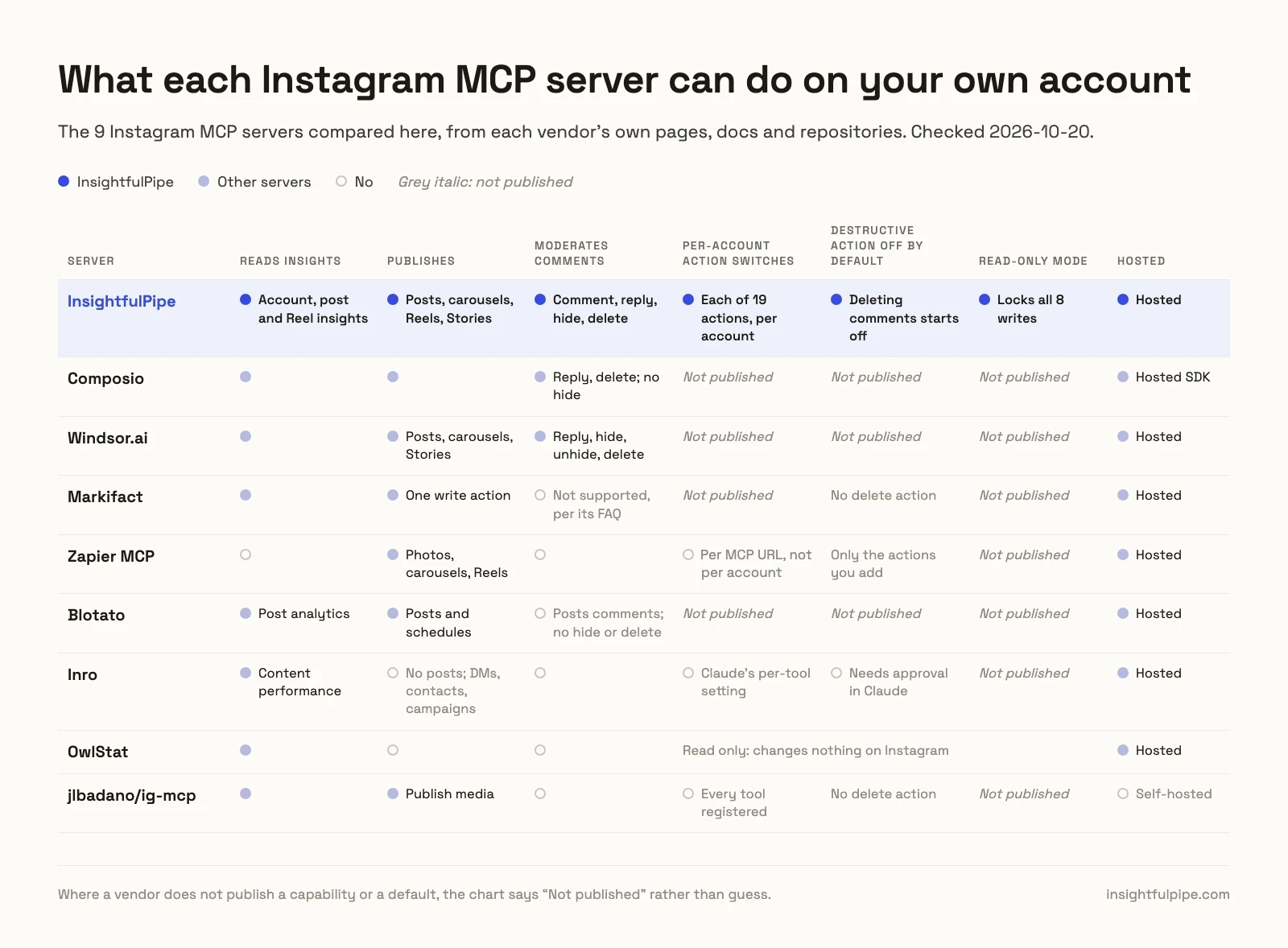
Several vendors and open-source projects connect Instagram to Claude as well. Each claim below comes from the vendor's own page on 2026-11-01. Our Instagram MCP server roundup compares nine of them.
- Markifact: its Instagram guide installs from Claude's directory and publishes image, carousel, Reel and Story posts after approval. It lists no first comment and no edit or delete operations.
- Composio: its toolkit page adds
https://connect.composio.dev/mcp, and the Instagram account connects later inside the chat. It runs through a Composio developer account. - Windsor.ai: its Claude page adds Windsor from Claude's directory and lists 9 write actions. It says a second data source needs a paid plan.
- Supermetrics: its Claude page connects through the Supermetrics listing for reporting. It lists no Instagram publishing or comment actions.
- Porter Metrics: its Claude page adds a custom connector URL. Its lowest plan reads the last 15 days in Claude, and each change uses 1 AI credit.
- Zapier MCP: its Instagram page lists two publishing actions, which work only for Business accounts, not Creator accounts.
- Self-hosted servers: jlbadano/ig-mcp needs a Facebook developer account, a long-lived access token and Python 3.10+. Claude Desktop config servers do not reach claude.ai.
PostFast, Metricool, Mailopoly, Sumora, Blotato, Outstand, Planoly, Truto, CData, Coupler.io, Catchr, Adzviser and Make also come up in AI answers or Google results for this question. This section covers the five vendors AI answers cite most, plus Zapier, which ranks on Google's first page, and the self-hosted route.
InsightfulPipe runs hosted in claude.ai and ChatGPT, reaches 49 more platforms on the same login, and puts a switch on every action for each account.
Frequently asked questions
Sources (checked 2026-11-01)
Every third-party claim above comes from that vendor's own page, opened on 2026-11-01. InsightfulPipe facts come from the app's code, the Instagram MCP server page and the pricing page.
- InsightfulPipe: Instagram MCP server, Instagram connector docs, pricing, Claude Directory listing
- Meta: MCP servers, Instagram content publishing, Instagram user insights
- Anthropic: custom connectors, Claude Code MCP
- OpenAI: Add custom MCP server
- Markifact: How to Connect Instagram to Claude and Publish Posts
- Composio: Instagram toolkit for Claude
- Windsor.ai: Instagram to Claude
- Supermetrics: Instagram to Claude
- Porter Metrics: Instagram connector for Claude
- Zapier: Instagram for Business MCP
- GitHub: jlbadano/ig-mcp