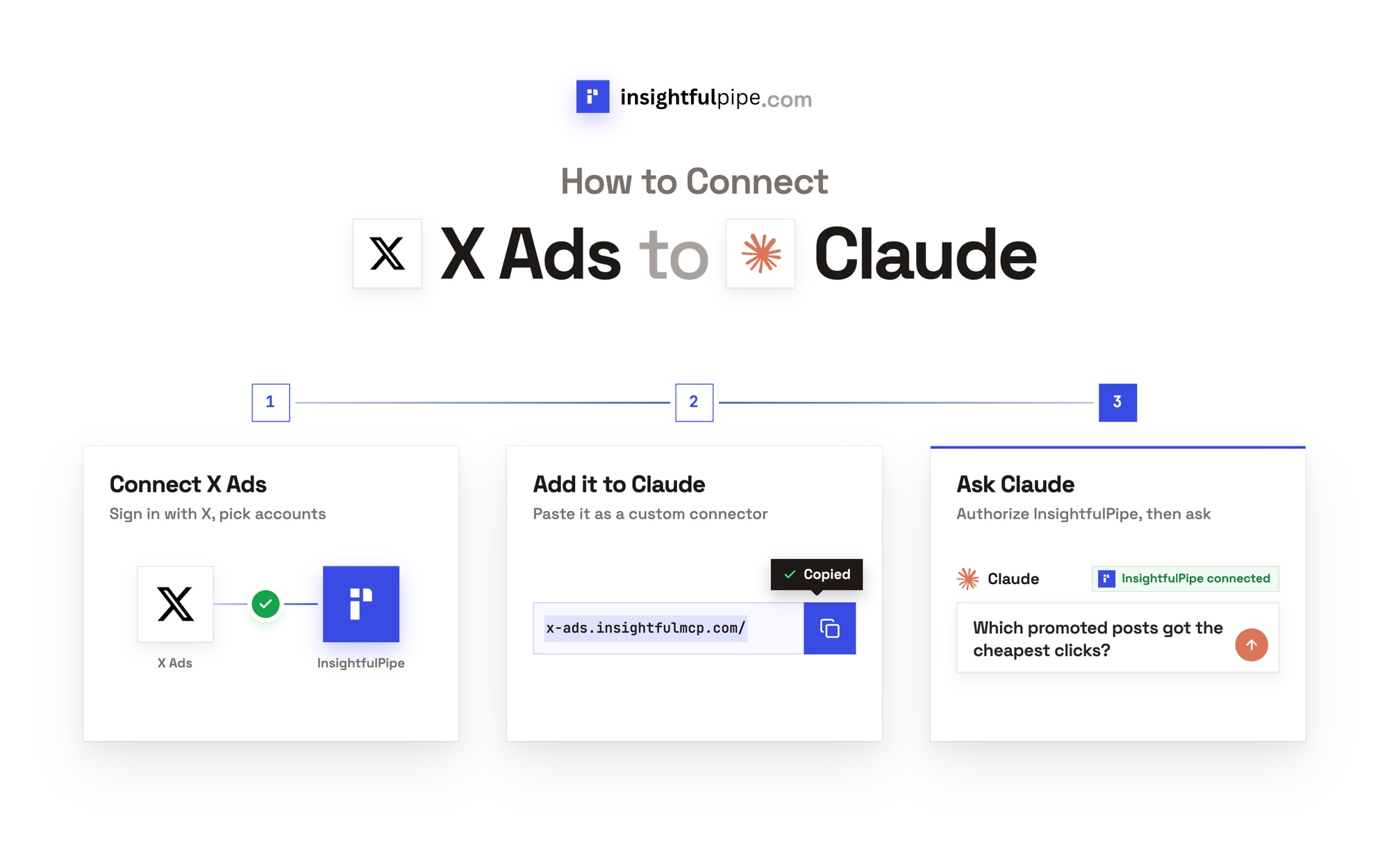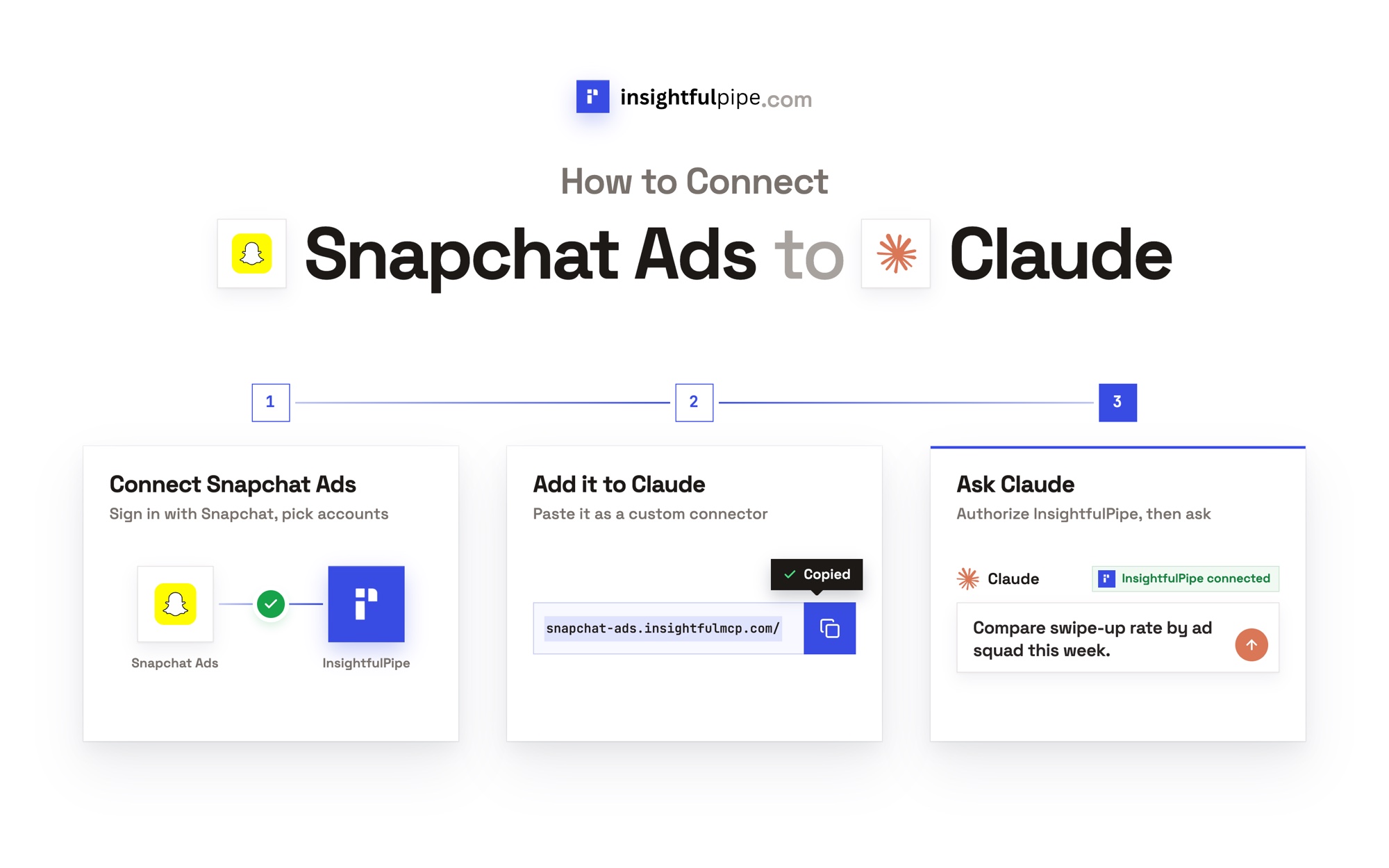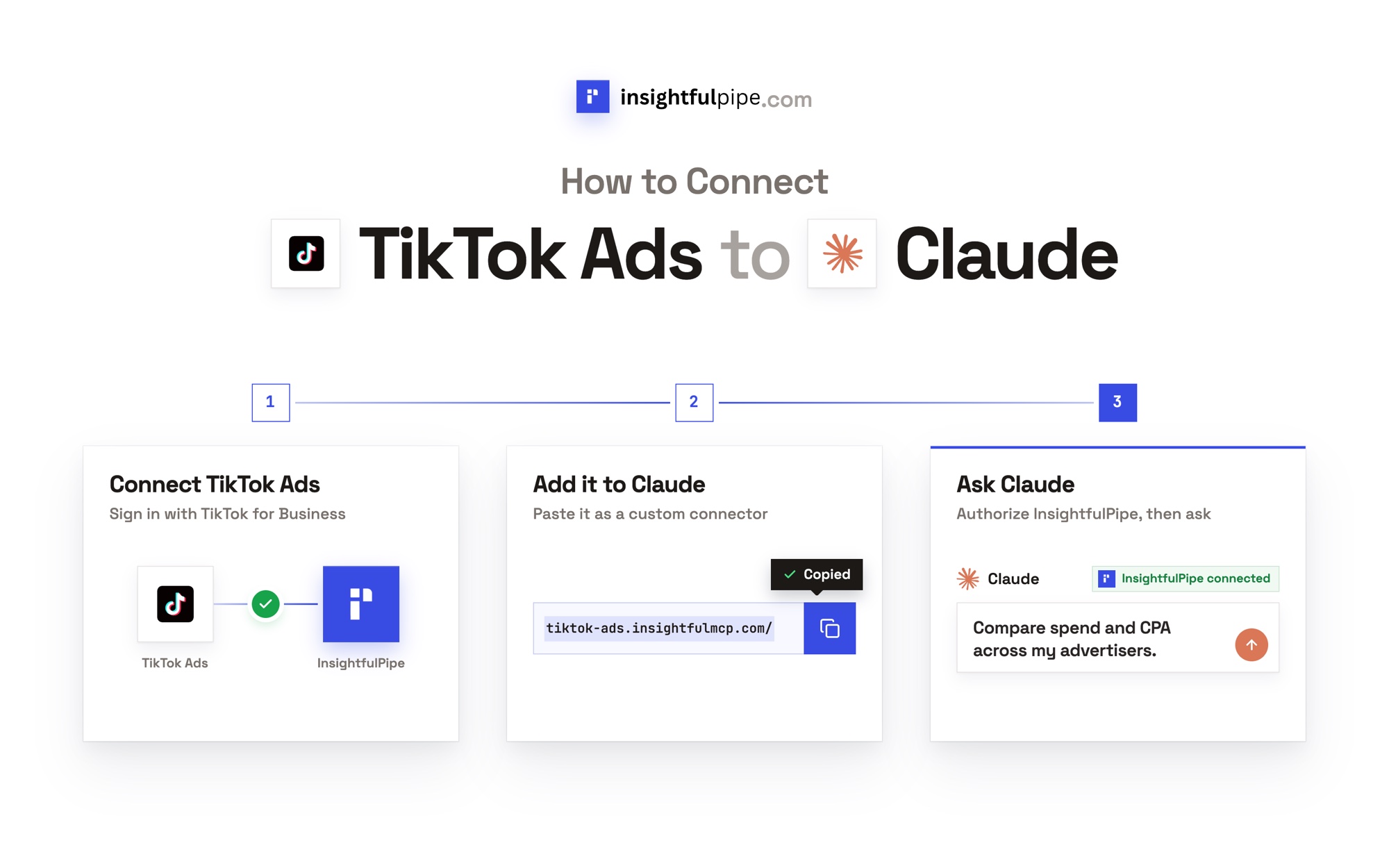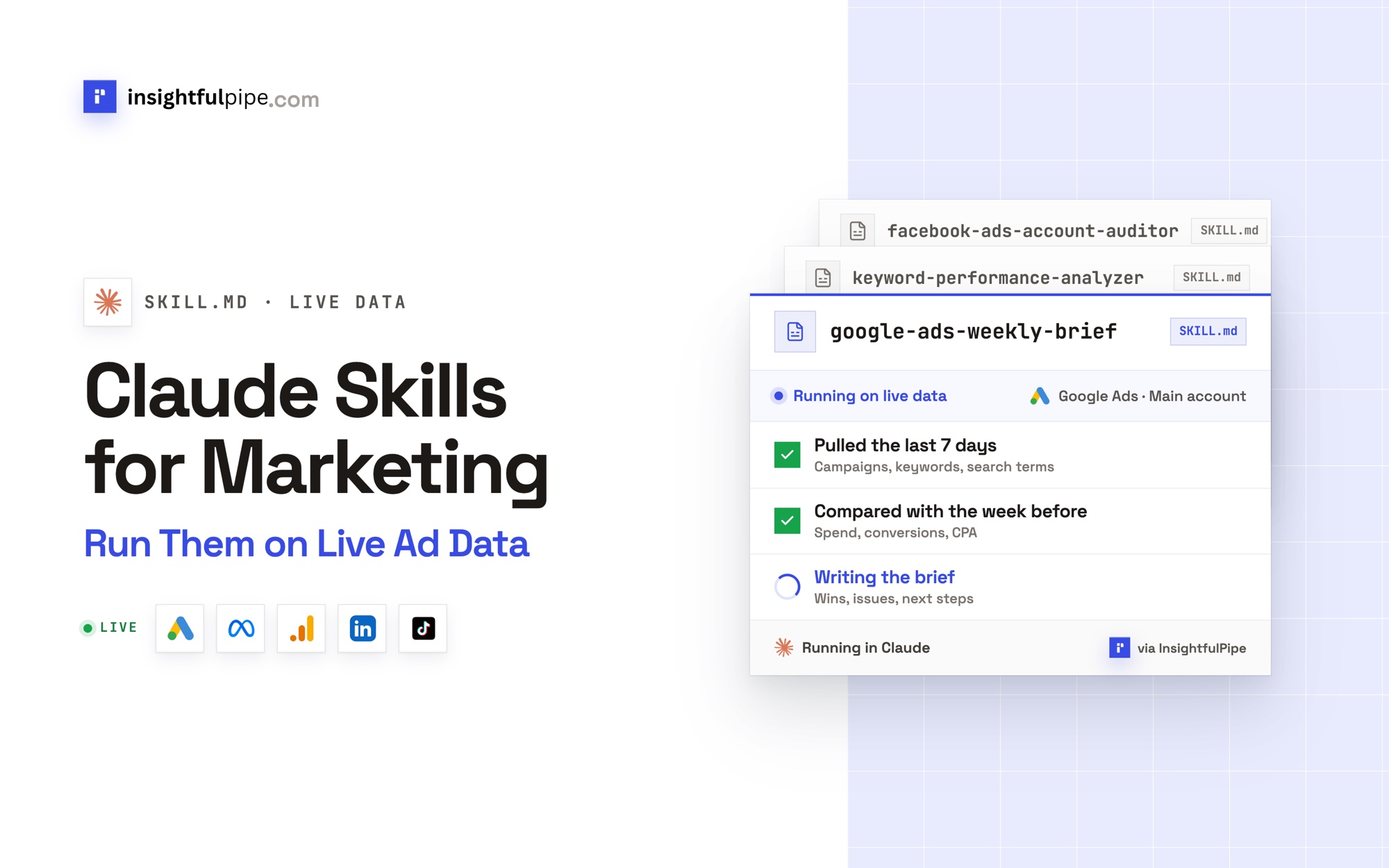
InsightfulPipe publishes this guide, and the steps use its hosted all-platform MCP server. Other ways to connect, including the platforms' own servers, come near the end.
Last updated: 2026-10-10
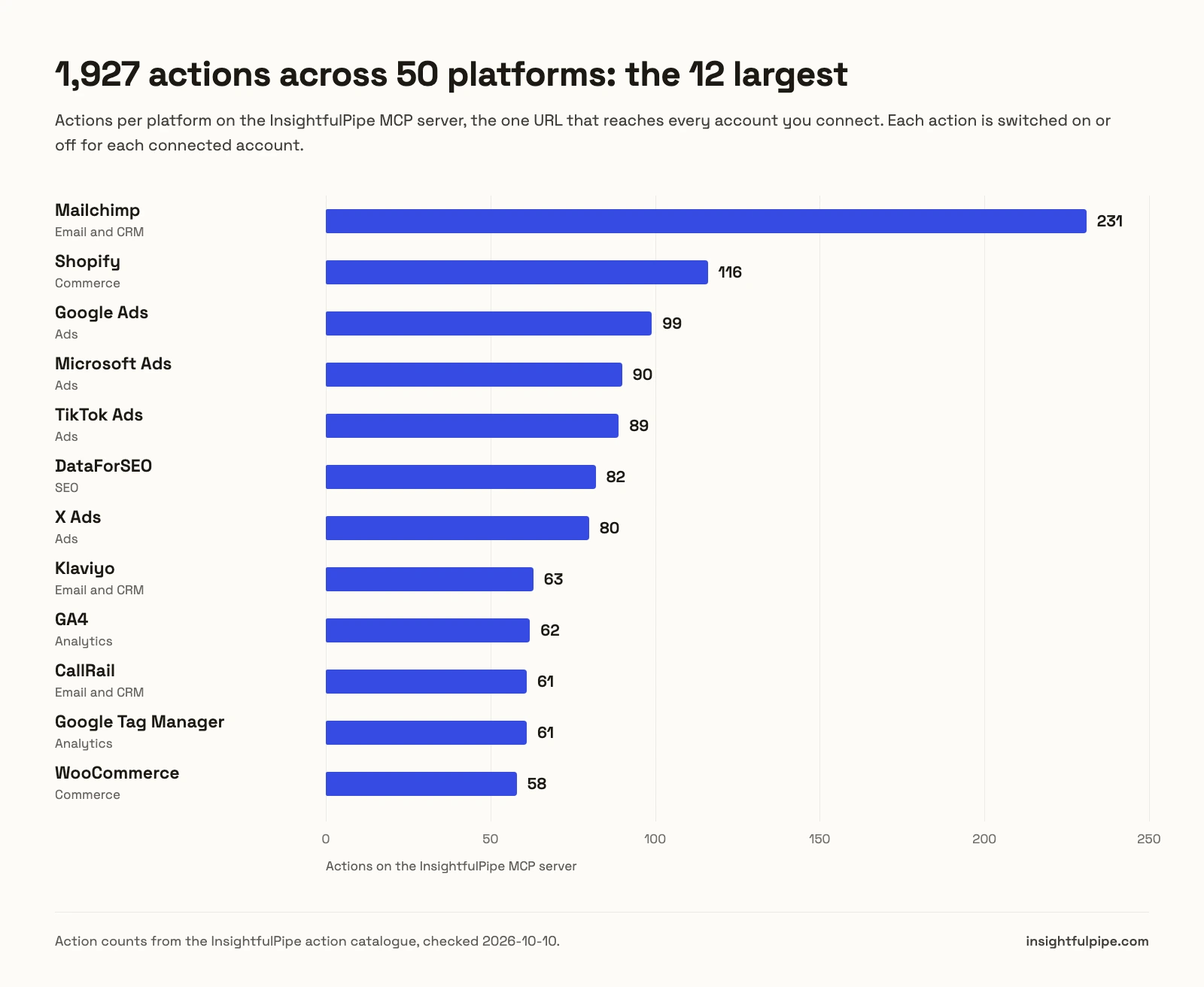
Short answer: To connect marketing data to Claude, connect each platform in InsightfulPipe, add https://main.insightfulmcp.com/ to Claude as a custom connector, and click Connect. That one URL, the InsightfulPipe MCP server, reaches every account you connect across 50 platforms and 1,927 actions. You need no developer token, no OAuth app and no server to host. Plans start from $29.99 a month.
How to connect marketing data to Claude: the quick version
Six steps take you from your first sign-in to a safe first question, and each one has its own section below.
- In InsightfulPipe, open Connected accounts and click Connect account.
- Pick a platform, choose Read-only or Read & write, and sign in. Repeat for each platform.
- In Claude, open Customize > Connectors, click + Add, then Add custom connector.
- Paste
https://main.insightfulmcp.com/, add it, and click Connect. - In a new chat, click +, open Connectors and switch InsightfulPipe on.
- Run the read-only check under Verify it worked before the assistant changes anything.
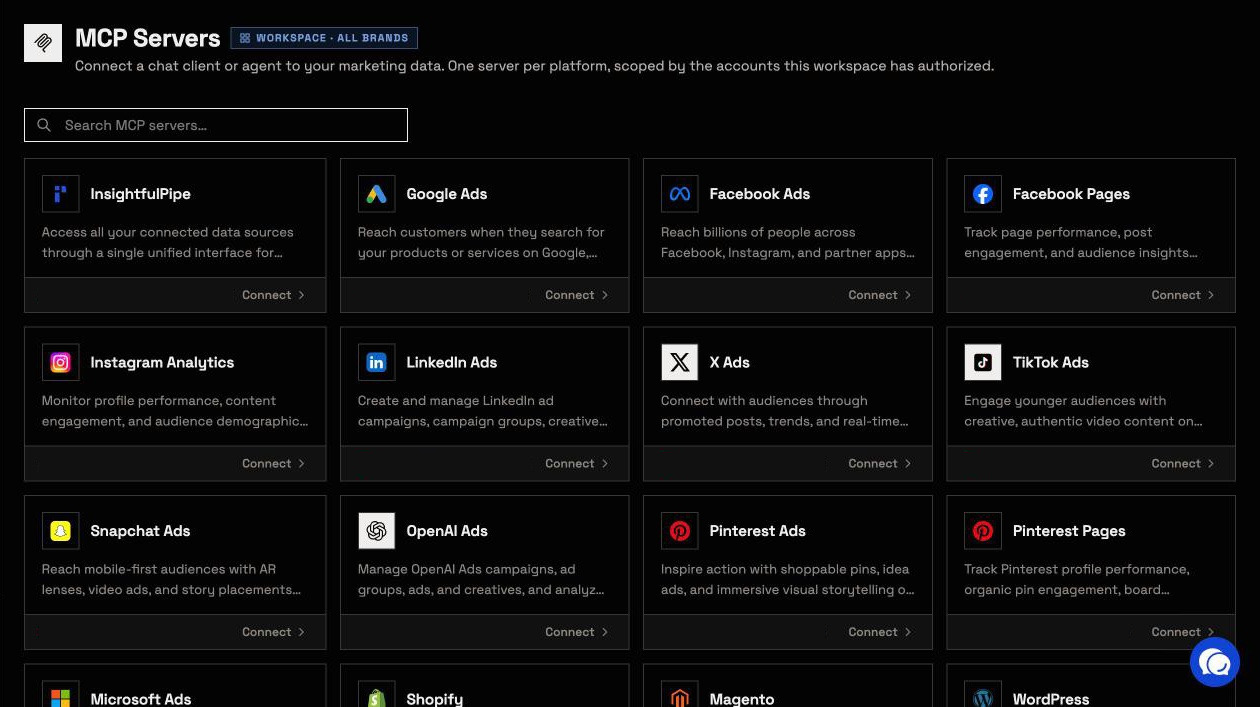
One URL reaches everything, and most platforms also have a server of their own. The MCP servers page lists 48, the all-platform one included.
All-platform server | One platform's server | |
|---|---|---|
URL |
|
|
Reaches | Every account you connect, on 50 platforms | That platform's accounts only |
Actions | 1,927 | That platform's set, such as 99 for Google Ads |
Tools Claude loads | 5 | 4 |
Claude's connector directory | Listed | Add it as a custom connector |
Use it for | One assistant across your whole stack | An assistant scoped to one platform |
The video connects one platform's server, and the all-platform URL takes the same steps. If a screen differs, follow the steps here.
What you are actually connecting
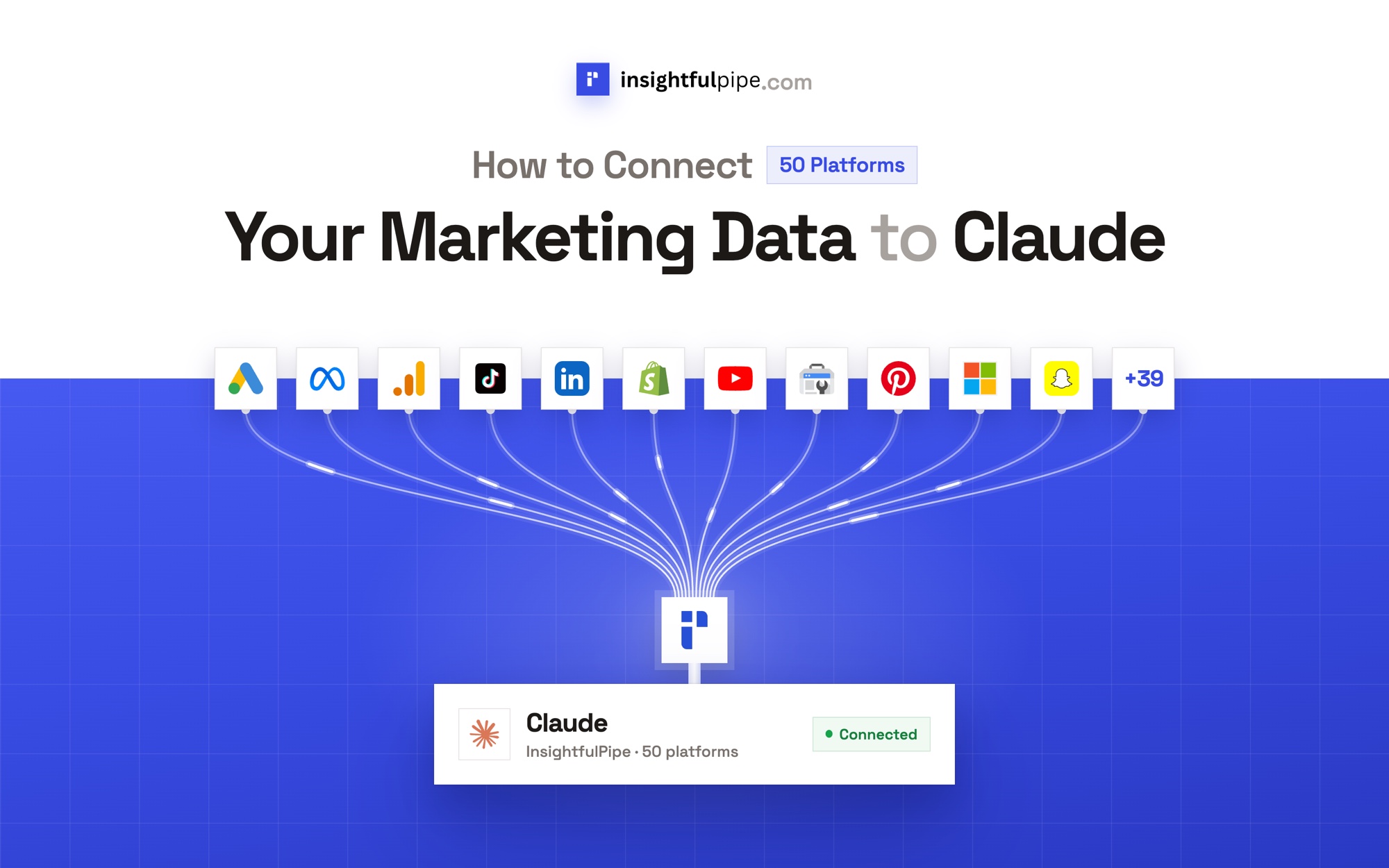
You connect Claude to one hosted server, and that server to the accounts you authorized in InsightfulPipe. The whole path fits on one line:
Claude → InsightfulPipe MCP server → your connected accounts on 50 platforms
Claude never receives a platform password or token. It sends a request over the Model Context Protocol, and InsightfulPipe runs the platform's API call with the access you granted.
Four things bound what Claude can reach: your workspace, its connected accounts, the actions switched on for each account, and your role. You need no developer token, no OAuth app of your own and no server to host.
Which 50 platforms can you connect?
InsightfulPipe connects 50 platforms, grouped below by job, and the all-platform server reaches every account you connect on any of them.
Category | Platforms | What Claude can do |
|---|---|---|
Ads (10) | Google Ads, Facebook Ads (Meta), Microsoft Ads, LinkedIn Ads, TikTok Ads, Pinterest Ads, Snapchat Ads, X Ads, OpenAI Ads, Ads Libraries | Report results, research keywords and rivals' ads, build paused campaigns |
Analytics (4) | Google Analytics 4, Google Tag Manager, Microsoft Clarity, YouTube Analytics | Reports, tag audits, behaviour and video metrics |
SEO (6) | Google Search Console, Bing Webmaster Tools, DataForSEO, PageSpeed Insights, Web Crawler, Google My Business | Queries, SERPs, page speed, audits, local listings |
Social (5) | Facebook Pages, Instagram Analytics, LinkedIn Page & Profile, TikTok Pages, Pinterest Pages | Engagement and publishing |
Commerce (6) | Shopify, WooCommerce, Magento, Stripe, TikTok Shop, Google Merchant Center | Orders, payments, products, inventory, Shopping feeds |
Email and CRM (4) | Klaviyo, Mailchimp, CallRail, Enrichment Crawlers | Campaign reports, lists, call leads, company data |
Data destinations (7) | BigQuery, Google Sheets, PostgreSQL, MySQL, SQL Server, Airtable, Notion | SQL, sheets, rows and pages |
Other (8) | Slack, Telegram, WordPress, Calendly, Screenshots, Apple App Store, Google Play Store, REST API | Messages, site content, bookings, captures, app reviews, your own APIs |
Each platform's page lists its actions one by one: Google Ads has 99, Facebook Ads 53 and GA4 62. REST API adds any API that has an OpenAPI 3.x manifest.
Before you start
You need four things: access to each platform, an InsightfulPipe workspace, a role that can connect accounts, and a Claude plan with custom connectors.
- Platform access. A login that can open each account, property or site.
- An InsightfulPipe workspace. Plans start from $29.99 a month. Starter covers 8 connections, Growth 35 and Agency 150. Start a trial on any plan.
- A role that can connect. Owners, Administrators and Operators connect accounts and set their actions. Members with the User role read the accounts granted to them.
- Custom connectors in Claude. Free, Pro, Max, Team and Enterprise include them, and Free allows one (Anthropic, checked 2026-10-02).
Each platform's own permissions still apply. A login that can only view an account can only read it through InsightfulPipe too.
Step 1: Connect your platforms in InsightfulPipe
Step 1 links each platform to your InsightfulPipe workspace, and you choose how far the assistant may go before you sign in. Repeat it once per platform.
- Open Connected accounts and click Connect account.
- In Add an integration, search for a platform and click Connect.
- Choose Read-only or Read & write when the page offers both.
- Click Continue with the platform, such as Continue with Google Ads, and sign in.
- Select the accounts, properties or sites to connect. Client accounts under a Google Ads manager account appear here too.
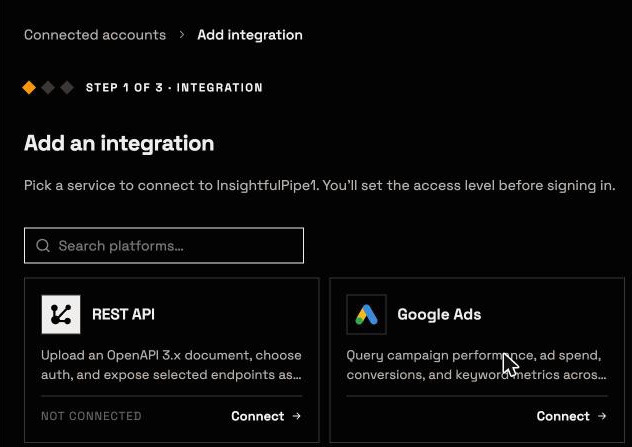
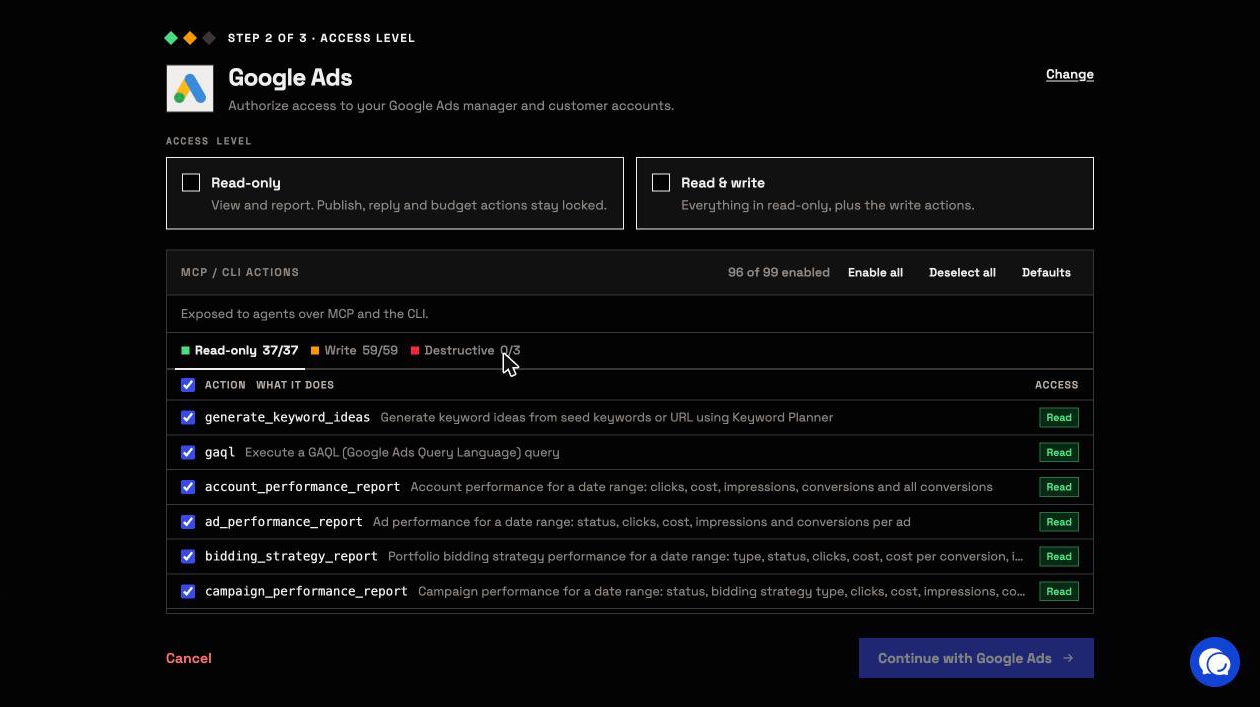
Each account becomes its own connection with its own action switches. Read-only fits reporting: it locks every write until an admin reconnects the account with Read & write. Where a platform connects with read and write only, an admin can switch its write actions off instead.
Step 2: Add InsightfulPipe to Claude
Step 2 adds the all-platform server to Claude. Claude's connector directory lists InsightfulPipe, so the fastest route takes one click, and the custom connector route takes one URL.
From the directory. In InsightfulPipe, open MCP Servers, choose InsightfulPipe and click Open Claude Directory. Click Connect on the listing, and sign in to InsightfulPipe if asked.
As a custom connector:
- In Claude, open Customize > Connectors.
- Click + Add, then Add custom connector.
- Name it InsightfulPipe and paste
https://main.insightfulmcp.com/. - Click Continue and follow the prompts to Add it.
- Click Connect, and sign in to InsightfulPipe if asked.
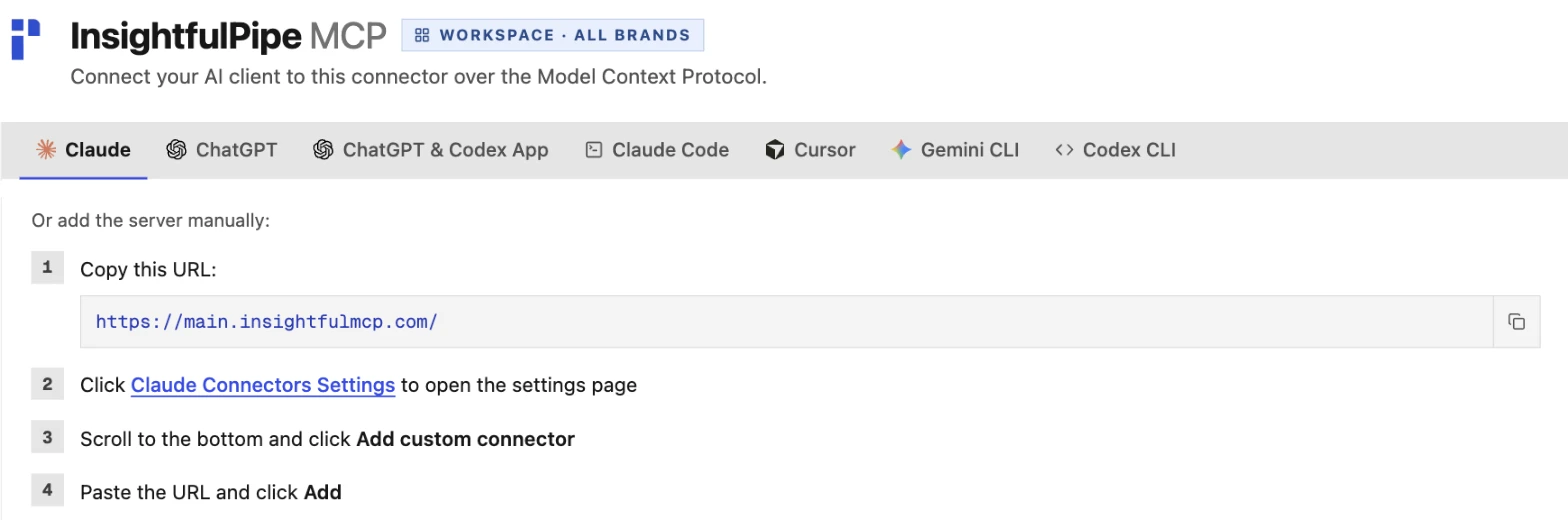
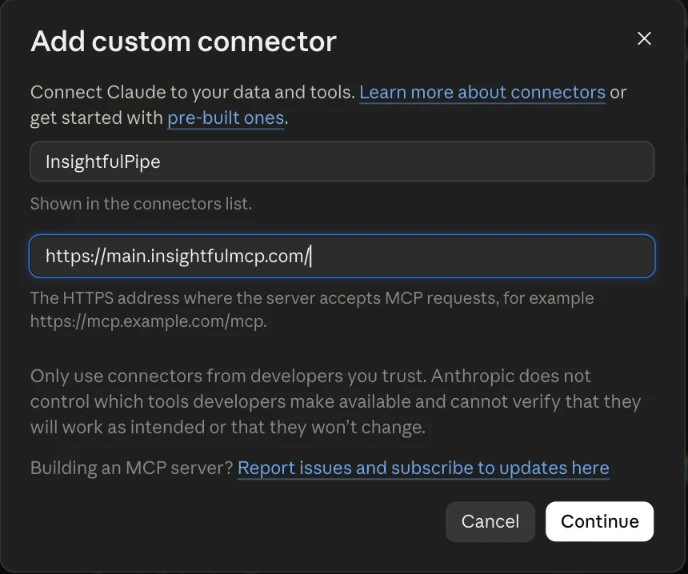
Once you are signed in, Claude lists InsightfulPipe as connected. It reaches only the accounts your workspace has connected and your role can see. With none yet, Claude can't finish connecting. Go back to step 1.
On Team and Enterprise plans, an Owner first adds the connector under Organization settings > Connectors. Members then click Connect under Customize > Connectors.
Step 3: Turn it on in a chat and set tool permissions
Claude switches connectors on per conversation, and its tool permissions decide which tools wait for your click.
- Start a new chat.
- Click + at the lower left, open Connectors and switch InsightfulPipe on.
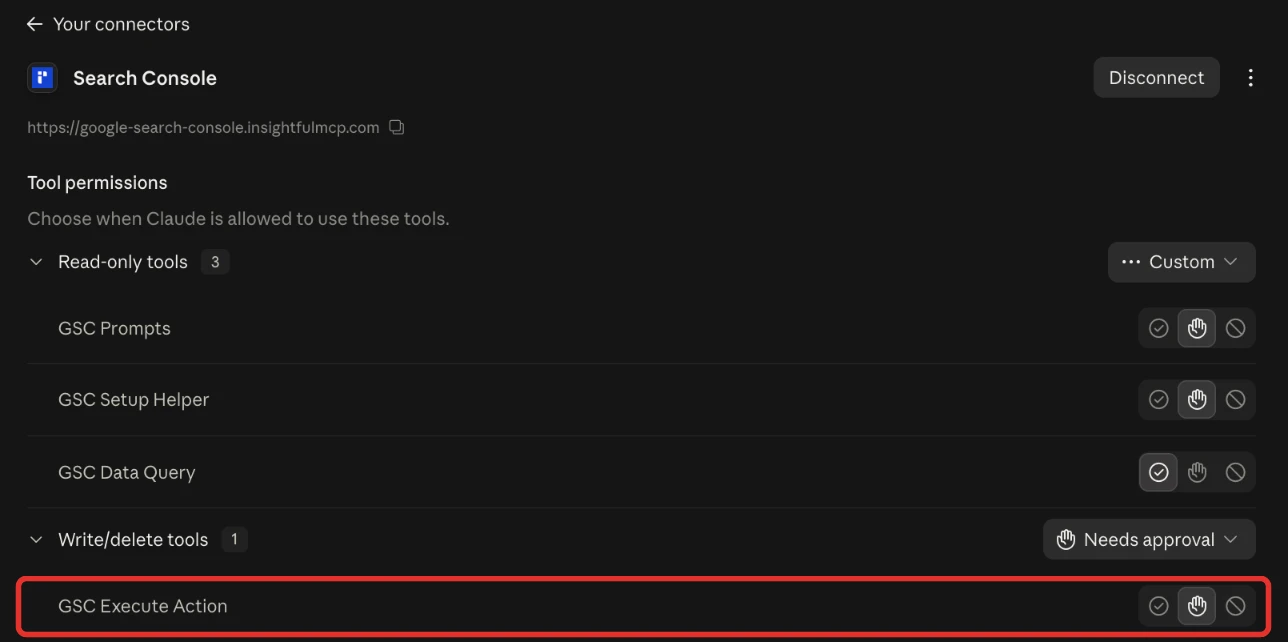
- In Customize > Connectors, open InsightfulPipe's Tool permissions.
- Set
query_datato Always allow andexecute_actionto Needs approval.
Reports run through query_data, which only reads. Every change on every platform runs through execute_action, so one setting puts your click before all of them. Every user can set this, and Team and Enterprise Owners can set it for everyone (Anthropic).
Step 4 (optional): Claude Code, ChatGPT, Cursor, Gemini CLI and Codex
The same URL works in every client that supports remote MCP servers. Each one finishes with the same InsightfulPipe sign-in, and your per-account switches hold in all of them.
claude mcp add --transport http main-mcp https://main.insightfulmcp.com/
gemini mcp add --transport http main-mcp https://main.insightfulmcp.com/
codex mcp add main-mcp --url https://main.insightfulmcp.com/
In Claude Code, run /mcp, select main-mcp, choose Authenticate and sign in. Add --scope user to reach it from every project (Claude Code docs). In Gemini CLI, run /mcp auth main-mcp. If Codex opens no browser, run codex mcp login main-mcp.
ChatGPT and the Codex app. InsightfulPipe's listing in OpenAI's app directory connects the full server in both, with no URL and no Developer mode. The app's ChatGPT & Codex App tab opens it. To paste the URL instead, turn on Developer mode under Settings > Security and login (OpenAI).
Cursor. Use the install link on the guide's Cursor tab. When the server shows Needs authentication, click Connect, then Open.
Verify it worked
Three checks, shortest first, confirm the connection without changing anything on any platform.
1. The connection is live. In a new chat, + then Connectors shows InsightfulPipe switched on. In Claude Code, claude mcp list shows main-mcp as ✔ Connected.
2. A prompt that cannot do harm. Claude answers with query_contexts, which only lists what you connected.
List every account this connection can reach, grouped by platform.
Return the platform, account name and account ID.
Do not run a report and do not change anything.
3. A real read. Ask for last month's clicks on one platform and compare one number with that platform. If they differ, check the dates, time zone and account first.
If a check fails, see Troubleshooting below.
How one URL reaches 50 platforms: five tools
The all-platform server publishes the same five tools whatever you connect, and Claude looks up a platform's actions only when a question needs them. That keeps Claude's tool list short on every turn.
Tool | What it does |
|---|---|
| Lists the 50 supported platforms |
| Finds your accounts, a platform's actions and each action's fields |
| Runs read actions only: reports, metrics, listings |
| Runs write actions within the switches your admin set |
| Opens prompt templates for a platform |
Every tool a server publishes loads into the model's context on every turn. A server that published one tool per action would load all 1,927 of them. Here, Claude fetches the Google Ads actions only when you ask about Google Ads. We measured the five definitions at 1,065 tokens for our Google Ads MCP roundup on 2026-09-23, and more platforms add nothing to that. A platform's own server publishes four of these tools, without list_platforms.
Prompts to run first
Start with reads that cross platforms, since that is the job one URL does best. Each prompt ran read-only on our own accounts on 2026-10-02, and the table names the actions Claude used.
Prompt | Platforms | Actions |
|---|---|---|
"Compare September spend, clicks and conversions across my ad accounts, one row per platform." | Google Ads, Meta, Microsoft Ads, LinkedIn Ads, TikTok Ads |
|
"List our top 10 pages by Search Console clicks last month, with GA4 sessions and key events." | Search Console, GA4 |
|
"Check mobile Core Web Vitals for our five pages with the most Search Console clicks." | Search Console, PageSpeed Insights |
|
"Who ranks in Google's top 10 for [KEYWORD], and where do we sit in Search Console?" | DataForSEO, Search Console |
|
"Which of our YouTube videos earned the most watch time last month?" | YouTube Analytics |
|
"Rank our Klaviyo email campaigns from the last 90 days by click rate." | Klaviyo |
|
"List last month's Google Business Profile reviews and draft replies. Post nothing." | Google My Business |
|
DataForSEO runs on your own DataForSEO API login. Two prompts to paste as they are:
Use every ad account this connection can reach.
Compare [MONTH] with the month before, one row per platform:
spend, clicks, conversions and cost per conversion.
Flag any platform whose cost per conversion rose more than 20%.
Do not change anything.
Use Search Console property [SITE_URL] and PageSpeed Insights.
List our 5 pages with the most clicks over the last 28 days.
Return clicks, LCP, CLS and the performance score for each page.For weekly reports across platforms, see cross-platform marketing reports with AI. The prompt library and the Claude skills library are free to use.
What the assistant may change, and who decides
Claude can use only the actions an admin has switched on for each account, and every new connection starts on the careful side. That makes InsightfulPipe the safest of the servers that can write: each limit below is a switch, and your admin decides where it sits.
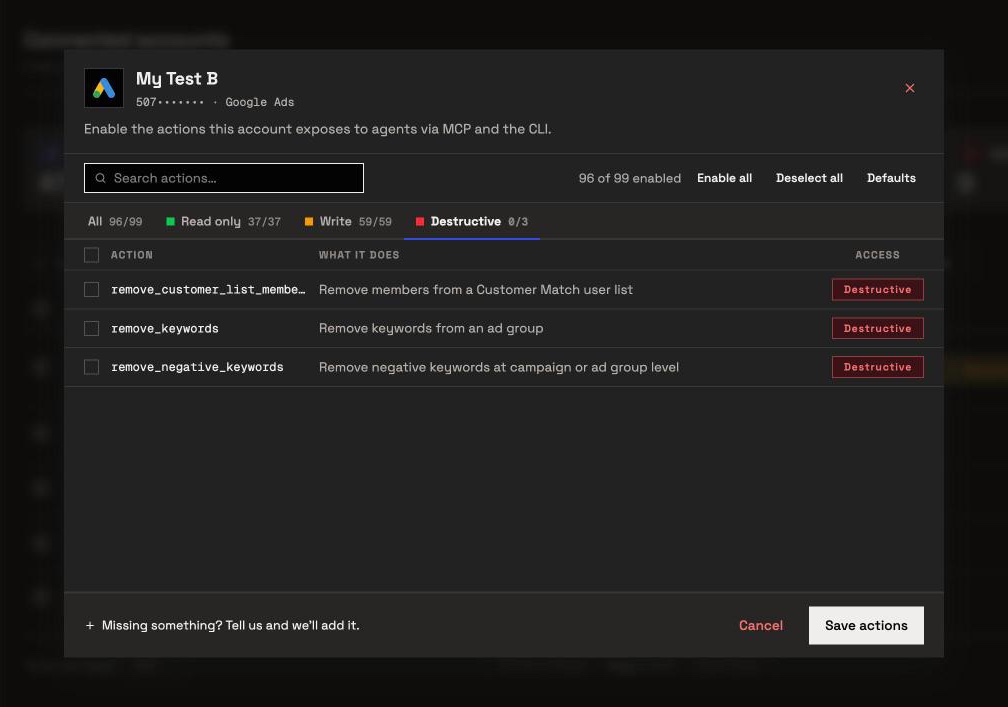
- Every action is a switch. An owner, admin or operator opens an account's actions button, such as 96/99 actions on Google Ads. They switch actions on or off across the All, Read only, Write and Destructive tabs, and the server refuses a switched-off action in every client.
- Destructive actions stay off until an admin switches them on. Examples: deleting a Meta campaign, ad set or ad, removing Google Ads keywords, negative keywords or Customer Match members, and deleting a GA4 property.
- A read-only connection locks every write until an admin reconnects it with Read & write.
- New campaigns start paused on all nine ad platforms, for you to set live when they are ready: Google Ads, Meta, Microsoft Ads, LinkedIn, TikTok, Pinterest, Snapchat, X and OpenAI Ads. Meta, Pinterest and Microsoft Ads refuse an update that sets a campaign live, so you do that in their own ads managers.
- Going live on Google Ads. An update can set a campaign live, and the assistant is told to ask you first. Needs approval on
execute_actionis what makes Claude wait for your click. LinkedIn, TikTok, X, Snapchat and OpenAI Ads updates can set campaigns live too, and an admin can switch those updates off. - Budgets and bids are ordinary writes. Switch them off where the agent should not move spend. TikTok's status updates also accept DELETE; they start on for Read & write, and an admin can switch them off.
- Roles hold. Members with the User role read only the accounts an owner or admin grants them.
Start a trial to set these switches on your own accounts.
When one server per platform fits better
Most platforms also have their own server at https://<platform>.insightfulmcp.com/, which reaches that platform's accounts and nothing else. Use one when a teammate or an agent should see one platform only.
A paid social buyer can add https://facebook-ads.insightfulmcp.com/ and never see GA4 or Shopify. A nightly search-terms agent can run on the Google Ads server alone. The same switches apply on every server, and Claude can hold both kinds at once. How to connect Google Ads to Claude walks through one platform server step by step.
Troubleshooting
Most failures come from a connector switched off in the chat, an account nobody granted, or an action switched off for that account.
- The connector does not appear in the chat. Switch it on from +, then Connectors, in a new chat. In Claude Code, run
/mcp. - Claude can't finish connecting. No account is connected or granted to you yet. Finish step 1, or ask an owner or admin to grant one.
- "This action is disabled for this connected account. An owner or admin must enable it for the account." An owner, admin or operator can switch it on.
- "This account is connected read-only, so this action cannot be enabled for it. An owner or admin must reconnect it with Read & Write permissions." Reconnect the account with Read & write.
- "Your role does not have permission to execute write actions. Only operators, admins, and owners can execute write operations." Ask an owner or admin to make the change or change your role.
- "Please reconnect the account." The message names the platform, such as "Pinterest access token expired. Please reconnect the account." Reconnect it under Connected accounts.
- The report is empty. Widen the dates and remove filters, then confirm the account had delivery. An empty report is not always a connection problem.
Other ways to connect marketing data to Claude
The big platforms also publish servers of their own, and several vendors sell connectors that span platforms. Each platform's server covers one product.
- Google Ads. Google's server is "strictly read-only. It cannot modify bids, pause campaigns, or create new assets." It runs on your computer or your own Cloud Run, with a Google Cloud project (Google).
- GA4. Google's Analytics server runs locally on Python 3.10 or later, with reporting tools and a Cloud project (GitHub).
- HubSpot. HubSpot's remote server gives AI tools "read and write access" to its CRM data (HubSpot).
Search results and AI answers also name Supermetrics, Windsor.ai, Markifact, Porter Metrics, Coupler.io, Whatagraph, Funnel, Dataslayer and Adzviser. Our roundup of the best MCP servers for marketing compares hosted options from each vendor's own documentation.
Google's two servers are free and open source, and suit one product's reports if you can run them. InsightfulPipe fits a team working in claude.ai or ChatGPT across several platforms, with changes kept inside limits set per account.
Frequently asked questions
Sources (checked 2026-10-02)
We checked each third-party claim on its own page on 2026-10-02, and took our counts from our own MCP pages.
- InsightfulPipe: all-platform MCP server, MCP servers and pricing
- Anthropic: custom connectors using remote MCP and using connectors
- Claude Code: MCP documentation
- OpenAI: ChatGPT Developer mode and Codex MCP
- Gemini CLI: MCP servers
- Google: Google Ads MCP server guide and google-analytics-mcp
- HubSpot: MCP server