InsightfulPipe publishes this guide, and the steps use its hosted Snapchat Ads connector. Other ways to connect, including Snap's own read-only Ads MCP server, follow near the end.
Last updated: 2026-09-30
To connect Snapchat Ads to Claude, connect Snapchat Ads in InsightfulPipe, add https://snapchat-ads.insightfulmcp.com/ as a custom connector in Claude, and click Connect. You sign in with the Snapchat business login you already use, so there is no Snap developer app, client secret or server to host. Plans start from $29.99 a month.
The quick version
Six steps connect Snapchat Ads to Claude, and the list below is enough on its own.
- In InsightfulPipe, open Connected accounts, click Connect account and pick Snapchat Ads.
- Sign in with Snapchat, approve access and choose your ad accounts.
- In Claude, add
https://snapchat-ads.insightfulmcp.com/as a custom connector. - Click Connect, and sign in to InsightfulPipe if asked.
- Turn the connector on in a new chat.
- Run the read-only check under "Verify it worked" before you let it change anything.
Snapchat Ads and Claude at a glance
InsightfulPipe gives Claude 43 Snapchat Ads actions, 8 of them writes, and your admin switches each one on or off per ad account. Snap's own server only reads. The full action list is on the Snapchat Ads MCP server page.
InsightfulPipe | Snap's Ads MCP server | |
|---|---|---|
What Claude can do | Report, and create or update campaigns, ad squads, ads and creatives | Report only: "This release is read-only" |
Actions | 43: 35 read and 8 write, none that delete | No tool list in Snap's docs |
New campaigns, ad squads and ads | Created paused, for you to set live when they are ready | Not applicable |
Who limits the agent | An owner, admin or operator switches each action per ad account | An organization admin approves each agent |
Setup | Sign in with Snapchat and paste one URL | Admin approval, then a Snap client id in each client |
Clients | Claude, ChatGPT, Claude Code, Cursor, Gemini CLI and Codex | Claude, ChatGPT, Codex, Gemini CLI and Antigravity |
Other platforms | Google Ads, Meta Ads, TikTok Ads and more on the same plan | Snapchat Ads only |
Price | From $29.99 a month | No price listed |
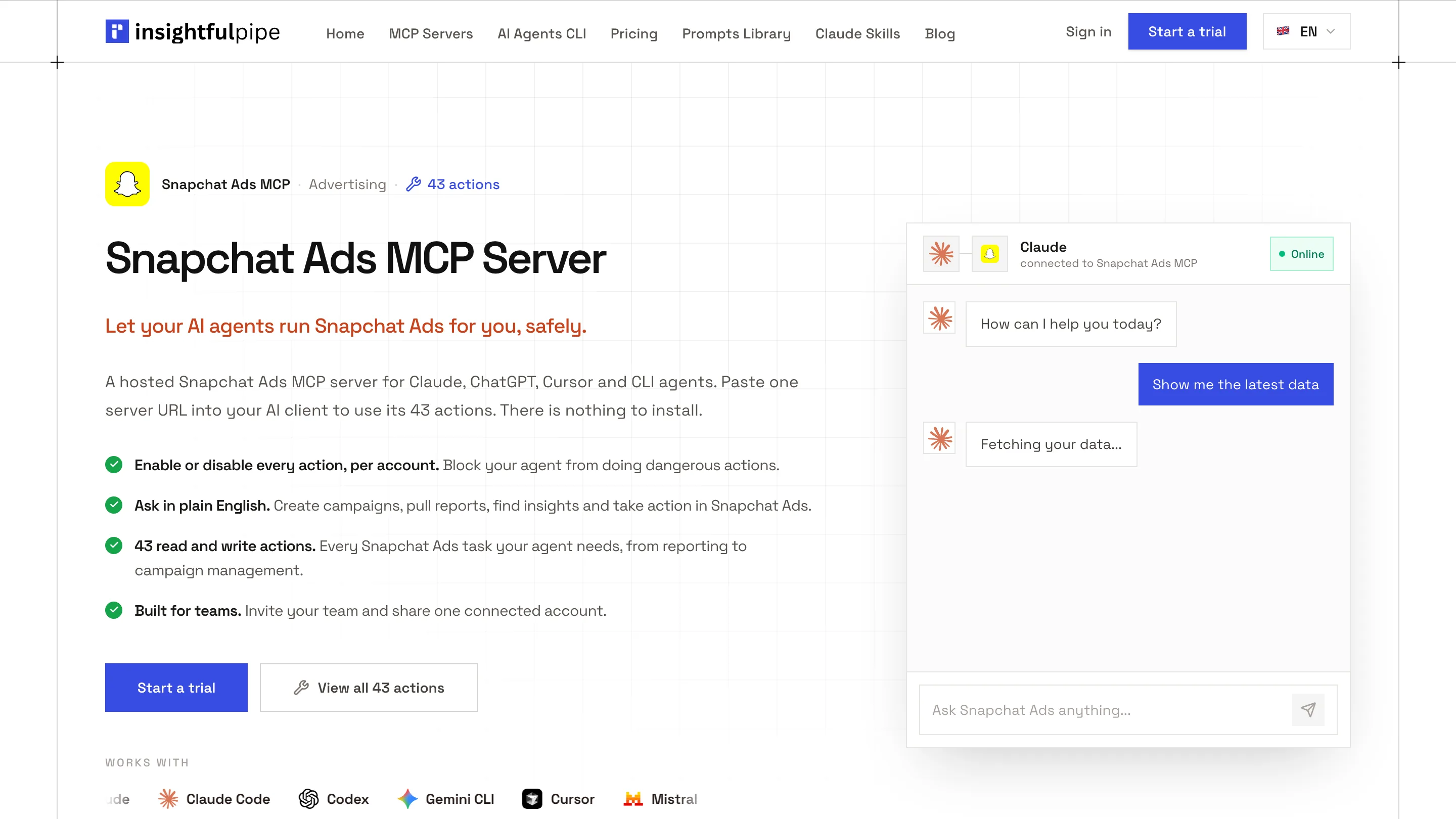
Watch: Connect Snapchat Ads to Claude with MCP, setup and a one-prompt report, 4 minutes 27 seconds
The video may show an earlier setup. Follow the steps in this guide for the current route.
What you are actually connecting
You connect Claude to InsightfulPipe's hosted server, and that server reaches only the Snapchat ad accounts you authorized.
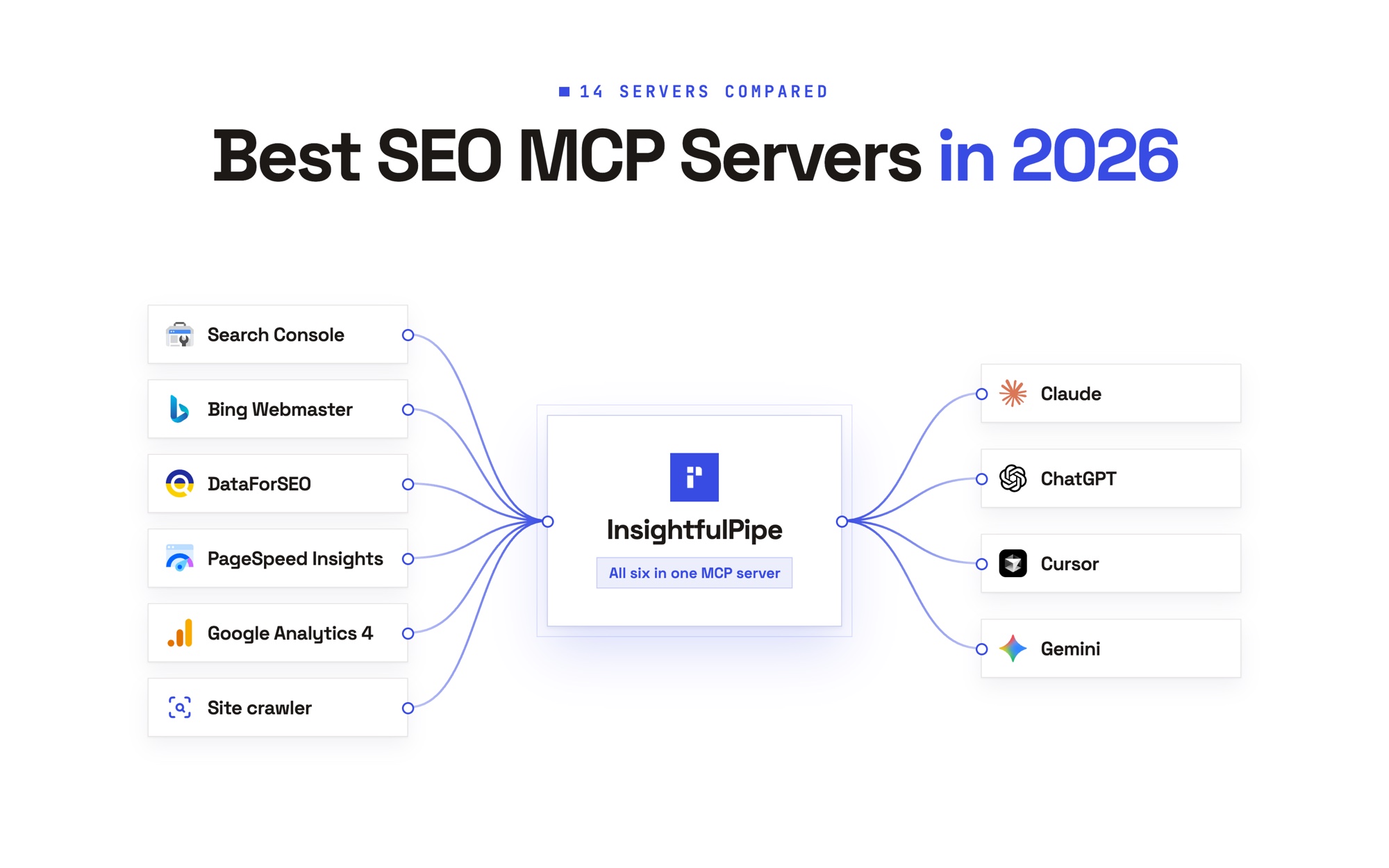
The path: Claude → InsightfulPipe MCP server → your authorized Snapchat ad account.
Claude never receives your Snapchat password. It sends a structured request over MCP, and InsightfulPipe runs the matching Snapchat Marketing API call with the access you approved. Four things bound it: your workspace, the connection you authorized, the per-account action list and your own Snapchat role.
Snap's Marketing API has no read-only scope for ads data. Its one ads scope, snapchat-marketing-api, "allows the app to read and write", per Snap's authentication docs. Every app that signs in with it holds read and write, so InsightfulPipe puts the line with your admin: an owner, admin or operator switches off the write actions for any account that should only report.
You need no Snap developer app, no client secret, no server to host and no API version to track.
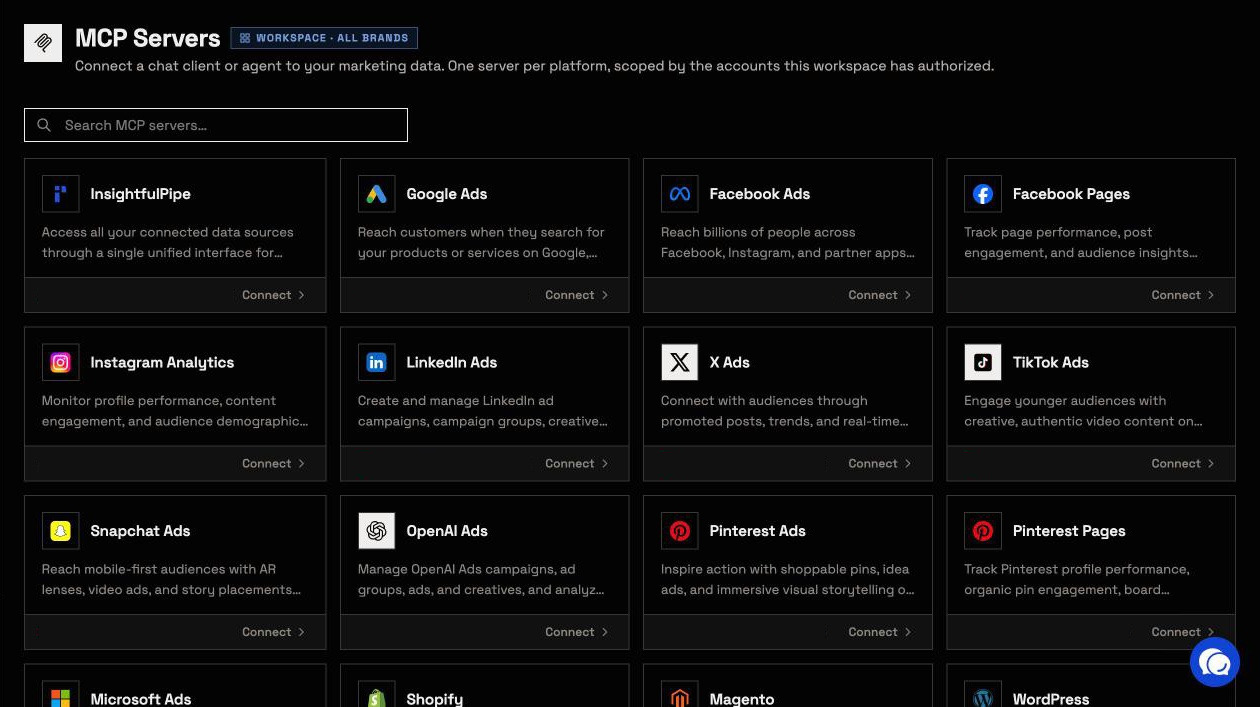
Before you start
You need four things before the first click: Snapchat access, an InsightfulPipe workspace, the right workspace role and a client that supports remote MCP servers.
- Snapchat Ads Manager access. A Snapchat business login that can open the ad accounts you want Claude to use.
- An InsightfulPipe workspace. Plans start from $29.99 a month, and each connected ad account counts as one connection. Start a trial or compare plans.
- A workspace role that can connect. Owners, Administrators and Operators can connect accounts. Members with the User role cannot.
- A client that supports remote MCP servers. Claude on the Free, Pro, Max, Team and Enterprise plans can add custom connectors, and Free plans can add one, per Anthropic's help article. ChatGPT, Claude Code, Cursor, Gemini CLI and Codex work too.
Snapchat's own roles still apply. Snap's roles reference gives the Reports role "read-only access to the Ad Account for reporting purposes", while the General role "has full control" of campaigns, ad squads and ads. InsightfulPipe cannot expand the authority of the account you connect.
Step 1: Connect Snapchat Ads in InsightfulPipe
Connecting takes a Snapchat sign-in and one choice of ad accounts, and you approve access on Snapchat's own page.
- In the InsightfulPipe app, open Connected accounts and click Connect account.
- Search for Snapchat and click Connect on the Snapchat Ads card.
- Click Continue with Snapchat Ads.
- Sign in with your Snapchat business login and approve access.
- Pick the ad accounts to connect and click Connect. Each ad account becomes its own connection.
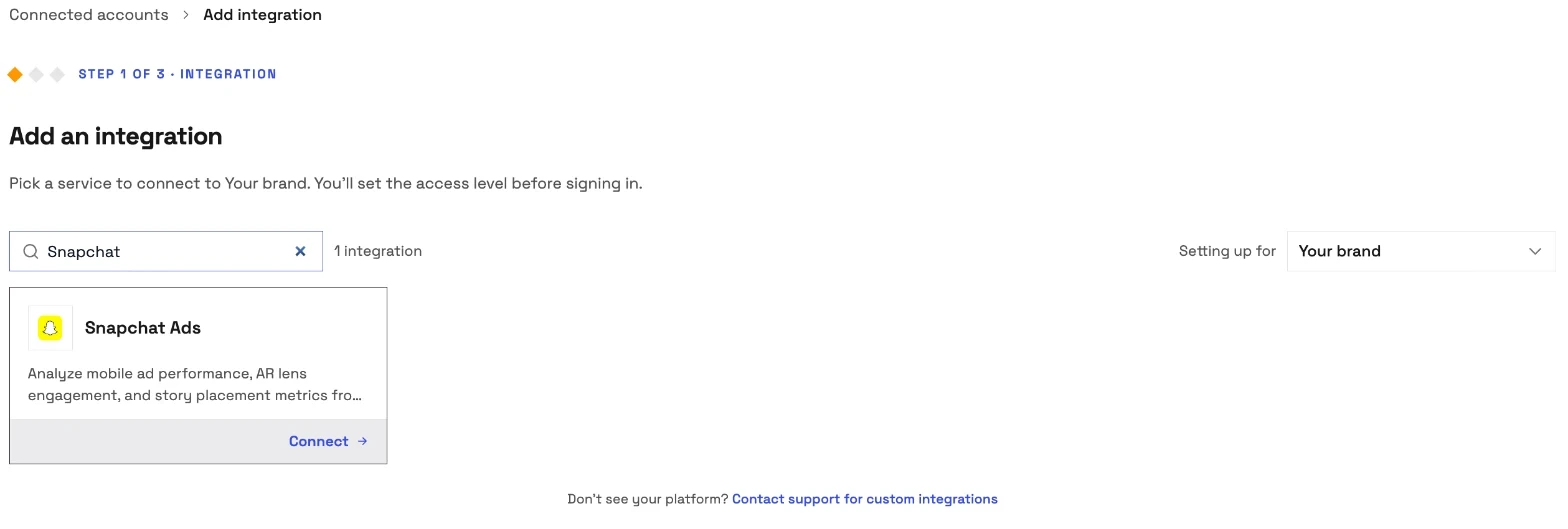
Snapchat skips the access-level step that other platforms show, so a new connection starts with all 43 actions on. Step 6 is where your admin narrows that, action by action.
Step 2: Connect Snapchat Ads to Claude with the connector URL
Claude needs one URL and two clicks, on claude.ai or in Claude Desktop.
- Copy the server URL:
https://snapchat-ads.insightfulmcp.com/ - In Claude, open Customize > Connectors.
- Click +, then Add custom connector.
- Name it, paste the URL, click Continue, then Add.
- Click Connect on the new connector.
- Sign in to InsightfulPipe if asked. Claude then lists the connector as connected.
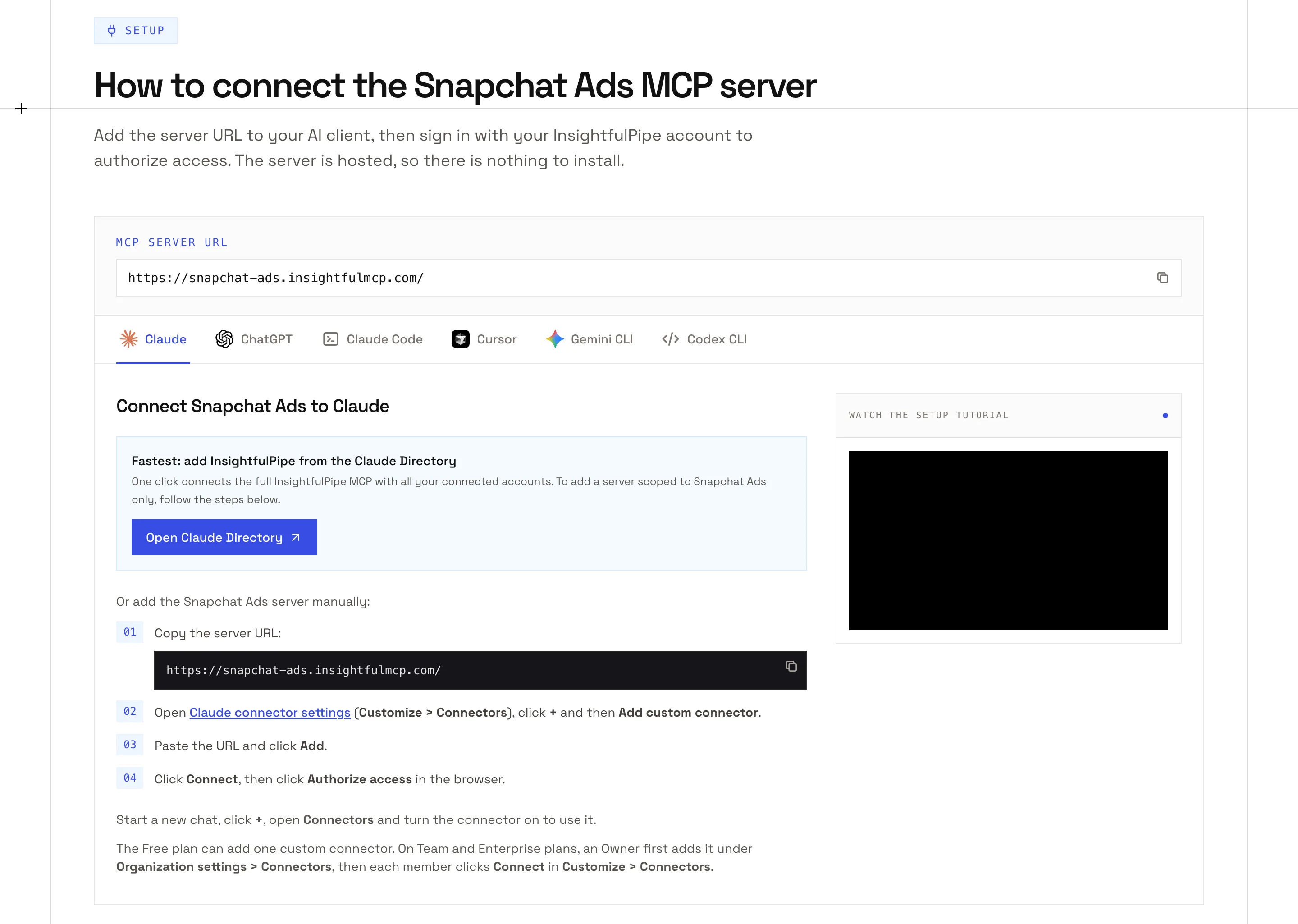
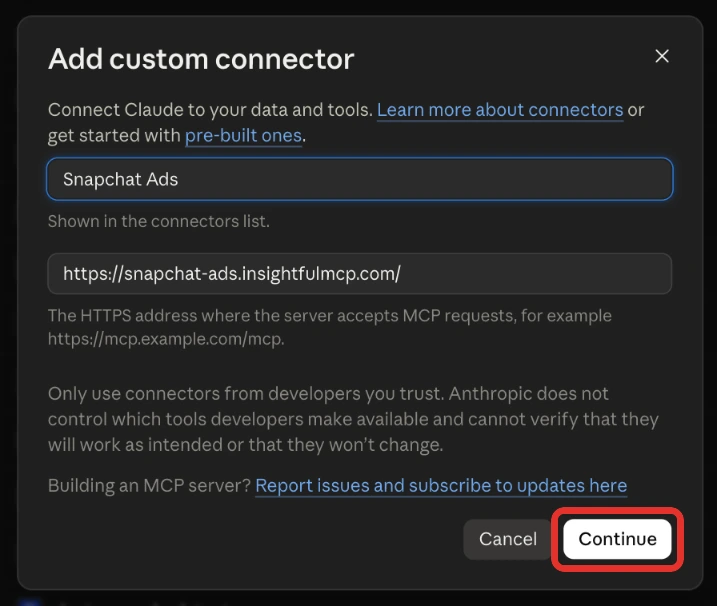
On Team and Enterprise plans, an Owner adds the connector first under Organization settings > Connectors: click Add, hover over Custom and choose Web. Each member then clicks Connect in Customize > Connectors.
To bring every platform in your workspace at once, add InsightfulPipe from Claude's connector directory instead. That route connects the full server with all your accounts, not the Snapchat-only one.
Step 3: Turn the connector on in a new chat
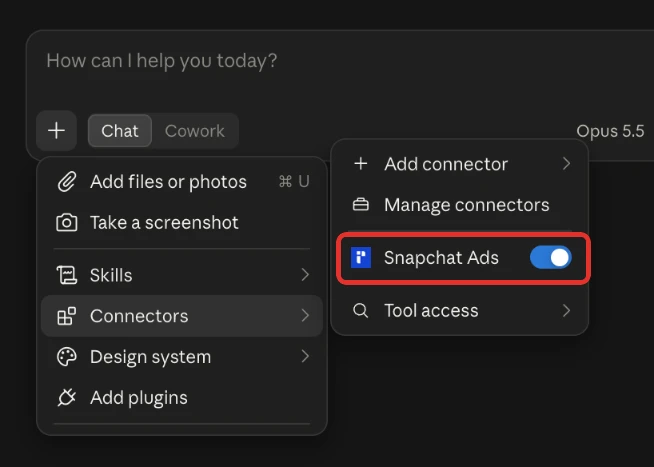
Claude keeps a new connector switched off until you turn it on inside a conversation.
- Start a new chat in Claude.
- Click + at the lower left and open Connectors.
- Switch the Snapchat Ads connector on.
Step 4 (optional): Connect Snapchat Ads to ChatGPT
ChatGPT takes the same URL through Developer mode, on Plus, Pro, Business, Enterprise and Education accounts on the web.
- Open Settings > Security and login and turn on Developer mode.
- Go to ChatGPT Plugins, select the + button and create a developer-mode app with
https://snapchat-ads.insightfulmcp.com/. - Start the sign-in from the new app and sign in to InsightfulPipe if asked.
- In a new chat, choose Developer mode from the + menu and select the app.
ChatGPT asks you to confirm write actions by default, per OpenAI's Developer mode guide. To add every platform at once without Developer mode, use InsightfulPipe's listing in the ChatGPT app directory.
Step 5 (optional): Claude Code, Gemini CLI, Codex and Cursor
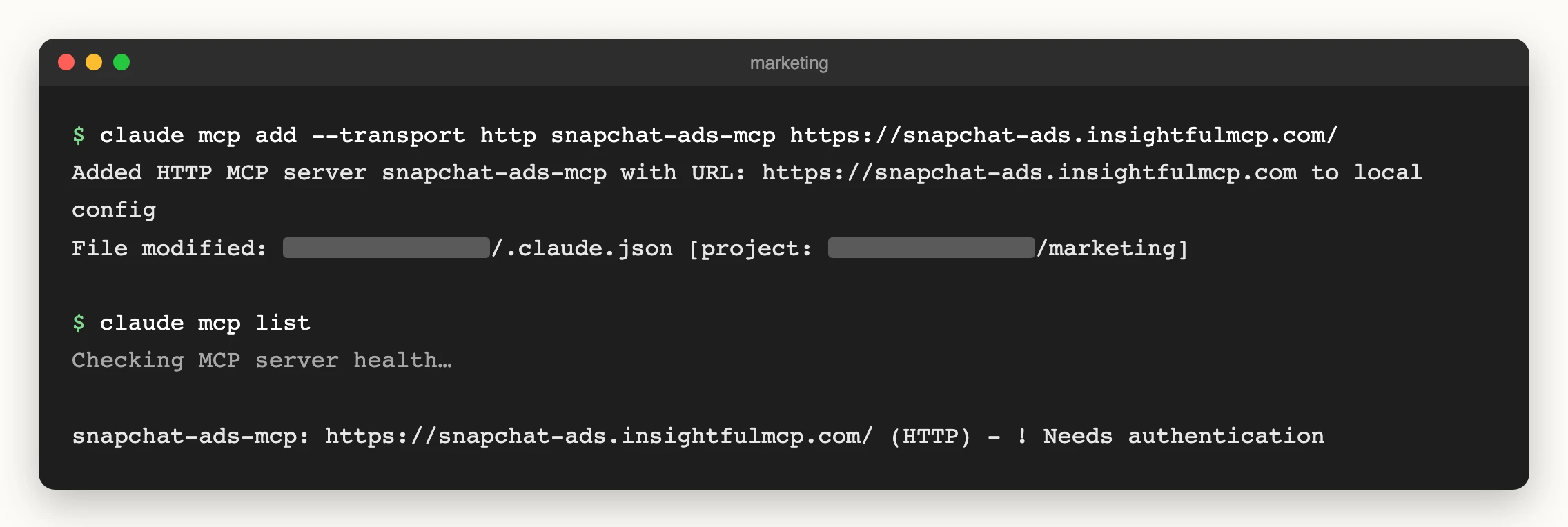
One command adds the server in each terminal client, and a browser window finishes the InsightfulPipe sign-in.
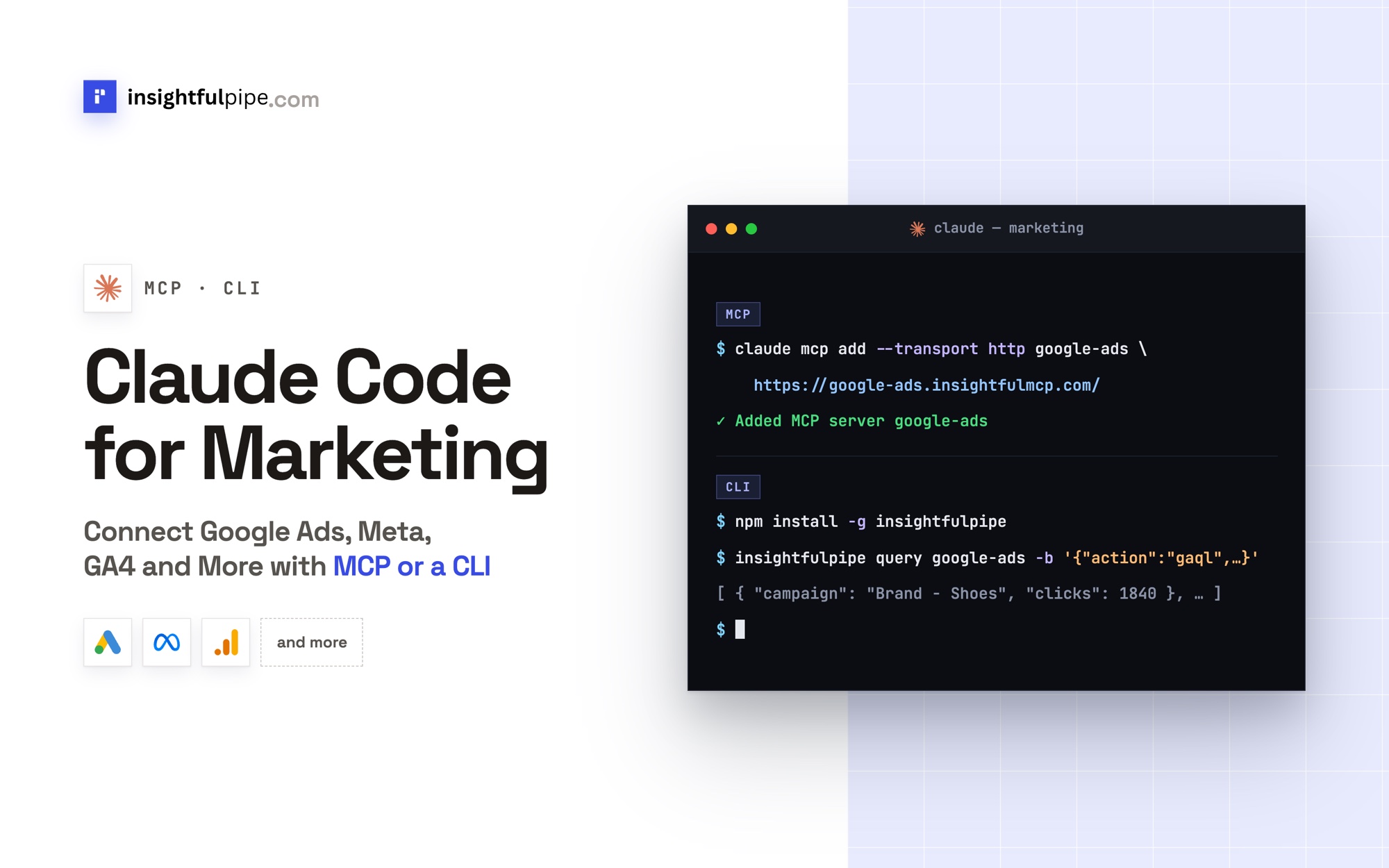
claude mcp add --transport http snapchat-ads-mcp https://snapchat-ads.insightfulmcp.com/
gemini mcp add --transport http snapchat-ads-mcp https://snapchat-ads.insightfulmcp.com/
codex mcp add snapchat-ads-mcp --url https://snapchat-ads.insightfulmcp.com/- Claude Code: type
/mcp, select snapchat-ads-mcp and choose Authenticate, or runclaude mcp login snapchat-ads-mcp. Add--scope userto the add command to use the server in every project. - Gemini CLI: type
/mcp auth snapchat-ads-mcp. - Codex CLI: the sign-in starts on its own after the add command.
- Cursor: open the install link on the connector page, click Open Cursor, then Install. When the server shows Needs authentication, click Connect, then Open.
Step 6: Choose which actions the assistant may run
Every Snapchat action is a switch, and an owner, admin or operator sets them per ad account.
- In InsightfulPipe, open Connected accounts and find the Snapchat ad account.
- Click its actions button, which reads 43/43 actions on a new connection. Its tooltip says Configure actions for this account.
- Open the Write tab and switch off any of the eight write actions Claude should not run.
- Click Save actions.
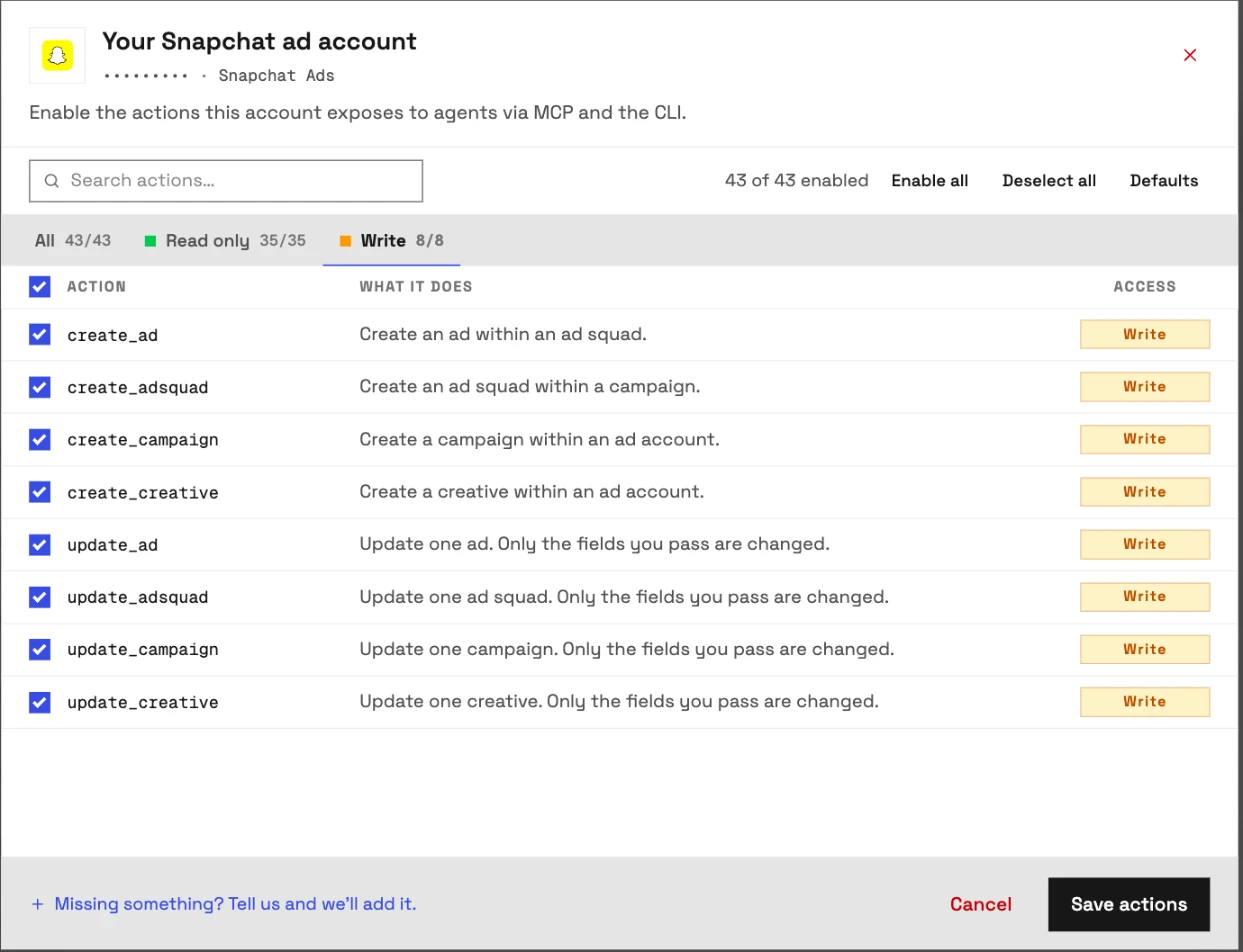
For a reporting-only account, switch off all eight. The server then refuses every write, in every client.
Verify it worked
Three checks, shortest first, tell you the connection works and where a failure sits.
The connection is live. In Claude, + > Connectors lists Snapchat Ads with its switch. In Claude Code, claude mcp list shows snapchat-ads-mcp as ✔ Connected. If it shows ! Needs authentication, run /mcp and sign in again.
A prompt that cannot do harm. Paste this into a new chat. It reads account details and changes nothing.
List the Snapchat ad accounts available to this connection.
Return the account name, account ID, organization, currency and status.
Do not run a report and do not change anything.
If Claude answers with your account names, the Snapchat sign-in and the workspace mapping both work.
A real read. Ask for last week's spend by campaign, then check one number in Snapchat Ads Manager. A match means the account and the date handling are right.
Prompts to run first
Start with reads, then try one write that stays paused for your review.
Prompt | What Claude does |
|---|---|
"What was cost per swipe by campaign last month?" | Pulls campaign stats and ranks them |
"Which ad squads have the highest video completion rate?" | Compares ad squad stats |
"Show spend and conversions for every ad account I connected" | Rolls up ad account stats |
"Pause the three ad squads with the highest cost per swipe" | Updates their status to paused |
"Create a paused campaign for our holiday push starting December 1" | Builds the campaign paused for review |
Two to copy as they are:
Use Snapchat ad account [AD_ACCOUNT_ID].

Compare the last 30 complete days with the previous 30 complete days.
Break the report down by campaign.
Include spend, impressions, swipes, conversions and cost per swipe.
Use Snapchat ad account [AD_ACCOUNT_ID].
Draft a campaign named [NAME] starting [DATE] with a daily budget of [AMOUNT].
Show me the settings before you create anything, and leave it paused.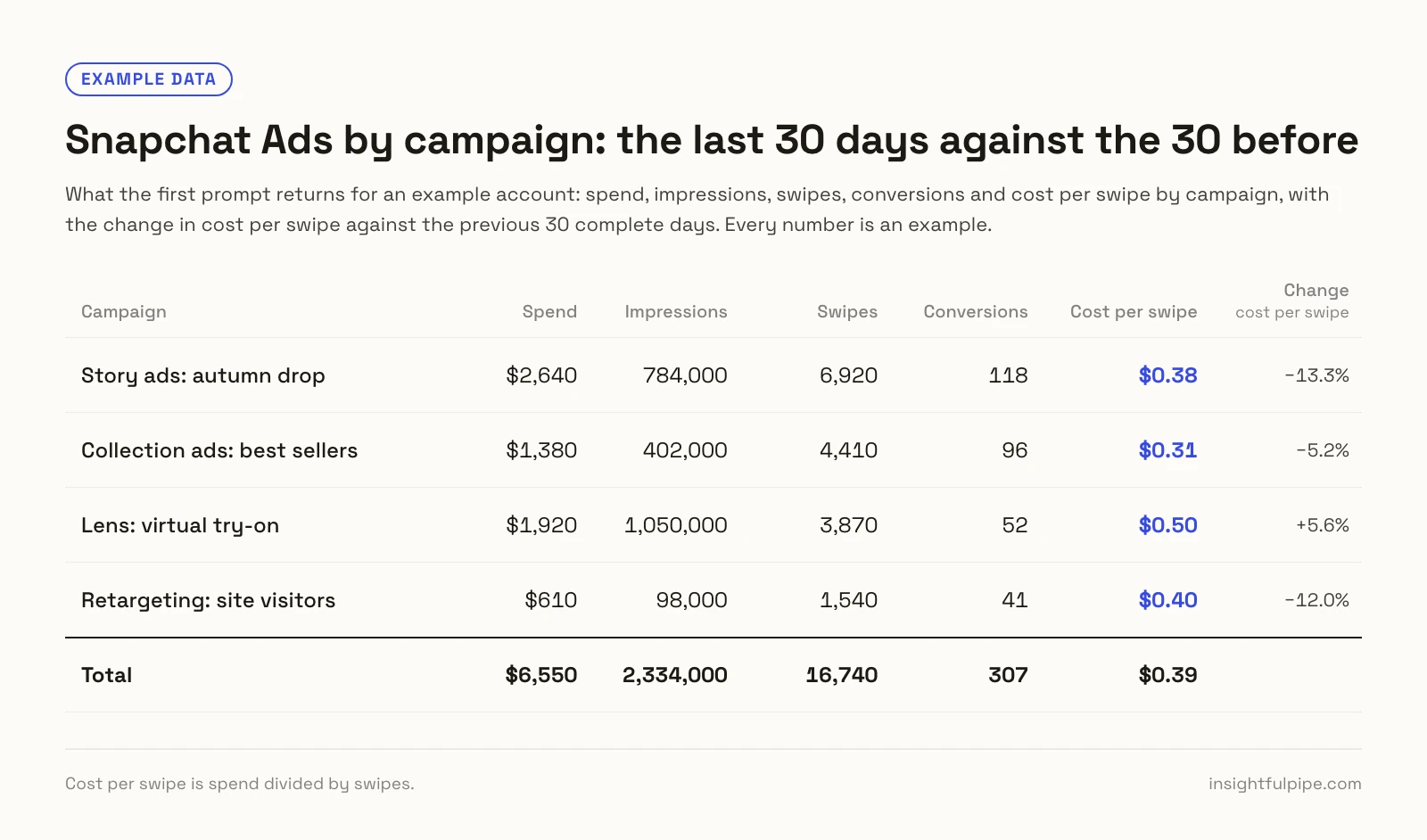
The marketing prompt library and the Claude skills library are free to use, and the social media ads skills cover Snapchat.
What Claude may change in Snapchat Ads
Claude may change only what your admin leaves switched on, and nothing it creates starts delivering on its own.
The connector exposes 43 actions: 35 read and 8 write, none of them destructive.
- Every action is a switch. An owner, admin or operator turns any of the 43 on or off, per ad account, at any time. The server refuses a switched-off action in every client.
- Created paused, for you to set live. The server creates new campaigns, ad squads and ads paused, even when the request asks for active. You set them live when they are ready.
- An update is what starts delivery.
update_campaign,update_adsquadandupdate_adcan set an item to active, and the first two also change budgets and schedules. Switch those three off on any account where Claude should only report or draft. - Nothing gets deleted. The connector has no delete action for campaigns, ad squads, ads or creatives. The furthest Claude can go is an edit or a pause, and deleting stays with you in Ads Manager.
- Other ad accounts stay out of reach. The server checks every campaign, ad squad and ad ID against the connected ad account and refuses one that belongs elsewhere.
- Roles hold. Members with the User role run only the read actions left on, on the accounts an owner or admin grants them. Writes need an operator, admin or owner, and an owner or admin can change any role at any time.
That is why InsightfulPipe is the safest way to let an AI agent change a Snapchat Ads account: there is no delete action to misuse, new work waits paused, and your admin decides, action by action, what each account allows.
Troubleshooting
Most failures are one of these eight, and six of them come with an exact message.
- The connector does not appear in the chat. Switch it on from + > Connectors in a new Claude chat. In ChatGPT, choose Developer mode from the + menu. In Claude Code, run
/mcp. - "No Snapchat Ads accounts found." The Snapchat login you used cannot open an ad account. Check its access in Ads Manager, then connect again with a login that can.
- Claude can't finish connecting. Your login has no Snapchat ad account to use. Connect one in Step 1, or ask an admin for access, then click Connect again.
- "This action is disabled for this connected account. An owner or admin must enable it for the account." Action control is doing its job. An owner, admin or operator switches it on in Step 6.
- "Your role does not have permission to execute write actions. Only operators, admins, and owners can execute write operations." Your workspace role is User. Ask an owner or admin to change it, or keep the work to reads.
- "You do not have access to this account. Contact your workspace admin to grant access." Your User-role login has no grant for this ad account. An owner or admin adds it on your Account Access page.
- "campaign_id [ID] belongs to Snapchat ad account [ID], not the connected account [ID]." Claude used an ID from another ad account. Ask it to list the campaigns in the connected account first, then name the one you mean.
- The report is empty. Try a wider date range and remove optional filters. Confirm the account had delivery in that period. An empty report is not always an authentication problem.
Other ways to connect Snapchat Ads to Claude
InsightfulPipe is the route in this guide, and Snap's own server is the one to know next. The table covers every other route on Google's first page for these searches, plus Windsor.ai, each checked on the vendor's own page on 2026-09-30.
Snap's Snapchat Ads MCP server. Snap hosts it at https://mcp.snapchat.com/ads. In Snap's words: "This release is read-only: an agent can read your Snapchat Ads data but cannot create, update, or delete anything." Snap says write access "is planned for a future release" (introduction).
An Admin or Business Admin approves each agent for the organization, and each member then authorizes their own access. In Claude, you also enter Snap's client id, claude-snap-ads, in the connector's advanced settings (connect an agent). It reports and stops there: Claude cannot create, pause or edit anything through it.
Route | Can Claude change Snapchat campaigns? | In the vendor's own words |
|---|---|---|
InsightfulPipe | Yes, each write a switch per ad account | 43 actions, 8 of them writes, none that delete |
Markifact | Yes, including deletes, after approval in Markifact | "Rename, pause, activate, delete, or update campaigns, ad squads, and ads" |
Pipeboard | Yes, including deletes | "Permanently delete a campaign" |
Redbird | Yes | "Claude can read from Snapchat Ads, write to Snapchat Ads" |
Adzviser | No | "Read-only reporting; Claude cannot change anything in Snapchat Ads through Adzviser." |
Supermetrics | Not for Snapchat | Write access covers "Facebook Ads, Google Ads, Microsoft Ads, TikTok Ads, and LinkedIn Ads" |
Two Minute Reports | No | "Claude can only read your data." |
Windsor.ai | Not published for Snapchat | "119 Snapchat Ads fields"; its write-actions page names no Snapchat action |
CData | No, and you host it | "a local, read-only MCP server" |
Snap's server reads one platform once an admin approves the agent. InsightfulPipe reads and builds, keeps every write behind a switch your admin controls, and puts Snapchat, Google Ads, Meta Ads and TikTok Ads in one chat.
Frequently asked questions
Sources (checked 2026-09-30)
Every third-party claim above comes from that company's own page, opened on 2026-09-30.
- Anthropic: custom connectors using remote MCP, Claude Code MCP docs
- OpenAI: Developer mode
- Snap: Ads MCP introduction, connect an agent, launch post, Marketing API authentication, roles
- Markifact: Snapchat Ads MCP
- Pipeboard: Snap Ads MCP
- Redbird: Snapchat Ads to Claude
- Adzviser: Snapchat Ads to Claude
- Supermetrics: Snapchat Ads to Claude
- Two Minute Reports: Snapchat Ads to Claude
- Windsor.ai: Snapchat Ads to Claude, write actions
- CData: snapchat-ads-mcp-server-by-cdata
- InsightfulPipe: Snapchat Ads MCP server, connector docs, pricing