InsightfulPipe publishes this guide, and the steps use its hosted X Ads connector. The last sections cover other ways to connect, including X's own Ads MCP server.
Last updated: 2026-09-30
To connect X Ads to Claude, connect X Ads in InsightfulPipe, add https://x-ads.insightfulmcp.com/ as a custom connector in Claude, and click Connect. You sign in with the X login you already use for ads, so you need no X developer app, OAuth client ID or server of your own. Plans start from $29.99 a month.
The quick version
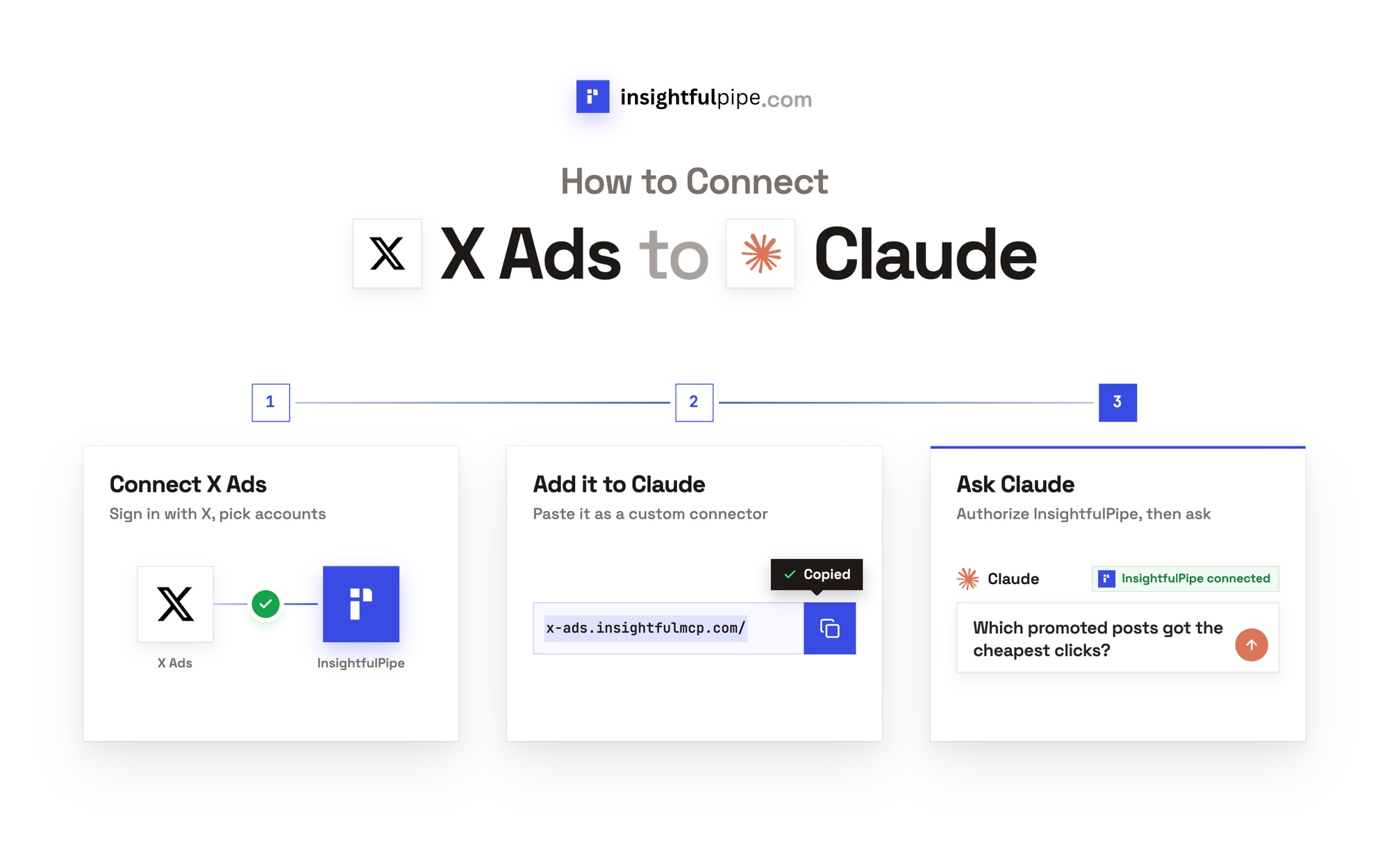
Six steps connect X Ads to Claude, and the first five are clicks with no code.
- In InsightfulPipe, open Connected accounts, click Connect account and choose X Ads.
- Pick Read-only or Read & write, sign in with X and select your ads accounts.
- In Claude, open Customize > Connectors and add
https://x-ads.insightfulmcp.com/as a custom connector. - Click Connect, and sign in to InsightfulPipe if asked.
- In a new chat, click +, open Connectors and switch X Ads on.
- Run the read-only check in "Verify it worked" before Claude changes anything.
InsightfulPipe or X's own server, at a glance
InsightfulPipe's X Ads MCP server and X's own Ads MCP are both hosted, and both create new campaigns paused. They differ in setup, documented clients and what a new connection can do.
InsightfulPipe | X's own Ads MCP | |
|---|---|---|
What you set up | Sign in with X, paste one URL | An X developer app, a callback URL, an OAuth 2.0 client ID and Ads Project access |
Clients documented | Claude, ChatGPT, Claude Code, Cursor, Gemini CLI, Codex | Grok, Grok Build, Claude Code, custom agents |
X Ads coverage | 80 actions: 53 read, 17 write, 10 delete | 74 tools |
New campaigns and line items | Created paused, for you to set live | Created paused |
A new Read & write connection can | Run every action but 10 deletes, which stay off until an admin switches them on | Run whatever its token's scopes allow: ads.read, ads.write |
Other platforms | 49 more platforms on the same plan | X Ads only |
Price | From $29.99 a month | No price in X's documentation |
The video may show older screens; the steps below follow the current flow.
What you are actually connecting
Claude connects to InsightfulPipe, and InsightfulPipe connects to X, so Claude never holds your X login. The path is Claude → InsightfulPipe's X Ads server → the X ads accounts you authorized.
Claude signs in to InsightfulPipe and gets an InsightfulPipe token, never your X password. InsightfulPipe runs each X Ads API call with the access you granted at sign-in.
Claude sees four tools. It reads through query_data, which the server marks read-only, and makes every change through execute_action. Your AI client can hold that one write tool for your approval.
Your workspace, each account's action list, your InsightfulPipe role and your X login's permission bound what Claude can do.
You need no X developer app, OAuth 2.0 client ID, callback URL, server to host or API version to track.
Before you start
You need X ads access, an InsightfulPipe workspace, the right role and an AI client that supports remote MCP servers.
- X ads access. An X login that can open the ads account in X Ads Manager.
- An InsightfulPipe workspace. Plans start from $29.99 a month, and each connected ads account counts as one connection.
- The right role. Owners, Administrators and Operators can connect accounts. Members with the User role cannot.
- A remote MCP client. Claude offers custom connectors on Free, Pro, Max, Team and Enterprise, and Free allows one, per Anthropic. ChatGPT, Claude Code, Cursor, Gemini CLI and Codex CLI work too.
X's own roles still apply. X's Ads API documentation lists five account-level permissions: Account administrator, Ad manager, Campaign analyst, Organic analyst and Creative manager. InsightfulPipe cannot expand the authority of the X login you connect. To see yours, ask Claude to run get_authenticated_user_access.
Step 1: Connect X Ads in InsightfulPipe
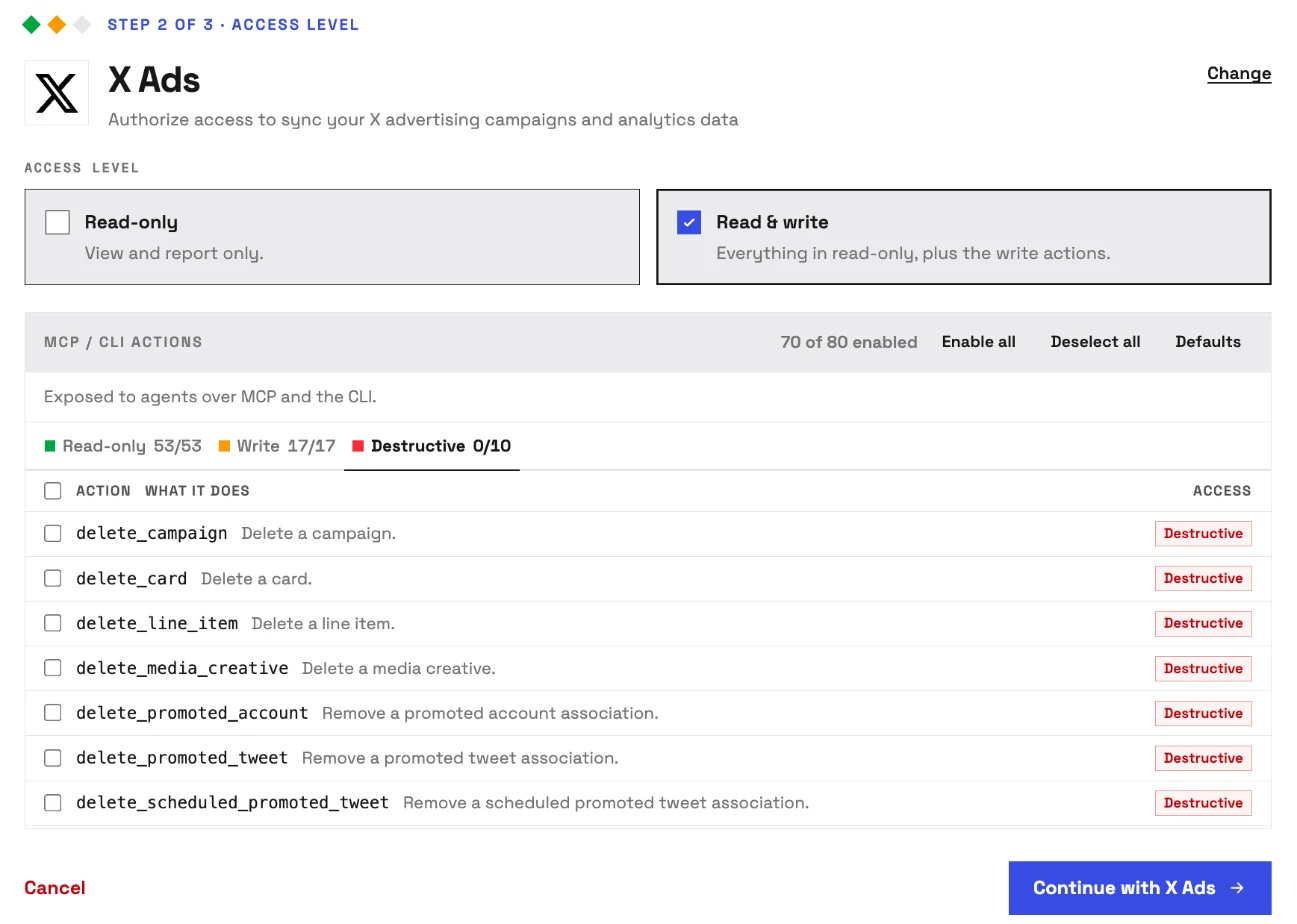
You choose the access level and the actions first, then sign in with X once.
- In InsightfulPipe, open Connected accounts and click Connect account.
- On Add an integration, find X Ads and click Connect.
- Under Access level, choose Read-only or Read & write.
- Check the MCP / CLI actions list. Its Destructive tab starts with all 10 deletes off.
- Click Continue with X Ads.
- Sign in with X and approve access on X's own page.
- Select the ads accounts to connect and confirm your choice.
Choose Read-only for any account where Claude should only report. It locks every write until an admin reconnects the account with Read & write. Each ads account becomes its own connection, with its own action list.
Step 2: Connect X Ads to Claude with the server URL
Claude needs one URL and a few clicks, in the web app or in Claude Desktop.
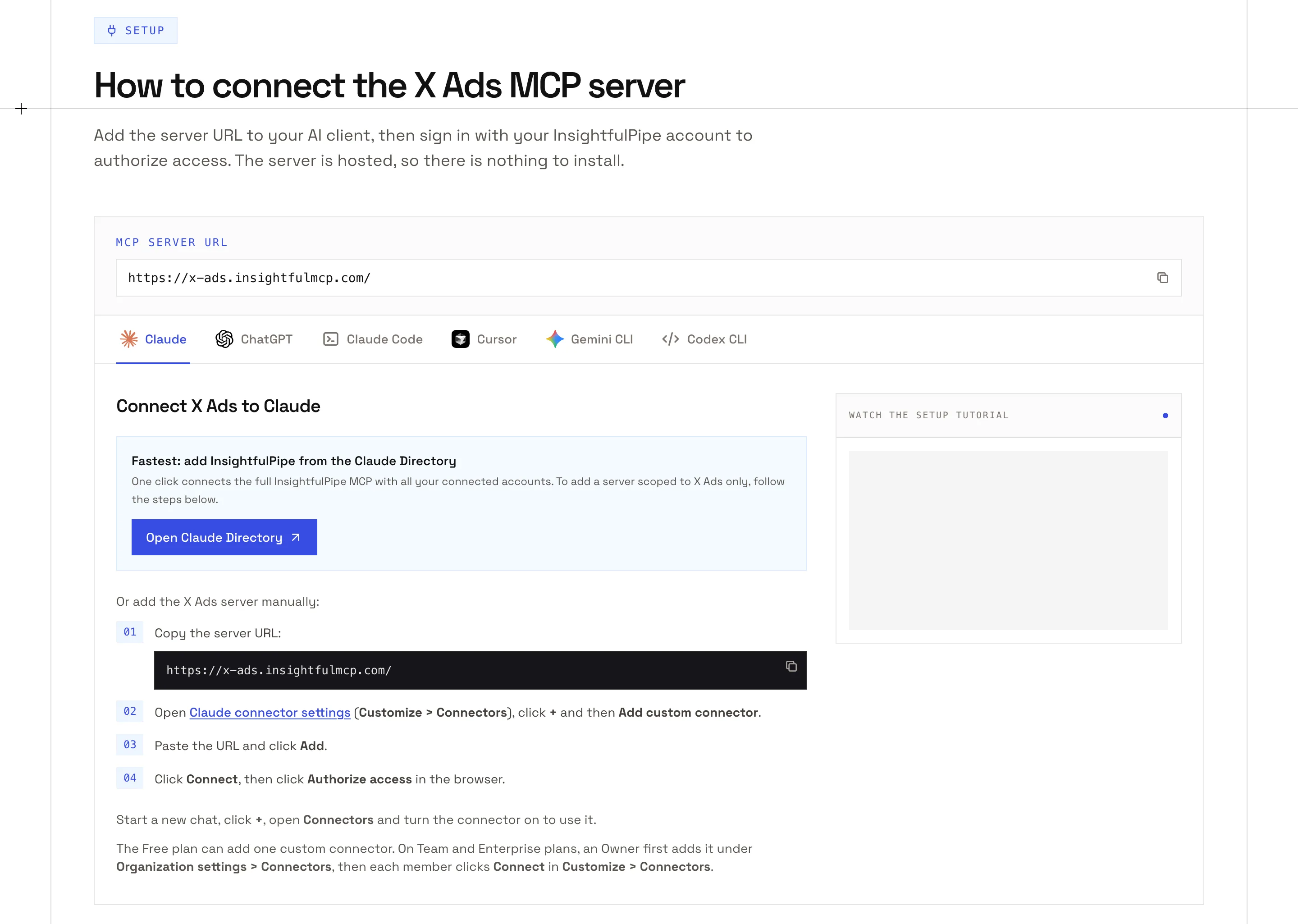
- Copy the server URL:
https://x-ads.insightfulmcp.com/ - In Claude, open Customize > Connectors.
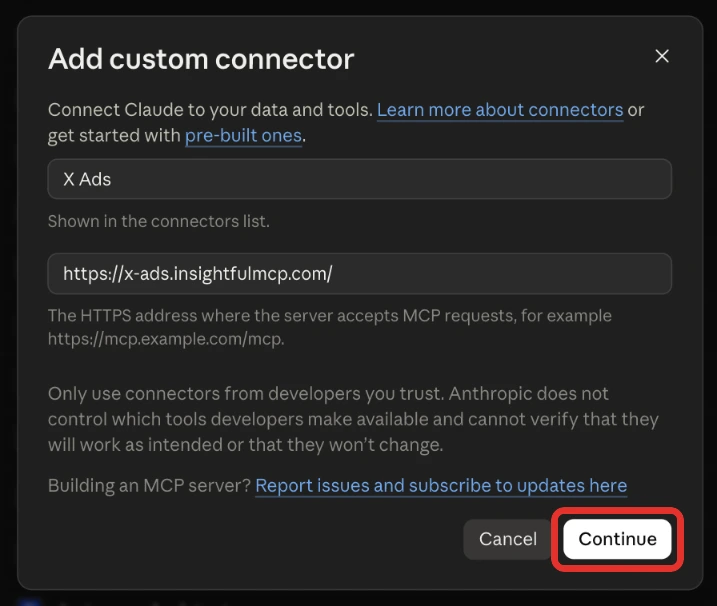
- Click +, then Add custom connector.
- Name the connector X Ads and paste the URL.
- Click Continue, then Add.
- Click Connect on the new connector.
- Sign in to InsightfulPipe if asked. Claude then lists the connector as connected.
On Team and Enterprise plans, an Owner first adds the connector under Organization settings > Connectors, and each member then clicks Connect in Customize > Connectors.
Step 3: Turn the connector on in a new chat
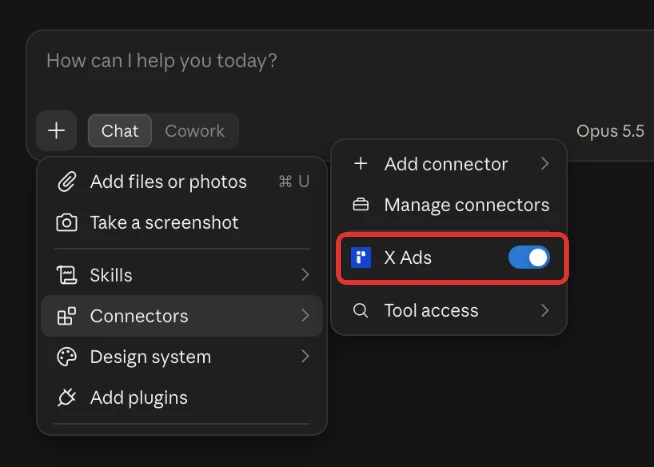
A connected server stays off until you switch it on in a chat.
- Start a new chat in Claude.
- Click + and open Connectors.
- Switch the X Ads connector on.
Step 4 (optional): Connect X Ads to ChatGPT
ChatGPT takes the same URL through Developer mode, which OpenAI offers on Pro, Plus, Business, Enterprise and Education accounts on the web.
- In ChatGPT, open Settings > Security and login and turn on Developer mode.
- Open Plugins and select the + button.
- Create a developer-mode app with the server URL.
- Sign in to InsightfulPipe if asked.
- In a new chat, choose Developer mode from the + menu and select the app.
By default, ChatGPT asks you to confirm write actions and treats any tool not marked read-only as a write, per OpenAI's Developer mode guide. Every X Ads change runs through execute_action, so each one waits for your click.
Step 5 (optional): Claude Code, Gemini CLI, Codex and Cursor
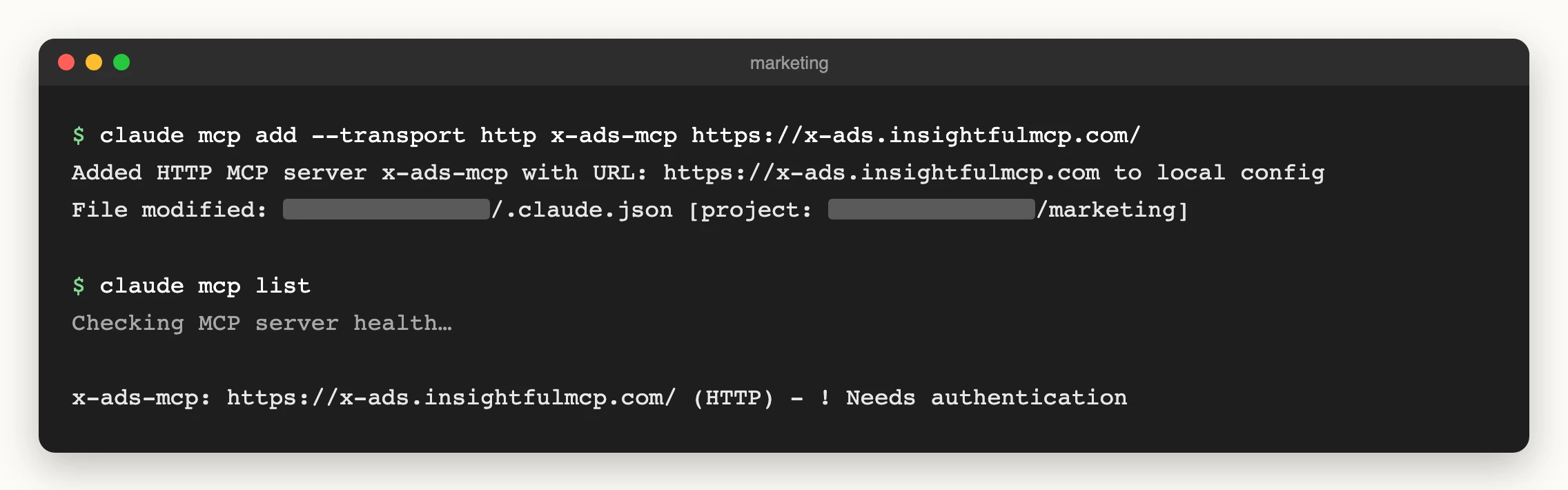
Terminal clients add the server with one command, then finish with the same InsightfulPipe sign-in.
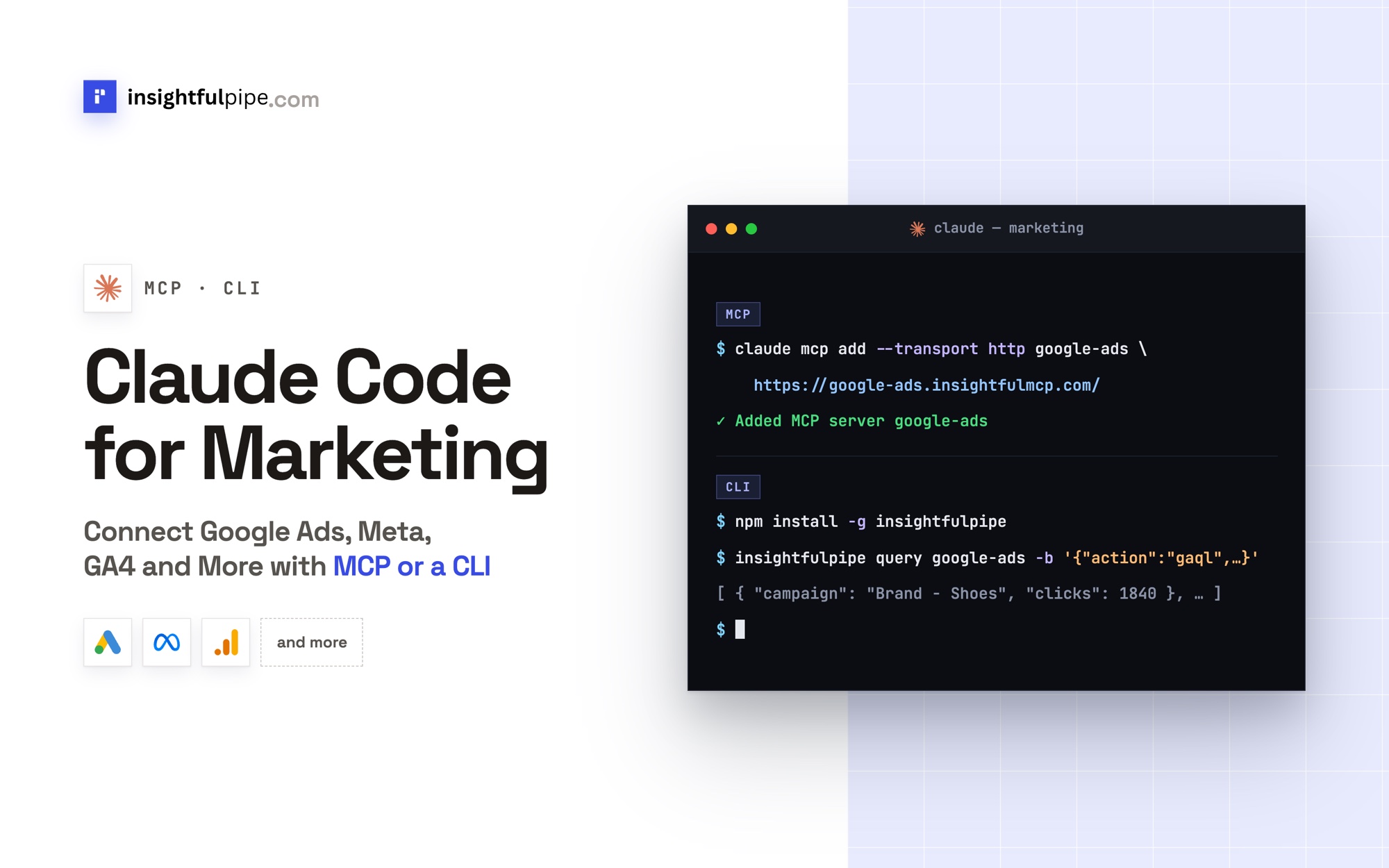
claude mcp add --transport http x-ads-mcp https://x-ads.insightfulmcp.com/
gemini mcp add --transport http x-ads-mcp https://x-ads.insightfulmcp.com/
codex mcp add x-ads-mcp --url https://x-ads.insightfulmcp.com/- Claude Code: run
/mcp, select x-ads-mcp and choose Authenticate. Add--scope userto use it in every project. - Gemini CLI: run
/mcp auth x-ads-mcp. - Codex CLI: sign-in opens after the add command. If no browser opens, run
codex mcp login x-ads-mcp. - Cursor: add the URL under
x-ads-mcpin~/.cursor/mcp.json. When it shows Needs authentication, click Connect, then Open.
Step 6: Choose which actions Claude may run
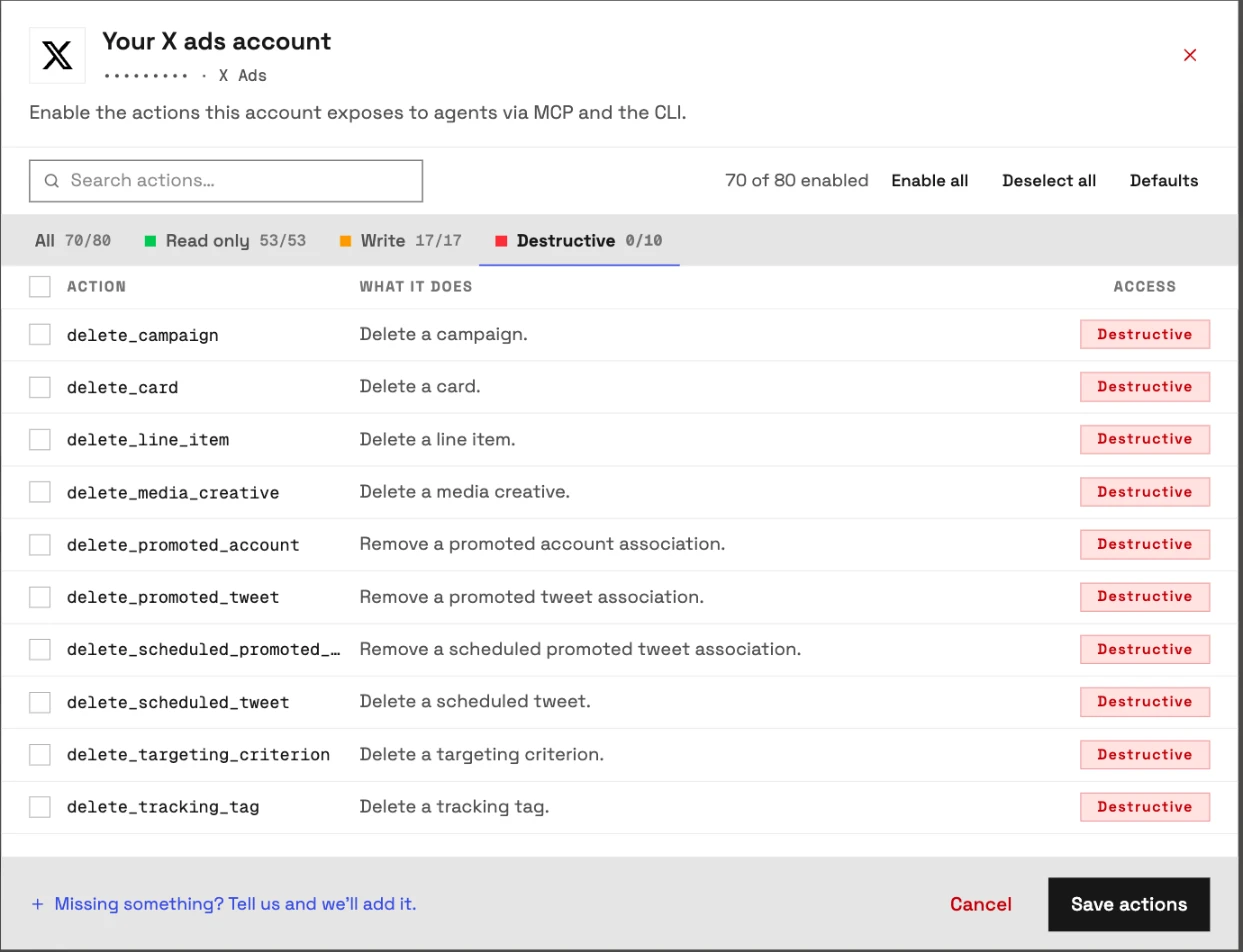
Every one of the 80 actions is a switch on the ads account, and an owner, admin or operator can flip it at any time.
- In Connected accounts, find the X ads account.
- Click its 70/80 actions button, whose tooltip reads Configure actions for this account.
- Open the Destructive tab. The 10 deletes stay off until you switch them on.
- Open the Write tab and switch off anything Claude should not run.
- Click Save actions.
The server refuses any action that is off, in every client. On a Read-only connection the write rows stay locked, each with the hint Reconnect with Read & Write to enable.
Verify it worked
Three checks, shortest first, show whether the connection works and where a failure sits.
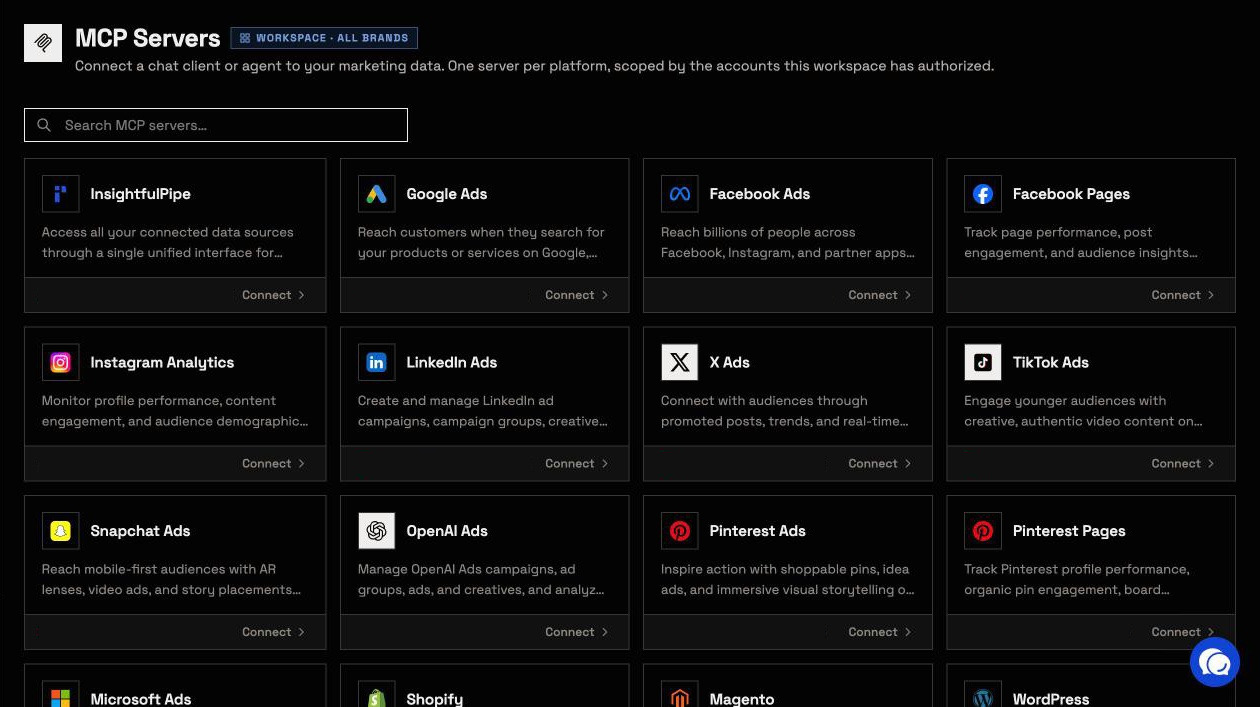
The connection is live. In Claude, + > Connectors lists X Ads with its switch on. In Claude Code, claude mcp list shows x-ads-mcp as ✔ Connected, or ! Needs authentication until you run /mcp. In InsightfulPipe, MCP Servers shows the X Ads card with your account count.
A prompt that cannot do harm. Paste this into a new chat. It reads account details and changes nothing.
List the X ads accounts available to this connection.
Return the account name, account ID, currency and status.
Do not run a report and do not change anything.
If Claude answers with your account names, the X sign-in and the workspace link both work. If not, see Troubleshooting.
A real read. Ask for last week's spend by campaign, then check one number against X Ads Manager. An empty result usually means the date range or a filter, not the sign-in.
Prompts to run first
Start with reads, then try one write that InsightfulPipe creates paused for your review.
Prompt | What Claude does |
|---|---|
"How did my campaigns perform over the last 7 days on spend, engagements and link clicks?" | Pulls synchronous stats per campaign |
"Break down last month's impressions by age and location" | Runs a segmented async analytics job |
"Find interest and conversation targeting options related to running" | Searches X targeting criteria |
"Create a paused Engagements campaign with one line item and a promoted-only post" | Builds the campaign paused for review |
Two prompts to copy as they are:
Use X ads account [ACCOUNT_ID].
Compare the last 7 complete days with the 7 days before.
Break the report down by campaign.
Include spend, impressions, engagements, link clicks and cost per engagement.
Use X ads account [ACCOUNT_ID].
Create an async analytics job for the last 30 days, broken down by campaign.
Include impressions, engagements, link clicks and spend.
Read the results when the job is ready. Do not change anything.The marketing prompt library and the Claude skills library are free to use. The social media ads skills include X.
What Claude may change, and what it cannot
InsightfulPipe's X Ads server has 80 actions: 53 read, 17 write and 10 deletes, and the deletes stay off until an admin switches them on. Every limit below is a switch, and the server enforces each one in every client.
- Control over every single action. Each ads account has its own list with All, Read only, Write and Destructive tabs. An owner, admin or operator switches each action on or off, and the server refuses any action that is off.
- New campaigns and line items start paused. Both
create_campaignandcreate_line_itemforce PAUSED whatever the request says, for you to set live when ready. - Setting something live is a switch too. The
update_campaignandupdate_line_itemactions accept ACTIVE, the step that can start spend. Switch both off, and Claude builds but never launches. - New ads on a running line item go live with it. X's campaign management reference shows a new promoted post returned as ACTIVE. Switch off
create_promoted_tweetwhere new ads should wait for you. - Ad posts stay promoted-only. The
create_ad_tweetaction forces a nullcast post that "will NOT appear on the organic timeline". Scheduled posts accept an organic setting, so switch offcreate_scheduled_tweetwhere Claude should not post to followers. - Deletes start off. All 10 delete actions, from
delete_campaignanddelete_line_itemtodelete_tracking_tag, stay off until an owner, admin or operator switches one on. - Budgets go to X as you ask. The two update switches cover budget edits, and funding instruments stay read-only.
- Roles hold. Members with the User role run only switched-on reads, on accounts an owner or admin grants them.
Your AI client can add its own check on top. ChatGPT confirms write actions by default, and in Claude you can set each tool to Always allow, Needs approval or Blocked under Customize > Connectors, per Anthropic's connector guide.
That is why InsightfulPipe is the safest way to let an AI agent change X Ads. Every default starts careful, and every one is a switch your admin controls.
Start a trial, connect X Ads and set these switches before Claude runs its first prompt.
Troubleshooting
Most failures are one of these eight, and six of them come with an exact message.
- The connector is missing from the chat. Switch it on from + > Connectors in a new chat. In ChatGPT, pick Developer mode from the + menu. In Claude Code, run
/mcp. - Claude can't finish connecting. Your workspace has no X ads account your login can use. Connect one in Connected accounts, then click Connect again.
- "This action is disabled for this connected account. An owner or admin must enable it for the account." Action control is working. An owner, admin or operator switches it on under Configure actions for this account.
- "This account is connected read-only, so this action cannot be enabled for it. An owner or admin must reconnect it with Read & Write permissions." Reconnect the account with Read & write, or keep the work to reads.
- "Your role does not have permission to execute write actions. Only operators, admins, and owners can execute write operations." Your workspace role is User. An owner or admin can change it.
- "You do not have access to this account. Contact your workspace admin to grant access." An owner or admin grants the account under Manage Account Access.
- "This action modifies data and cannot run through the read-only query_data tool. Send the same body through execute_action instead." Claude used the read tool for a write. Ask it to retry with
execute_action. - The report is empty or stops short. Synchronous stats stop at 7 days and 20 entities per request, so ask for an async job of up to 90 days. An empty report is not always a sign-in problem.
The other routes, including X's own Ads MCP server
X runs its own server, and other hosted connectors cover X Ads too. We read every capability, default and price from each vendor's own documentation, pricing page or public repository, and ran InsightfulPipe on live accounts.
X's own server. X launched its Ads MCP at https://ads-api.x.com/mcp on 24 August 2026, with 23 tools that day per MediaPost. X's documentation lists 74 today. It creates campaigns and line items PAUSED, and its activate tools set them live.
What it asks of you. An app in the X Developer Console with Read and Write permissions, a registered callback, the app's OAuth 2.0 Client ID and Ads Project access. X keeps one live OAuth grant per app and user, so a second client's sign-in revokes the first.
Where it runs. X documents Grok, Grok Build, Claude Code and custom agents, not claude.ai or ChatGPT. An open report, claude-ai-mcp issue 996, says a claude.ai connector to X's server fails after the X sign-in.
Building your own takes a developer account, an app and approved Ads API access, per X's getting started guide, plus a server you host.
Other hosted connectors, from their own pages:
Connector | Changes X campaigns? | What its own pages say |
|---|---|---|
AdKit | Yes, through drafts | X page: "Every change lands as a draft you approve before X sees it." Docs: new projects start on Draft + Publish, where "a misread request can go live". |
Markifact | Yes | 32 operations. Writes wait for approval, and campaign create lets you "choose its status". |
NotFair | Yes, after approval | 40 tools. Its page says "There is no official X Ads MCP." |
Porter Metrics | Read-only by default | Its guide says X "doesn't ship an official MCP yet". |
Supermetrics | Not for X | Its write list names Facebook, Google, Microsoft, TikTok and LinkedIn Ads, not X. |
Adzviser | Reporting | Reads X Ads reporting data. |
Two Minute Reports | Reporting | Its README lists no write tools. |
CData | Not in its open-source server | Local and read-only, on Java with a licensed JDBC driver. |
X's server asks for a developer app and documents Grok, Grok Build, Claude Code and custom agents. InsightfulPipe asks for an X sign-in, works in claude.ai and ChatGPT as well, makes every action a switch per ads account, and runs X beside 49 more platforms on one plan.
Frequently asked questions
Sources (checked 2026-09-30)
Every outside claim above comes from the vendor's own page, documentation or repository, opened on 2026-09-30.
- X: Ads MCP, ads accounts, getting started, campaign reference
- Anthropic: custom connectors, using connectors, Claude Code MCP, claude-ai-mcp issue 996
- OpenAI: Developer mode, Codex MCP
- Google: Gemini CLI MCP servers
- MediaPost: X launches advertiser MCP
- AdKit: X Ads MCP, access levels
- Markifact: X Ads MCP
- NotFair: X Ads MCP
- Porter Metrics: X Ads to Claude
- Supermetrics: X Ads to Claude
- Adzviser: X Ads to Claude
- Two Minute Reports: twitter-ads-mcp
- CData: twitter-ads-mcp-server-by-cdata
- InsightfulPipe: X Ads MCP server, pricing